
Want to disable paragraph marks in Outlook? Let’s learn how to remove paragraph symbols using simple steps, keyboard shortcuts, and Outlook settings.
Encountering strange backward P marks scattered throughout your Outlook emails can be baffling and, frankly, a bit irritating. Rest assured, nothing is malfunctioning, and your messages haven’t been corrupted.
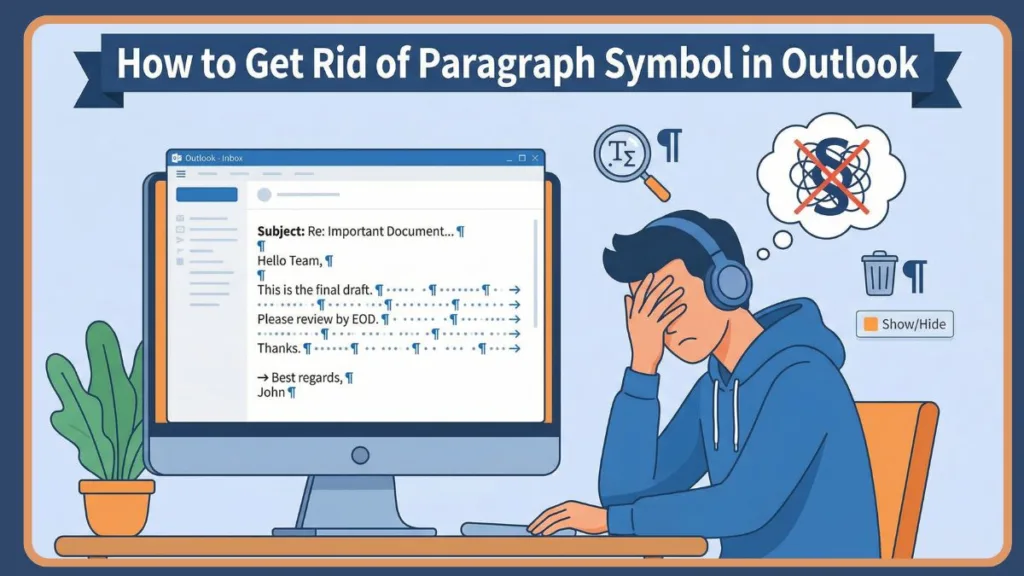
These icons are technically known as paragraph marks or the pilcrow. They serve as formatting guides that Outlook employs to display the underlying structure of your text while you draft.
Crucially, these marks never show up in the printed version or the final email received by your contact—unless they also have the feature activated.
In this comprehensive guide, you will discover exactly how to remove paragraph symbols in Outlook. Whether you prefer a rapid keyboard shortcut, a visual ribbon toggle, or a permanent adjustment in the settings, we have you covered. This guide applies to Outlook 2010, 2013, 2016, 2019, and Outlook for Microsoft 365 on desktop. These instructions are particularly valuable if you handle newsletters, customer support, or professional business correspondence where precise formatting is non-negotiable.
What Is the Paragraph Symbol in Outlook?
The paragraph symbol, commonly referred to as a pilcrow, is a non-printing character utilized by Outlook to create a visual map of your email’s layout. It signals exactly where paragraphs end, where line breaks exist, where specific spacing occurs, and where tab characters are located. Within the Outlook ecosystem, these visual aids are collectively known as formatting marks or non-printing characters.
For instance, hitting Enter repeatedly will generate a vertical stack of paragraph symbols. Inserting tabs for text alignment might display as arrows, while spaces often appear as tiny floating dots. Collectively, these markers assist you in diagnosing why text alignment might be off or why spacing seems irregular.
Outlook reveals these symbols strictly when formatting marks are enabled. They are incredibly useful for troubleshooting layout errors, adjusting spacing, or refining text pasted from external sources like CRMs or websites. However, once the heavy lifting of editing is done, most users opt to hide these symbols to maintain a clutter-free interface.
It is vital to note that paragraph symbols are visible only to your eyes. The recipient of your email will not see these marks unless they have manually enabled formatting marks on their end, meaning you can safely keep them on during the drafting process.
The Quickest Way: Use the Keyboard Shortcut
For those seeking the absolute fastest method to remove paragraph symbols in Outlook, the keyboard shortcut is the superior choice. This approach is a favorite among power users, administrative professionals, and anyone who spends their day composing emails.
Outlook Paragraph Symbol Shortcut Windows
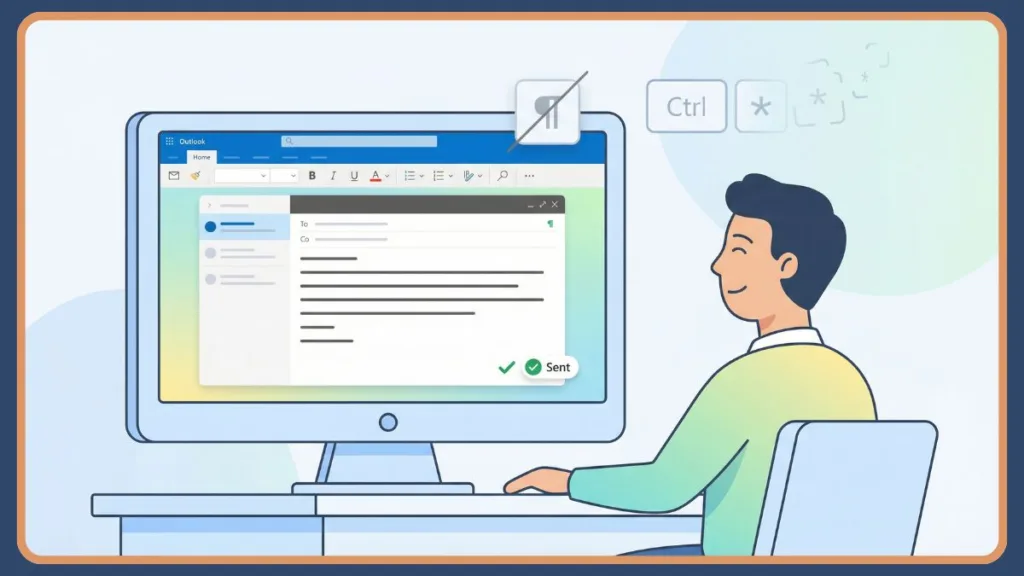
On Windows systems, you can instantly toggle paragraph symbols on or off by hitting Ctrl + Shift + 8. This command provides immediate results, showing or hiding all formatting marks—including tabs, spaces, and the paragraph symbol—without requiring you to navigate through any menus.
It is crucial to use the asterisk (*) key located on the number row of your standard keyboard, rather than the one on the numeric keypad. On the majority of English layouts, this asterisk shares the 8 key. Executing the shortcut a second time will reactivate the symbols, functioning as a simple toggle switch.
Accidentally hitting this combination is the most frequent reason users suddenly see paragraph symbols appear. It often happens while attempting other shortcuts, leading to common queries like “Outlook paragraph symbol won’t go away” or “Outlook showing formatting symbols.”
Note for “New Outlook” Users: If you are using the New Outlook for Windows (the version that replaces the Mail app), this shortcut often only works if you pop out the email into its own separate window.
- Click the “Open in new window” icon (usually a square with an arrow) at the top right of your draft.
- Once the window opens, press Ctrl + Shift + 8 to toggle the marks.
How to Turn Off Paragraph Marks Using the Ribbon
If you are more comfortable with visual controls rather than keyboard commands, Outlook permits you to toggle paragraph marks directly via the ribbon interface. This is often better for users who want visual verification of the setting.
To execute this, launch Microsoft Outlook and select New Email to bring up a compose window. Once active, navigate to the Format Text tab located in the top ribbon. Within the Paragraph group, locate the button resembling the backward P symbol. Clicking this Show/Hide ¶ button will instantly conceal all formatting marks.
This action hides paragraph symbols, tab indicators, and spacing dots simultaneously. The setting persists not just for the current message, but also for future emails, forwards, and replies you draft. It functions correctly when your emails are formatted in Rich Text or HTML, which are the industry standards for professional messaging.
This ribbon-centric method is frequently cited in IT support guides and corporate training because it is visually intuitive and simple to teach.
Permanently Disable Formatting Marks in Outlook Options
When paragraph symbols persist in reappearing and you require a lasting fix, you can manage their visibility via the deep settings in Outlook. This is ideal for shared workstations or users who demand a perpetually clean drafting environment.
Begin by launching Outlook, clicking on File, and selecting Options. Navigate to the Mail tab and locate the section labeled Compose messages. Select Editor Options, then click into the Display tab. In this menu, you can uncheck Paragraph marks or any other specific non-printing characters you wish to banish, such as tab characters or spaces. Once you click OK to confirm, Outlook will enforce these preferences automatically.
This method grants you granular authority over which non-printing characters remain visible. These settings remain in effect across forwards, replies, new emails, tasks, calendar entries, and contact notes. If you frequently work with automated responses, templates, or long-form emails, this configuration ensures formatting marks remain hidden unless you deliberately choose to see them.
Outlook Desktop vs Web vs Mobile: What Works and What Doesn’t
The support for paragraph symbols varies significantly depending on the version of Outlook you are running, often causing confusion for those who work across multiple platforms.
- In Outlook Desktop for Windows and Mac, formatting marks enjoy full support. The keyboard shortcuts respond instantly, the ribbon toggle is present, and Editor Options offer permanent customization. This cements the desktop application as the premier tool for complex formatting and editing.
- In Outlook on the Web, the capability is inconsistent and limited, but there is a hidden trick. While the ribbon button is often missing, you can sometimes find it by clicking the More Options (…) menu in the compose bar and selecting Turn Off Formatting Marks. If that option is missing, it is recommended to draft your text in Word (where you can easily toggle these marks) and then paste it into Outlook.
- In Outlook mobile apps for iOS and Android, formatting marks are completely unsupported. The paragraph symbols simply never appear, and there is no toggle to enable them. While this limits advanced editing, it simplifies the mobile user experience.
- For users of the Windows 10 Mail app, it is worth noting that this is a distinct application from Outlook. It lacks advanced Outlook capabilities and does not support formatting marks at all.
Troubleshooting: Paragraph Symbol Won’t Go Away
Should the paragraph symbols remain stubborn and visible even after you have attempted to toggle them off, check these common culprits.
Email Is in Plain Text Mode
Emails set to Plain Text do not support rich formatting capabilities. If you are replying to a thread that originated in Plain Text, Outlook will maintain that format for the conversation. This often prevents formatting toggles from functioning as intended. Changing the message format to Rich Text or HTML via the Format Text tab usually rectifies this.
You’re Using the New Outlook
Users migrating to the New Outlook interface often report formatting glitches where toggles fail to respond. A proven workaround involves reverting to the Old Outlook, disabling the paragraph marks there, and then switching back to the new interface. This is a frequent solution provided by IT helpdesks. Additionally, try popping out the message into a new window, as the toggle is sometimes disabled in the “reading pane” view.
Add-ins Are Interfering
External add-ins, such as productivity extensions or email tracking software, can occasionally clash with Outlook’s display settings. You can diagnose this by disabling add-ins via File → Options → Add-ins, restarting the application, and checking if the symbols disappear.
Outlook Needs an Update or Restart
Sometimes, temporary software glitches cause formatting marks to stick. A simple restart of Outlook often clears the error. Additionally, ensuring your software is current via File > Office Account > Update Now guarantees that compatibility issues and known bugs are patched.
How to Remove Paragraph Symbols in Outlook for Mac
Users on macOS can banish paragraph symbols with the same ease as Windows users, though the specific key combination is different.
Outlook for Mac shortcut
On the macOS platform, hitting Command + 8 will toggle the paragraph symbols on or off. This shortcut mirrors the functionality of the Windows version, providing an instant way to show or hide all formatting marks.
Depending on the specific version of Outlook you are running on Mac, you may also access this toggle via the toolbar or ribbon menus.
Advanced Mac Troubleshooting: If Command + 8 does not work, there is a hidden font setting that might be forcing the marks to appear:
- Go to Outlook > Settings (or Preferences) > Fonts.
- Click the Font button next to “New mail”.
- Look for the “Advanced” or “Effects” tab and ensure the “Hidden” checkbox is unchecked. If it is checked, Outlook may force formatting marks to reveal “hidden” text.
The golden rule remains the same regardless of OS: these paragraph symbols are editing tools only and are never visible to the person receiving your email.
When Should You Use Paragraph Marks?
While the instinct is often to hide paragraph marks, they are highly functional tools in the right context.
For instance, they allow you to spot unexpected line breaks or superfluous spaces that ruin the alignment of an email. They are indispensable when sanitizing text pasted from project management tools, help desks, or websites. Furthermore, they simplify the diagnosis of formatting errors in complex, long-form emails, ensuring your professional communication looks polished.
A recommended workflow is to toggle paragraph marks on during the troubleshooting or editing phase, and then toggle them off for a final review before hitting send.
FAQ: How to Disable Paragraph Marks in Outlook
How do I get rid of the paragraph symbol in Outlook?
To remove the paragraph symbol, simply click Format Text → Show/Hide ¶, or utilize the keyboard shortcut Ctrl + Shift + 8 on Windows (or Command + 8 on Mac).
What is the shortcut to remove paragraph marks in Outlook?
For Windows users, the shortcut is Ctrl + Shift + 8. For Mac users, the shortcut is Command + 8.
Why did paragraph symbols suddenly appear in my email?
Typically, this happens because the keyboard shortcut was triggered accidentally, which instantly activates the formatting marks.
How do I turn off paragraph marks permanently in Outlook?
Navigate to File > Options > Mail > Editor Options > Display, uncheck the box for paragraph marks, and save your settings.
What is the symbol that looks like a backward P?
The backward P icon is technically called a pilcrow (¶) and it signifies the end of a paragraph.
Summary: Get Rid of Paragraph Symbols in Outlook for Good
While paragraph symbols in Outlook might seem alarming initially, they are merely editing assistants rather than system errors. Whether you lean on a quick keyboard toggle, a ribbon button, or a deep dive into settings, Outlook grants you total command over the visibility of these formatting marks.
Once you master the management of paragraph symbols, you will bypass unnecessary annoyance, maintain a pristine workspace, and format your emails with enhanced precision and confidence—a crucial skill for any professional or business environment.
Useful Resources for Removing Paragraph Symbols in Outlook
Microsoft Support: Turn Formatting Marks On or Off in Outlook: This is the official Microsoft guide explaining how to show or hide paragraph symbols and other formatting marks in Outlook using the ribbon, keyboard shortcuts, and Editor Options. It supports Outlook desktop versions and Microsoft 365, making it the most authoritative reference for removing paragraph marks.
Microsoft Q&A Community: Removing Paragraph Symbols in Outlook: This community discussion highlights real user issues where paragraph symbols appear unexpectedly and explains practical fixes shared by Microsoft experts and experienced users. It’s helpful for troubleshooting cases where paragraph marks won’t go away.
Visit Our Post Page: Blog Page