
Trying to remove your Facebook profile picture? Learn how to delete or hide your FB DP and switch to the default avatar with simple steps for mobile and desktop.
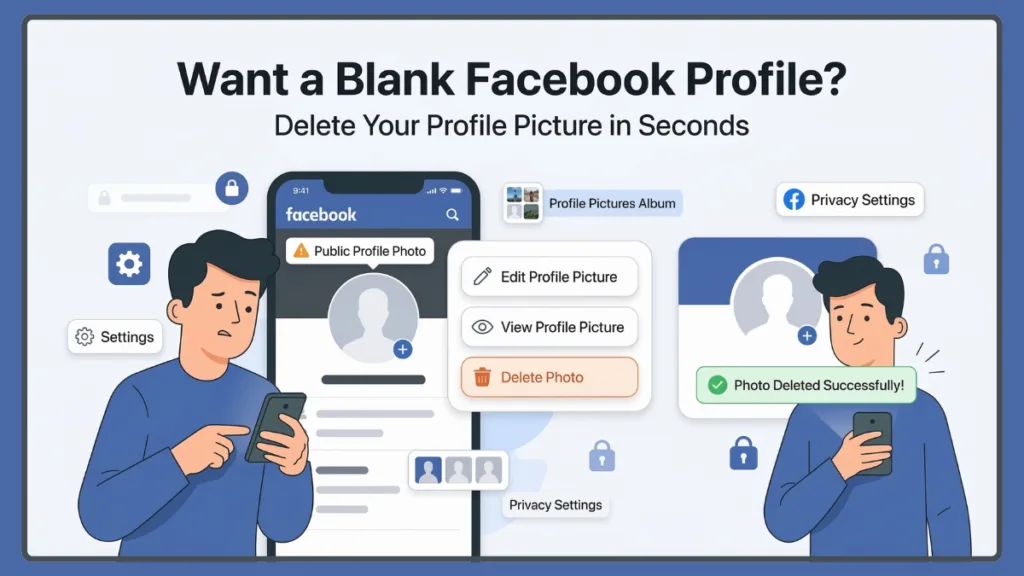
You’re browsing your profile, checking your privacy settings, and you realize your current photo is outdated or too public. Now you’re searching for a quick fix, wondering, “how do I remove my profile picture from Facebook without making it a whole thing?”
Can You Have No Profile Picture on Facebook?
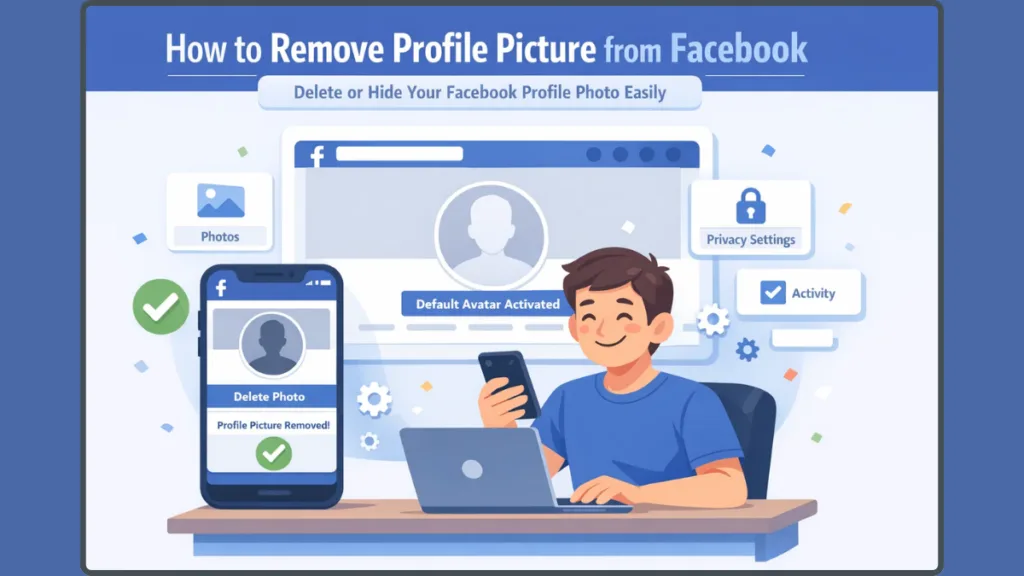
Let’s answer that question immediately: yes, you can absolutely remove your Facebook profile picture completely. When you delete your profile photo, Facebook automatically replaces it with the default grey silhouette icon, often referred to as the default Facebook avatar.
This means your profile picture disappears and a default blank avatar appears instead, while your account remains fully active. Importantly, removing your profile photo does not affect your account, posts, or friends list. Many users prefer this option because it allows them to have no visible profile picture while keeping their Facebook account active for messaging and browsing.
How to Remove Profile Picture from Facebook and Delete Facebook Profile Photo
This detailed guide walks you through exactly how to delete your Facebook profile picture on mobile and desktop, explains what happens after removal, and answers common questions about Facebook profile photo settings. It covers both the app and the browser, clearly separates deleting from hiding, and provides tips for managing your digital identity in 2026.
Why People Remove Their Facebook Profile Picture for Privacy
People remove their Facebook profile photos for many different reasons. While it might seem like a small change, it can significantly affect how your profile appears to others online.
Regaining Privacy and Control
Many users remove their profile picture because they want to reduce their visibility online. A visible photo can make your profile easier to identify, which sometimes attracts unwanted attention or random friend requests. Removing the photo can help you maintain a lower online profile while still keeping your account active.
Starting Fresh on Social Media
Life changes often lead people to refresh their social media presence. Events such as breakups, career changes, or personal transitions can motivate users to update or remove their profile photo. Deleting the existing image can feel like a clean digital reset.
Removing an Outdated or Embarrassing Image
Sometimes a profile picture simply stops representing who you are. An old photo from years ago may feel outdated, or an image chosen quickly might no longer reflect your current style. Removing the photo allows you to redefine how you present yourself online.
Avoiding Unwanted Attention
Some users notice that profile pictures attract unsolicited friend requests or messages from strangers. Having a blank profile image can reduce these interactions and provide a bit of peace of mind.
Creating a Minimal or Blank Profile Look
Another common reason is purely aesthetic. Some people prefer a minimalist profile that displays only the default grey silhouette avatar instead of a personal photo, giving the page a neutral appearance.
What Happens When You Delete Your Facebook Profile Picture and Display Picture (DP)
Before deleting your profile picture, it helps to understand exactly what changes after removal.
Facebook Displays the Default Avatar: Once removed, Facebook immediately replaces your photo with the standard grey silhouette.
Your Account Remains Active: Deleting the photo does not affect your profile activity. Friends can still message you, tag you, and view your profile as usual.
Friends Are Not Notified: You don’t need to worry about alerts; Facebook does not send notifications to your friends when you remove your profile picture. It won’t appear as a “changed profile picture” update in the News Feed.
Old Profile Photos May Still Exist: Facebook stores profile pictures in the Profile Pictures album. Deleting the current profile picture removes it from your main profile display, but older photos may still be stored in the album unless you remove them manually.
How to Remove Profile Picture from Facebook on Mobile (Android & iPhone) 2026
Most users access Facebook through the mobile app, and removing your profile photo from the app only takes a few moments.
Step-by-Step on Mobile to Take Off Facebook Profile Picture
- Open the Facebook App on your device and ensure you are logged in.
- Go to Your Profile by tapping your profile picture icon or opening the mobile app menu to select your name.
- Tap Your Profile Picture and select See Profile Picture to open the full image view.
- Open Photo Options by tapping the three-dot menu (•••) located near the top corner of the image.
- Select Delete Photo from the available options.
- Confirm Deletion when Facebook asks; simply tap Delete again to finalize the removal.
Tip: If you can’t find the delete option under your profile photo, try navigating to Photos > Albums > Profile Pictures and deleting it directly from there.
How to Delete Facebook Profile Picture on Desktop (PC or Laptop) Browser
If you prefer using Facebook from a browser, the process is quite similar and very straightforward.
Step-by-Step on Desktop to Remove Current Profile Picture
- Open Facebook by going to Facebook.com and logging into your account.
- Navigate to Your Profile by clicking your name or profile image at the top of the side menu or page header.
- Click Your Profile Picture and choose See Profile Picture to trigger the image viewer.
- Access Photo Options by clicking the three-dot menu (•••) beside the image or at the top right.
- Choose Delete Photo from the list.
- Confirm Removal by clicking Delete when the confirmation prompt appears.
Tip: Using a desktop browser is often the easiest way to manage your Profile Pictures album if you want to delete multiple old photos at once.
How to Remove Current Profile Picture Without Deleting Old Photos from Your Album
Many users want to remove their current profile picture but keep older images stored in their account. Facebook automatically saves profile images inside the Profile Pictures album. When you delete the current profile photo, older images usually remain in that album.
Managing Your Photo Albums Manually to Clear Your Digital Identity
- Go to your profile and open the Photos section.
- Click Albums and select Profile Pictures.
- Browse and delete any images you no longer want stored while keeping the ones you like.
This allows you to control exactly which photos remain visible in your photo history without losing the memories you want to keep.
How to Hide Your Facebook Profile Picture Instead of Deleting It from Public View
If you prefer not to delete your photo completely, you can change its privacy settings instead. This is a great “middle ground” option if you want your friends to see it but not the public.
Steps to Make Your Profile Picture Private Using Facebook Privacy Settings
- Open your profile picture and select See Profile Picture.
- Click the three-dot menu (•••) and select Edit Privacy.
- Select your preferred audience.
The available options usually include Public, Friends, Only Me, or a Custom audience. Choosing Only Me hides the profile picture from everyone except you. This is a useful option if you want to keep the photo stored but prevent others from seeing it on your profile.
Note: Your name and current profile picture (even if it’s the default avatar) are always considered “public information” to help people find you, but setting it to “Only Me” prevents people from clicking it to see the full version.
Why You Can’t Delete Your Facebook Profile Picture: Troubleshooting Guide
Sometimes users cannot find the delete option for their profile picture. This usually happens due to interface changes or special profile settings.
Troubleshooting Missing Delete Options and Technical Issues
- The Delete Option Is Missing: Facebook frequently updates its interface, and the option may have moved. Always try looking for “See Profile Picture” first before the three-dot menu appears.
- Profile Picture Guard is On: If you have the Profile Picture Guard enabled (symbolized by a blue shield), you may need to Turn Off Profile Picture Guard before the delete option becomes available.
- Facebook Lite Limitations: The Facebook Lite app sometimes results in hidden advanced photo management options. If Lite is giving you trouble, try logging in through a mobile browser (m.facebook.com).
- Syncing with Instagram: If your account is managed via Meta Accounts Center, a synced profile might automatically pull the photo back. You may need to un-sync profile info in your Meta settings.
How to Remove Profile Picture on Facebook Lite for a Minimalist Look
If you use Facebook Lite, the process is slightly simplified to save data:
- Open Facebook Lite and go to your profile.
- Tap your profile picture to open the viewer.
- Open the options menu (three dots) and select Delete Photo.
- Confirm by tapping Delete again. Once removed, your profile will show the default avatar just like the standard app.
Alternative Ways to Change Your Facebook Profile Picture or Use Default Icons
Instead of deleting your profile photo, you may prefer an alternative approach.
- Replace the Photo: You can upload a new image that automatically swaps out the old one.
- Upload a Blank Image: Some users choose to upload a plain white or black square or even a custom “default silhouette” to maintain a minimalist profile manually.
- Use a Temporary Profile Picture: Facebook allows temporary profile pictures that revert to the previous photo after a set time.
Managing Facebook Profile Photo Privacy and Social Media Digital Identity
Your profile picture is just one part of your online presence. Managing it effectively involves reviewing several other settings to ensure you are fully in control:
- Review Tagged Photos: Friends may tag you in images that appear on your timeline; review them regularly in your Activity Log.
- Profile Picture Guard: Use this feature if you want to keep your photo but prevent others from downloading or sharing it.
- View As: Use the “View As” tool on your profile to see exactly what a stranger sees. This helps confirm your photo is truly hidden or removed.
A Note on Meta Account Syncing and Profile Removal in 2026
As we move through 2026, many accounts are now managed through the Meta Accounts Center. If you have synced your Facebook and Instagram profiles, remember that removing a photo on one might affect the other if “Sync Profile Info” is turned on. If you want to remove your Facebook photo while keeping your Instagram photo active, ensure you disable profile syncing in your account settings first.
FAQs About Removing Facebook Profile Pictures and Reverting to Default Avatar
1. Can I remove my Facebook profile picture without deleting the photo?
Yes. Instead of choosing the delete option, you can change the privacy setting to Only Me so the photo stays in your albums but is hidden from others.
2. How do I revert to the default blank avatar on Facebook?
Simply delete your current profile picture. Once it’s gone, Facebook automatically displays the standard grey silhouette icon.
3. Does removing my profile picture notify friends?
No. Facebook does not notify your friends list or post an update to the News Feed when you remove your profile picture.
4. Why can’t I see the delete option for my profile picture?
This is usually caused by recent interface updates, app glitches, or having the Profile Picture Guard active. Try opening your Profile Pictures album directly to find the delete option there.
5. How do I make my Facebook profile picture private?
Open the profile photo, select Edit Privacy, and choose Only Me from the audience list.
6. Will my comments still show a picture?
Once you remove your profile picture, any comments you have already made—or make in the future—will show the default grey silhouette next to your name.
Conclusion: Efficiently Managing Your Facebook Profile Picture and Online Identity
Removing your Facebook profile picture may seem like a small change, but it can significantly affect how your profile appears online. Whether you want more privacy, a fresh start, or simply prefer a minimalist profile, Facebook gives you several ways to manage your identity.
By following this guide, you can stay in control of your visibility, handle your digital footprint gracefully, and ensure your profile always reflects who you are. Regularly reviewing your Profile Pictures album and privacy settings ensures your Facebook interactions remain organized and stress-free.
Tip: Check your Profile Pictures album frequently to maintain a clean history, minimize unwanted visibility, and manage your online identity like a pro.
Visit Our Post Page: Blog Page