
Want to get rid of Facebook’s short videos and get your timeline back to the old days? Learn exactly how to remove Reels from Facebook with these 2026 workarounds.
Most of our real-life family and friends have Facebook accounts, making it theoretically the best way to keep in touch digitally with the people who are most important to us.
While the Meta-owned social media platform used to live up to that promise perfectly, things have shifted heavily in recent years.
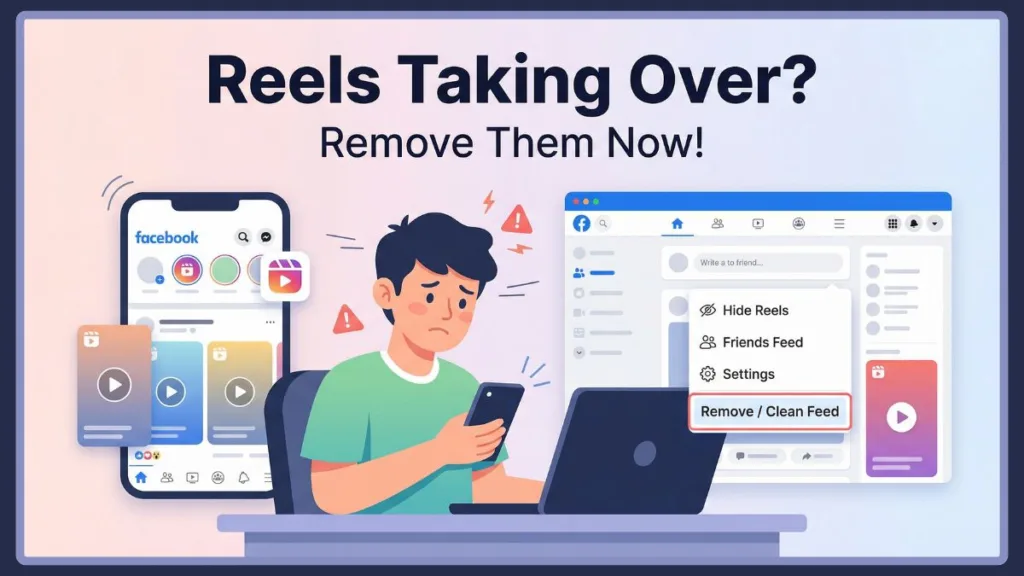
Instead of showing you content from your actual friends, the site often feels much more interested in pushing promoted posts and endless algorithm-driven videos.
If your feed has been completely taken over and you want your old timeline back, you are in the right place.
If you’re searching for how to remove Reels from Facebook, the methods below will help you reduce or avoid them almost completely. Here is exactly how to take back control and clean up your social media experience.
Quick Answer: You can’t completely remove Reels from Facebook, but you can hide them, switch to the Friends feed, or use the browser version to avoid them almost entirely.
How to Remove Reels from Facebook Permanently
If you are looking for a simple toggle to remove Reels from Facebook permanently, the honest truth is that it is not possible—especially within the official mobile app.
Reels are deeply built into the platform to drive watch time, and the company has not provided an official “disable” button.
However, the best alternative to achieve an almost permanently Reels-free experience is to combine the Friends feed workaround with your mobile or desktop web browser.
Read on for the exact steps to set this up.
Quick Fix in the App: Taking Immediate Control of Your Facebook Feed
If you want to stick with the official mobile app but want to quickly clean up the clutter, these are the fastest ways to tell the platform to back off.
Give Reels the Boot: Step-by-Step on How to Hide Reels on Facebook
You can manually instruct the Facebook app to show you fewer short videos. Over time, this trains your feed to stop pushing them to the top of your screen.
- Open the Facebook app and scroll down until you find the Reels and short videos section.
- Tap the three-dot icon next to the section title.
- Tap Hide.
You should notice fewer Reels appearing in your feed. Keep in mind that this is not a permanent fix, but it is a great first step.
How to Stop Autoplaying Videos in the Facebook App: Silence the Noise
If you cannot entirely escape Reels and videos, you can at least stop them from autoplaying loudly while you scroll. Disabling autoplay also saves mobile data usage.
- Open the Facebook app and tap the Menu button.
- Scroll down and tap Settings & privacy, then tap Settings.
- Tap Media.
- Select Never Autoplay video to disable the feature.
The Best Workarounds for a Cleaner, Algorithm-Free Facebook Experience
To completely bypass the clutter and get back to seeing the people you actually care about, you need to change how you view your feed.
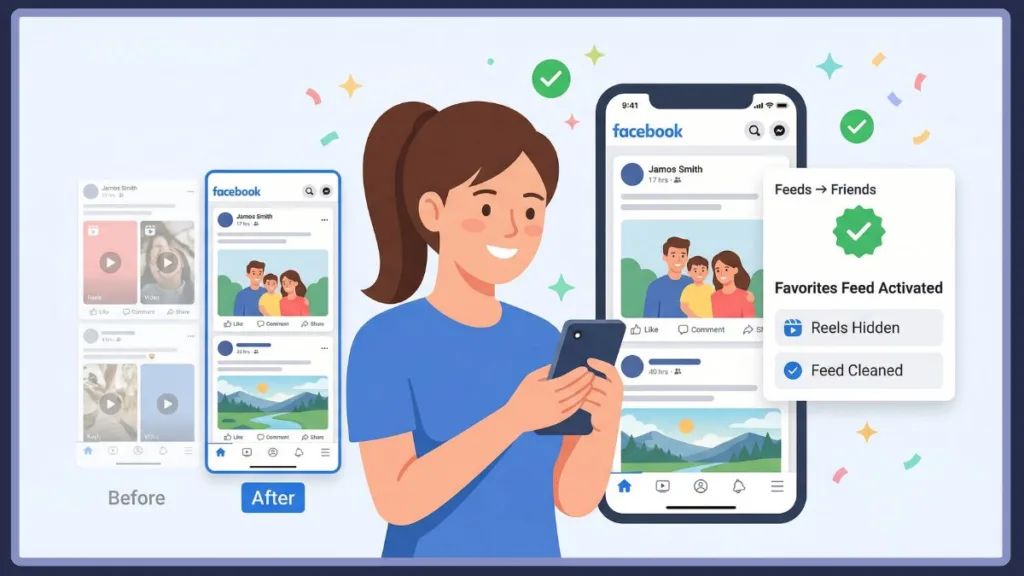
How to Remove Reels Using Facebook Friends Feed
This is currently the most effective way to see a chronological feed of only posts from people on your Friends list, with almost zero clutter and minimal ads.
On a Computer:
- Open your web browser, navigate to facebook.com, and make sure you are on the main Facebook landing page.
- Click the Feeds link on the left side of the page (you may need to click “See more” first).
- On the Feeds page, click Friends.
Pro Tip: Bookmark this specific page! When you visit Facebook using this bookmark, you will automatically go straight to your friends’ posts, skipping the default home page entirely.
On the Mobile App:
- Open the Facebook app and tap the Menu button.
- Tap Feeds (click “See more” if it is hidden).
- Select the Friends tab at the top of the screen.
Prioritize What You Want to See: How to Customize Your Facebook Favorites
If you have a very long friends list or belong to a lot of groups, you can narrow down your content further by creating a dedicated Favorites feed.
- Navigate to the Feeds menu using the steps above.
- Select the Favorites feed.
- Tap or click Manage Favorites.
- Use the search box to find the specific friends, groups, or pages you care about most, and click the star icon next to their name to add them to your list.
Use Facebook in Browser to Avoid Reels Completely
Because Reels are heavily pushed on the mobile app, viewing Facebook through your phone’s web browser is an excellent workaround. Both Android and iOS web browsers allow you to use Facebook with a significantly reduced Reels presence.
Simply open your mobile browser, go to facebook.com, and navigate to the Friends feed via the menu. You can even save this specific page as a shortcut directly to your phone’s home screen for quick access.
Privacy Settings and Alternative Apps to Block Reels
Take control over your own short video content and explore alternative ways to access the platform without the bloat.
Keep Your Own Content Private: Control Who Sees Your Reels on Facebook
If you want to ensure your own Reels don’t appear publicly along with everyone else’s, you can restrict your audience settings.
- In the Facebook app, navigate to Settings & privacy, then tap Settings.
- Scroll down and tap Reels.
- Adjust the default audience to Friends.
- Switch off the setting that allows others to share your Reels to their stories.
Try a Lightweight App Alternative: Using SlimSocial for Facebook on Android
If the official app is too bloated and frustrating, there are alternative browser wrappers available. For Android users, SlimSocial for Facebook—a lightweight, open-source application available on the Google Play Store and F-Droid—is a highly recommended free, ad-free alternative.
At under 1MB, SlimSocial for Facebook pulls the mobile website into a streamlined app format.
It allows you to lock the top navigation bar, hide sponsored posts, center text, and enforce a chronological feed.
While it lacks native notification support and calendar syncing, it makes the overall Facebook experience incredibly fast and completely uncluttered.
Note for iOS users: While SlimSocial for Facebook is not available on iPhones, using the Safari browser combined with a reliable mobile ad-blocker will give you a very similar, cleaned-up experience.
Understanding the Algorithm: Why Does Facebook Show So Many Reels Anyway?
Facebook is actively competing with platforms like TikTok for your attention. Short-form video is highly engaging, and Reels are designed to keep users on the platform longer.
By pushing this content over chronological updates from friends, the platform can serve more ads and increase overall watch time.
Frequently Asked Questions About Facebook Reels
Can I permanently remove Reels from Facebook?
No, you cannot permanently delete the Reels feature from your account or the app. However, you can reduce them significantly by hiding them or using the dedicated “Friends” feed.
Why do I keep seeing Reels on Facebook?
The platform prioritizes short-form video content to maximize user engagement and compete with other video-centric social media apps.
Does the Facebook web version show Reels?
Currently, the desktop and mobile web browser versions of Facebook push far fewer Reels compared to the dedicated mobile app, making the browser a much cleaner experience.
How do I stop Reels on Android or iPhone?
The most effective strategy is a combination of hiding the Reels section when it appears, turning off video autoplay in your settings, and navigating directly to the “Feeds” > “Friends” tab.
Conclusion: The Best Way to Get Rid of Reels and Reclaim Your Timeline
You may not be able to completely remove Reels from the Facebook ecosystem, but you absolutely have the power to take back control of your feed.
By switching off autoplay and utilizing your web browser or alternative apps, you can return to a chronological, ad-reduced timeline that prioritizes the people you actually want to see.
Start by switching to the Friends feed—it’s the fastest way to clean your Facebook experience in seconds.
Visit Our Post Page: Blog Page