
Learn how to quietly remove shows from your YouTube TV library in 2026. Stop unwanted recordings, hide watched episodes, and keep your viewing habits private.
If you share a TV in the living room, rely on a family account, or occasionally mirror your screen for a work presentation, you likely want a little tighter control over what appears in your YouTube TV Library. We all have that one show we don’t want popping up unexpectedly during a movie night or while guests are over. That is completely normal—and let’s be honest, you are certainly not alone.
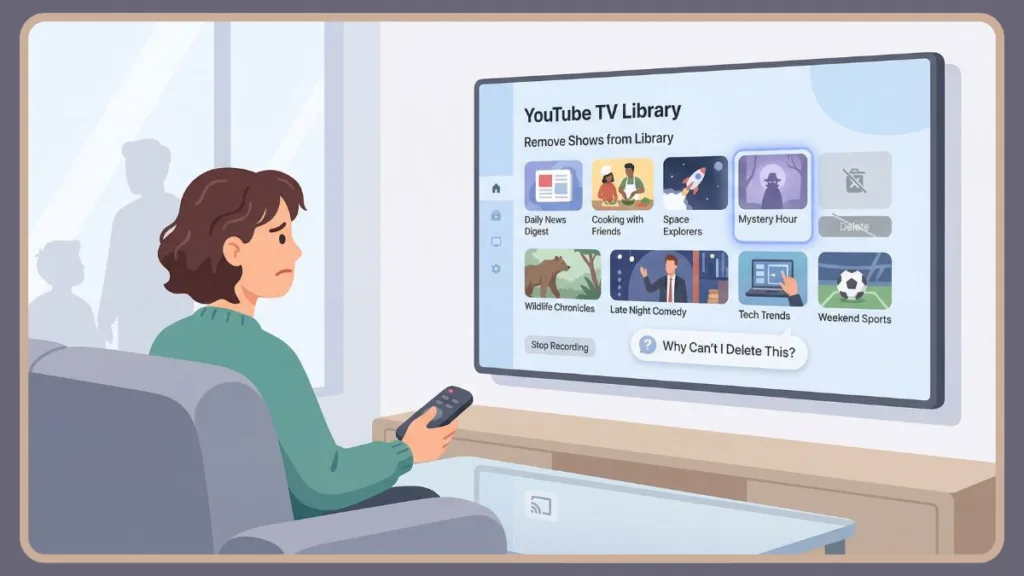
This guide is about how to remove shows from your YouTube TV Library in a subtle, privacy-first way. The goal here isn’t about freeing up storage space or troubleshooting technical performance issues. It is strictly about discretion, avoiding awkward moments, and curating a clean, organized library that reflects exactly what you want others to see.
Before we get into the fix, there is one key distinction that matters more than most people realize.
First, a Quick but Important Distinction: YouTube vs. YouTube TV
Important: If you’re looking for ways to delete shows from YouTube, you might actually be dealing with YouTube TV, not regular YouTube.
Regular YouTube is all about videos, your Watch Later playlists, and your general watch history. YouTube TV, however, operates on a totally different Library system paired with an Unlimited Cloud DVR. Most of the frustration people feel stems from this specific difference. You expect a traditional “delete” button like you’d find on a computer file, but YouTube TV functions differently by design.
This article focuses exclusively on YouTube TV, because that is usually where the issues like automatic recordings, unwanted shows, and messy library clutter tend to pile up.
What the YouTube TV Library Really Is and Why It Can Feel Too Exposed
Your YouTube TV Library isn’t just a static list of files; it is an active engine that controls how the platform behaves toward you. When you add a show, you are effectively signaling YouTube TV to record every single episode, keep the series highly visible, and use it to aggressively shape your recommendations.
That is convenient—until something you added casually keeps resurfacing at the top of your feed.
The Library can contain TV series, movies, live TV recordings, and scheduled future recordings. Because recordings stay available for 9 months and the DVR is unlimited, content can linger long after your interest fades. On top of that, you cannot manually delete individual episodes, which often catches new users off guard.
If your YouTube TV library feels messy or intrusive, it is not user error—it is simply how the system is built.
How to Remove a Show from Your YouTube TV Library the Quiet Way
You might want to remove a show if you are trying to stop recording a show on YouTube TV, keep your viewing choices private, or simply organize your recordings for a cleaner look.
To do this discreetly, open YouTube TV on your app or browser and navigate to the Library tab. Select the show you want to remove, then look for the icon labeled “Added to library,” the checkmark (✓), or the plus (+) button. Confirm the action if prompted.
Step-by-Step Instructions by Device:
- On a Computer or Mobile App:
- Head over to the Library tab.
- Tap on the specific show to open the detail page.
- Tap the Checkmark (✓) icon next to the title.
- The icon will change to a Plus (+) sign. The show is now removed.
- On a Smart TV (Roku, FireStick, Apple TV, etc.):
- Navigate to the Library tab at the top of the screen.
- Select the show you want to remove to open its Info page.
- Highlight the Checkmark (✓) icon under the title.
- Press Select/OK on your remote. The icon will turn into a Plus (+) sign.
This single step stops future recordings, removes the series from your Library view, and keeps everything low-key. There are no alerts, no notifications to other family members, and no visible history resets. Think of it as unsubscribing rather than deleting.
This is the correct way to clear your YouTube TV library without drawing any attention.
Why You Can’t Delete Episodes and Why That Is Actually Helpful
Many users ask, “Why can’t I delete episodes on YouTube TV?” The answer is simple: manual deletion is not supported.
While that might feel limiting at first, it actually acts as a safety net for privacy. There is no risk of accidental deletions, no sudden gaps in history that someone else might notice and ask about, and no need to manage storage space. Episodes automatically expire after 9 months, following a predictable and quiet lifecycle.
If your concern is keeping things under the radar, this passive design actually works in your favor.
Does Removing a Show Erase Past Recordings?
Removing a show from your YouTube TV Library does not immediately delete existing recordings. It only prevents future episodes from being recorded. Past episodes remain accessible until they reach their expiration date or the content is no longer available.
This gradual behavior ensures nothing disappears suddenly. If you are sharing an account or screen, this subtle transition helps maintain discretion—things just naturally fade away rather than vanishing overnight.
How to Visually Clean Up Your Library Without Deleting Anything
If your priority is decluttering rather than erasing, visual cleanup is often the best solution.
When you finish watching an episode, YouTube TV automatically marks it as watched. These episodes appear grayed out, move lower in the Library, and attract far less attention than the bright thumbnails of “new” content. You can also manually mark episodes as watched to speed this process up.
How to Manually Mark as Watched Using the Phone Trick
Note: The “Mark as Watched” feature is currently only available on the Mobile App and Website, not most TV interfaces. However, changes you make on your phone will sync to the TV immediately.
- Open the YouTube TV app on your phone.
- Find the specific episode in your Library.
- Tap the Three-Dot Menu (⋮) next to the episode.
- Select “Mark as Watched.”
- Result: The episode will instantly turn gray and drop to the bottom of the list on your TV.
Over time, combining this with natural recording expiration, selective removal, and mindful additions creates a much cleaner interface—without deleting anything outright.
Pro Tip: Go Incognito or Pause Watch History
If you want to watch something without it ever touching your library or recommendations in the first place, do not mess with settings later—just turn on Pause Watch History before you start viewing.
Path: Click your Profile Icon > Settings > Privacy > Toggle Pause Watch History to ON.
Managing DVR Recordings Without Drawing Attention
Because YouTube TV DVR storage is unlimited, deleting recordings to save space is not necessary. The smarter approach is preventative management.
By removing shows you no longer watch, avoiding accidental additions, and periodically reviewing your Library, you can manage YouTube TV recordings quietly. This also helps improve recommendations and prevents unwanted series from auto-recording in the future.
If You Are Actually Trying to Clean Regular YouTube Instead of YouTube TV
Some privacy concerns belong to standard YouTube, not YouTube TV. In that case, you may want to remove videos from Watch Later, delete items from playlists, or clear watch history. These actions affect only YouTube and will not change anything in your YouTube TV Library—but they are equally important on shared devices.
FAQ: Remove Shows From YouTube TV Library
Can I manually delete recordings on YouTube TV?
No. You cannot manually delete individual episodes. You can only remove a series to stop future recordings.
How do I hide watched shows on YouTube TV?
Watched episodes are automatically marked and grayed out. You can also mark episodes manually to organize your Library using the mobile app.
Will removing a show erase my history?
Removing a show stops future recordings and removes it from the Library view, but it does not publicly flag the action.
How long do shows stay in the YouTube TV Library?
All recordings are kept for exactly 9 months, then expire automatically.
How do I clear my search history on YouTube TV?
If you want to remove specific search terms so they don’t appear in the search bar: Go to Settings > Privacy > Manage Search History. This will often redirect you to your Google Account activity page where you can delete specific search terms permanently.
Can you manually delete recordings on YouTube TV?
No, you cannot delete individual episodes. You can only “remove” the series to stop future recordings.
How do I get rid of watched shows on YouTube TV library?
You cannot delete them, but they should automatically be marked as “Watched.” You can also manually select “Mark as Watched” to gray them out.
Does removing a show from library delete recordings?
No. Removing a show only stops future recordings. Existing recordings stay for 9 months until they expire.
How long do shows stay in YouTube TV library?
Recordings are kept for exactly 9 months.
Final Thoughts: Privacy Without Overthinking It
If you want to keep your viewing habits private, you do not need drastic measures. By removing shows instead of deleting episodes, letting recordings expire naturally, and using Mark as Watched to reduce visibility, you can maintain a clean, discreet YouTube TV library that works for shared spaces.
No judgment. Just quiet control
Visit Our Post Page: Blog Page