
Invited the wrong person? Learn how to remove someone from your Outlook calendar with this complete guide to removing attendees from Outlook meetings, shared calendars, and recurring events.
If you’ve ever invited the wrong person to a meeting, dealt with a former colleague still seeing your calendar, or struggled with shared calendar clutter, you’re not alone.
In fact, this happens frequently in fast-moving workplaces where meetings are created quickly and team members change roles often. Outlook calendar issues usually surface at the worst time—and they feel frustrating because the steps aren’t always obvious.
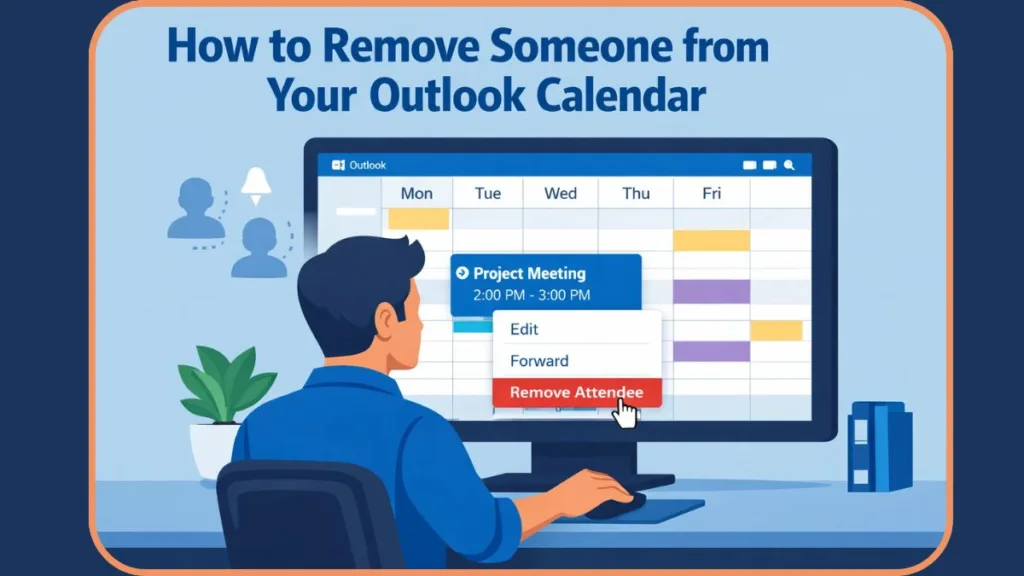
That said, we guarantee you can remove someone from your Outlook calendar once you understand whether they’re an attendee or a shared calendar user. More importantly, once you understand this distinction, everything else becomes easier.
This guide walks you through every scenario—desktop, web, mobile, shared calendars, notifications, and common roadblocks—so you stay in full control across Outlook 365, Microsoft Exchange, and modern workplace setups.
Understanding Outlook Calendar Access Types
Before making changes, you need to understand how Outlook treats calendar access. Most confusion happens because Outlook uses two different systems for access, even though they look similar on the surface.
As a result, users often try the wrong fix. Consequently, differentiating between a temporary meeting guest and a permanent viewer is the first step toward a clean schedule.
Attendees vs. Shared Calendar Users
Attendees
- Invited to a specific meeting or recurring event via a calendar invite.
- They appear in the meeting’s “To” or attendee list.
- Outlook sends them meeting updates, cancellations, and reminders.
- Removing them requires editing the meeting itself.
Shared Calendar Users
- Granted permission to view or edit your calendar through sharing settings.
- They may see all events, including private ones, depending on permission level.
- Executive assistants, HR coordinators, or managers often fall into this category.
- Removing them requires changing calendar permissions—not touching individual meetings.
For example, a project manager might share their Outlook calendar with an entire product team so everyone can quickly schedule syncs. Those team members are not attendees unless they’re invited to a specific meeting.
Therefore, removing them requires revoking shared calendar access, not editing a meeting invite.
Similarly, if you use a service like Calendly or Microsoft Bookings, these platforms sync with your primary calendar. If a user appears because of an automated booking, you must manage the removal through the third-party service interface to ensure the sync remains accurate.
Note: Removing an attendee does not remove shared access—and vice versa. Because of this, choosing the correct method upfront saves time and prevents mistakes.
Quick Comparison: Common Outlook Calendar Problems & Fixes
To make the process easier, here’s a quick comparison table that aligns real-world problems with the correct Outlook action. This approach helps reduce trial-and-error and prevents accidental deletions. Furthermore, understanding these distinctions helps you maintain better calendar hygiene.
| Goal | Action Needed | Common Mistake |
| Fix a mistake on one invite | Remove Attendee | Deleting the full meeting |
| Staff member left the team | Revoke Shared Permissions | Only removing one event |
| Calendar clutter from colleague | Remove “Shared Calendar” from View | Editing shared permissions incorrectly |
Because Outlook serves both individual users and enterprise teams, identifying your exact goal first leads to faster results. Following this identification, you can move to the specific platform-based steps provided below.
How to Remove Someone from an Outlook Meeting (Desktop)
This section applies when you are the meeting organizer and want to remove someone from a meeting using the Outlook desktop app.
In corporate environments using Microsoft 365 or Exchange, only the organizer—or an authorized delegate—can make these changes. After you confirm your organizer status, proceed with these instructions.
Remove an Attendee from a Single Meeting
- Open Outlook on your desktop.
- Navigate to Calendar and locate the meeting.
- Double-click the meeting to open full details.
- In the attendee list, remove the person you no longer want invited.
- Click Save or Send Update.
At this point, Outlook usually prompts you to choose how updates are sent. Importantly, you can often select “Send updates only to added or deleted attendees.”
This option allows you to remove one person without notifying everyone else—an essential feature for large meetings or sensitive discussions.
In addition to this, if you are using the Scheduling Assistant, you can visually manage the participant list to ensure you aren’t removing a mandatory attendee by mistake.
Pro Tip: If the attendee list feels hard to manage, click Scheduling Assistant. This view is especially useful for high-stakes coordination, such as board meetings, where you need to see a “grid” of everyone’s availability (via Free/Busy data) while managing a large participant list.
Real-World Example: Suppose you scheduled a quarterly finance review and accidentally invited a contractor who no longer works with your company. Removing them discreetly prevents data exposure and avoids unnecessary confusion for other attendees. Beyond this, it protects your confidentiality protocols within the Microsoft 365 environment.
Integration Alert: Microsoft Teams & Zoom
If your meeting includes a Microsoft Teams link, removing an attendee from the Outlook invite will revoke their access to the meeting itself. However, they may retain access to the chat history generated before their removal unless you manually remove them from the Teams chat participant list.
Similarly, for Zoom meetings, if you used your Personal Meeting ID (PMI), a removed user could technically rejoin if they saved the link. To prevent this, always use unique, auto-generated Meeting IDs for sensitive discussions so that the link expires for them once removed.
Remove an Attendee from a Recurring Outlook Calendar Event
Recurring events—such as weekly team meetings or monthly leadership reviews—require extra care. Outlook asks whether you want to change just one occurrence or the entire series, and the choice matters.
Because recurring events create a chain of invites, making the wrong choice could result in that person seeing future sensitive attachments.
- Choose “This event” if the person should miss only one session (e.g., a guest speaker who is only needed for one week).
- Choose “The entire series” if the person should no longer attend future meetings (e.g., they have been reassigned to a different project).
For example, when a team member transfers departments, removing them from the entire series ensures they won’t receive future invites or reminders. Consequently, this keeps calendars clean and relevant.
Moving forward, always check if the user is part of an Office 365 Group, as they might be re-added automatically if the group itself is invited.
Tip: New Outlook vs. Classic Outlook for Windows
Microsoft continues to roll out the New Outlook for Windows, which slightly changes where options appear. As a result, users often think features are missing. To clarify this transition, keep the following differences in mind:
- Classic Outlook: Uses the Ribbon with tabs like Meeting and Scheduling Assistant.
- New Outlook: Displays meeting details in a modern side panel with simplified menus. You can often find attendee management by clicking the “Edit” button (pencil icon) directly from the calendar preview.
Important Warning: In the New Outlook, the prompt to “Send updates only to added/deleted attendees” may not always appear if you also edit the time or location. To ensure you don’t spam everyone, try to only remove the attendee and click save before making other edits.
Although the interface looks different, the underlying logic remains the same. Once you know where to look, removing attendees works the same way in both versions. Therefore, whether you prefer the legacy feel or the modern web-based interface, your organizational control remains intact.
How to Remove Someone from an Outlook Calendar Invite (Outlook Web)
Many organizations rely on Outlook Web (OWA), especially in remote or “Bring Your Own Device” (BYOD) environments. Fortunately, the steps remain straightforward.
In fact, many users prefer OWA because it syncs directly with the Exchange Online server without local cache delays.
- Open Outlook in your browser.
- Go to Calendar and select the event.
- Click Edit.
- Remove the attendee by clicking the ‘X’ next to their name.
- Save changes and confirm update options.
However, Outlook Web sometimes offers fewer notification controls than desktop Outlook. Therefore, if you need precise control—such as notifying only the removed person—we recommend using the desktop app whenever possible.
Moreover, using the web version is ideal for quick removals when you are away from your main workstation using a service like Microsoft Teams on the web.
How to Remove Someone from an Outlook Calendar on Mobile (Android & iOS)
Outlook mobile apps prioritize speed and convenience, which means advanced controls are limited. While the mobile app is great for triage, it isn’t designed for heavy calendar administration.
- You can remove attendees only if you are the organizer.
- You cannot manage shared calendar permissions (this must be done on desktop/web).
- Notification customization is minimal; typically, a “Update Sent” notification goes out automatically to the removed person.
For example, if you’re traveling and notice an incorrect attendee on a dinner invite, you may remove them quickly via the mobile app. However, for permission-based issues or complex recurring meetings, switching to desktop or web Outlook ensures accuracy.
In light of these limitations, think of the mobile app as a tool for emergency edits rather than long-term permission management.
How to Remove Someone from a Shared Outlook Calendar
Shared calendars play a major role in team coordination, executive support, and HR operations.
Because shared access applies broadly, removing someone here affects all events, not just one meeting. Consequently, you must handle this at the folder level rather than the event level.
Remove a User from a Shared Calendar (Owner Access)
- Open Outlook on desktop or web.
- Right-click your calendar in the sidebar.
- Select Sharing and Permissions.
- Locate the user in the list and click the Trash/Remove icon.
- Save changes.
Real-World Example:
If an executive assistant no longer supports a manager, removing shared access immediately protects privacy. This ensures that the assistant no longer sees sensitive “Private” marked items or has the ability to “Send on Behalf of” the manager.
This is a critical step in offboarding workflows to prevent unauthorized access to SharePoint or OneDrive links often embedded in calendar descriptions.
Unshare Your Outlook Calendar Completely
Sometimes, full unsharing makes sense—especially during job transitions, reorganizations, or role changes. Clearing shared permissions ensures no one retains unintended access moving forward.
You can check your global sharing settings in Settings > Calendar > Shared Calendars to see every person who has a “view” into your schedule. Following a full unshare, you can then selectively re-add only the necessary collaborators.
Does Outlook Notify Someone When You Remove Them?
Understanding notifications helps prevent awkward situations. Since communication is key in professional settings, knowing what the other person sees is vital.
Meeting Attendees:
- Removed attendees usually receive a cancellation notice. This is a standard system-generated email stating the meeting has been removed from their calendar.
- Desktop Outlook often lets you notify only the removed person.
Shared Calendar Access:
- Outlook typically does not send an email when permissions are revoked.
- Access simply disappears from their sidebar.
Because of this difference, users often prefer permission-based removal when privacy matters.
Additionally, if you use Microsoft Viva Insights, it might track the removal as a change in meeting efficiency, but the removed user will simply see the block disappear from their Outlook grid.
Security Tip: Prevent Re-Invites
Even after you remove someone, other attendees might unknowingly forward the invite back to them. To prevent this, go to Response Options in your meeting menu and uncheck “Allow Forwarding.” This locks the invite so only you (the organizer) can add people.
2. Why You Can’t Remove Someone from an Outlook Calendar (Common Issues)
If removal options are unavailable, one of these reasons usually applies. In such cases, you may need to contact your IT Help Desk or Microsoft 365 Admin.
- You are not the meeting organizer: If you were invited by someone else, you can delete the meeting from your calendar, but you cannot remove other people from the invite.
- You only have view-only permissions: If you are looking at a shared calendar (like a departmental one), you may not have “Editor” or “Owner” rights.
- A delegate or assistant controls the calendar: In large organizations, assistants often manage calendars via Delegated Access. Without delegate rights, Outlook blocks edits—even if the meeting appears on your calendar.
- Sync delays: If you remove someone on your phone, it may take a few minutes for the change to reflect on your desktop or for the Global Address List (GAL) to update.
In view of these hurdles, always verify your access level before attempting major changes to a group calendar or a Microsoft Teams channel calendar.
What Happens After You Remove Someone?
Once removed, several automated processes occur behind the scenes to update the Exchange server.
- Outlook stops sending them updates.
- Future reminders disappear from their device.
- Shared calendar visibility ends immediately.
Although past meeting copies may still appear locally in their “Deleted Items” folder, active access to your schedule no longer exists. Furthermore, their status in the Tracking tab of the meeting will change to “Removed” or vanish entirely, depending on your Outlook version.
For IT Admins: The Nuclear Option
If you are an IT administrator managing a user who has left the company, manual removal is tedious. Instead, you can use the PowerShell cmdlet Remove-CalendarEvents to strip all future meetings from a specific mailbox in Exchange Online. This ensures no “zombie meetings” remain on conference room calendars.
Best Practices for Managing Outlook Calendar Attendees
To avoid issues long-term, incorporate these habits into your daily routine. By doing so, you minimize the risk of scheduling conflicts and data leaks.
- Confirm organizer status before editing to ensure the change “sticks.”
- Use desktop Outlook for complex scenarios like removing individuals from a 50+ person invite.
- Review shared permissions quarterly using tools like Microsoft Entra (formerly Azure AD) or simply checking your Outlook settings to ensure no former employees still have access.
- Remove access promptly during staff changes to maintain organizational security.
These habits reduce errors and protect sensitive schedules. Beyond this, consider using Microsoft Power Automate to create alerts when new people gain access to your calendar, providing an extra layer of security auditing.
FAQ: Removing Someone from Outlook Calendar
Can I remove someone without notifying everyone?
Yes, in many desktop versions you can select “Send updates only to added or deleted attendees.” This is especially useful for managing large-scale events.
Why can’t I remove an attendee?
You likely lack organizer or delegate permissions. Check the “Meeting” tab to see who the “Organizer” is. In some cases, the meeting might be locked by an Exchange Admin policy.
Can delegates remove people from meetings?
Yes, if they have been granted “Editor” or “Delegate” rights by the calendar owner through the Account Settings menu.
Does removing shared access send an email?
No, access typically ends silently without a notification. This allows for a seamless transition when adjusting team visibility.
Final Thoughts
Removing someone from your Outlook calendar becomes simple once you understand how access was granted. Whether you’re managing meetings, shared calendars, or enterprise permissions in Outlook 365, clarity leads to control.
Ultimately, consistent management of your digital space ensures you stay productive. Follow the steps carefully, apply the correct method, and you’ll keep your calendar accurate, private, and stress-free.
Useful Resources for Removing Attendees and Managing Outlook Calendar Access
Microsoft Support – Remove a Person from a Meeting in Outlook:
An official step-by-step guide from Microsoft that explains how to remove an attendee from an Outlook meeting, including how meeting updates and notifications work. Ideal for users editing single or recurring meetings.
Microsoft Support – Share and Access a Calendar with Edit or Delegate Permissions: A comprehensive Microsoft walkthrough covering shared calendar permissions, delegate access, and how to revoke calendar access when someone should no longer see your schedule.
Microsoft Learn – Calendar Sharing and Permissions in Exchange Online: A more technical reference that explains how Outlook calendar sharing works behind the scenes in Microsoft 365 and Exchange Online. Useful for enterprise users and IT-managed environments.
Microsoft Learn – Change or Update Meetings and Events in Outlook: Covers how Outlook handles meeting updates, cancellations, and attendee changes, including best practices for recurring meetings and organizer responsibilities.
Visit Our Post Page: Blog Page