
Want to enable the video reply feature? Let’s learn how to reply to a TikTok comment with a video in 2026. Discover step-by-step methods and quick fixes.
TikTok has transformed how we create, watch, and interact with short-form video content, turning casual scrolling into meaningful conversations and community building. Among its many interactive tools, replying to a comment with a video stands out as a powerful way for creators to connect authentically with their audience, answer questions, address feedback, and spark deeper engagement — all within the platform’s creative ecosystem.
Whether you’re just getting started or looking to refine your creator strategy, this comprehensive guide covers everything you need to know about this feature — including advanced tips, platform nuances, algorithm context, troubleshooting, and strategic best practices.
As social media algorithms continue to prioritize genuine community interaction over passive consumption, mastering conversational tools is no longer optional for serious creators.
Replying with video bridges the gap between creator and consumer, fostering parasocial relationships that drive brand loyalty. In an era where authenticity reigns supreme, a raw, face-to-camera response often outperforms highly produced, scripted content.
What Is TikTok Video Reply?
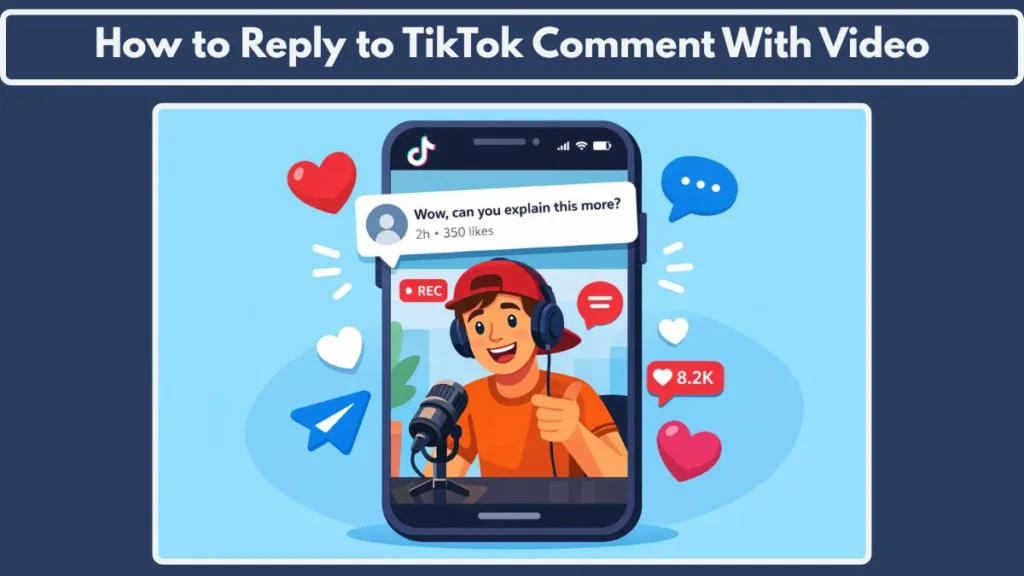
Replying to comments with video is a feature on TikTok that lets you turn individual viewer comments into full video responses — effectively creating new content from conversation threads.
When you tap the reply-with-video option, TikTok automatically pins the original comment as a movable sticker within your video frame, contextualizing your response.
This transforms static text replies into visual, dynamic responses that:
- show viewers you’re actually paying attention,
- highlight individual comments creatively,
- and can drive fresh engagement through new content that references existing conversations.
The result is not just interaction — it’s storytelling and community participation through visual content.
By utilizing this tool, creators effectively launch spin-off micro-content. For educators, financial advisors, beauty influencers, and tech reviewers, this feature acts as an endless engine for content ideation. When you are out of ideas, your audience’s questions become your script. Furthermore, the visual sticker of the user’s comment acts as undeniable social proof that people are actively engaging with your brand.
Can You Respond to a TikTok Comment With a Video?
Yes — you can respond to comments with a video, and this feature is one of TikTok’s most engaging content-creation tools.
However, there are a few conditions:
- It only works on comments under your own videos. You cannot directly reply with a video to comments on someone else’s content.
- Each video reply must be a separate piece of content — it doesn’t attach to multiple comments at once.
- Comments must be enabled on the original video.
- The feature is fully built into the app and free to use — there’s no subscription, coins, or additional purchase required.
It is also important to note that TikTok heavily monitors these interactions for community guideline violations. If you use the video reply feature to harass, bully, or publicly shame a user who left a negative comment, your account could face shadowbanning, temporary suspension, or permanent deletion. Always use the feature constructively.
How Do You Reply to a Comment on TikTok? (Text vs Video)
Before diving into the video reply workflow, it’s valuable to understand how it differs from a standard text comment reply.
Text Reply
A text reply is quick and direct:
- tap the comment,
- type your answer,
- and send.
This method is limited in depth and creativity. While necessary for quick acknowledgments like “Thank you!” or a simple emoji, text replies often get buried in viral comment sections.
Video Reply
Video replies allow you to:
- show your face or content, not just write,
- add context visually,
- use creative effects, sound tracks, and visual cues,
- and leverage TikTok’s algorithmic preferences for engagement growth.
Creators who consistently use video replies often see much higher interaction rates and stronger audience growth because they:
- signal active engagement,
- increase watch time on new videos,
- and provide relatable content that other viewers may share.
The Psychology of Video vs. Text
When you reply with text, it feels transactional. When you reply with a video, it feels conversational.
By elevating a viewer’s comment onto the main stage of your video feed, you trigger the psychological principle of recognition. Viewers love to feel seen. When audiences realize that commenting on your videos might earn them a personalized video shoutout, your overall comment volume on future posts will naturally skyrocket.
How to Reply to a Comment With a Video on TikTok (Android & iPhone)
Step-by-Step Walkthrough
Here’s the practical, on-device workflow:
Step 1: Open TikTok: Launch the TikTok app and make sure you’re logged into the account that received the comment.
Step 2: Visit Your Profile: Tap the profile icon on the bottom right to view the videos on your account.
Step 3: Select the Video: Choose the video that contains the comment you want to respond to.
Step 4: Open the Comments Section: Tap the speech bubble icon to bring up all comments on that video.
Step 5: Choose the Comment: Scroll to the specific comment you want to reply to and tap the reply button under it.
Step 6: Hit the Red Camera Icon: Instead of typing a text reply, tap the red camera button next to the text box. TikTok will open the recording interface and place the comment as a sticker in your viewfinder.
Step 7: Record or Upload You now have two choices:
- Hold the record button to shoot a fresh response right then,
- Or tap the upload/gallery icon to select a pre-recorded clip or draft from your device.
Step 8: Customize Your Reply Enhance your video by adding:
- filters,
- soundtracks or trending audios,
- text overlays or stickers,
- captions.
This is your chance to make the reply visually appealing and on-brand.
Pro Tip: Use TikTok’s seamless integration with CapCut (ByteDance’s sister editing app). If you tap the CapCut template options or export your raw footage to CapCut first, you can add high-retention auto-captions, dynamic zooms, and premium transitions before bringing it back into TikTok to finalize the reply.
Step 9: Add a Caption & Post Tap Next, type a caption (optionally tagging the commenter with @username), adjust privacy settings, and hit Post. Your video reply will now appear as a new video on your profile and as part of the comment thread.
How to Add a Video in a Comment on TikTok
One common misunderstanding is that you can “embed” a video inside a comment — similar to uploading a file attachment.
Here’s the truth:
TikTok does not allow you to embed a video within a comment field itself.
Instead, the video reply feature creates a separate video that is linked to the comment. This means you cannot attach video content inside a static text comment — it must be its own TikTok post, which shows up both in your profile feed and alongside the comment thread.
If you absolutely must leave a visual element within the comment thread itself without creating a brand new post, your best native option is to use a GIF. TikTok integrated GIPHY, allowing users to search and post animated GIFs directly in the comment section. While not a custom video, it adds visual flair without cluttering your main profile grid.
How to Reply to a TikTok Comment With a Video in Your Drafts
If you’ve already filmed a response that’s lying in your drafts, you can use that too:
- Tap the original comment and choose Reply.
- Tap the gallery/media icon.
- Choose the draft or saved clip from your gallery.
- Adjust the comment sticker’s position.
- Review and edit if necessary.
- Tap Next and publish.
Using drafts is great when you want to prepare thoughtful, well-edited responses ahead of time — especially for educational, informational, or frequently asked questions.
This workflow is highly recommended for batch-creating content. Many top creators dedicate one day a week to recording generic, high-quality responses or B-roll footage, saving them to their device gallery or TikTok drafts. When a great comment rolls in during the week, they can instantly attach a high-quality video from their drafts rather than rushing to film something on the spot.
How to Reply to a TikTok Comment With Someone Else’s Video
Out of the box, TikTok does not allow you to reply with someone else’s TikTok post directly. You can only choose videos saved in your own gallery or shoots you make within the app.
Here are ways creators work around this limitation:
- Use Stitch or Duet features to integrate someone else’s content while adding your own response.
- Screen record a TikTok clip (while respecting copyright and community guidelines) and use it in your reply.
- Download public-domain clips or use video editing tools to transform them into a responseable format.
Always credit original creators if you use or repurpose their work.
Step-by-Step Duet/Stitch Workaround
If you want to use a Duet to answer a comment:
- Find the video you want to Duet.
- Tap the Share arrow and select Duet or Stitch.
- While recording your Duet, use the “Text” tool to manually type out the user’s comment you are responding to, acting as a manual “sticker.”
- While this doesn’t formally link the video to the comment thread, it visually accomplishes the exact same goal for your broader audience.
How to Reply to TikTok Comment With Video on PC
TikTok’s desktop interface (web version) does not yet support the full video reply workflow like the mobile app does. You can:
- view comments,
- reply with text,
- upload videos as new posts,
- and manage content.
But video replies from the desktop UI itself are not available — primarily because the mobile app provides the essential camera integration.
If you still want to post from a PC:
- upload the video from your computer,
- and in the caption reference the original comment (e.g., “Replying to @username’s question below”).
Advanced PC Workaround: Android Emulators
For power users, social media managers, and agency professionals who must manage TikTok entirely from a desktop, you can use an Android emulator like BlueStacks or NoxPlayer.
By downloading an emulator on your PC or Mac, you can run the mobile version of TikTok natively on your desktop. This tricks the platform into thinking you are on a phone, granting you access to the red camera icon next to comments. You can then route your desktop webcam and local PC files into the emulator to create a flawless video reply without ever touching a smartphone.
For full functionality natively, mobile remains your best option.
TikTok Reply to Comment With Video Not Working: Fix It
If the reply-with-video button isn’t showing, try these troubleshooting tips:
1. Update the TikTok App Ensure you’re using the latest version from the App Store or Google Play.
2. Check Comments Setting Comments must be enabled for that video. If they’re off, no reply option appears.
3. Restart Your Device A fresh app start can refresh UI elements.
4. Clear TikTok Cache Go to Settings → Clearing Cache.
5. Region or Rollout Delays Some features roll out gradually, so you might get updates later than others.
6. Account Type Restrictions Switching between a personal, business, or creator account can sometimes toggle feature availability.
7. Storage Permissions Make sure TikTok has access to your camera and gallery.
Additional Technical Fixes
If you have tried all the above and it is still failing:
- Check Your Network & VPN: TikTok features frequently break if you are running a VPN, as the app detects IP mismatches. Turn off any active VPNs (like NordVPN or ExpressVPN), disconnect from Wi-Fi, and try using your cellular data.
- Check Downdetector: Sometimes, it is not your phone. Visit websites like Downdetector to see if TikTok is experiencing global server outages. If the servers are down, comment functionalities are usually the first to glitch.
- Offload App (iOS only): Go to iPhone Settings > General > iPhone Storage > TikTok > Offload App. This reinstalls the core files of the app without deleting your drafts, which often fixes corrupted UI elements.
Most of the time the fix is as simple as updating the app or enabling comments — but these tips cover nearly all common glitches.
Is TikTok Reply to Comment With Video Free?
Yes. This feature is completely free for all eligible users on TikTok. There’s no requirement to purchase coins, subscribe to premium platforms, or pay for tools. The video reply feature is built into the core TikTok creator toolkit.
While the reply itself is free, many creators use these video replies as a funnel to paid features. For example, you can reply to a comment asking for a detailed tutorial, provide a short teaser in your video reply, and direct users to a paid TikTok Series or external Patreon for the full, long-form answer.
How Does TikTok Video Reply Boost Engagement?
TikTok’s algorithm is designed around delivering content tailored to user behavior — and engagement signals are a key part of this.
When you reply to comments with video:
- TikTok counts those responses as fresh user interactions.
- Comments generate more interactions, which sends stronger engagement signals.
- Video replies keep viewers watching longer, which raises watch time.
These metrics increase the likelihood your videos (and replies) show up on the For You Page (FYP).
In short, active creators who respond creatively to comments often see:
- more visibility,
- increased follower growth rate,
- stronger community engagement,
- and more content discovery.
This ties into broader TikTok algorithm principles — where watch time, engagement, hashtags, captions, and content authenticity all play roles in distribution.
The Power of the “Watch Full Video” Loop
When you post a video reply, TikTok automatically links it back to the original video where the comment was left. Viewers who discover your reply on the FYP will see a button that says “See original video.” This creates a powerful traffic loop.
One viral video reply can revitalize a dead video from weeks ago, pumping fresh views, likes, and shares into your older content catalog.
Best Practices for Effective TikTok Video Replies
To ensure your video replies do more than just answer a question, here are expert-level tips:
- Keep It Short & Clear: TikTok thrives on brevity, and engagement increases when viewers watch a reply video to the end.
- Start with a Hook: Open response videos with a visual or verbal hook — like repeating the question or jump-cutting to the answer — to retain viewer attention.
- Be Authentic: Speak as you normally would. Audiences react strongly to genuine creators.
- Use Trending Sounds or Effects: Relevant sounds or effects increase discoverability because TikTok’s algorithm picks up on trends and sound usage.
- Tag the Commenter: Use “@username” in your caption to notify the commenter, making the interaction feel personal.
- Encourage Replies: Ask follow-ups or invite others to comment — more interaction means more algorithmic value.
- Track Engagement: Watch which replies perform best and replicate styles or topics that resonate. Dive into TikTok Analytics under “Creator Tools” to analyze the “Retention Rate” of your video replies. If viewers are dropping off at the 3-second mark, your hooks need work.
Upgrade Your Production Value
While raw content works, ensuring basic quality standards keeps viewers from swiping away:
- Audio: Viewers will forgive bad lighting, but they won’t forgive bad audio. Consider investing in an affordable wireless lapel mic like the Rode Wireless GO or DJI Mic to ensure your voice is crisp when answering questions.
- Lighting: Face a window for natural light, or pick up a basic LED ring light. Clear visuals help the algorithm categorize the objects and faces in your video, which assists in content delivery.
These practices help make replies not just a function, but a strategic growth tool.
Creative Ways to Use TikTok Video Replies
Creators around the world are transforming replies from reactive content into strategic pieces of their content calendar:
FAQ Response Series: Compile frequently asked questions into a themed set of replies.
Highlight Valuable Comments: Turn insightful or creative audience comments into featured response videos.
Challenge Responses: Prompt users to comment with ideas, then reply with video solutions, evolutions, or shoutouts.
Tutorial Follow-Ups: If viewers ask “how to do X,” reply with a mini-tutorial that adds value to your feed.
Cross-Content Integration: Use video replies as source clips for other platforms, like Instagram Reels or YouTube Shorts, expanding reach. (Pro Tip: Use sites like SnapTik to download your TikTok reply without the watermark before uploading to Instagram Reels or YouTube Shorts).
Build Dedicated Playlists
If you find yourself replying to the same type of comments (e.g., “Tech Support Questions” or “Setup Tours”), group these video replies into a TikTok Playlist.
You can create a playlist right from your profile page and categorize these replies. When a new user finds one reply, they can easily binge-watch the entire playlist, massively increasing your overall watch time.
These tactics not only increase interaction but can spark trends and community movement around your profile.
fAQ
How Do I Record a Comment on TikTok?
You don’t record a comment itself — you record a video in reply to it, which then includes the comment as a sticker.
How to Reply to a Comment With a Video on YouTube?
YouTube does not yet have a native way to reply to comments with video content. They’re experimenting with voice replies for creators, which is audio-focused rather than full video. However, YouTube Shorts allows you to reply to comments with a Short, functioning very similarly to TikTok’s interface.
What Are TikTok Reply Generators?
Third-party “reply generators” help suggest text ideas for replies but are not an official TikTok feature and can’t create video replies automatically. Tools like Hootsuite, Later, or Buffer can help schedule text replies, but native video replies must be done inside the TikTok app.
Conclusion – Make Every Comment a Content Opportunity
Replying to comments with video on TikTok isn’t just a neat feature — it’s a strategic engagement tool that can strengthen your audience connection, increase visibility, and even drive follower growth when done thoughtfully.
By mastering both the technical workflow and the creative strategy outlined here, you’ll be able to:
- respond quickly and creatively,
- boost engagement signals,
- and make every comment part of your storytelling.
So go ahead — turn viewers’ comments into compelling videos and let your conversations become your next piece of content.
Visit Our Post Page: Blog Page