
Locked out of your Amazon account in 2026? Learn how to change your Amazon password if forgotten using simple steps. From requesting an OTP to setting up Two-Step Verification and managing account recovery. Stay in control of your account access today.
Shopping and streaming on Amazon has become second nature for millions of people around the world. It’s fast, convenient, and filled with endless options. But sometimes, security protocols get in the way of convenience. Whether you are trying to track a time-sensitive package, rent a movie, or simply wish to update your security settings after a data breach, learning how to change your Amazon password if forgotten can help you maintain control over your digital life.
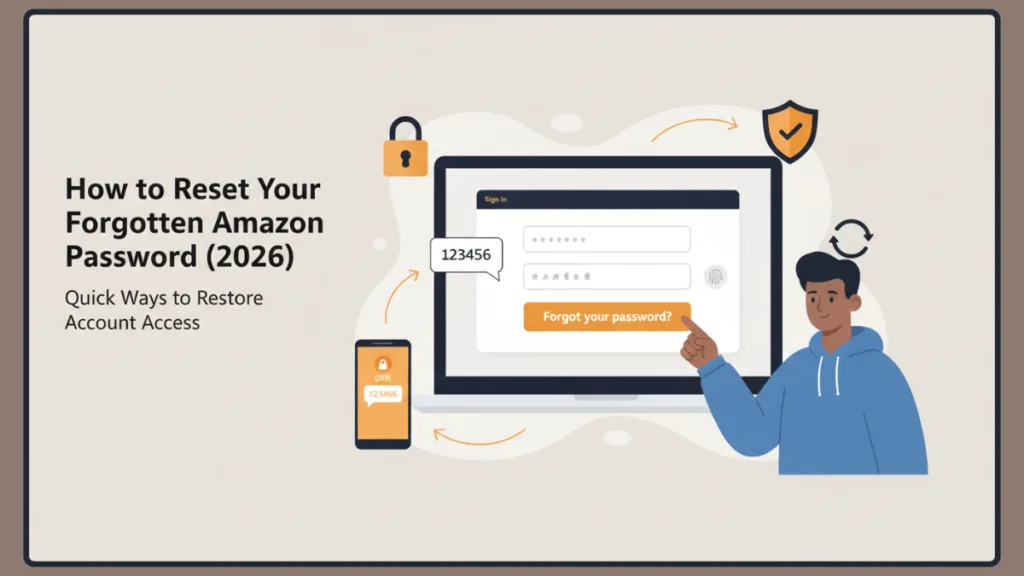
In recent years, Amazon has made major changes — introducing stricter Two-Step Verification (2SV) rules and rolling out passwordless Passkeys. This shift has left countless users searching for the exact steps to navigate the new login screens and account recovery protocols effectively.
Fortunately, there are still reliable methods and workarounds that let you reset, organize, and protect your Amazon account. Let’s explore these options in detail and walk through every step to safeguard your access.
Why You Might Want to Reset or Change an Amazon Password
There’s nothing wrong with needing a reset — especially when the average person has dozens of online accounts to manage. While Amazon doesn’t currently allow you to simply “view” your old hidden password, there are smart ways to regain access quickly.
Here are the most common reasons people want to initiate an Amazon password reset:
- Forgotten credentials: You simply can’t remember my Amazon password because you haven’t had to log in manually for months.
- Suspicious activity: You noticed an unfamiliar order or received a strange login alert and want to lock out potential hackers.
- Shared accounts: You recently stopped sharing an account with a roommate or ex-partner and need to secure your payment methods.
- Digital hygiene: Many users prefer to routinely update their passwords every few months to ensure their buying habits and data aren’t compromised.
Regardless of your reason, Amazon offers tools like One-Time Passwords (OTPs), identity verification, and advanced security settings to help you stay in control of your account’s accessibility.
Can You Still Reset Your Password Easily in 2026?
For years, resetting a password was as simple as clicking an email link. It allowed you to bypass security and jump right back into your account.
However, as cyber threats evolved, Amazon began implementing stricter verification phases. Here’s what has changed:
- Official Security Stance: Amazon now heavily relies on device cookies and One-Time Passwords (OTPs) sent to your phone or email to verify your identity before allowing a password change.
- This means:
- If you have access to your email or phone, the reset process takes less than a minute.
- If you have lost access to your secondary contact methods, you cannot immediately reset the password.
- The platform is slowly pushing users toward Passkeys, removing the need for traditional passwords entirely.
If your account still relies on a traditional password, you can easily perform an Amazon forgot password reset right now. Below is a detailed guide on how to do it before you get permanently locked out.
How to Reset an Amazon Password Using Desktop
If you are locked out on your computer, here’s how to use the login portal to recover your Amazon password quickly and efficiently.
Step-by-Step Guide to Reset an Order
- Sign in to your Amazon account using a desktop browser (go to the main Amazon homepage).
- Hover over Accounts & Lists and click Sign in.
- Enter the email address or mobile phone number tied to the account and click Continue.
- Click on the Need help? link, then select Forgot your password?.
- Enter the OTP (One-Time Password) that Amazon sends to your email or phone.
- Create a strong, completely new password and confirm your selection when prompted.
Your password will immediately update, effectively restoring your access and logging you into the main dashboard.
How to Change Your Password if You Know the Current One
- Go to Accounts & Lists > Account > Login & security.
- Here you’ll find a list of all your account credentials.
- Click Edit next to the Password field.
- Enter your current password, followed by your new one, and save.
Key Points to Remember
- Resetting changes your password but doesn’t delete your account history.
- You will be signed out of all devices (Kindle, Prime Video, Alexa) and must log back in.
- The OTP code expires quickly; do not close the reset window while checking your email.
- Amazon will never email you asking for your new password.
How to Recover an Amazon Account Without Email or Phone Access
If the standard reset options are failing because you lost your phone or can’t access your email, don’t worry — there’s still a manual way to do it. This workaround involves using Amazon’s Account Recovery process to verify your identity manually.
Manual Method to Recover Without an OTP
- Navigate to the Amazon login page on a desktop browser or mobile app.
- Follow the standard steps: enter your email, click Need help?, and select Forgot your password?.
- When Amazon asks you where to send the OTP, look for the option that says “I no longer have access to these.”
- You will be redirected to the Account Recovery page.
- Amazon will prompt you to upload a clear photo of a government-issued ID (like a driver’s license or passport).
- Submit the form and wait for Amazon Customer Service to manually review your identity.
If successful, you’ll receive an email within 1 to 2 days stating your old Two-Step Verification or phone number has been removed, allowing you to log in and set a new password.
Notes About This Method
- This workaround works only if the name on your ID matches the name on the Amazon account.
- Amazon requires you to cover sensitive information (like your ID number) before uploading; they only need to see your name and address.
- On mobile devices, ensure your camera has permission to take photos within the browser.
- Customer service cannot speed up this process over the phone; you must wait for the email.
How to Protect Your Account from Family or Hackers Using Security Features
If you’re sharing your Amazon account or privacy is a concern, setting up modern security protocols is the best long-term solution. Amazon provides advanced settings to maintain strict control over your purchase history and payment methods.
How to Set Up Two-Step Verification (2SV)
- Visit the Login & security page under your Account settings.
- Click on Turn on next to Two-Step Verification.
- Choose to receive codes via a mobile phone number or an Authenticator App (like Google Authenticator or Microsoft Authenticator).
- Enter the code provided to verify the setup.
Once set up, anyone trying to log into your account with your password will also need physical access to your phone, keeping your order history entirely private and secure.
Benefits of Using Advanced Security
- Blocks unauthorized access: Even if someone guesses your password, they cannot log in.
- Alerts you to login attempts: You will receive a code whenever a new device tries to access your account.
- Ideal for shared environments: Perfect for maintaining privacy if you log into Amazon on work computers or public Wi-Fi.
Additional Ways to Protect Your Amazon Privacy
Even if you successfully reset your Amazon password, you can still take control of your Amazon account privacy using the following strategies:
1. Set Up an Amazon Passkey
Go to Login & security > Passkeys > Set up. This ensures you can log in using your device’s fingerprint or Face ID, bypassing the need for a typed password entirely.
2. Use a Password Manager
Store your new password in a secure vault like Bitwarden or 1Password. Prevents you from ever forgetting your credentials and having to go through the reset process again.
3. Review Connected Devices
Go to the Amazon app > Settings > Manage Your Content and Devices. Deregister any old smartphones, tablets, or smart TVs that you no longer own to prevent unauthorized purchases.
4. Separate Your Accounts
For complete separation, consider setting up Amazon Household so family members have their own logins, rather than sharing one master password.
Each of these privacy methods complements the others, giving you multiple layers of control over what others can access.
Limitations of Resetting Your Password on Amazon
Even with these tools, there are a few things you should know:
- You cannot “uncover” or view your old, forgotten password.
- The Account Recovery feature requires a valid government ID and takes up to 48 hours.
- Amazon customer service representatives cannot manually change your password for you over the phone.
- Resetting your password does not cancel any of your active Prime memberships or pending orders.
Understanding these limits ensures that you know what to expect while managing your Amazon account security.
Final Thoughts on Changing Your Amazon Password
While forgetting your login details is stressful, there are still effective ways to recover your account and manage your security.
To summarize:
- Use the standard “Forgot your password?” link to request an OTP if you have access to your email or phone.
- Try the manual Account Recovery workaround using a government ID if you are completely locked out.
- Set up Two-Step Verification (2SV) or Passkeys for ongoing security.
- Use a password manager to keep your new credentials safe and accessible.
These methods ensure your Amazon account remains secure, your payment methods stay protected, and your shopping habits remain your own. Being proactive and using these security tools helps you maintain control, even as Amazon continues to evolve its systems and features.
Frequently Asked Questions (FAQ)
Q1: What if I Forgot my Amazon password?
If you can’t remember your password, go to the Amazon login page, click “Need help?”, and select “Forgot your password?” to trigger a reset code to your email or phone.
Q2: How do I Reset my Amazon account password if I already know it?
To simply change your password, log into Amazon, navigate to Account & Lists > Login & security, and click Edit next to the password field.
Q3: What is my new Amazon account password?
Amazon does not automatically generate passwords. Your new password is the exact, private combination of characters you chose and typed into the confirmation box during the reset process.
Q4: How do I Change my Amazon account information?
You can update your email, phone number, and name by visiting the Login & security page within your account settings and clicking Edit next to the relevant information.
Q5: Can’t reset Amazon password because I lost my phone. What do I do?
During the password reset process, select the option indicating you no longer have access to your phone or email. You will be directed to upload a government-issued ID to prove your identity and regain access.
Visit Our Post Page: Blog Page