
Need to hide posts from someone on Facebook without creating drama? Learn the best privacy method: adding them to your Restricted list. Get step-by-step guides for mobile and desktop.
You’re posting a personal update or a family photo, and you suddenly realize you don’t want a specific coworker or distant relative to see it. Now you’re frantically searching, “how to restrict someone on Facebook without blocking them?”
Can You Restrict Someone on Facebook in 2026? Privacy Control Explained
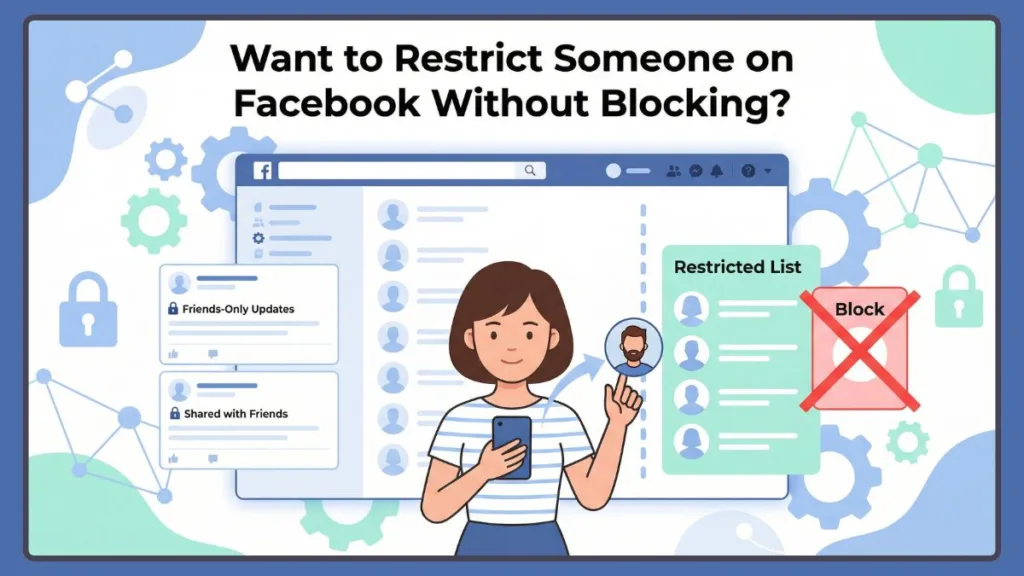
Let’s answer that question immediately: yes, you absolutely can. Once you add someone to your restricted list, Facebook does not send them a notification. The “restrict” method everyone is looking for is actually a built-in privacy tool that limits a friend’s access to nonpublic posts while keeping them on your friends list.
How Do You Restrict Someone On Facebook? Step-by-Step Overview
This guide will show you exactly how to do that, explain what happens when you restrict a friend, and provide strategies to manage your privacy gracefully. It covers both mobile and desktop, clearly separates profile restricting from Messenger restricting, and includes tips for managing your restricted list and settings.
How to Restrict a Friend on Facebook Using the Restricted List
Wanting to set boundaries can feel awkward, but the most reliable way to quietly limit access is by adding someone to your Restricted list. This method hides your friends-only posts from their feed, although the recipient can still see anything you make completely public.
Step-by-Step: How to Restrict Someone on Facebook Mobile (iPhone & Android)
- Go to the person’s profile on the Facebook app.
- Tap the Friends button below their profile details.
- Select Edit Friend List.
- Tap Restricted.
Tip: Doing this directly from their profile is the fastest way to restrict a single person immediately.
Step-by-Step: How to Restrict Someone on Facebook PC or Laptop (Desktop)
- Click your profile picture in the top right.
- Navigate to Settings & Privacy > Settings.
- On the left side menu, click Blocking.
- Next to Restricted List, click Edit List.
- Select the friends you want to restrict and click Finish.
Tip: This desktop method allows for bulk management, making it easier to add multiple people to your restricted list at once.
What Happens After You Restrict Someone on Facebook? Visibility & Access
Even after restricting someone, they remain on your friends list. Here’s how their access changes:
- Friends-only posts are hidden: They will no longer see your regular timeline updates, stories, or private photos.
- Public posts remain visible: They can still see your cover photo, profile picture, and posts set to ‘Public‘.
- Tags still work: If you tag them in a post, they will be able to see it.
This restriction applies retroactively as well. The moment you add a friend to your restricted list, they immediately lose access to your entire history of past posts, provided those older updates were published with a “Friends” audience setting. Because their view is suddenly limited to your public content, your profile may appear relatively empty or inactive to them.
Tip: Always double-check your default post audience settings to ensure you aren’t accidentally posting completely public updates.
How to Restrict Someone on Facebook Messenger
Restricting on the main Facebook app is different from restricting on Messenger. Facebook allows you to manage chats separately to hide active status and move conversations out of your main inbox.
Where to Find Facebook Messenger Restrict Options
- Mobile: Open the Messenger app, open the chat, tap their name at the top, and select Restrict.
- Desktop: Open Messenger, click the three dots next to their chat, and select Restrict.
When you restrict someone specifically on Messenger, the platform automatically removes the conversation from your main chats list and sends it to the Message Requests folder. You will no longer receive any notifications if the restricted person sends you a message or attempts to call you. Furthermore, Messenger completely hides your active online status and disables read receipts for that user, ensuring they cannot see when you are online or if you have read their messages.
Difference Between Restrict vs Block on Facebook
- Restrict: Limits a friend’s access to nonpublic posts without notifying them or unfriending them. Perfect for avoiding conflict or testing boundaries.
- Block: Completely severs the connection, un-friends them, stops messaging, and prevents them from finding your profile entirely.
If you are not quite ready to restrict someone but still want to see less of their content, you might prefer Facebook’s “Take a Break” option. This feature allows you to mute their posts from appearing in your news feed without altering what they can see on your profile.
Tip: Use restrict for soft distancing with coworkers or relatives, and use block for harassment or toxic situations.
How to Unrestrict Someone on Facebook and Manage Your Restricted List
Facebook allows you to reverse this action at any time if relationships change. Controlling your lists prevents privacy mishaps:
- Review your list: Go to Settings > Blocking > Restricted List to see everyone currently restricted.
- Unrestrict easily: Just uncheck their name from the list or go to their profile and uncheck “Restricted” under the Friends button.
Managing privacy keeps your social media experience safe, and this doesn’t just apply to Facebook. If you are also focused on securing your messaging apps, you should learn how to enable end-to-end encryption on WhatsApp to keep your private chats completely hidden from outside eyes.
Tip: Regularly reviewing your Restricted list ensures you aren’t accidentally hiding life updates from friends you’ve recently reconnected with.
FAQs About Facebook Restrict Options
1. What does restricted mean on Facebook?
When you restrict a friend on Facebook, they can no longer read your private or friends-only posts, but they remain on your friends list. This applies to both your future updates and all of your past historical posts.
2. Can a restricted person see my Facebook profile?
Yes. They can view your public profile information, profile photo, cover photo, and any posts you have set to public.
3. Does Facebook notify when you restrict someone?
No — Facebook does not send any notification when you add someone to your restricted list.
4. How to know if you are restricted on Facebook?
There is no definitive way to know. However, if you suddenly only see public posts and no longer see a friend’s personal updates or stories, you may be restricted. On Messenger, you might also notice their active status and read receipts are completely hidden.
5. How do I remove someone from my restricted list on Facebook?
Go to their profile, click Friends, select Edit Friend List, and uncheck Restricted. You can also manage this in your Blocking settings.
6. How to restrict someone on Facebook messenger?
Open the chat in Messenger, tap their name at the top, and select Restrict. This moves the chat out of your inbox without blocking them, disables your read receipts, and mutes their notifications.
7. How to restrict someone on Instagram?
Similar to Facebook, you can restrict users on Instagram by going to their profile, tapping the three dots in the top right corner, and selecting Restrict.
Conclusion: Efficiently Managing Facebook Privacy Without Blocking
Facebook’s restricted list is a powerful and subtle feature, and managing it effectively is key to a comfortable social experience. Profile settings are the most reliable method for controlling post visibility, while Messenger restrictions work well for quietly managing your inbox.
By following this guide, you can stay in control of your privacy, handle awkward social obligations gracefully, and secure your digital boundaries. Regularly reviewing your Restricted list ensures your Facebook interactions remain fun, organized, and stress-free.
Tip: Check your default post privacy settings and your Restricted list frequently to maintain a secure profile and manage your social media presence like a pro.
Visit Our Post Page: Blog Page