
Want to handle returns or find products fast in 2026? Learn how to scan an Amazon QR code using simple steps. From using the app scanner to finding return codes and fixing camera issues. Stay in control of your shopping experience today.
Interacting with Amazon has become second nature for millions of people around the world. It’s fast, convenient, and filled with endless options.
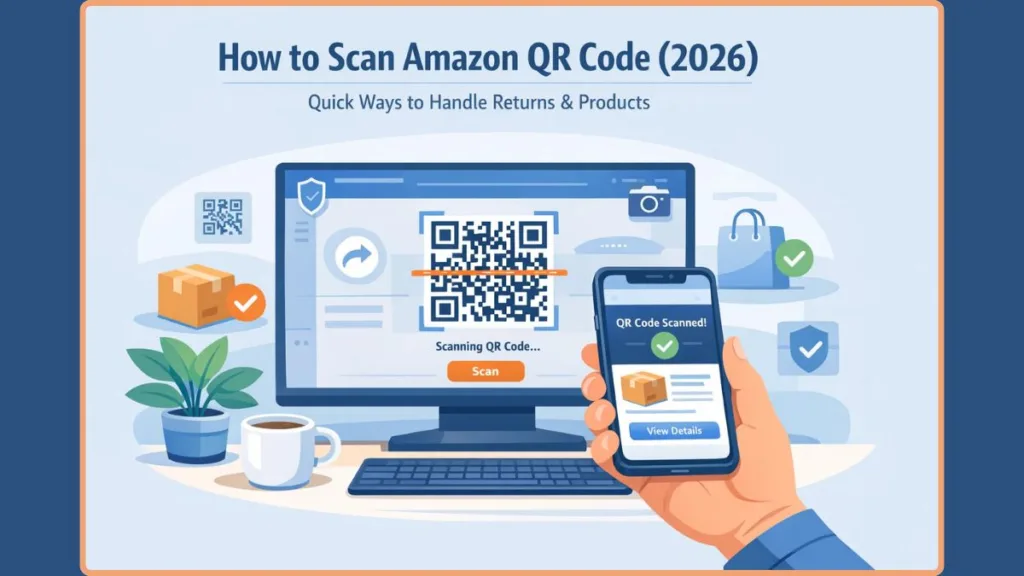
But as the shopping experience evolves, physical tasks like returning packages or finding specific product pages can sometimes feel cumbersome.
Whether you’re trying to return an item at a drop-off location without printing a label or securely access a delivery locker, learning how to scan an Amazon QR code can help you maintain control over your time and effort.
In recent years, Amazon has made a major shift. Traditional printed barcodes and paper return labels, once the go-to options for logistics, have been quietly phased out or limited across many regions in favor of highly efficient QR codes.
This shift has left countless users searching for exactly where the scanner is located within the app and how to manage their Amazon interactions seamlessly. Fortunately, there are incredibly reliable methods and built-in tools that let you scan, organize, and utilize Amazon QR codes effortlessly.
Let’s explore these options in detail and walk through every step to ensure you can confidently navigate the physical and digital Amazon ecosystem.
How to Scan Amazon QR Code Using the App (Best Method)
If you have the official Amazon app installed, here’s how to use its deeply integrated visual search feature to scan a code quickly and efficiently.
This built-in Amazon QR code scanner remains the absolute best method because it immediately routes you to the correct internal Amazon page without browser redirects.
Step-by-Step Guide to Scan a QR Code
- Sign in to your Amazon account using the mobile app on your iOS or Android device.
- Go to the home screen and locate the main search bar at the very top.
- Locate the small camera icon inside the right side of the search bar.
- Tap on the camera icon to activate the Amazon Lens scanner.
- Confirm your selection when prompted by your phone’s operating system to grant Amazon access to your camera.
- Position the QR code inside the viewfinder on your screen. The app will automatically read the matrix and redirect you to your product, return, or locker page.
Key Points to Remember
- The Amazon app scanner reads both modern QR codes and traditional linear barcodes.
- You must hold your device steady and avoid heavy glare from overhead lights.
- The feature is heavily optimized for mobile and tablet apps, not desktop environments.
- Scanned products are saved to your Amazon browsing history, allowing them to be searched manually later if needed.
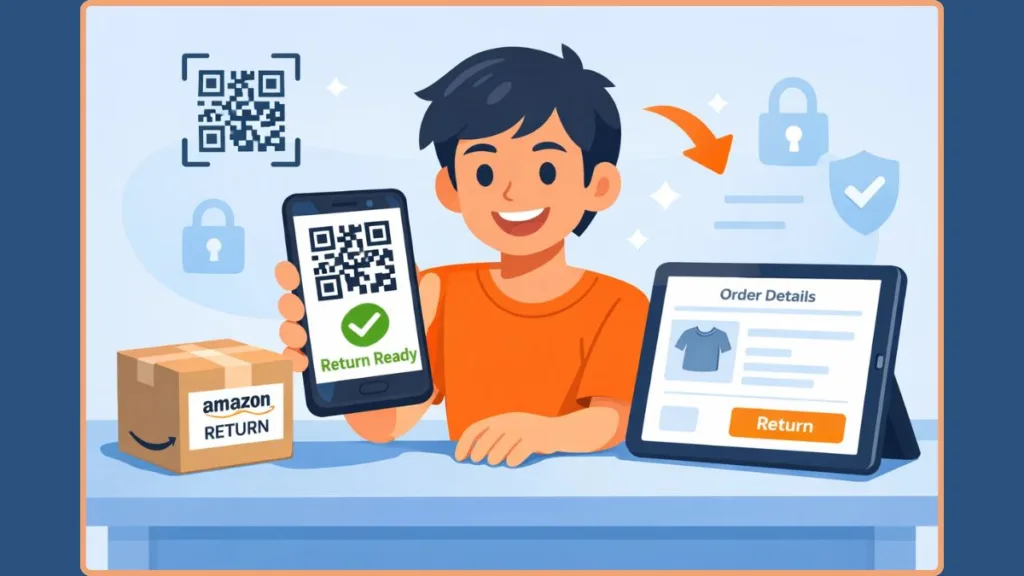
How to Scan Amazon Return QR Code (Step-by-Step)
If you are the one who needs to present a QR code to a store clerk (like at a UPS store, Kohl’s, or Whole Foods) rather than scanning one yourself, you need to know how to pull it up so they can scan Amazon return QR code details seamlessly.
Here is exactly how to find your code:
- Go to your Amazon App > Profile Icon (bottom menu) > Your Orders.
- Locate the item you have requested to return.
- Tap on “View Return Instructions.”
- Here you’ll find the specific QR code generated for that exact item.
- Turn your screen brightness to 100% before showing your QR code at UPS or Whole Foods. This ensures the clerk’s scanner can read it easily without errors.
Why You Might Want to Scan an Amazon QR Code
There’s nothing wrong with wanting to streamline your errands—especially when your daily schedule is packed. While Amazon doesn’t completely force you to use QR codes for every single interaction, there are incredibly smart and efficient reasons to adopt this technology.
Here are the most common reasons people want to scan a QR code on Amazon:
- Label-free returns: Many households do not own a printer, making it incredibly difficult to print traditional return shipping labels. Scanning a return QR code at places like Whole Foods, Kohl’s, or UPS makes the process instant.
- Instant product discovery: > You don’t want to manually type long product names into a search bar; scanning a product’s packaging instantly brings up the exact listing.
- Amazon Locker access: Secure package pickups are private by nature. Scanning a unique QR code at an Amazon Hub Locker ensures that only you can pop the door open to retrieve your delivery.
- Digital authenticity and security: Many users prefer to verify high-value purchases. Scanning an Amazon transparency code guarantees that the item you received is not counterfeit.
Regardless of your reason, Amazon offers tools within its mobile application, tablet ecosystem, and partnered retail locations to help you stay in control of your shopping and return visibility.
The Current State of Amazon QR Code in 2026
For years, standard linear barcodes were the simple yet powerful tool for anyone looking to track an Amazon package or identify a product. They allowed warehouse scanners to read numeric data and move items along a conveyor belt.
However, technology has rapidly advanced. QR codes (Quick Response codes) are two-dimensional, matrix-based barcodes that store information both horizontally and vertically, originally developed by Denso Wave in the 1990s. Here’s what has changed in the Amazon ecosystem:
- Official Shift to Matrix Scanning: Standard barcodes hold limited numeric data, but QR codes can hold complex URLs, secure login tokens, detailed return authorizations, and temporary Wi-Fi credentials for smart devices.
- Widespread Ecosystem Integration: The scanning feature is no longer a hidden diagnostic tool; it is front-and-center in the Amazon mobile app search bar.
- Universal Compatibility: > Almost all modern smartphone cameras natively support QR code routing, meaning you are no longer strictly confined to proprietary software to access basic links.
If your device supports a camera, you can seamlessly scan these codes. Below is a detailed guide on how to do it effectively across various platforms.
How to Scan Amazon QR Code Without the App
If the Amazon app is missing from your phone, or if you simply prefer not to download it, don’t worry—there’s still a manual way to do it. This workaround involves using the native hardware and software built directly into your smartphone.
Manual Method Using Your Phone Camera
- Unlock your smartphone (iOS or Android).
- Navigate to your home screen and open the default, pre-installed Camera application.
- Ensure you are in standard “Photo” mode, not video or portrait.
- Point the camera lens directly at the Amazon QR code you wish to scan.
- Wait a brief second for the camera’s AI to recognize the matrix pattern.
- Tap the yellow or white notification banner/link that pops up on your screen.
- If successful, your default web browser (Safari, Chrome, etc.) will open and redirect you directly to the Amazon mobile website.
Notes About This Method
- This workaround works flawlessly for standard product links and promotional URLs.
- Some highly specific internal Amazon codes (like complex return authorizations) may prompt you to log into the mobile website before displaying the data.
- On older Android devices, you may need to open the Google app and tap the “Google Lens” camera icon to perform these steps.
Ensure that “Scan QR Codes” is toggled to the “On” position inside your iPhone or Android camera settings if nothing pops up.
How to Scan Amazon QR Code on Fire Tablet
If you’re deeply embedded in the Amazon hardware ecosystem and utilize an Amazon Fire Tablet, the process is slightly different depending on your Fire OS version.
How to Set Up Scanning on Fire OS
- Wake up your Amazon Fire Tablet and unlock the home screen.
- Open the built-in Camera app (applicable for Fire OS 7 or later).
- Switch the interface to the rear-facing camera.
- Point the tablet at the QR code. Within seconds, a notification banner will appear.
- Tap the notification to allow the Silk Browser to open the associated Amazon content.
- If using an older tablet (Fire OS 5 or 6), open the Amazon Appstore, search for a highly-rated “QR Code Scanner,” install it, and use that dedicated app instead.
Benefits of Using a Fire Tablet
- Deep Silk Browser integration: > The native browser seamlessly authenticates your Amazon account, making log-ins frictionless.
- Large viewfinder: The tablet screen provides a massive, easy-to-see interface for those who struggle with small smartphone screens.
- Ideal for home setups: Perfect for scanning setup codes for new smart home devices (like Echo dots or Ring cameras) directly from your couch.
Amazon QR Code Not Working? Fix It Fast
If you find your Amazon QR code not scanning, don’t panic. You can still take control of your technical experience and resolve the issue quickly using the following practical troubleshooting strategies:
Fix Lighting, Distance, and Clarity
Move to a well-lit area, as shadows and dim lighting confuse the camera sensor.
- Hold your device about 6 to 12 inches away from the target. Getting too close causes the lens to lose focus and blur.
- Wipe your camera lens with a microfiber cloth to remove fingerprint smudges.
Manage and Enable Camera Permissions
- Go to your phone’s Settings > Apps > Amazon > Permissions.
- Ensure that Camera access is set to “Allow while using app.” Without this, the scanner will just show a black screen.
Navigate Amazon Kids Profiles (Fire Tablet)
- Kids profiles restrict hardware access for safety. To scan a code, a parent must switch to the adult profile.
- Alternatively, go to Amazon Kids Settings > Edit Child’s Profile > Enable Camera Access to allow them to scan approved educational content.
Additional Ways to Protect Your Scanning Experience
Beyond troubleshooting, it’s always smart to keep your Amazon account secure and your shopping habits private:
Practice Safe Scanning and Security
Always look at the URL preview before tapping to ensure it clearly says “amazon.com” or “amazon.in”.
- Avoid scanning random, unsolicited QR codes that claim to offer free Amazon gift cards, as these are common phishing attempts.
Clear Your Visual Search History
- For complete privacy after scanning a sensitive gift, go to Your Browsing History on the Amazon app and select “Remove Items.”
- This ensures that recently scanned products don’t show up in your household recommendations.
Limitations of Scanning Amazon QR Code
Even with these tools, there are a few things you should know about the limitations of this technology:
- You cannot scan a code if your smartphone camera lens is physically shattered or broken.
The Amazon app scanner requires an active internet connection; it will not process data or load product pages while offline or in airplane mode.
- If the physical QR code is ripped, smeared with ink, or sharply folded, the camera’s matrix-reading algorithm will fail.
- Older smartphone operating systems may no longer support the latest version of the Amazon app, forcing you to rely on third-party scanners.
Understanding these limits ensures that you know what to expect while managing your physical and digital Amazon interactions.
Final Thoughts on How to Scan an Amazon QR Code
While Amazon has heavily modernized its logistics and shopping interface, there are still incredibly effective and easy ways to manage your scanning needs across all your devices.
To summarize:
- Use the Amazon app’s built-in search bar camera if you want the fastest, most integrated experience.
- Try the manual method using your native iOS or Android camera app if you don’t want to download extra software.
- Utilize the Fire Tablet’s built-in camera or Appstore solutions for a large-screen, home-based approach.
- Keep your camera lens clean, ensure proper lighting, and manage your app permissions to prevent frustrating technical hiccups.
Being proactive and using these digital tools helps you maintain control of your shopping experience, ensuring your returns are effortless and your product discovery remains efficient, even as Amazon continues to evolve its systems and features.
If you want the fastest and most reliable way to scan an Amazon QR code, the Amazon app scanner is your best option. It’s built specifically for returns, product discovery, and secure access—making the entire process effortless.
Frequently Asked Questions (FAQ)
Q1: Can the Amazon app scan QR codes?
Yes. You can easily scan QR codes and traditional barcodes by tapping the small camera icon located on the right side of the main search bar within the Amazon mobile app.
Q2: Why is my Amazon QR code not scanning at Whole Foods or UPS?
Currently, the most common reason a clerk cannot scan your return code is screen brightness. Turn your smartphone brightness up to 100%. Additionally, ensure your screen isn’t cracked over the code and that you are not in “Dark Mode,” which can invert the necessary contrast for older retail scanners.
Q3: How do I scan an Amazon QR code from a screenshot already saved on my phone?
The Amazon app scanner requires a live camera feed. To scan a screenshot, open the Google Photos app (or Google app) on your phone, open the screenshot, and tap the “Google Lens” icon. It will read the QR code directly from the image file.
Q4: Do I strictly need the Amazon app to scan their QR codes?
No. While it provides the best and most seamless experience, you can use your smartphone’s default camera app to scan Amazon codes, which will then redirect you to your mobile web browser.
Q5: Is it safe to scan Amazon QR codes?
Yes. When scanning codes printed directly on Amazon boxes, official return receipts, or verified product packaging, it is entirely safe. Just remain vigilant and verify the URL preview if scanning a code found in a public place or received via an unsolicited email.
Visit Our Post Page: Blog Page