
Mastering schedule send in Outlook for 2026 is easy with this guide. Learn the best way to delay delivery on New Outlook, Classic, Web, and Mobile. We also show you how to fix missing or greyed-out buttons so your emails always land at the perfect time!
We’ve all been there: you finish writing an important email late at night or over the weekend, but you don’t want to send it immediately and bother your colleagues outside of work hours. Or maybe you want to ensure your pitch lands at the absolute top of your client’s inbox right at 9:00 AM on a Tuesday.
Or let’s take another common scenario: you are working from home, grinding on a project all night long, and you do not want to wake up early the next day just to hit the Send button during normal office hours. There is also that classic “oops” moment—mentioning an attachment in the body text and never remembering to actually attach it before hitting Send. Once that button is clicked, it usually cannot be undone. This is exactly where the importance of scheduling or delaying your emails comes into the picture!
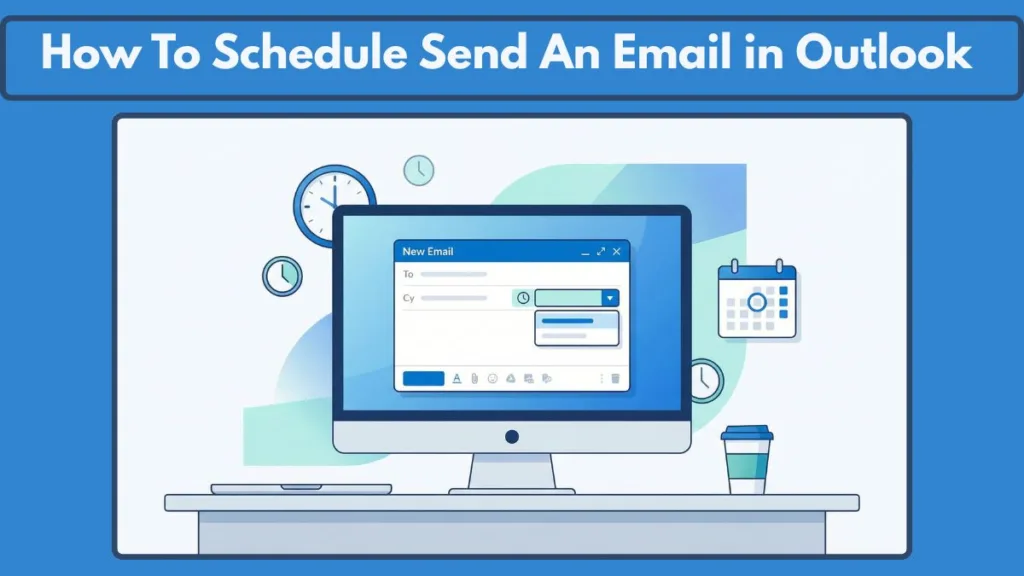
Whatever your reason, Outlook has built-in features to help you control exactly when your messages go out. However, because Microsoft has several different versions of Outlook, the process—and even the name of the feature—varies depending on the app you are using.
This comprehensive guide covers everything you need to know about scheduling emails across all Outlook versions, devices, and platforms.
The Big Debate: Schedule Send vs. Delay Delivery in Outlook
Before diving into the steps, it is crucial to understand that Microsoft uses two different systems for scheduling emails, depending on your version of Outlook.
- Schedule Send (New Outlook, Web, Mobile, Mac): This is a modern, cloud-based feature. Your scheduled email is saved to your Drafts folder and is processed by Microsoft’s servers.
- Delay Delivery (Classic Outlook for Windows): This is a legacy, local feature. Your email sits in your local Outbox folder until the specified time.
The Offline Dilemma: Does Outlook Need to Be Open for Schedule Send?
This is the most common point of confusion:
- If you use “Schedule Send” (New Outlook/Web): No. You can close your browser, shut down your computer, or go offline. The server handles sending the email at the right time.
- If you use “Delay Delivery” (Classic Outlook): Yes. Your computer must remain turned on, connected to the internet, and the Outlook app must be open for the email to actually send. If the app is closed, the email will send the next time you open Outlook.
Master the Cloud: How to Schedule Send in New Outlook, Web, and Office 365
If you are using the modern “New Outlook” app for Windows, or accessing Outlook through your web browser (Office 365), you have access to the reliable, cloud-based scheduling feature.
Quick Step-by-Step Instructions for Cloud Sending
- Open Outlook and click New Email to compose your message.
- Fill out the recipient, subject, and body as usual.
- Instead of clicking the main “Send” button, click the drop-down arrow immediately to the right of the Send button.
- Select Schedule send. (Note: In some Outlook web versions, this option may be labeled as Send later).
- Choose one of the suggested preset times (e.g., “Tomorrow morning”) or click Custom time to use the calendar and date picker to pick a specific date and time.
- Click Send.
Oops, Made a Mistake? How to Find, Edit, or Cancel a Scheduled Email
Once scheduled, your email does not go to your Outbox. Instead, it waits in your Drafts.
- Navigate to your Drafts folder on the left pane of the navigation bar.
- Open the scheduled email.
- Click the pencil icon (Edit) to modify the message or change the scheduled time.
- To cancel it completely, open the draft and simply delete it, or edit it and choose to send it immediately by hitting the Send dropdown button.
The Legacy Method: How to Delay Delivery in Outlook Classic Desktop
If you are using older versions like Outlook 2016, 2019, 2021, or you have specifically opted to stay on the “Classic” Outlook desktop client, you will use the Delay Delivery method.
Step-by-Step Instructions for Classic Users
- Click New Email and write your message.
- In the message window, go to the Options tab on the top ribbon.
- Click the Delay Delivery button. (If you don’t see it, click the three dots or look under “More Options”). (Alternatively, you can click on the Message tab from the tabs ribbon, and click on the Message Options icon associated with the Tags group. This will also open the Properties window).
- A Properties dialog box will open. Look under the “Delivery options” section.
- Check the box for Do not deliver before, and enter your desired date and time.
- Click Close on the dialog box to go back to the new email window.
- Click the main Send button on your email.
Outbox Management: How to Check or Cancel Delayed Emails
- Go to your Outbox folder on the left navigation pane. Your email will be sitting there.
- To edit or cancel, double-click the email on the center pane to open it.
- You can change the text as you prefer, or go back to Options > Delay Delivery to uncheck the box and send it right away.
- Remember: Leave the Outlook app open until the scheduled time passes.
Emailing on the Go: How to Schedule Send on the Outlook Mobile App
You can easily schedule messages on the go using the mobile apps.
Steps for Outlook for iPhone (iOS), iPad, & Android Devices
- Open the Outlook app and tap the New Message icon.
- Draft your email.
- Tap the three dots (…) or the + icon (depending on your exact app version) at the bottom of the compose screen before the “Send” icon.
- Tap Schedule Send.
- Choose a preset time or select Choose a time to customize it.
- The email will be saved in your Drafts folder until it sends.
For the Apple Crowd: How to Schedule Send in Outlook for Mac
Mac users have had access to native scheduling for a while, and it works identically to the New Outlook/Web version.
Using the Native Mac Desktop Client
- Draft a new email.
- Next to the Send button, click the drop-down arrow.
- Select Schedule Send (or “Send Later” in older Mac versions).
- Pick your date and time and confirm.
- The email is stored in your Drafts folder and will send even if your Mac is asleep or turned off.
Leveling Up: Advanced Scheduling Features in Outlook
Keep the Conversation Going: How to Schedule Send a Reply
You don’t just have to schedule new emails; you can schedule replies, too. Simply hit “Reply” to an existing thread, and follow the exact same steps (using the drop-down arrow or the Options tab) as you would for a new email.
The Meeting Question: Can You Schedule Send Calendar Invites or Meetings?
Currently, Outlook does not natively support scheduling the delivery of calendar invites or meeting requests. When you hit send on a meeting invite, it goes out immediately to the attendees.
The Ultimate Safety Net: Setting a Delay Send Rule for All Emails
If you often catch typos right after hitting send, you can create a rule in Classic Outlook to delay all outgoing mail by a specified number of minutes:
- Go to File > Manage Rules & Alerts > New Rule (make sure you are at the E-mail Rules tab first).
- Under the section “Start from a blank rule”, select Apply rule on messages I send, then hit the Next button.
- Skip the conditions (so it applies to everything) and click Next. A prompt will ask “This Rule will be applied to every message you send. Is this correct?”. Select Yes.
- Check the action defer delivery by a number of minutes.
- Click the underlined value “a number of” to set it to your preference (e.g., 1 to 5 minutes) and finish the setup. (Note: Delivery can be delayed up to a maximum of 120 minutes in the Deferred Delivery window). Name your rule, turn it on, and click Finish.
How to Revert Delay in Sending Mails: In case you change your mind and would like to send emails straight away without any waiting, you can delete the delay rule you created. Go back to File > Manage Rules & Alerts. Ensure you are on the E-mail Rules tab. Check the checkbox corresponding to your delay rule and hit the Delete button at the top. Click Apply and then OK to successfully remove the rule.
AI Assistance: Using Viva Insights for Scheduling
If your organization uses Microsoft Viva, you might see a “Schedule send” suggestion automatically pop up when you try to email a colleague outside of their working hours. Viva uses AI to read your recipient’s working hours and suggests holding the email until they are back online. You can simply click the suggestion to accept it.
Troubleshooting Guide: Schedule Send Not Working or Missing?
Schedule Send Button Missing or No Dropdown in Outlook
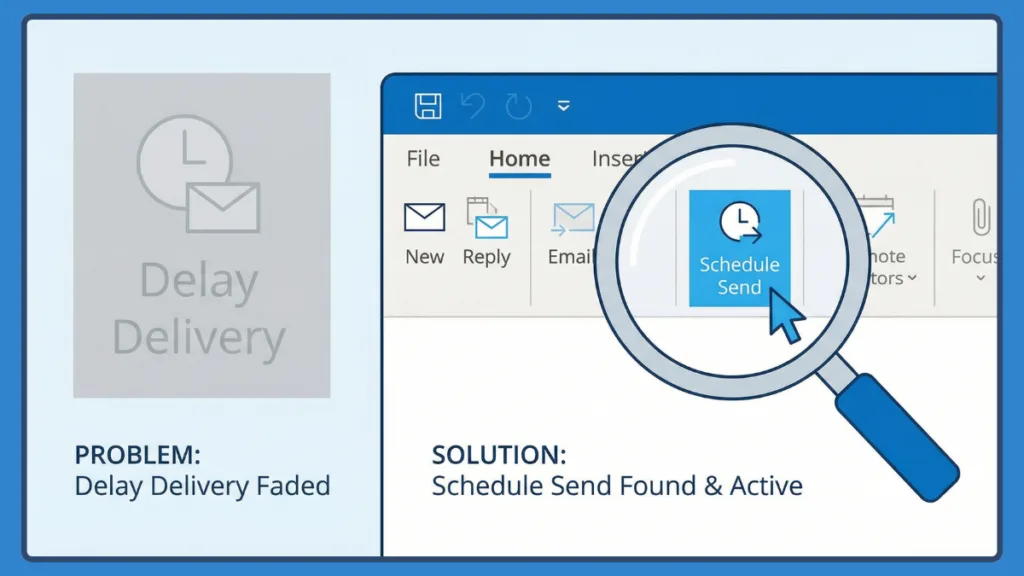
If you are wondering “why can’t I schedule send on Outlook” because there is no drop-down arrow next to your Send button, you are likely using Classic Outlook. You need to use the Options > Delay Delivery method instead to schedule your messages.
Why is Schedule Send Greyed Out in Outlook?
If the “schedule send outlook greyed out” issue is happening to you, it usually means your email account type does not support cloud scheduling (such as an older POP3 or IMAP account). It can also happen if your Outlook app is offline or disconnected from the Exchange server.
Delay Delivery Outlook Stuck in Outbox or Sent Immediately
- Sent immediately: You likely clicked the main “Send” button instead of the drop-down, or you accidentally unchecked the “Do not deliver before” box in Classic Outlook.
- Stuck in Outbox: If you are using Classic Outlook, check if your computer went to sleep or lost its internet connection at the exact time the email was scheduled to go out.
What Time Zone Does Outlook Schedule Send Use?
If you travel frequently, you might ask: what time zone does Outlook schedule send use? Outlook always relies on the time zone of the device you are currently using to schedule the email. If you schedule an email for 9:00 AM while you are in New York (EST), it will send at 9:00 AM EST, regardless of your recipient’s time zone.
FAQ
Can People See If I Schedule Send on Outlook? (Does the Recipient Know?)
No. Once the email is delivered, there is no indicator, flag, or metadata that tells the recipient you scheduled it in advance. It looks exactly like an email you just typed and sent. If you are worried and asking “does recipient know schedule send outlook,” you are completely safe.
Does Outlook Schedule Send Work Offline or When Computer is Off?
In New Outlook, Web, Mac, and Mobile, yes—you can go offline after scheduling, and the server will send it. In Classic Outlook (Windows Desktop), no—you must remain online and the app must be running for a delayed email to leave your Outbox.
Bulk Schedule Send Outlook: Can You Schedule Multiple Emails?
Outlook does not have a native “bulk schedule send” feature for different emails going to different people at different times. For mass mailings or mail merges on a schedule, you will need to use a third-party add-on or a dedicated email marketing platform.
Official Microsoft Support & Documentation
Delay or Schedule Sending Email Messages in Outlook: The primary official help article covering the basics for New Outlook, Classic, and Web versions.
Microsoft Outlook Version Identifier: A critical resource for readers who are still unsure if they are using “New,” “Classic,” or “PWA” (Progressive Web App) versions.
How to Delay Send an Email in Outlook: Our deep-dive guide on mastering the defer features to send later with ease.
Visit Our Post Page: Blog Page