
Can’t find attachments in an Outlook thread? Learn how to see attachments in Outlook in 2026 using reliable methods, clear indicators, and proven ways to locate missing files in email chains without confusion.
Outlook does not automatically carry attachments forward when you reply to an email. There’s no alert, no warning, and no visible list showing where your file went.
That silence is intentional—and it’s exactly why this situation feels frustrating or confusing.
It happens to the best of us. One day you’re reviewing a document sent by a colleague, and the next, after a few replies, the file seems to have vanished into thin air. Did the sender delete it? Did your inbox drop the file? Or is it simply hidden? These outcomes overlap in ways that make quick assumptions unreliable.
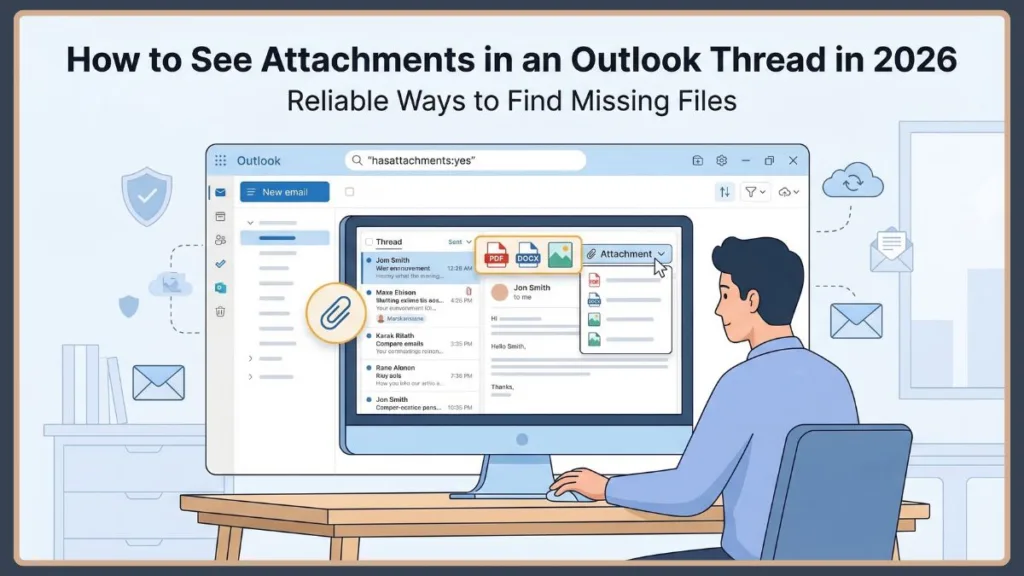
While Outlook won’t automatically present the file in your newest reply, it does leave behind clear technical signals. When you check those signals calmly and in the right order, you can reach a grounded conclusion without endless scrolling. The aim here is clarity, not guesswork.
This guide explains how to see attachments in an Outlook thread, what each software setting actually means, and what Outlook defaults hide from view—so you can locate your documents with confidence.
Can You Actually View Attachments in Outlook Email Chains at a Glance?
The short, direct answer to viewing attachments instantly
No. Out of the box, Outlook does not provide a single, universal notification or magical folder that instantly shows every attachment in a long thread without tweaking your settings first.
What you can rely on instead to view attachments in Outlook email chains
Although Outlook hides the files in subsequent replies, it can’t hide the indicators of an attachment. Those indicators show up as changes in conversation view settings, reading pane strips, and search visibility.
When you analyze these indicators together, you can determine whether your file is buried in an earlier reply, blocked by security, or filtered out. The key point is simple: no single click reveals everything by itself. Accuracy comes from combining settings logically.
What Happens When You Reply (And Why Attachments Disappear in Outlook Replies)
How Outlook conversation view works behind the scenes
Email file storage in Outlook is message-specific, not global to the thread. Once someone sends a file, Outlook anchors that document to that exact timestamp and message ID.
From your side, if you hit “Reply,” the original file is left behind. It does not carry forward.
Outlook then groups these isolated emails together into a continuous thread based on the subject line and participants.
Why missing attachments in your Outlook thread causes confusion:
At the same time, that file remains fully accessible in the original message. You might see a paper clip icon next to the thread, but clicking the newest message shows nothing. This mismatch—between knowing a file is in the thread but not seeing it in the current message—is why checking your view settings correctly matters.
How to Find Attachments in an Outlook Conversation: Step-by-Step Checks
1) Enable Conversation View (Use the View Tab)
What this setting tells you about your files:
Start with the View tab and check the Show as Conversations box to filter out inbox clutter. If the emails group together, it means Outlook recognizes the thread. You can apply this to This folder or All mailboxes. This step is a useful first filter to consolidate your view, but it cannot reveal the exact file on its own.
2) Check the Attachment Strip to View All the Attachments Across an Email Thread in Outlook
Why this reading pane check matters (and where it stops):
Select any message inside the expanded conversation and look at the top of the Reading Pane. If the attachment strip appears, Outlook is successfully displaying files from earlier emails in that chain. However, hidden dropdown arrows can sometimes mask multiple files.
This confirms the presence of files, but you must click the arrow to see the full list.
3) Search for Specific Attachments in an Outlook Email Chain
Clues that suggest your file is hidden in a long chain:
The search bar often reveals clearer technical clues. Open the search bar and use specific commands like hasattachments:yes, filename:.pdf, or filename:report*.
Seeing immediate results is a high-confidence indicator that your file is safe. Even so, search alone won’t organize your inbox—treat it as a fast extraction method.
4) Try Visiting the Outlook Web App (OWA) or Mobile App
What mobile limitations really mean for your files:
Open the conversation on your phone or OWA. Seeing the attachment strip at the top of OWA means the files are fully synced to the server. However, if you are on the mobile app, tapping the paperclip icon might only show recent files. At this point, you’ve narrowed down where the file lives—but you haven’t secured it on your hard drive yet.
The Most Reliable Way to Sort Your Outlook Inbox by Attachments
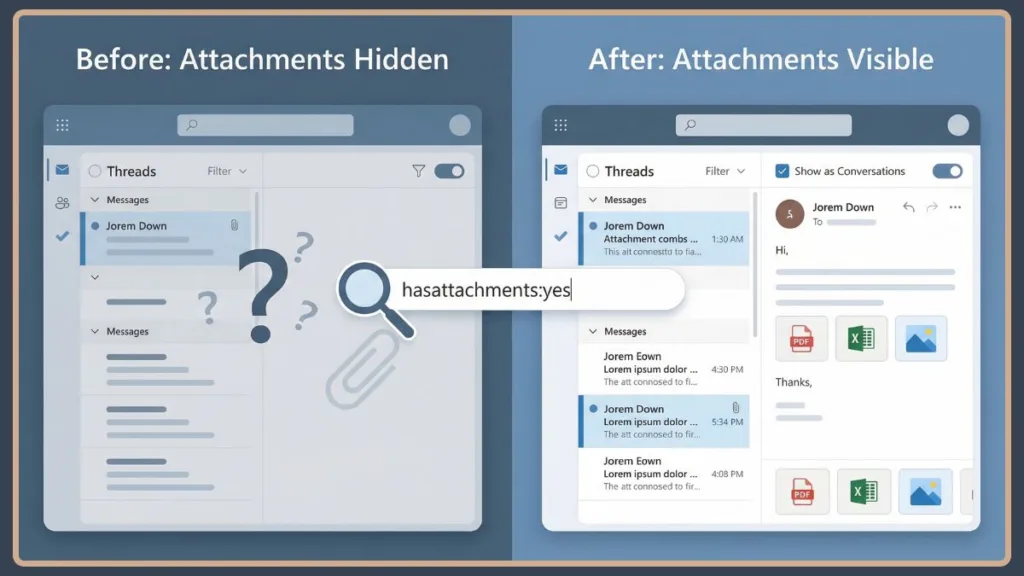
Why this method works to isolate your files
This approach removes manual scrolling from the equation and checks exactly what data is stored in your folders. It’s the closest thing to a guaranteed file-finder Outlook allows.
Step A: Click the Filter or Sort Option
From your main inbox view, click the Sort by attachment column header, or locate the Filter button.
Step B: Apply the “Has Attachments” Rule
Select the Has Attachments option. This ensures your inbox view is not influenced by standard chronological sorting.
Step C: Interpret the Result of the Filter
If the emails surface immediately, the files exist securely in your data file—meaning you just needed to bypass the visual clutter.
If the inbox is empty after filtering, the files are either deleted, blocked by security, or located in a different archive folder.
Preview vs. Download vs. Save All (Critical Differences)
| Action | Speed & Access | Modifiable? | Offline Availability |
| Preview (Inline) | Instant, loads within Outlook | No (Read-only) | No |
| Download (Single) | Slower, saves to hard drive | Yes | Yes |
| Save All Attachments | Bulk saves multiple files | Yes | Yes |
When interaction symptoms overlap, downloading the file directly to your desktop is the most reliable way to ensure you have full access to the document.
Classic Outlook App vs. OWA / New Outlook
Understanding desktop vs. web behavior:
A local Desktop App environment relies on downloaded PST/OST files. You won’t be able to access files if your local data file is corrupt, but you can use advanced VBA scripts to manage them.
A Web (OWA) / New Outlook environment relies entirely on the cloud. When interface tools disappear or change, it indicates a server-side update. Both versions will hide attachments in replies, but the UI for finding them varies slightly.
Why You Can’t Find Attachments in an Outlook Thread (Other Legit Reasons)
Not every missing file means it was deleted. IT administrators implement security protocols for safety, which removes dangerous file types (like .exe) from visibility for everyone. Custom view settings can also limit search or reading pane visibility without deleting your data directly. In some cases, a corrupt PST/OST data file may temporarily restrict account data.
Because these scenarios look similar to standard threaded replies, checking your Trust Center settings and clearing active filters is essential before drawing conclusions.
Can Apps or Extensions Extract All Attachments from an Outlook Thread?
While Outlook does not expose a native “extract all from thread” button, there are workarounds. Using VBA scripts (for IT professionals) or reputable third-party add-ins can automate extraction.
However, any unverified app claiming to instantly manage your secure files could be putting your network at risk. Using unauthorized third-party tools can compromise security or lead to data misuse. Use caution.
FAQ: How to See Attachments in an Outlook Thread
Why can’t I see attachments in an Outlook thread?Because attachments are tied to individual emails, not subsequent replies. Expand the thread to find them.
How do I view all attachments in an email chain?Enable conversation view and check the attachment strip at the top of the reading pane.
Why do attachments disappear when I reply in Outlook?Outlook deliberately doesn’t include attachments in replies to save space—they stay safely in the original message.
How do I turn on conversation view in Outlook?Go to the View tab → Check “Show as Conversations.”
How do I find a missing attachment in Outlook 365?Use specific search filters like hasattachments:yes or manually click the arrow to expand your thread history.
Can I download all attachments from a thread?Not directly with one click. You must use the “Save All Attachments” feature on individual emails or utilize advanced IT tools.
Where are attachments stored in Outlook?They remain securely embedded in the email data file until you specifically choose to download them to your device.
Final Reality Check: What to Do After You Set Up Your Inbox
Outlook intentionally makes attachment management in long threads indistinguishable from missing files at first glance. That design saves server space but creates confusion.
The calm, professional takeaway:
The professional approach is to stack multiple checks: enable conversation view, utilize the reading pane, and confirm with specific search filters (hasattachments:yes).
If the file exists in your data file but not in your immediate view, the answer is clear: it is buried in an earlier message. Once you know how Outlook’s grouping logic works, the healthiest response is simple: adjust your view settings, use the search bar, and move on with your workday.
Useful Resources for Viewing Attachments in Outlook Threads
Official Microsoft Support Guides
These are the best “source of truth” links for specific technical steps across different versions of Outlook.
- View Email Messages by Conversation: A deep dive from Microsoft on how the “Conversation View” logic works in the Classic and New Outlook.
- Search for Items in Outlook: A comprehensive list of search operators (like
hasattachments:yes) to find specific files instantly. - Outlook Attachment Limits & Security: Explains why some attachments might be blocked or restricted by Outlook’s security protocols.
Community & Troubleshooting Forums
Sometimes the “official” answer isn’t enough. These communities offer real-world fixes from other Outlook users.
- Microsoft Tech Community (Outlook): The best place to ask specific questions about bugs or weird behavior in Outlook 365.
- r/Outlook on Reddit: A very active community where users share tips, tricks, and quick fixes for common attachment issues.
- Outlook Attachment Extractor (GitHub): For technical users looking for open-source scripts (Python or PowerShell) to pull files from large PST data files.
Visit Our Post Page: Blog Page