
Want to revisit your past photos in 2026? Learn how to see old profile pictures on Facebook using simple steps. From opening the Profile Pictures album to finding photos without scrolling on mobile, iPhone, or Android, quickly access and manage your Facebook photo history.
Using Facebook has become second nature for millions of people around the world. It’s fast, convenient, and filled with years of memories. But sometimes, finding specific past photos matters more than simply scrolling the timeline. Whether you’re trying to recover a cherished memory, reuse a past image, or simply wish to review your digital footprint, learning how to see old profile pictures on Facebook can help you maintain control over your digital history.
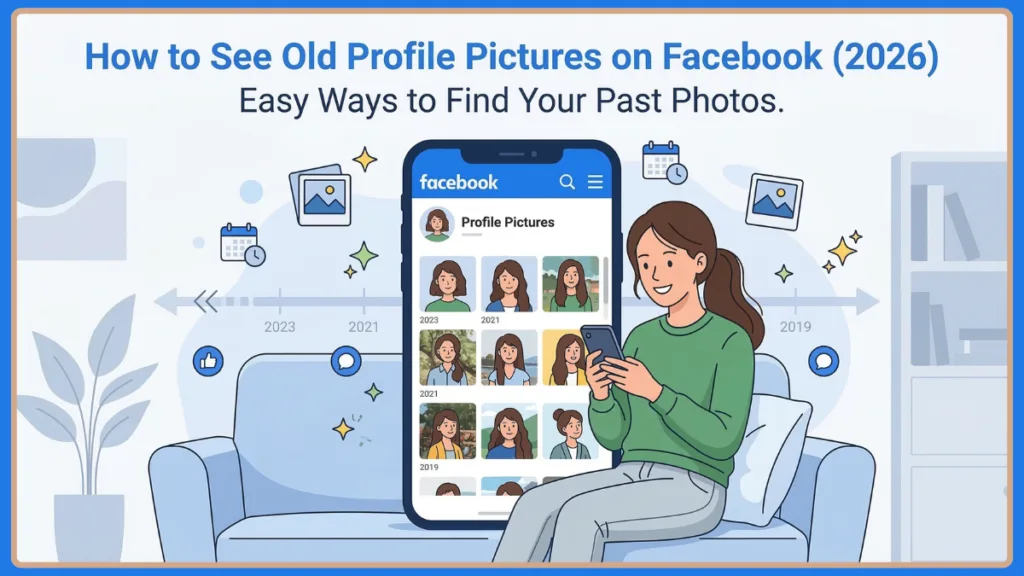
In recent years, Facebook has made numerous changes to its mobile layout, and the location of your photo albums has shifted. This has left countless users searching for how to see old profile pictures on Facebook mobile or how to find old pictures on Facebook without scrolling effectively.
Fortunately, there are still reliable methods and straightforward navigations that let you view, organize, and manage your past photos. Let’s explore these options in detail and walk through every step to access your history.
Why You Might Want to Find an Old Profile Picture: Nostalgia and Privacy
There’s nothing wrong with wanting to take a trip down memory lane or manage your online identity—especially when your Facebook account holds years of personal history. While the layout changes often, the platform automatically saves your profile picture history.
Here are the most common reasons people search for their old photos:
- Reusing an image: Many users want to know how to use an old profile picture on Facebook without uploading it again.
- Digital organization: You may want to adjust privacy settings on older photos to ensure they are hidden or public.
- Nostalgia: Taking a look back at school photos, travel memories, or milestone moments.
- Account recovery: Trying to recover a Facebook profile picture you thought was lost.
Regardless of your reason, Facebook offers built-in albums to help you stay in control of your account’s photo visibility.
Where Are Old Profile Pictures Stored?
Before learning how to access them, it helps to understand where Facebook stores profile photos. Whenever you update your profile picture, Facebook automatically places the previous image inside a special album called “Profile Pictures.” This album works like a history log of every profile photo you’ve ever used.
Along with this album, Facebook also stores images in:
- Profile Pictures album – contains every profile picture you previously used.
- Cover Photos album – stores your past cover photos.
- Timeline posts – shows profile picture updates in chronological order.
This means your past profile pictures are not deleted when you upload a new one. They remain securely accessible unless you manually remove them.
Step-by-Step Guide to See Old Profile Pictures on Mobile (iPhone & Android App Walkthrough)
Most people access Facebook through the mobile app, so this is the easiest and most common method. If you’re wondering how to see old photos on Facebook mobile, the process takes less than a minute.
Whether you are looking for how to see old profile pictures on Facebook iPhone or how to see old profile pictures on Facebook Android, the steps are nearly identical:
- Open the App: Sign in to your Facebook app. (This method also works for Facebook Lite).
- Navigate to Profile: For iPhone, tap your Profile icon in the top-right corner and select your name. For Android, tap the Menu icon, then tap your name.
- Locate Photos: Scroll slightly below your profile picture and personal details, and tap the Photos section.
- Open Albums: Inside the Photos section, switch over to the Albums tab.
- View History: Look for the album titled Profile Pictures and tap to open it.
When you open this album, Facebook displays your complete profile picture history. The images are arranged from newest to oldest, allowing you to scroll through your previous photos. This method effectively solves how to see old profile pictures on the Facebook app.
Key Points to Remember About Your Profile Picture History
- All previous photos remain here unless manually deleted.
- You can tap any photo to view it in full size.
- From this menu, you can adjust privacy settings or delete unwanted photos.
- This specific layout applies directly to searches for how to see old profile pictures on Facebook on iPhone.

How to See Old Profile Pictures Without Scrolling: Save Time and Effort
If you’re searching for how to find old pictures on Facebook without scrolling, navigating directly to the Profile Pictures album using the steps above is the most efficient method. Instead of scrolling through years of timeline posts, Facebook organizes them in one place.
The Timeline Year Filter Method for Finding Past Photos
Another option is using the timeline year filter:
- Go to your profile timeline.
- Tap the filter icon near your posts.
- Jump to a specific year.
This helps you quickly find photos from that period, answering searches like how to find photos on Facebook from years ago.
How to View Old Profile Pictures of Others: Navigating Privacy
If you’re trying to learn how to see old profile pictures on Facebook without being friends, the answer depends entirely on the privacy settings of that user’s photos.
How to Check Another User’s Photos Safely
- Open the person’s profile.
- Navigate to Photos > Albums > Profile Pictures.
- If their profile pictures are public by default, you will see their previous photos.
- If they set the album privacy to Friends or Only Me, the photos will not be visible.
Note: People also search for how to see old profile pictures on Facebook without them knowing. Facebook does not notify users when someone views their profile pictures.
Additional Ways to Manage Your Profile Pictures: Beyond Viewing
Even if you just wanted to view an old photo, you can still take control of your Facebook account using the following strategies:
1. Restore Engagement: Bring Back Old Profile Picture Without Losing Likes
To reuse an old photo, open the Profile Pictures album, tap the three-dot menu on the photo, and choose Make Profile Picture. The original post remains intact in the album with all likes and comments. However, be aware that Facebook creates a new profile update post on your timeline, which starts with zero reactions. This addresses how to bring back old profile picture on Facebook without losing likes.
2. Set a Timer: Change Your Facebook Profile Picture Temporarily
To apply a temporary profile picture Facebook style, tap your current profile picture, select Change profile picture, choose an image, and enable the temporary option. You can set it to revert after 1 hour, 1 day, or 1 week. This helps users searching for how to change Facebook profile picture temporarily or change profile picture without posting.
3. Rediscover Memories: Find Old Facebook Photos From Years Ago
If you want to know how to see old photos on Facebook outside of the profile album, try browsing your chronological timeline, checking Tagged photos (images where friends tagged you), or looking through specific Event pages. This solves how to find old pics on Facebook.
4. Chat App Tricks: View Profile Pictures via Messenger
Messenger itself doesn’t store profile picture history. However, to solve how to see old profile pictures on Facebook Messenger, tap someone’s profile inside a chat, view their current photo, and select the option to open their full Facebook profile to access their public albums.
Limitations of Recovering Deleted Facebook Profile Pictures: Data Realities
Even with these tools, there are a few things you should know regarding deleted content. If you are searching for how to find old Facebook pictures that have been deleted, understand that once permanently removed from Facebook, they cannot usually be restored through the platform.
However, check these two workarounds:
- Data Archive: If you previously downloaded your Facebook data archive, the photo might exist in that backup.
- Local Storage: Check if the photo was saved on your phone or computer before uploading.
Final Thoughts on How to See an Old Profile Picture on Facebook and Regain Control
While Facebook’s interface regularly updates, there are still effective ways to view or manage your photo history.
To summarize:
- Use the Photos > Albums > Profile Pictures navigation to view your history instantly.
- Utilize the timeline year filter to find specific past posts without scrolling.
- Understand that viewing others’ photos relies entirely on their privacy settings.
- Use the “Make Profile Picture” tool to reuse photos while preserving original likes in the album.
These methods ensure your Facebook account remains organized, your memories stay accessible, and your digital footprint remains in your control.
Frequently Asked Questions (FAQ) About Facebook Photos
Q1: How to see all Facebook photos of someone?
Open their profile, go to Photos, and browse their albums. The photos you can see depend entirely on their privacy settings.
Q2: How to see old profile pictures on Facebook without deleting them?
Simply open the Profile Pictures album. All photos remain there securely unless you manually delete them.
Q3: What is the default profile picture on Facebook?
The default profile picture is the gray silhouette icon used when a user has not uploaded any profile image.
Q4: How to change profile picture on Facebook?
Open your profile, tap your current profile picture, and choose Change Profile Picture to upload a new image.
Visit Our Post Page: Blog Page