
Are you unable to find photos in Messages after the iOS 26 update? Learn how to see photos in Messages on iOS 26 quickly with simple, proven steps.
Why Finding Photos in Messages Feels Different in iOS 26
If you’ve updated your iPhone to iOS 26 and suddenly feel like photos in Messages disappeared, you’re not alone — and it’s not just in your head. This update brought a whole new design language and interface, which changes how content is organized inside the Messages app. Instead of instantly showing every picture you’ve ever sent or received, the experience now relies more on how content is grouped and contextually displayed.
Many users are now asking things like “where are the photos in Messages iOS 26?” or feeling like they’re scrolling forever just to find a picture someone sent earlier. That’s mostly because Apple shifted from the older straightforward layout to one where photos and shared content live deeper inside a conversation’s shared media area, and sometimes they don’t pop up right away.
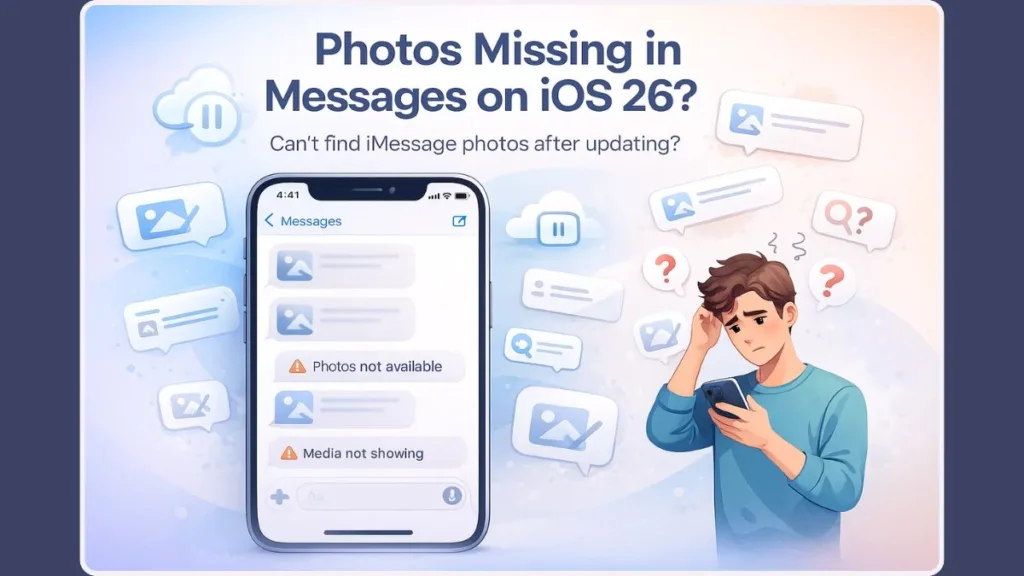
It helps to think of this change not as lost photos, but as a redistribution of how media is organized — prioritizing a cleaner, more contextual interface while expecting you to interact differently with your message threads. In this guide, we’ll gently walk you through why it feels different, where photos truly live now, and how to access them confidently without guesswork.
Where Photos Live in Messages on iOS 26 (New Layout Explained)
In iOS 26, the way shared photos and attachments are surfaced inside the Messages interface has been reworked — part of Apple’s broader update that refreshed app layouts across the system.
Here’s how it works now:
- Instead of a big, always-visible Photos tab at the top of every conversation, photos are tucked inside a shared media section that you access from the conversation details.
- When you open a chat, you’ll see the messages scroll as usual. To find all the images you’ve exchanged with that contact, you now need to tap the person’s name or group name at the top of the screen and then swipe to the Photos category.
- It’s still possible to see Links, Documents, and Locations in the same shared media area — they’re just on separate cards you can swipe through.
This design aims to de-clutter the main Messages view and put shared content behind an intentional tap, but it can feel hidden at first. Especially since older versions of iOS made photos feel more “in your face” when opening a thread.
A few things to keep in mind about this layout:
- The Photos section may not appear in every chat — it only shows up if you’ve actually exchanged images in that specific conversation.
- Sometimes the Photos card loads slowly or appears incomplete if your iPhone is still indexing the conversation after an update.
- If you just updated or switched devices, it can take a bit of time for all attachments to sync through Messages on iCloud before that Photos section populates fully.
So while the path to your photos is just a little different now, everything is still there — just stored under the new shared media structure Apple established with iOS 26.
How to See Photos in a Specific Message Conversation: Step-by-Step
When you’re trying to see photos in a specific Messages conversation on iOS 26, the experience can feel hidden at first—but once you understand the flow, it’s actually very structured and consistent.
Here’s the most reliable way to view all images shared with a particular contact or group.
Step 1: Open the Messages app
Launch Messages on your iPhone and tap the conversation where you know photos were exchanged. This works the same for iMessage and SMS/MMS threads, as long as images were sent.
Step 2: Tap the contact name or group title at the top
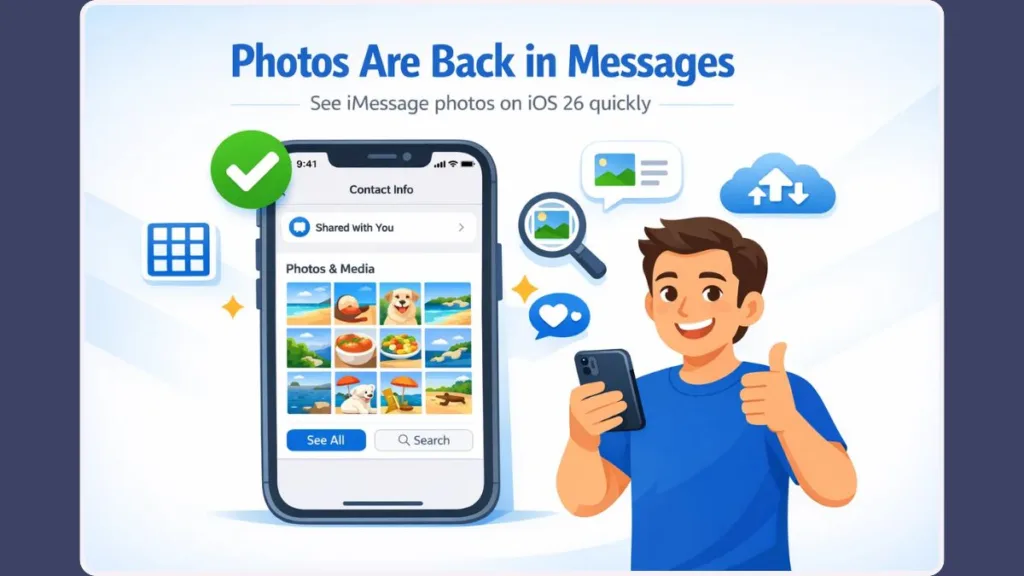
At the very top of the conversation, tap the contact name, phone number, or group name. In iOS 26, this action opens the conversation info panel, which replaces many older shortcuts.
Step 3: Scroll to the shared content area
Inside the info panel, scroll down slowly. You’ll see sections like Photos, Links, Documents, and sometimes Locations.
The Photos section is where iOS 26 collects all images shared in that conversation.
Step 4: Tap “See All” to open the photo grid
Tap See All next to Photos to view a full grid layout. Images are usually sorted by date, making it easier to:
- Scan older photos
- Select multiple images
- Save or share them
Important details that explain common confusion
- The Photos section only appears if iOS detects image attachments in that conversation
- After updating to iOS 26, your iPhone may still be indexing message attachments in the background, which can delay visibility
- Conversations with years of history may show photos gradually as indexing completes
- Group chats sometimes populate slower than one-to-one chats due to larger attachment histories
This step-by-step method is the cleanest way to view pictures in Messages on iOS 26 without scrolling endlessly through message bubbles.
How to Find Photos Using Messages Search in iOS 26
If you don’t remember which conversation a photo came from, Messages search in iOS 26 becomes your best backup. Apple has leaned more heavily into system-wide intelligence and indexing, which changes how search behaves compared to earlier versions.
Where to find Messages search
- Open Messages
- Tap the search bar at the top of the app
- Start typing a name, keyword, or context
As you type, iOS 26 dynamically updates results instead of waiting for a full query.
What Messages search can surface
Depending on your input, search may show:
- Relevant conversations
- Photo thumbnails tied to your search
- Links and attachments connected to the same message context
When photos match, they appear as visual previews, not just text references. Tapping a thumbnail jumps directly to the photo inside its original conversation.
Smart ways to search for photos
- Use a contact name if you remember who sent it
- Try contextual words like “invoice,” “ticket,” or “screenshot”
- Keep searches short — iOS 26 search performs best with natural, simple terms
Why results may feel inconsistent
Messages search relies on on-device indexing, not instant cloud lookups. That means:
- Results may be limited right after an iOS update
- Accuracy improves as the phone finishes organizing message data
- Photos stored only in Messages (and not saved to Photos) may take longer to appear
This makes search especially useful when the Photos section isn’t visible yet, or when you’re dealing with older images sent long ago.
Next, we’ll dig into why photos sometimes don’t show up at all, even when you follow the correct steps—and what’s actually happening behind the scenes.
Why Photos Don’t Show Up in Messages (Common Reasons)
When photos don’t appear where you expect them in Messages on iOS 26, it can feel alarming—but in most cases, this is a system behavior, not data loss. Apple changed how message attachments are processed, synced, and displayed, which introduces a few common friction points.
Background indexing is still running
After installing iOS 26 or restoring a device, iOS performs on-device indexing for Messages. This process scans conversations and attachments so they can appear under Photos, search results, and Shared With You. During indexing:
- The Photos section may be missing entirely
- Only recent images may appear
- Older photos load gradually over time
Indexing usually runs when your iPhone is locked, charging, and connected to Wi-Fi, which is why photos may suddenly appear hours—or even days—later.
Messages in iCloud hasn’t fully synced yet
When Messages in iCloud is enabled, photos are fetched from Apple’s servers instead of being stored fully on-device. Sync can pause or slow down if:
- Network connectivity is unstable
- You recently signed into a new device
- iCloud storage is nearly full
Until syncing completes, iOS may hide the Photos tab or show partial results.
Very old conversations behave differently
Conversations with long histories (especially those spanning multiple iPhones) often take longer to rebuild media previews. In these cases:
- Photos may exist but not be indexed yet
- Some images may only appear after scrolling the chat
- Media loads in batches instead of all at once
Images sent as attachments, not photos
Not every image sent through Messages is treated as a photo. Screenshots, scans, or forwarded files may be categorized as Documents, which means they won’t show under Photos at all.
Group chats add extra complexity
Large group conversations contain attachments from multiple senders. iOS processes these separately, which can lead to:
- Delayed photo grids
- Incomplete media sections
- Photos appearing only after repeated access
The important thing to remember: photos not showing does not mean photos are deleted. It usually means iOS hasn’t finished organizing them yet.
Fix: Photos Tab Not Showing in Messages: Proven Methods
If the Photos tab is not showing in Messages on iOS 26, these fixes help nudge the system into displaying existing media correctly—without risking your messages.
Give indexing the right conditions
To help iOS finish organizing message photos:
- Connect to Wi-Fi
- Plug your iPhone into power
- Lock the screen for extended periods
This allows background tasks to complete faster.
Toggle Messages in iCloud
Refreshing iCloud sync often restores missing media sections:
- Open Settings > Apple ID > iCloud
- Tap Messages
- Turn it off, wait 10–15 seconds
- Turn it back on
Once re-enabled, iOS re-checks message attachments and often repopulates the Photos section.
Restart after sync completes
A restart clears temporary caches and helps Messages reload newly indexed media. Many users notice the Photos tab appears immediately after rebooting.
Install the latest iOS 26 update
Apple frequently addresses:
- Missing Photos sections
- Media indexing bugs
- Search and attachment glitches
Always stay updated through Settings > General > Software Update.
Open older conversations manually
Opening long threads and scrolling slightly can prompt iOS to re-scan that conversation’s attachments—especially useful for chats with missing photo grids.
These methods are safe, reversible, and focused on helping iOS recognize media that already exists.
How to See iMessage Photos Without Opening Messages (Shared With You)
If you’d rather skip the Messages app entirely, Shared With You offers a more visual and organized alternative for viewing iMessage photos.
What Shared With You actually does
Shared With You pulls photos sent through iMessage and displays them directly inside the Photos app, grouped by the sender. This feature relies on the same indexing system used by Messages—but presents results in a cleaner layout.
How to access Shared With You
- Open the Photos app
- Scroll until you see Shared With You
- Tap a contact to view photos they’ve shared with you
Photos appear in a familiar grid, making it easy to:
- Browse quickly
- Save images to your library
- Identify who sent what
Why this works when Messages feels broken
- It bypasses conversation clutter
- It doesn’t rely on scrolling message threads
- Photos are grouped visually instead of chronologically
Important limitations to know
- Shared With You only shows photos from supported apps
- Some senders may have sharing disabled
- Very old or unsynced images may not appear
- Photos sent as files may be excluded
While it’s not a full replacement for Messages, Shared With You is a smart workaround when you just want to see iMessage photos quickly and clearly.
Next, we’ll look at why some photos still don’t appear even after all fixes—and what realistic expectations you should have with iOS 26 going forward.
Shared With You Not Showing Photos? Enable It Properly
If Shared With You isn’t showing photos the way you expect, it’s often because the feature isn’t fully enabled or configured — not because anything is lost. This iOS feature is designed to surface content shared via iMessage directly in apps like Photos, but it needs a few things to be set up just right.
1. Enable Shared With You for Photos
Shared With You needs to be explicitly turned on so photos people send you through iMessage show up in the Photos app under Shared With You (e.g., under the For You tab).
In Settings > Messages > Shared With You, make sure Photos is toggled on. If this is off, your phone won’t surface any Shared With You photos, even if others are available.
2. Check in the Photos app directly
Once enabled, open the Photos app, then look under the For You tab and scroll down to Shared With You. Here, iOS collects photos that were shared with you via iMessage and displays them as an easy-to-browse collage or stack — no need to dive into conversations manually.
3. Shared content depends on contact settings
Shared With You only works if:
- The sender is in your Contacts
- They share photos via iMessage
- Shared With You hasn’t been turned off for that specific conversation
You can customize this by going into the conversation, tapping the contact name, and ensuring Show in Shared With You is on for that person.
Understand why some photos won’t show up
Not all images sent through Messages will appear in Shared With You. For example:
- Photos sent as files or documents won’t always be considered Shared With You
- Some users report Shared With You only shows a subset of shared pictures compared with what’s actually in the message thread.
This behavior is simply how Apple categorizes certain messages — the full set of photos usually still exists inside the conversation itself. Shared With You just highlights a curated portion for convenience.
Once Shared With You is configured correctly, it can save you so much tapping around — especially when trying to find iMessage photos quickly without scrolling whole threaded chats.
Workarounds If the Photos Tab Is Still Gone
Even when you’ve enabled everything properly, sometimes the Photos tab is still missing inside Messages on iOS 26. That’s most often a temporary situation caused by background indexing or sync delays — but there are useful workarounds that let you access your media without waiting forever.
Use Messages search with a smart twist
Instead of relying on the Photos tab, type a combination like “ContactName photos” into the Messages search bar. This often forces iOS to surface image thumbnails tied to that person even if the Photos section hasn’t rebuilt yet.
Manually scroll through a long conversation thread
Yes — scrolling. It may feel old-school, but slowly scrolling a very long conversation can prompt iOS to load older attachments that didn’t populate automatically. Some users find that as they scroll, hidden media gradually appears.
Check Messages in iCloud sync status
Incomplete Messages in iCloud sync is a common reason the Photos tab disappears. Turning iCloud sync off and back on can force a fresh download of attachments and often revives the missing media section.
Retry after overnight charging and Wi-Fi
iOS performs much of its background indexing — including photos and videos in Messages — when the phone is locked, charging, and connected to Wi-Fi. Leaving your iPhone overnight with these conditions improves the chances the Photos tab will reappear on its own.
Use Spotlight search as a backup
If neither search inside Messages nor scrolling helps, try Spotlight search from your Home Screen with keywords or contact names. It can yield image results from both Messages and Shared With You without needing the in-thread Photos tab at all.
Accept temporary limitations while Apple improves indexing
In many cases reported across user forums, the missing Photos tab comes back after days or after substantial indexing finishes. Patience, combined with these practical workarounds, usually gets you access to your shared media without stressing over interface changes.
These workarounds help keep photos accessible, even when Messages media views feel incomplete or hidden. You might not always see a perfect Photos tab immediately — but you can still find your cherished memories on iOS 26.
Photos in Messages on iOS 26: Quick Questions & Clear Answers
Where did the Photos tab go in Messages on iOS 26?
It’s not removed. Apple moved it into each chat’s conversation info panel. Tap the contact or group name at the top of the conversation to see Photos and shared media.
Are my iMessage photos deleted after updating to iOS 26?
No. Photos aren’t deleted. They’re usually still attached to the conversation but may not show yet due to indexing or iCloud sync delays.
Why do some chats show photos while others don’t?
Because indexing happens per conversation. Older or longer threads take more time, so photos may appear in some chats before others.
How long does it take for photos to reappear in Messages?
It varies. It can take minutes, hours, or even a day or two, especially after a major update. Indexing works best when your iPhone is charging, locked, and on Wi-Fi.
Why do I only see recent photos, not older ones?
iOS 26 prioritizes recent media first. Older photos load later and may appear after you open or scroll through the conversation.
Why aren’t all photos showing in Shared With You?
Shared With You only shows supported photos sent via iMessage. Images sent as files or documents won’t always appear there.
Can I find photos in Messages without opening every chat?
Yes. Use Messages search or Spotlight search. iOS 26 can surface photo thumbnails directly from search results.
Why are group chats worse for missing photos?
Group chats have multiple senders and larger media histories, which slows down how iOS processes and displays photos.
Is this a bug or just how iOS 26 works now?
Mostly a design change. Apple shifted to context-based media access, which feels different but usually settles once indexing finishes.
What’s the safest way to avoid this issue going forward?
For important images, save photos to the Photos app when you receive them and keep Messages in iCloud syncing properly.
Conclusion: iOS 26 Didn’t Remove Your Photos—It Just Moved Them
If there’s one thing worth remembering, it’s this: iOS 26 didn’t remove or delete your iMessage photos. Apple changed the way Messages organizes and surfaces media, which makes it feel like photos vanished—especially right after an update or device restore.
In iOS 26, photos are now tied more closely to conversation context and system indexing. That means they appear once iOS finishes scanning message history, syncing Messages in iCloud, and organizing attachments behind the scenes. This behavior aligns with Apple’s broader shift toward cleaner interfaces and on-device intelligence, even if it comes with a short adjustment period.
The good news is that you’re not limited to one path anymore. Between:
- the conversation info panel
- Messages search and Spotlight
- and the Shared With You section in Photos
you have multiple reliable ways to find photos in Messages on iOS 26, even when one option feels slow or incomplete.
If you regularly rely on Messages to store important images, a small habit change goes a long way. Saving key photos to the Photos app, keeping iCloud sync active, and letting indexing finish (charging + Wi-Fi helps) makes the experience far smoother over time.
In short, your photos are still part of your conversations—and still part of your memories. iOS 26 simply asks you to access them a little differently. Once you know where to look and why it behaves the way it does, the frustration fades—and control comes back.
Visit Our Post Page: Blog Page