
Accidentally refreshed your feed on Facebook? Learn the only true ‘rewatch’ method: finding the video in your Activity Log. Get step-by-step guides for mobile and desktop.
You’re scrolling Facebook, you tap by mistake, and the worst-case scenario happens: the feed refreshes and you’ve lost that hilarious video. Now you’re frantically searching, “how to see watch history on Facebook?”
Can You Find a Lost Video on Facebook 2026?
Let’s answer that question immediately: you technically cannot “undo” a feed refresh on Facebook. Once your timeline updates, that previous feed is gone. However, you can take action.
The “rewatch” method everyone is looking for is actually the process of finding the video in your Activity Log.

This guide will show you exactly how to do that, explain what happens when you clear your video history, and provide strategies to manage your saved videos gracefully. It covers both mobile and desktop, clearly separates deleting a single video from clearing your entire history, and includes tips for managing video suggestions and auto-play settings.
How to “Rewatch” (Find) a Video You Lost
Accidentally losing a great video can feel frustrating, but the only reliable way to “retract” that mistake is by checking your Activity Log. This method allows you to find previously watched videos on Facebook, ensuring you can pick up exactly where you left off.
Step-by-Step on Mobile (iPhone & Android)
- Go to your profile and tap the three dots (…) next to your profile name.
- Select Activity log.
- Tap Your activity across Facebook to expand the menu, then select Videos watched.
- Find the video you were just watching in the chronological list.
- Tap the video thumbnail to resume playing it right where you left off.
Tip: Acting quickly increases the chance that the video will be right at the top of your history list, making it incredibly easy to find.
Step-by-Step on Desktop
- Click your profile picture in the top right.
- Navigate to Settings & privacy > Activity log or access it directly through your profile settings.
- On the left side, click Videos you’ve watched.
- Locate the video you lost and click on it to watch again.
Tip: This desktop method allows for date filtering, making it easier to manage your history and find older videos you watched months ago.
What to Do After You Find Your Lost Video
Even after locating a lost video in your history, you might want to ensure you don’t lose track of it again. Here’s how to handle the situation with confidence:
- Save the Video: Tap the three dots on the video and select “Save Video.” This moves it to your permanent Saved folder.
- Send a Message: Share the video via Messenger to a friend or to your own personal chat as a quick backup.
- Like or Comment: Engaging with the video logs it in your “Interactions” history, creating a secondary way to find it later.
Tip: Saving videos to categorized collections is usually the best tool when dealing with long tutorials, recipes, or important guides.
How to Manage Videos You Have Watched
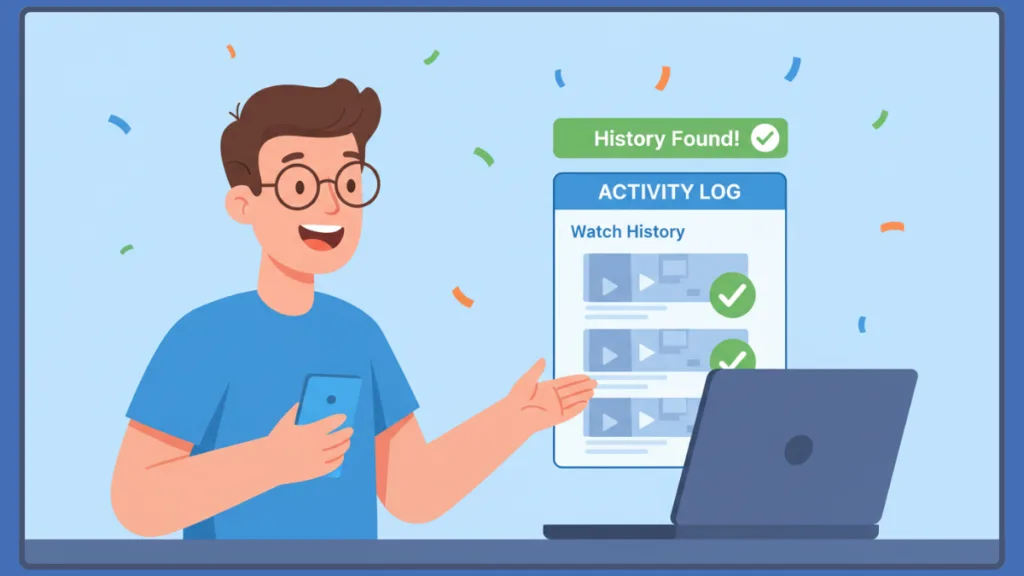
Finding videos is different from clearing them. Facebook allows you to delete individual watch records or wipe your history entirely, giving you control over your privacy and recommendations.
Where to Find Your Video Dashboard
- Mobile: Tap the Video icon on your navigation bar, tap the Profile silhouette, and select History.
- Desktop: Type “Activity Log” in the search bar or go directly to the Settings menu and click “Videos you’ve watched.”
The dashboard shows all recently watched videos on Facebook and allows you to manage them efficiently.
Delete Single Video vs. Clear Video History
- Delete Single Video: Removes one specific video from your log without affecting the rest of your history.
- Clear Video Watch History: Wipes your entire watch list clean and resets the Facebook video algorithm.
Tip: Use “Clear Video Watch History” for content you don’t want influencing your future recommendations. It’s a discreet way to manage unwanted algorithm changes while keeping your feed organized.
How to Manage Video Suggestions & Auto-Play
Facebook occasionally suggests new videos or creators based on your watch history. Controlling these suggestions prevents feed overload:
- Dismiss individual suggestions: Tap the X or the three dots (…) on a suggested video in your feed, then select “Show less.”
- Reduce auto-play: Go to Settings > Media to turn off auto-play, stopping videos from playing automatically as you scroll.
- Manage your Saved tab: This prevents you from needing to dig through your watch history repeatedly for your favorite creators.
Managing suggestions keeps your social media experience clean, and this doesn’t just apply to Facebook.
If you are also annoyed by random accounts popping up when you type on other apps, you should learn how to clear your search suggestions permanently to keep your history private across all platforms.
Tip: Regularly clearing your watch history and controlling auto-play settings keeps your video feed clean and stress-free.
FAQs About Watch History on Facebook
How do I view Facebook watch history in the latest app?
Use the Activity Log to find your history or tap the profile silhouette inside the Video tab to see recently watched videos.
Can I find a video after refreshing the feed?
Yes — once you watch even a few seconds of a video, it is logged in your history and can be recovered.
Where is the Activity Log on Facebook and how do I delete my history?
You can access it directly through your Profile Settings and click “Clear Video Watch History” to wipe the log.
How do I remove or delete all watched videos on Facebook?
Use the Activity Log for bulk management via the “Videos you’ve watched” page and hit the Clear button.
What does clearing video history mean on Facebook?
It removes the private log of what you watched, which stops those past videos from influencing your future video recommendations.
Can anyone else see my Facebook video watch history?
No, your watch history is completely private. The audience setting is locked to “Only Me.”
How do I view recent videos on Facebook without saving them?
Use the “Videos you’ve watched” filter in your Activity Log to see a chronological list of everything you’ve viewed.
Conclusion: Efficiently Managing Facebook Video History
Facebook videos are highly entertaining, but managing your history effectively is key to a smooth social experience. The Activity Log is the most reliable method for finding lost videos, while the Clear History button works well for resetting your algorithm.
By following this guide, you can stay in control of your video feed, handle accidental refreshes gracefully, hide unwanted suggestions, and curate your saved collections.
Regularly reviewing your Activity Log and Saved page ensures your Facebook interactions remain fun, organized, and stress-free.
Tip: Check your Activity Log and Saved folders frequently to maintain a clean dashboard, minimize irrelevant video recommendations, and manage your watch history like a pro.
Visit Our Post Page: Blog Page