
Seeing more shares than names? Learn how to see who shared your Facebook post, why some shares stay hidden, and what Facebook’s privacy rules actually allow.
How to Find Out Who Shared Your Facebook Post
You’re looking at your post right now. You see the share count climbing. One share becomes three. Three becomes ten. But when you click to see who shared it, the list doesn’t match the number—or it’s empty.
That feels confusing, irritating, and honestly a little unfair. You aren’t imagining this. Facebook’s interface really is misleading, and the platform does a poor job of explaining what you can and cannot see.
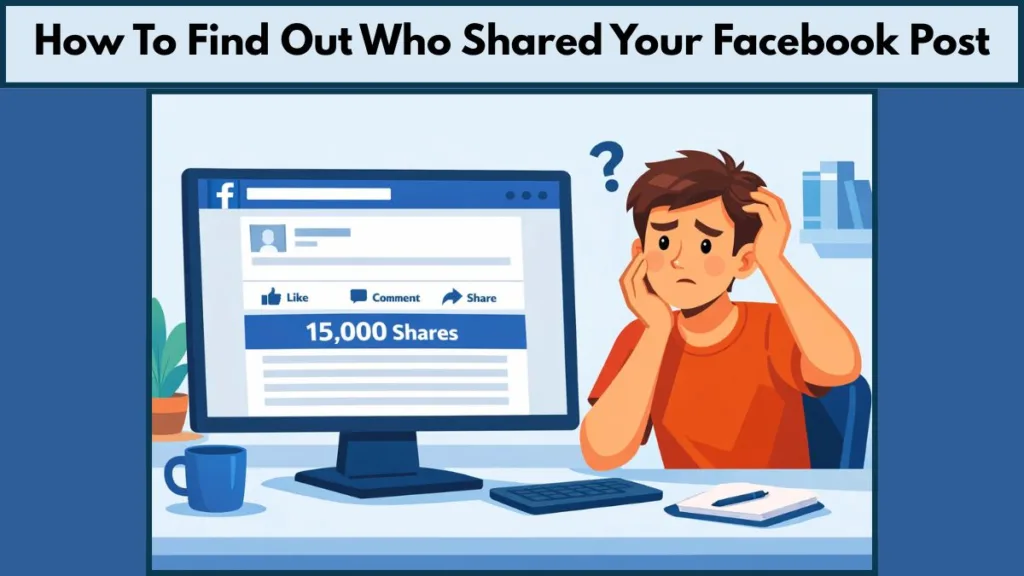
You’re about to walk through this properly, with no myths, no shortcuts that don’t exist, and no wasted clicks. You’ll learn exactly where Facebook shows real names, why those names disappear even though the share counter keeps increasing, and how to confirm—once and for all—whether you’re missing something or whether Facebook is simply hiding it by design.
Can You Really See Who Shared Your Facebook Post?
You can see who shared your post only when Facebook is allowed to show you that information. That’s the rule everything else depends on.
As you look at your post, Facebook separates share visibility from share counting.
- The Number: Represents all shares—public, private, Messenger, group, and story reshares.
- The List: Shows only the shares that are visible to you under Facebook’s privacy rules.
When those two don’t line up, it feels like something is broken. It isn’t. This is intentional.
- If someone shared your post publicly (or in a way your account is allowed to see), their name can appear.
- If someone shared it with friends only, inside a private group, or through Messenger, the share still counts—but their identity is hidden.
Facebook will not override another user’s privacy for you, even when it’s your content being shared.
How to See Who Shared Your Facebook Post on Desktop
This is the most reliable place to check. If you want real answers, you should be on a desktop or laptop browser.
How Do You Check the “Shares” Link Below Your Post?
- Open Facebook in your web browser and ensure you are logged in.
- Go to your profile or Page and scroll to the post you are investigating.
- Look underneath the post, next to the reactions/comments, for the text that says something like “X Shares”.
- Click directly on the “X Shares” text. (Do not right-click).
If Facebook is allowed to show you who shared the post, a panel opens listing names and profiles. As you scan the list, you’ll notice one of three outcomes:
- A Full List: The names match the share count. This means every share was public or visible to you.
- A Partial List: The list is shorter than the share number. This means some shares were private.
- No List/Empty: All shares were private or restricted.
Note: Nothing is loading later. Nothing is hidden behind another click.
How Do You Check Your Notifications History for Missed Shares?
Now shift your focus away from the post itself.
- Open your Notifications panel (bell icon).
- Scroll backward looking for alerts like “John Smith shared your post.”
These notifications sometimes appear briefly and then get buried. If the person later deletes the share or changes its privacy, the share may disappear from the list—but the notification you received earlier can still confirm that it happened.
This matters because notifications are the only legitimate fallback.
The Activity Log will not help you here (it records what you do, not what others do). If there is no notification and no visible name under the share count, you’ve reached the limit of what Facebook allows you to see.
How to See Who Shared Your Facebook Post on Mobile: Android & iPhone
This is where most frustration comes from. If you use the Facebook app expecting the same behavior as desktop, you will be disappointed. Tapping the share count inside the app often shows nothing useful. That inconsistency is normal.
To get the clearest result on mobile, you need to use a browser instead.
- Open Safari or Chrome on your phone.
- Go to
facebook.comand log in. - Navigate to your profile or Page.
- Crucial Step: If Facebook loads a simplified mobile layout, force the full version:
- iPhone (Safari): Tap the “Aa” icon in the address bar → Select “Request Desktop Website.”
- Android (Chrome): Tap the three dots (menu) → Select “Desktop site.”
- Once the desktop view loads, find your post and tap the “X Shares” text.
If names appear, that’s everything Facebook is willing to show you. If they don’t, switching apps, devices, or accounts will not change the result.
How to See Who Shared Your Facebook Post on a Page
If you manage a Business or Creator Page, this confusion often feels amplified. You may see the share number spike while the visible list stays empty.
The same privacy rules apply to Pages as to personal profiles. Public shares can show names; private shares do not. What changes is how people share Page posts.
Why Does the “Message” Button Inflate Your Share Count?
As you watch your Page Insights, many users aren’t sharing your post to their timeline at all. They are clicking Share > Send in Messenger.
- Every one of those actions increases the share count.
- None of them reveal the person who did it.
That’s why Page owners often feel like data is missing. It isn’t missing; it is intentionally withheld. Page metrics can show reach, engagement, and total shares, but they will never identify private sharers.
Why Can’t You See Who Shared Your Facebook Post?
When names don’t appear, the reason is usually already visible on your screen—even if Facebook doesn’t explain it clearly.
- Privacy Settings: If your post wasn’t set to Public, visibility is immediately limited. See: How to change audience settings)
- Groups: If someone shared your post inside a private group, you won’t see it unless you are a member.
- Messenger: If the share happened through Messenger, it counts silently.
- Restricted Profiles: If the sharer’s profile restricts visibility, Facebook hides them.
In simple terms: Facebook always prioritizes the sharer’s privacy settings over your ability to see their name. That rule never changes.
Why Does the Share Count Keep Rising Without Showing Names?
This is where the interface feels deceptive. Facebook counts multiple technical share types the same way.
- Messenger shares
- Story reshares
- Private group posts
- Friends-only timeline shares
All of these increment the counter. Most of them never generate a visible name. So when you see “12 Shares” and only two names, nothing is broken. You’re seeing the difference between counted actions and visible actions.
How to Track Facebook Post Shares More Effectively
You can’t force Facebook to reveal private data, but you can reduce confusion:
- Check Early: Check your post soon after publishing. Public shares are more likely to appear early.
- Watch Notifications: Monitor alerts before they scroll out of view.
- Set to Public: If visibility matters, set your post to Public before posting, not after.
- Trust Insights (Pages): Rely on Insights for volume and reach, not identities.
Facebook does not provide a log of private sharers, a hidden settings panel, or a support request that unlocks names. Those options do not exist.
Can You See Who Shared Your Facebook Post Privately?
No. And this needs to be stated clearly and without exceptions.
WARNING: Any app, website, or browser extension claiming to reveal private Facebook shares is a scam.
Facebook’s systems do not expose this data. These tools exist to harvest login credentials or compromise your account. Do not test them. Do not “just try one.” There is no legitimate workaround.
If someone shared your post privately, Facebook will protect that privacy every time. Read more on Facebook Account Security.
Frequently Asked Questions About Facebook Post Shares
Can you see who shared your Facebook post privately?
You cannot. Private shares are never revealed to you, regardless of device or account type.
Why does your Facebook post show shares but no names?
Because those shares happened in places you cannot see, such as Messenger or private audiences.
Can you see who shared your post in a Facebook group?
Only if the group is public and the share is visible to your account.
Do Facebook Pages show who shared posts?
Pages show totals and reach, not private identities.
Does Facebook notify you when someone shares your post?
Sometimes. Notifications are inconsistent, which is why they can’t be relied on as a complete record.
Final Takeaway: What Facebook Allows You to See
- You can see public sharers when privacy allows it.
- You can sometimes confirm shares through notifications.
- You will never see identities behind private shares, Messenger shares, or restricted group posts.
Once you understand that boundary, the numbers stop feeling broken—and you stop looking for answers Facebook will never give you.
Visit Our Post Page: Blog Page