
Can’t find your LinkedIn following list? Let’s learn how to see who you are following on LinkedIn in 2026 with simple, step-by-step methods.
If you’ve ever followed people, companies, or hashtags on LinkedIn and later tried to review or clean up that list, you’re not alone.
In the fast-paced networking environment of 2026, you might find yourself scrolling through a cluttered feed, wondering how you ended up following a random tech startup or a recruiter from three jobs ago.
Many users can’t find their following list, even though LinkedIn clearly shows a “Following” count on their profile.
LinkedIn separates followers and following, and these categories serve different purposes in feed and network behavior.
For example, your followers are those who see your content, while the people you follow are those whose content you see in your feed.
This relationship can be influenced by settings in Settings & Privacy > Visibility > Who can see members you follow, which you can access from LinkedIn’s official help center and account settings pages.
If you want to maintain a high-signal feed for your brand, like we do here at Izoate, you must master these 2026 visibility nuances.
This guide walks you through every working method to see who you are following on LinkedIn in 2026, explains why the list sometimes doesn’t show, provides additional details on related settings and behaviors, and shows you how to manage or unfollow accounts properly.
Follow the steps exactly as outlined, because LinkedIn’s interface continues to evolve rapidly and can easily cause confusion if you jump between sections or rely on outdated tutorials.
The 2026 Logic: What “Following” Means on LinkedIn and How It Works
Before you dive into the steps, you must understand how LinkedIn defines following in the current era.
Misunderstanding this concept is one of the most common reasons you might feel stuck when navigating your network.
Following allows you to receive updates from people, companies, and hashtags directly in your home feed without needing a mutual connection.
Understanding Modern Feed Dynamics
- Industry Expert Examples: Think of thought leaders like Bill Gates or Satya Nadella. If you follow them, you see their white papers and industry outlooks.
- Direct Insights: You gain insights into global trends without them ever needing to accept a connection request from you.
- Corporate & Job Search References: You might follow giants like Google, NVIDIA, or Tesla.
- Strategic Updates: By doing this, you ensure their latest job openings appear in your feed. This is a strategic move if you are using services like LinkedIn Premium to gain an edge in the 2026 job market.
- Hashtag Strategies: You likely follow tags like #ArtificialIntelligence or #WebDevelopment.
- Discovery: Following these tags helps you discover niche creators who haven’t appeared in your “Suggested” list yet.
Following is not the same as connecting. When you connect with someone, LinkedIn may automatically follow them, but you still retain full control over whether their posts appear in your feed.
This distinction is central to understanding how your feed is curated. Because following and connecting overlap, you often expect a single, obvious list.
LinkedIn distributes this information across different views, which is why understanding this distinction helps you navigate the platform with more confidence and less frustration.
How to See Who You Follow on LinkedIn (2026 Desktop Guide)
This is the most reliable and complete method available today. We strongly recommend you use a desktop browser for accurate results.
Desktop access provides more control than the mobile app, especially when you need to audit LinkedIn Sales Navigator leads or out-of-network followers in one place.
The Logic of the Desktop Interface
When you use a laptop, you see the full architecture of the LinkedIn navigation menu.
The mobile app often hides the granular filters you need for a deep cleanup.
If you are serious about your digital footprint, the desktop remains your best friend in 2026.
Step-by-Step Instructions to View Your LinkedIn Following List on Desktop:
- Log In and Verify: Open LinkedIn in a desktop browser and make sure you are logged in to the correct account, particularly if you manage more than one profile for your business or personal brand.
- Use the Direct Link Hack: In the browser’s address bar, manually enter or paste the following URL: https://www.linkedin.com/feed/following/.
- Bypass the Menus: This direct link bypasses the nested menus that LinkedIn often changes.
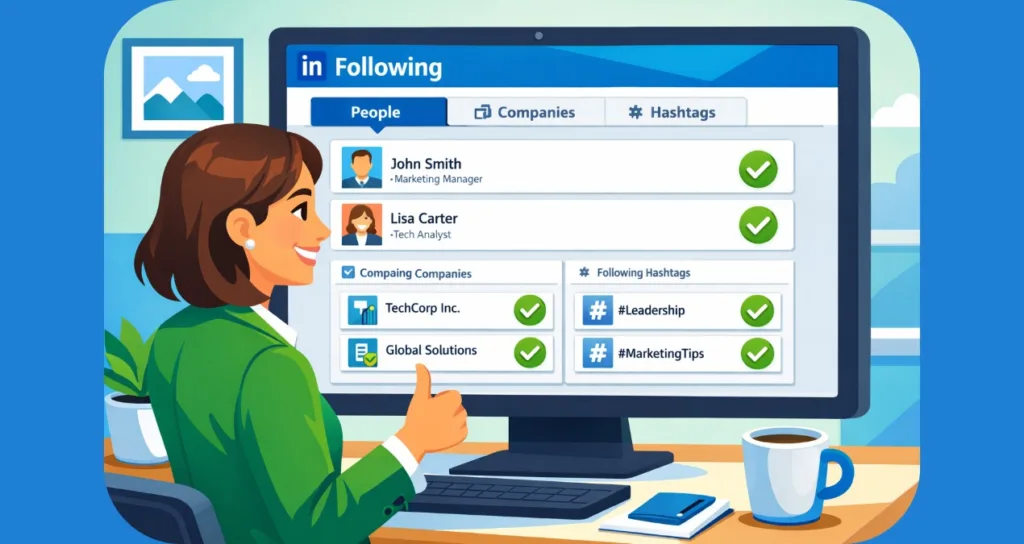
- Navigate the Triple-Section Layout: Once the page loads, you will see sections organized into People, Companies, and Hashtags. This allows you to review each category separately without getting overwhelmed.
- Audit Your Interests: Click each section one by one to review who or what you are currently following. You can decide whether that content still aligns with your 2026 career goals or industry focus.
Many users rely on this page when they want to audit their LinkedIn feed after noticing irrelevant posts or excessive promotions.
Using this direct link saves you minutes of clicking through the “My Network” tab.
Solving the Glitch: What to Do If Your Following List Appears Empty
In 2026, you might still encounter a scenario where your profile shows you follow 500 people, but the list appears as a blank white screen.
This usually happens because of a temporary LinkedIn interface issue, a browser cache conflict, or a session-related glitch.
Why This Happens to Professionals Today
In most cases, your following data still exists on your account, but the page fails to display it correctly.
If you use heavy Chrome extensions for SEO or data scraping, they might interfere with LinkedIn’s JavaScript.
Move to the troubleshooting section later in this guide, because simple actions like refreshing the page often resolve the issue quickly.
Navigating the 2026 Mobile App: How to See Who You Are Following
The LinkedIn mobile app works differently from the desktop version and often shows limited information.
The app is convenient for daily scrolling and checking notifications while you’re on the go, but it does not always provide full access to advanced account management features.
The Mobile Limitation Factor
The mobile app prioritizes “Connections” over “Following.”
If you are using an older smartphone, the cache might prevent the “Following” list from populating at all.
If you are trying to do a major account audit, we recommend you step away from the phone and use a PC.
Steps to Check LinkedIn Following on Android and iOS:
- Open and Tap: Open the LinkedIn app on your phone and tap your profile icon or the “Me” icon in the top left or bottom right corner.
- Access the Vault: Navigate to Settings & Privacy, where LinkedIn groups most account and visibility options.
- Find Visibility: Open the Visibility or Account preferences section, depending on which version of the app you are currently running.
- Locate the List: Look for options related to Following or People you follow, keeping in mind that layout and wording vary between iOS and Android.
The mobile app usually shows followed companies and followed hashtags more clearly than followed people.
Professionals who actively manage their feeds often switch back to desktop when they want full control over their following list.
How to See Followed Companies and Followed Hashtags on LinkedIn
If your main focus is managing brands, employers, or specific industry topics, LinkedIn provides clearer entry points for these categories.
You might be following Adobe to watch for design trends or Izoate to stay updated on fashion and tech.
How to Check Companies You Follow
To review followed companies, visit a company page directly through LinkedIn search or your feed.
When the page opens, you can immediately see whether you are following that company by looking at the “Follow” button.
This approach works well if you want to unfollow companies that post too frequently, no longer match your career direction, or are no longer relevant to your current job search.
How to Find and Manage Followed Hashtags
Followed hashtags appear under the Hashtags section on the LinkedIn following page.
These hashtags directly influence the type of content LinkedIn surfaces in your home feed.
Removing hashtags that are no longer relevant—such as outdated coding languages or past job roles—can significantly improve your feed relevance and reduce unnecessary noise in your professional life.
Why You Cannot See Your LinkedIn Following List (Modern Reasons Explained)
Several factors can hide your LinkedIn following list, even when it still exists in your account.
Technical debt on LinkedIn’s side can sometimes lead to these “ghost” lists.
- LinkedIn Interface and Layout Changes: LinkedIn frequently updates its interface and layout without advance notice.
- Navigation Issues: Features may move, appear under different menus, or become accessible only through direct URLs like the following page link we provided.
- Browser Cache or Cookie Problems: Outdated or corrupted browser cache and cookies can prevent LinkedIn pages from loading correctly.
- Errors: If you haven’t cleared your cookies in months, you might see “Page Not Found” errors.
- Logged-In Session or Account Glitches: Long login sessions or frequent device switching can cause display errors.
- Sync Issues: If you stay logged in on five different devices, the sync might fail.
- Differences Between Mobile App and Desktop View: The mobile app hides advanced account views that remain available on desktop.
- Network Management: The desktop version provides a much more robust “Manage my network” experience.
Troubleshooting for 2026: What to Do If Your List Is Blank or Missing
If your following list does not appear correctly, try these fixes in order.
Do not panic; your data is almost certainly safe on LinkedIn’s servers.
- Refresh and Patience: Refresh the page and wait 10–15 seconds so all elements load fully. Often, the list is just slow to fetch from the database.
- Incognito Mode Strategy: Open LinkedIn in an incognito or private browser window. This ensures no third-party extensions are blocking the page elements.
- The Browser Switch: Switch to a different browser like Mozilla Firefox or Microsoft Edge to rule out Chrome-specific cache conflicts.
- Refresh Your Session: Log out and log back in to refresh your LinkedIn session and re-authenticate your account credentials.
- Direct Link Re-Entry: Use the direct following page URL again after completing the steps above to see if the visibility returns.
Check if you have any AdBlockers active. Aggressive filtering can accidentally hide the “Following” module because it looks like a promotional sidebar.
How to Unfollow Someone on LinkedIn Without Notifications
Once you can see your following list, unfollowing is straightforward and discreet.
This is the best way to clean your feed without hurting anyone’s feelings or losing your professional connection.
The Discreet Unfollow Process:
- Navigate to the Source: Open the profile, company page, or hashtag you are currently following.
- Click the Follow Toggle: Click the Following button at the top of the page.
- Confirm the Change: Confirm that the button changes back to Follow, which signals that the action was successful.
Unfollowing does not send notifications.
It does not affect existing connections. You remain connected in your “Connections” list, but their posts will no longer clutter your LinkedIn home feed.
This is ideal for quietly refining your feed so you only see high-value content.
Can Other People See Who You Follow on LinkedIn?
By default, your followers are visible to others, but your complete following list is not publicly displayed as a single directory.
LinkedIn allows you to manage who can see members you follow through visibility settings in your account.
Managing Your Digital Transparency
Go to Settings > Visibility > Who can see members you follow.
Even when visibility is limited, a person you follow can still see that you follow them.
This maintains a balance of transparency and trust on the platform, ensuring your competitor research remains relatively private.
Frequently Asked Questions About LinkedIn Following
Is following the same as connecting on LinkedIn?
No. Connecting creates a mutual professional relationship where both parties agree to share updates. Following is a one-way street that only controls whose content appears in your feed.
Why does LinkedIn show a following number but no list?
This usually happens due to an interface loading issue or a conflict with a browser extension. Your following data exists, but the page may fail to display it temporarily.
Can I see who I followed in the past on LinkedIn?
LinkedIn does not provide a historical follow log or a “following history” feature. You can only view your current active following list.
Does unfollowing someone remove the connection?
No. Unfollowing affects feed content only. You remain connected in your 1st-degree network unless you manually remove the connection through their profile settings.
Final Thoughts on Managing Your LinkedIn Following List
If you couldn’t find who you are following on LinkedIn, it’s not your fault.
LinkedIn’s interface often hides this feature, and even experienced users struggle to locate it.
By using the direct following page, relying on desktop access, and applying the troubleshooting steps above, you can reliably view and manage your list.
Review your following list every few months. By doing so, you keep your feed relevant, professional, and aligned with your career goals.
A clean LinkedIn feed is a powerful tool for your long-term growth and professional objectives in 2026.
Visit Our Post Page: Blog Page