
Learn how to see your Apple Music Wrapped on any device with this easy 2025 guide. Find Apple Music Replay, view your top songs, stats, and year-in-review fast.
What Is Apple Music Wrapped? Understanding Apple Music Replay 2025
If you’ve ever wondered whether Apple Music has a “Wrapped” feature like Spotify, the answer is yes — it simply goes by a different name.
Apple calls it “Apple Music Replay “, and it serves as your personal year-in-review, highlighting the songs, artists, albums, and genres that shaped your entire year.
Replay is Apple’s way of giving you a friendly, visually rich snapshot of your listening journey. It pulls from your listening history, your top songs, your favorite artists, and even your total minutes listened, turning that data into an experience that’s easy to explore and fun to share.
Apple Music has steadily improved Replay over the years, and Replay 2025 is one of the most polished versions yet. Instead of just handing you a list of stats, Replay now offers a smooth, animated highlight reel, month-by-month listening breakdowns, and engaging insights that make your music habits feel more personal and meaningful.
Replay 2025 introduces a more visual, story-driven recap with updated animations, smoother transitions, and deeper monthly insights — giving you a more complete view of your year in music.
This makes Replay a strong answer to the common question:
“Does Apple Music have a Wrapped feature?”
Yes, and it’s grown into something uniquely Apple.
When people search for how to see Apple Music Wrapped, they’re usually looking for a clear, simple way to check their Apple Music stats without digging through hidden menus. Replay gives you that clarity. Every year, Apple refreshes the experience so you can quickly revisit:
- the songs that defined your moods,
- the artists you kept returning to,
- the playlists you lived in, and
- the albums that stayed on repeat.
Your Replay is more than data — it’s your musical fingerprint for the year.
Behind the scenes, Apple Music Replay 2025 is powered by three core metrics:
Number of plays — how often you listened
Time spent listening — total hours, minutes, and replayed moments
Listening activity across playlists, genres, and stations
These components form your personalized Apple Music year-end wrap, capturing not just what you listened to, but how you listened — and what that says about your year.
What makes Replay especially exciting in 2025 is the newfound emphasis on monthly storytelling and personal milestones. Apple now highlights smaller patterns like rediscovering an old artist, discovering someone new, or hitting a listening goal without even noticing.
It’s your year in music — neatly packaged, beautifully presented, and always a little nostalgic.
How Apple Music Replay Works: Listening History, Play Count & Your Yearly Recap
Apple Music Replay 2025 is designed to give you a clear, data-rich look at how you listened throughout the year.
Instead of offering a simple list of favorites, Replay builds a full yearly recap using three core signals: your Listening History, your Play Count, and your total time spent listening.
Together, these elements create a personalized view of your music habits — one that updates throughout the year and becomes more accurate the more you listen.
How Listening History Shapes Your Replay
Your Listening History is the foundation of everything. Every time you play a song — whether it’s a full listen, a quick skip, or something you loop all afternoon — Apple Music logs that activity. This helps the system understand:
- which songs you play consistently,
- which artists you return to often,
- and which genres you gravitate toward the most.
Replay only works when the “Use Listening History” setting is switched on across your devices.
Apple confirms that if this setting is turned off on even one device (iPhone, iPad, Mac, or Android), your stats may appear incomplete or fail to update throughout the year. This is one of the most common reasons users report missing or inaccurate Replay data.
How Play Count Determines Your Top Songs & Artists
Your Play Count plays a major role in shaping your rankings. Every time you hit play, the song gains weight in Replay’s system. This is why a track you listen to repeatedly — even over a short period — can climb quickly into your top songs or influence your top albums list.
Play count is also how Apple decides:
- your most-played songs,
- your top artists,
- and which albums earn a spot in your Apple Music charts.
Apple has emphasized that Replay does not prioritize “skips.” If you skip a track quickly, it will not count as a meaningful play. This ensures your recap reflects what you truly listened to, not what you sampled.
How Total Minutes Listened Impact Your Yearly Recap
Another key part of Replay’s system is your total minutes listened. Apple tracks how much time you spend listening to music across the app — albums, playlists, stations, and even curated mixes. This metric helps determine:
- your long-term favorite artists,
- your consistency across the year,
- and how deeply you engaged with different genres.
Total listening time helps Apple identify your long-term patterns, not just short bursts of activity.
In other words, if you spend countless hours with an artist, they’re more likely to land high in your recap even if you didn’t loop one specific song.
Features Powered by These Metrics
These three data points unlock several Replay experiences, including:
Replay Monthly — a month-by-month view of your evolving tastes.
Replay Mix — an automatically updated playlist featuring your top tracks.
Highlight Reel — a polished audio and visual recap showcasing your top artists, genres, and milestones.
Milestone badges — for reaching listening achievements, such as crossing 10,000 minutes or exploring new genres.
Apple added even more depth to Replay 2025, expanding insights into areas like loyalty, new discoveries, and comeback artists, giving listeners a clearer view of how their music habits change across the year.
How Often Apple Music Replay Updates
Replay updates weekly, not just at the end of the year. This means your stats evolve with you, offering a near-real-time look at your musical trends. Apple Music confirmed that users can check their Replay anytime — not only during the year-end release period.
This makes Replay different from Spotify Wrapped, which is only available annually. Apple’s approach gives listeners a more flexible and ongoing way to view their Apple Music stats, making it useful even outside the holiday recap season.
Apple Music Replay ultimately blends listening activity, play count, and time spent into a smooth, data-driven story of your year in music — one that feels personal, accurate, and always evolving.
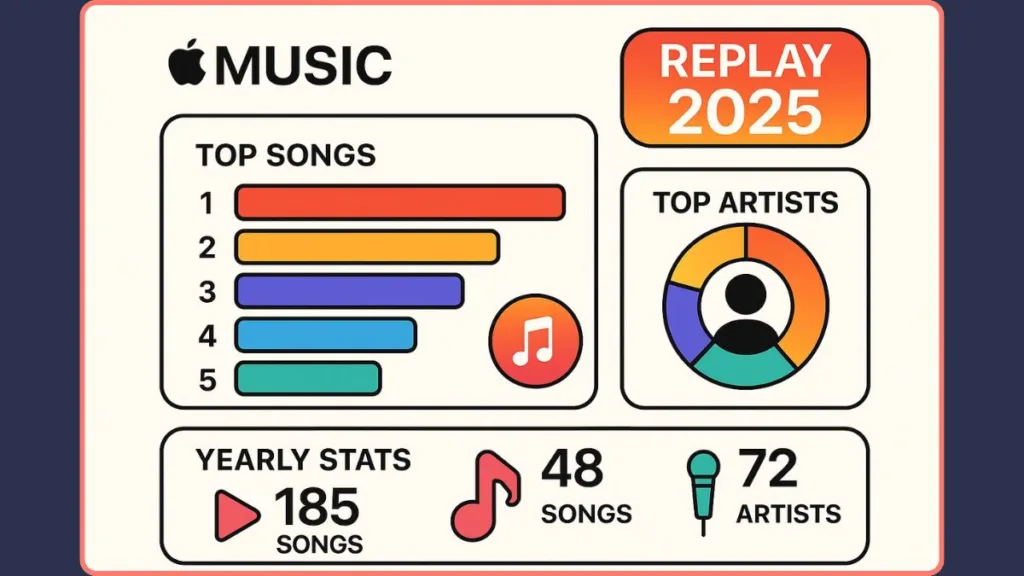
How to See Apple Music Wrapped on iPhone or iPad (Apple Music Replay 2025 Guide)
If you’re using an iPhone or iPad, viewing your Apple Music Wrapped (Replay 2025) is one of the easiest ways to check your personalized Apple Music stats, explore your top artists, and revisit the songs that shaped your year.
Replay is built directly into the Music app, and Apple updates it with fresh visuals, animations, and insights every year — making the experience simple and fun.
Step 1: Update Your Device
Make sure your device is running the latest version of iOS or iPadOS. New Replay features, such as the highlight reel, updated Replay Monthly, and improved animations, work best on the newest software.
You can check for updates by going to: Settings > General > Software Update
Apple confirms that Replay features may not load correctly on outdated software versions, especially during the initial December rollout.
Updating also ensures your device can access the full Replay 2025 experience without missing newer visual components.
Step 2: Open the Apple Music App
Launch the Apple Music app on your device.
Replay is available for all active Apple Music subscribers and becomes fully visible once Apple officially releases the year’s recap.
Replay 2025 launched globally on December 2, 2025, and started appearing in user dashboards shortly after.
Step 3: Go to the Home Tab
Tap on the Home tab at the bottom of your screen.
As you scroll, look for the section titled:
⭐ Replay: Your Top Music ⭐
This area leads directly to your Apple Music Wrapped 2025 experience. It includes:
- a link to your year-end summary,
- access to your updated Replay playlists,
- and entry to your personalized highlight reel.
Apple places Replay prominently in the Home tab during the release period to ensure users can find it without searching through menus.
Step 4: Tap “Go Back in Time”
Inside the Replay card, tap the “Go Back in Time” button.
This is the gateway to your fully animated Apple Music end-of-year wrap. Apple redesigned this area in 2025 to be more immersive, with smoother transitions and more detailed tracking of your listening journey.
Here, you’ll find:
- your top songs ranked by play count,
- your top artists 2025,
- the genres you listened to most,
- and your biggest milestones across the year.
The highlight reel is Apple’s way of turning your listening data into a polished, story-like recap.
Step 5: Explore Your Replay Dashboard
The Replay dashboard on iPhone and iPad gives you an in-depth, interactive view of your stats. It includes:
- your total minutes listened,
- updated Replay Monthly summaries,
- your top albums,
- and achievement badges for major listening milestones.
Apple also introduced new sections such as Discovery, Loyalty, and Comebacks, offering insight into:
- the new artists you discovered,
- the artists you consistently returned to,
- and the ones that reappeared in your rotation after a break.
The dashboard adjusts dynamically as you listen more throughout the year.
Step 6: Share Your Replay
At the end of your recap, you’ll find sharing options that let you instantly post your results on social platforms.
You can share:
- your top songs card,
- your highlight reel video,
- your artist rankings,
- or your Replay playlist link.
These share cards are optimized for Instagram, Facebook, and TikTok, with Apple confirming improved formatting for 2025 to reduce cropping issues on Story uploads.
Sharing Replay is a fun way to celebrate your music moods with friends — and compare your stats with other Apple Music listeners.
How to View Your Apple Music Replay on Android
If you’re an Android user, accessing your Apple Music Wrapped (Replay 2025) is just as simple and enjoyable as it is on iPhone.
Apple has made the Android experience increasingly polished, ensuring you can explore your Apple Music listening stats, revisit your top artists, and watch your animated highlight reel without missing any of the core features.
Here’s a complete, detailed guide to checking your Replay on Android — step by step, in the smoothest way possible.
Step 1: Update the Apple Music App
Start by updating the Apple Music app through the Google Play Store. Replay 2025 introduces new animations, improved data tracking, and expanded sharing formats, all of which rely on the latest app version.
To update:
- Open Google Play Store
- Search for Apple Music
- Tap Update if available
Outdated versions may not display the Replay 2025 card, monthly stats, or highlight reel correctly.
According to Apple’s support guidance, app version mismatches are one of the primary reasons Replay fails to load for Android users.
Step 2: Confirm You’re Logged in With the Correct Apple ID
Replay is fully tied to your Apple ID, not your device. So if you’re logged in with a different email — even by mistake — your Apple Music Wrapped 2025 will not appear.
To verify:
- Open the Apple Music app
- Tap your profile icon (top-right)
- Confirm the Apple ID displayed under your name
If it’s incorrect, log out and sign in using the Apple ID connected to your subscription.
Using the wrong Apple ID is one of the most common causes of missing Replay data across Android and iOS.
Step 3: Navigate to the Home Tab
Replay lives inside the app’s Home tab, right alongside personalized recommendations.
Open Apple Music > Tap Home
Scroll down slowly until you find: Replay: Your Top Music
This section appears for all active subscribers once Replay is officially launched. Apple typically pushes Replay 2025 globally in early December — for this year, it went live on December 2, 2025 — and Android users usually receive the updated dashboard within hours of the rollout.
Here, you’ll find:
- your Apple Music listening stats,
- your top albums,
- your Replay playlists,
- and the shortcut to your highlight reel recap.
Step 4: Tap the Replay Card to Open Your Full Recap
Inside the Replay card, tap “Go Back in Time” to enter the main recap experience.
This takes you to the Replay dashboard for Android, where you’ll see:
- your most-streamed top songs,
- your top artists 2025,
- detailed genre insights,
- and personalized listening milestones.
Replay 2025 includes improved animations and smoother scrolling, matching the updated iOS design closely.
The highlight reel provides a short, story-style visual recap — perfect for sharing or saving.
Step 5: Explore Your Replay Playlists
Android users get full access to all Replay playlists, including:
Replay 2025 > your top tracks of the year
Replay All Time > your most-played songs since joining Apple Music
Replay by Year > playlists from past years
Each playlist updates automatically as your listening habits change.
You can:
- add them to your library,
- download them for offline listening,
- or share them with friends.
Replay playlists are updated weekly, giving Android users fresh insights throughout the year.
Step 6: Share Your Replay Highlights
Once you reach the end of your recap, Apple offers several sharing options optimized for Android devices.
You can share:
- your animated highlight reel,
- your top artists card,
- your top songs card,
- or your Replay playlist link.
Platforms supported include:
- Instagram Stories
- Snapchat
- TikTok
- X (Twitter)
Apple confirmed that Replay 2025 uses enhanced formatting for vertical story layouts, ensuring your stats display cleanly on Android screens.
Sharing your Replay is a great way to compare your musical journey with friends — especially during Wrapped season.
Step 7: Troubleshooting — If Replay Doesn’t Show Up
If your Apple Music Replay not showing up or Replay not loading becomes an issue, here are the most effective solutions according to Apple’s troubleshooting guidelines:
- Enable “Use Listening History”: Apple Music can’t generate stats without it. To do so, Tap More > Settings > Use Listening History
- Play more music: Replay requires a minimum amount of listening activity before generating stats.
- Update your Android OS: Older Android versions may not support the newest Replay visuals.
- Restart the app or clear cach: This refreshes your data sync with Apple’s servers.
- Check your subscription status: Replay is available only for active Apple Music subscribers.
Most Replay issues resolve quickly once Listening History is enabled and the app is updated.
Android users get the complete Apple Music Wrapped experience, with all the visuals, stats, playlists, and sharing tools Apple designed for Replay 2025 — all wrapped inside the same clean, user-friendly interface.
How to Check Apple Music Replay on the Web (replay.music.apple.com)
If you’re looking for the easiest, most universal way to view your Apple Music Wrapped (Apple Music Replay 2025), the web version is hands down the most efficient option.
Whether you’re on an iPhone, iPad, Android, Mac, or Windows PC, the Replay website gives you instant access to your listening stats, top artists, and full yearly recap without needing the Apple Music app at all. It’s clean, fast, and often updates earlier than the in-app experience.
Here’s a deeper walkthrough of how to use it and what you can expect from the web dashboard.
Step 1: Open the Official Apple Music Replay Website
On any browser — Safari, Google Chrome, Microsoft Edge, or Firefox — go to:
This is Apple’s official portal for accessing your Apple Music year-in-review. The website is built using the Apple Music Web Player framework, and according to Apple, Replay becomes accessible globally starting in early December each year.
Replay 2025 officially launched on December 2, 2025, and the web dashboard was the first platform to receive it.
Because the web experience doesn’t rely on app updates, it often becomes available faster than the in-app version — making it the go-to option for users who want early access.
Step 2: Sign In With Your Apple ID
To view your personal stats, sign in using the Apple ID associated with your Apple Music subscription.
After clicking “Sign In,” you’ll be prompted to:
- enter your Apple ID
- enter your password
- complete two-factor authentication, if enabled
This step ensures your Replay 2025 data links directly to your unique listening activity.
If you sign in with the wrong Apple ID, the dashboard will appear empty or show “Replay not available yet.”
Apple’s support documentation states this is the most common issue users face when Replay doesn’t appear on the web.
Step 3: Click “Jump In” to Enter Your Replay Dashboard
Once you’re signed in, look for the button labeled “Jump In.”
This takes you into your personalized Replay dashboard, where you’ll immediately see:
- your top artists 2025,
- your most-played songs,
- your total minutes listened,
- your top albums,
- and your listening milestones.
The 2025 version of Replay includes updated visual cards and transitions to match the refreshed design Apple introduced across Apple Music during the year.
Step 4: Explore Your Complete Apple Music Wrapped Stats
The web version is one of the most detailed Replay interfaces Apple offers. Here, you’ll find:
Replay Monthly, showing how your music tastes shifted each month
Genre stats, displaying your most-played styles
Listening milestone badges, such as hitting major listening goals
Replay playlists, accessible directly in your browser
Audio recap cards, summarizing your year in a visual story format
The layout is easy to scroll through and designed to make complex stats simple and enjoyable to understand.
For many users, the web layout is the clearest way to see all Replay stats in one view, especially when comparing trends.
Step 5: Access Your Replay Playlists From the Web
Your Replay playlists are fully available on the website, including:
Replay 2025 — your top songs of the year
Replay All Time — your most-played songs across your entire Apple Music history
Replay from previous years — going all the way back to when Replay was introduced in 2019
These playlists update weekly. From the web, you can:
- add them to your library,
- download them (once added to the app),
- or share them externally.
The Replay website is especially useful for users on Windows PCs who can’t access the Apple Music app natively.
Step 6: Share Your Apple Music Replay
Sharing from the web is simple and gives you access to clean, high-resolution cards ideal for social media. You can share:
- your top artist card,
- your top songs card,
- your listening milestones,
- your yearly highlight reel video,
- or your Replay playlist links.
Apple has optimized these share cards for vertical platforms like Instagram Stories, TikTok, and Snapchat, ensuring that your stats appear crisp and properly framed.
The web version often feels like the most “social-ready” option for sharing Replay.
Step 7: Troubleshooting — If Replay Doesn’t Load on the Web
If Apple Music Replay not showing, not updating, or not loading appears on the site, here are the most accurate solutions based on Apple’s official support guidance:
Enable “Use Listening History”: Replay cannot generate data without this.
Confirm your subscription is active: Replay only appears for paid users.
Switch browsers: Apple recommends Safari or Chrome for the best compatibility.
Clear your browser cache: Helps reload the Replay interface.
Make sure you’ve listened to enough music this year: Replay requires a minimum listening threshold.
Try signing out and back in; Refreshes your Apple ID session.
Most Replay issues on the web resolve once the Apple ID and listening history settings are corrected.
Using replay.music.apple.com is the most accessible way to explore your Apple Music Wrapped 2025, especially if you prefer a large-screen experience or want to access your recap from any device instantly.
Where to Find Your Replay Playlists: Top Songs, All-Time Mix & Monthly Stats
Your Replay playlists are one of the most exciting parts of the Apple Music Wrapped experience because they update all year long, not just during the holiday season.
These playlists give you a living, evolving snapshot of your Apple Music listening stats, showing what you’ve played the most, which artists keep returning to your rotation, and how your tastes shift month to month.
Whether you’re exploring your top songs, diving into your All-Time favorites, or checking your Replay Monthly highlights, everything is neatly organized and easy to find.
Here’s the full breakdown — with every playlist explained in detail.
Where to Find Replay Playlists in the Apple Music App
On any device — iPhone, iPad, or Android — your Replay playlists can be found right inside the Apple Music app:
- Open Apple Music
- Go to the Home tab
- Scroll to the section titled:
Replay: Your Top Music
This Replay hub appears for all active Apple Music subscribers once Apple enables the year’s Replay features. Apple typically highlights the Replay section during December rollout, but the playlists remain visible all year.
Apple confirms that Replay playlists update weekly, making them one of the most accurate ways to track your listening trends in real time.
These playlists are synced across all devices using your Apple ID, so you’ll see the same rankings no matter where you listen.
Replay 2025 Playlist: Your Top Songs of the Year
The Replay 2025 playlist is your personal chart of the songs you played the most throughout the year. Apple calculates this using:
- play count,
- time spent listening,
- and your activity across albums, playlists, and stations.
The playlist grows and shifts as the year progresses. For example:
- new songs may enter the list when you start looping them,
- older tracks may drop if you stop listening to them,
- and your number-one song becomes clearer with each replay.
You can also open the playlist to see exact rankings — position #1, #2, #3, and so on — giving you an early preview of your Apple Music year-in-review.
Apple Music Replay 2025 updates these rankings every week, unlike Spotify Wrapped, which updates only once per year.
Replay All Time: Your Lifetime Listening Favorites
One of the most popular additions to Replay is the Replay All Time playlist. This mix goes far deeper than the yearly breakdown — it analyzes the entire history of your Apple Music account.
Replay All Time reveals:
- songs you’ve listened to the most since joining Apple Music,
- long-term favorites you may have forgotten about,
- artists that have consistently dominated your charts over the years.
Apple introduced this feature to make your listening history feel more permanent, giving you a digital “memory lane” you can revisit anytime.
Replay All Time uses lifetime play count, making it one of the truest reflections of your long-term taste.
Replay Playlists From Previous Years (2019–2024)
Apple Music preserves every Replay playlist you’ve ever generated.
You can browse playlists from:
Replay 2024
Replay 2023
Replay 2022
Replay 2021
Replay 2020
Replay 2019 (the year Apple launched Replay)
These archived playlists allow you to compare your music evolution year after year. You can instantly see when you moved into a new genre, discovered a rising artist, or completely changed your listening habits.
To view older playlists:
- Go to Home > Replay: Your Top Music, or
- Visit Library > Playlists
Apple notes that older Replay lists remain unchanged — they reflect the final stats from the end of that specific year.
Replay Monthly: Your Month-By-Month Listening Stats
Replay Monthly is one of the standout features of Apple Music Replay 2025. Instead of waiting until December to see your stats, Monthly gives you a detailed breakdown for every single month.
With Replay Monthly, you can track:
- your top artists for each month,
- your most-played songs,
- genres that took over your playlists,
- and your total listening minutes.
This monthly lens makes it easy to notice patterns, such as:
- the month you discovered a new favorite artist,
- when a certain album dominated your listening time,
- or how your mood changed throughout the year based on what you played.
Apple designed Replay Monthly to help listeners explore their music journey in smaller, meaningful chapters — not just one annual summary.
Replay Mix: Your Weekly Listening Snapshot
Replay Mix is a playlist that updates every single week, built from your most-played tracks at that moment. It works differently from Replay 2025:
- Replay 2025 shows your year-to-date stats
- Replay Mix reflects your current listening mood
It’s perfect if you want a playlist that evolves with your habits — whether you’re looping a new release or rediscovering old favorites.
How Replay Playlists Fit Into Your Apple Music Wrapped
All Replay playlists work together to form the full Apple Music Wrapped 2025 experience:
- Replay 2025 – your definitive top songs of the year
- Replay All Time – your lifetime listening fingerprint
- Replay Monthly – your month-by-month evolution
- Replay Mix – your weekly habits in motion
This makes Replay one of the most dynamic and flexible music recap systems available — offering data not just annually but all year long.
Apple Music Replay Not Showing? How to Fix Apple Music Wrapped Not Loading
Sometimes, despite your best hopes, Apple Music Replay doesn’t show up — or doesn’t load properly — and it can be frustrating when you’re ready to see your 2025 music stats.
Thankfully, many of the common issues are easy to fix. Below is a detailed troubleshooting guide to get your Apple Music Wrapped working again, no matter what device you’re using.
Step 1: Ensure “Use Listening History” Is Turned On (Everywhere)
Replay depends entirely on your listening history — without it, Apple Music has nothing to analyse, so the wrap won’t appear.
- On iPhone/iPad: Go to Settings > Music > toggle Use Listening History ON.
- On Android: Open Apple Music > tap the More button go to Settings > enable Use Listening History.
- On Mac (if applicable): In Apple Music app > go to Music > Settings > General > check Use Listening History.
If this setting is off on any of your devices, it can block Replay from generating.
Step 2: Use the Correct Apple ID and Confirm Subscription Status
Replay ties directly to your Apple ID and requires an active Apple Music subscription. If you’re logged in with a different Apple ID (or your subscription has lapsed), Replay may not load at all.
Check:
- That Apple Music subscription is active.
- That the Apple ID matches the one you use for Apple Music.
Step 3: Update the App / OS, Then Restart Apple Music
Running an outdated version of Apple Music or using old OS software can interfere with Replay’s interface and data sync.
Make sure:
- On iPhone/iPad, you’ve installed the latest iOS/iPadOS.
- On Android, Apple Music app is up-to-date via Google Play Store.
- On Mac/PC, Apple Music (or Music app) is updated if you use Replay there.
After updating, restart the app — sometimes a fresh launch will trigger Replay to appear.
Step 4: Ensure You’ve Listened Enough to Qualify for Replay
Replay doesn’t activate by default — Apple requires a minimum amount of listening activity before generating a wrap.
If you haven’t used Apple Music much this year (or only shuffled a few songs), Replay may say “keep listening”. You may need to stream enough music — full songs, playlists, or albums — before Replay data shows up.
Step 5: Try Viewing Replay on the Web
If Apple Music app isn’t showing Replay (or appears buggy), try the official web version:
- Go to replay.music.apple.com
- Sign in with your Apple ID
- Click “Jump In” to view your stats and playlists
The web version often loads even when the app fails — especially right after the year-end release or if there’s a local cache issue.
Step 6: Clear Cache / Data (Android) or Reboot Device
For Android users (and sometimes iOS), cached app data can interfere with Replay’s loading. Clearing the cache or force-closing the app and reopening it can help refresh the data sync.
If problems persist, try a full device restart — sometimes that’s all it takes to nudge Replay into action.
Step 7: Check Internet Connection, Region & Apple Server Status
Replay needs a stable internet connection; otherwise, stats may fail to load. Also, if you recently changed your Apple ID’s region, or if Apple’s servers are experiencing downtime, Replay might not show up immediately.
If possible:
- Switch between Wi-Fi and mobile data
- Wait a few hours
- Check Apple’s system status page for any known issues
Step 8: Be Patient — Sometimes Replay Needs Time to Sync
Especially around the official launch of Replay (like December 2, 2025 for Replay 2025) — it can take a bit for Apple’s backend to process all listening data and generate your personalized stats.
If you’ve checked everything above and Replay still doesn’t appear, give it a few hours or a day, then check again.
When properly set up, Apple Music Replay should automatically give you:
- your full year-end wrap (top songs, artists, genres, total minutes listened),
- access to Replay playlists (yearly, all-time, monthly),
- a highlight reel, and
- shareable stats for socials and memories.
How to Share Your Apple Music Replay: Post Your Stats to Instagram & Social Media
Sharing your Apple Music Replay 2025 is easy — and designed to look great on social media. Whether you want to share your top artists, most-played songs, or a full visual recap, Apple has you covered.
- Once you’re viewing your Replay inside the app (or on the web), tap Share — you can choose to share a statistic card, playlist link, or the full highlight-reel video.
- On iPhone/iPad/Android: open the Replay, pick the section or card, hit Share, and choose the social app (Instagram, TikTok, Facebook, etc.) from the share sheet.
- On desktop or browser: visit replay.music.apple.com, log in with your Apple ID, click “Jump In”, find the card you want, and either download or share it directly.
What you can share:
- Your Top Songs 2025 card — a snapshot of your most-played tracks.
- Your Top Artists 2025 card.
- Your Total Minutes Listened and other stats cards.
- The full highlight reel video — perfect for Instagram Stories or TikTok Reels with built-in vertical video formatting.
- Replay playlists (e.g. Replay 2025 playlist, All-Time playlist) via “Share Playlist” option.
Pro tips when sharing:
- Post on Instagram Stories or TikTok with the highlight reel — it’s optimized for vertical video and tends to get more engagement.
- Use playlist links when you want friends to listen along, not just look at stats.
- Add a line like: “Here’s my 2025 in music 🎧 What does yours look like?” — this invites friends to share their own Replays and build interaction.
Sharing your Replay is a great way to wrap up your music year — and show off your unique listening journey.
FAQs: Apple Music Wrapped (Replay 2025)
How do I find my Apple Music Wrapped 2025?
- On iPhone/iPad or Android: open the Apple Music app > Home tab > “Replay: Your Top Music” and tap to open your recap.
- Or visit replay.music.apple.com, sign in with your Apple ID and click “Jump In.”
Why can’t I see my Apple Music Replay?
This usually happens if:
- “Use Listening History” is turned off.t
- Your Apple Music subscription is inactive or you’re signed in with a different Apple ID.
- You haven’t streamed enough music yet this year — Replay may need some listening data to generate.
3. Does Apple Music have a Wrapped like Spotify?
Yes — it’s called Apple Music Replay. It offers yearly top songs, top artists, total minutes listened, favorite genres, and more.
Is Apple Music Replay accurate?
Replay’s data comes from your listening history, play count, and time spent listening. For best results, ensure “Use Listening History” is enabled.
When does Apple Music Replay 2025 come out?
The 2025 release went live on December 2, 2025.
Can I see total minutes listened in Replay?
Yes — Replay 2025 shows your total listening time alongside top songs, artists, genres, and more.
Can I view Replay on the web if the app fails?
Absolutely. The web version at replay.music.apple.com works on any browser — useful if the app has bugs or updates are pending.
Can I access Replay playlists from previous years?
Yes — every Replay playlist since 2019 is saved. You can view them under Home > Replay or Library > Playlists.
Does Replay show top genres, albums, and monthly stats too?
Yes. Replay 2025 includes top albums, genres, listening time per genre, and a month-by-month listening breakdown.
Is Apple Music Replay the same as Spotify Wrapped?
They’re similar, but Replay updates continuously throughout the year (weekly playlists, monthly stats, and full recap in December), while Spotify Wrapped comes once a year.
Final Thoughts: Your Apple Music Year in Review Made Simple
Your Apple Music Wrapped — or as Apple officially calls it, Apple Music Replay 2025 — is more than just a summary of what you listened to. It’s a snapshot of your year, your moods, your moments, and all the songs that carried you through them. With features like Replay Monthly, Discovery, Loyalty, and the beautifully redesigned highlight reel, Apple makes it incredibly easy to understand your listening habits, celebrate your top artists, and see how your tastes evolved.
Whether you checked your Apple Music stats on the app, explored the deeper insights on replay.music.apple.com, or shared your recap on social media, the entire experience is built to feel personal and enjoyable. Your year-in-review is always just a tap away — no complicated steps, no hidden settings, just a clean, friendly look at the music that defined your 2025.
Replay 2025 isn’t just data — it’s your story, told through the songs you loved most.
As the year wraps up, take a moment to enjoy what Replay reveals. Maybe you discovered your next favorite artist, maybe you rediscovered an old one, or maybe you surprised yourself with how much a certain genre shaped your year. That’s the magic of a recap that updates all year long — it reflects you, in real time.
And now that you know exactly how to see your Apple Music Wrapped, how to fix it when it doesn’t appear, and how to share it everywhere you want — you’re all set for a fresh year of playlists, milestones, and new discoveries.
Visit Our Post Page: Blog Page