
Want to see who subscribed to your YouTube channel? Learn how to view your subscriber list, check recent subscribers, and understand private subscriptions.
Understanding who subscribes to your YouTube channel is an exciting milestone for any creator. Whether you run a small personal channel, a gaming channel, a tech blog channel, or a growing content brand, seeing your subscribers helps you understand your audience, track channel growth, and build a stronger community around your content.
However, many creators quickly discover that finding their subscriber list isn’t always straightforward. While YouTube clearly displays your subscriber count, viewing the names of subscribers depends on a few platform rules—especially privacy settings and YouTube Studio features.
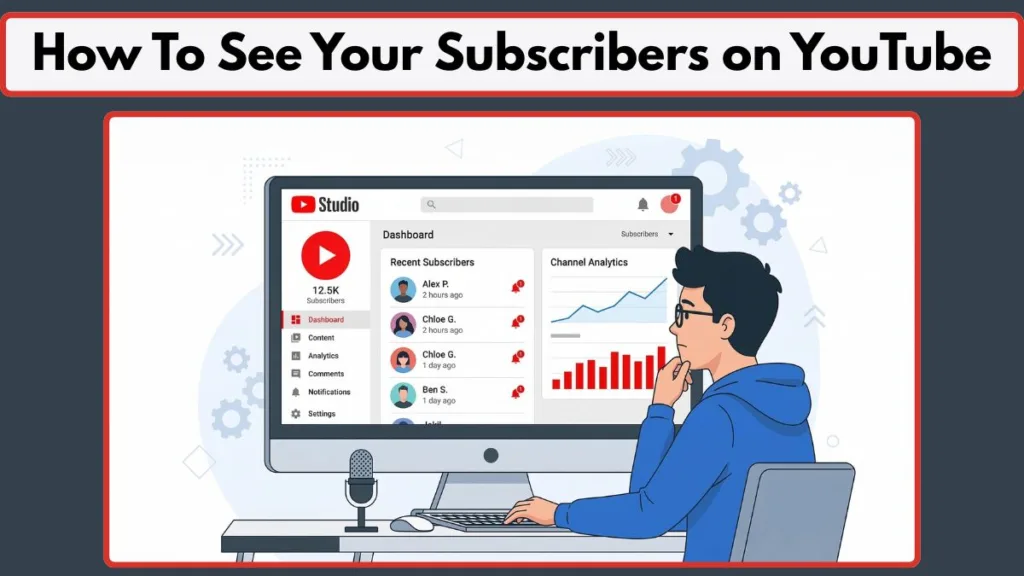
In this complete guide, you’ll learn how to see your subscribers on YouTube, including how to view them on desktop, mobile, and YouTube Studio. You’ll also understand why some subscribers remain hidden, how to check your subscriber analytics, and how to track subscriber growth effectively.
Knowing your subscribers helps you build stronger connections, recognize loyal viewers, and improve your content strategy over time.
Can You See Your Subscribers on YouTube? (Public vs Private Subscriber Visibility Explained)
Yes, YouTube allows creators to see their subscribers, but with an important limitation.
You can view:
- Your total subscriber count
- A list of public subscribers
- Recent subscribers through YouTube Studio
- Subscriber growth analytics
However, you cannot see every subscriber.
YouTube only displays subscribers who choose to make their subscriptions public.
Many users keep their subscriptions private to protect their privacy. These subscribers still count toward your total subscriber number, but their names won’t appear in your subscriber list.
Because of this privacy feature, it’s common for creators to see a difference between:
- their total subscriber count
- the number of visible subscribers
Understanding this rule helps avoid confusion when reviewing your subscriber list.
Public vs Private Subscribers on YouTube
| Subscriber Type | Visibility | Included in Count | Appears in Subscriber List |
|---|---|---|---|
| Public Subscribers | Visible | Yes | Yes |
| Private Subscribers | Hidden | Yes | No |
| Inactive Accounts | Limited visibility | Yes | Sometimes |
| Deleted Accounts | Removed over time | Sometimes | No |
More than 80% of YouTube users keep their subscriptions private, which is why most subscriber lists appear smaller than the total count.
How to See Your Subscribers on YouTube Studio: Best Method to View Subscriber List
The easiest and most reliable way to view your subscribers is through YouTube Studio. This is the main creator dashboard where creators manage their channel analytics, comments, subscribers, and content performance.
Follow these steps to see your subscribers:
Step 1: Sign in to YouTube
Open the YouTube website and log in to your account.
Step 2: Open Your Profile Menu
Click your profile icon in the top-right corner of the page.
Step 3: Open YouTube Studio
From the dropdown menu, select YouTube Studio.
Step 4: Go to the Dashboard
Once inside YouTube Studio, the Dashboard will open automatically.
Step 5: Find the “Recent Subscribers” Section
Scroll down until you see the Recent Subscribers card.
Step 6: Click “See All”
Click the See All option to open the full list of subscribers who have made their subscriptions public.
Inside this list you can see:
- Subscriber channel names
- Profile pictures
- Date they subscribed
- Channel links
You can also sort and filter subscribers based on time periods.
| Time Filter | What It Shows |
|---|---|
| Last 7 Days | Subscribers from the past week |
| Last 28 Days | Subscribers from the past month |
| Last 90 Days | Subscribers from the past three months |
| Last 365 Days | Subscribers from the past year |
| Lifetime | All visible subscribers |
Selecting Lifetime shows every visible subscriber who has ever subscribed publicly.
YouTube Studio provides the most accurate and complete view of your subscriber list.
How to See Your Subscribers on YouTube Desktop or Computer: PC, Laptop, Mac
Using a desktop browser provides the most complete access to your subscriber information.
Creators using a computer can easily check both their subscriber count and subscriber list through YouTube Studio.
Steps to View Subscribers on Desktop
- Go to YouTube and sign in.
- Click your profile icon.
- Select YouTube Studio.
- Open the Dashboard.
- Find the Recent Subscribers card.
- Click See All.
Desktop access allows you to:
- View subscriber names
- Sort subscribers by date
- Explore subscriber channels
- Filter subscribers by timeframe
- Monitor subscriber growth
Because of these features, desktop is the recommended method for checking your YouTube subscribers.
Desktop vs Mobile Subscriber Visibility
| Feature | Desktop | Mobile App |
|---|---|---|
| View subscriber names | Yes | No |
| Filter subscribers by date | Yes | Limited |
| View profile pictures | Yes | No |
| Access subscriber analytics | Yes | Yes |
| View full subscriber list | Yes | No |
Desktop mode offers the best visibility and control for managing your subscriber list.
How to See Your Subscribers on YouTube Mobile: Android, iPhone, iPad, or Phone
Many creators try to view their subscriber list using the YouTube mobile app, but the experience is different from desktop.
The YouTube mobile app mainly shows subscriber counts, not the full list of subscribers.
Steps to See Your Subscriber Count on Mobile
- Open the YouTube app.
- Tap your profile icon.
- Select Your Channel.
- Look below your channel name.
Your subscriber count will appear under your channel name.
| Device | Can View Subscriber Count | Can View Subscriber Names |
|---|---|---|
| Android Phone | Yes | No |
| iPhone | Yes | No |
| iPad | Yes | No |
| Tablet | Yes | No |
The YouTube mobile app focuses on viewing content rather than managing subscriber lists.
Mobile Workaround
If you want to view subscriber names on your phone:
- Open Chrome or Safari
- Go to YouTube Studio
- Enable Desktop Mode
- Open the Recent Subscribers section
This allows mobile users to access the desktop interface.
How to See Your Subscribers Using the YouTube Studio App: Mobile Creator Dashboard
The YouTube Studio mobile app provides more creator tools than the standard YouTube app, but it still focuses mostly on analytics rather than subscriber names.
Steps to Check Subscribers in the YouTube Studio App
- Install the YouTube Studio app from the App Store or Google Play.
- Sign in to your channel.
- Open the Dashboard.
- Tap Analytics.
Here you can view information such as:
- Subscriber growth
- Subscribers gained in the last 28 days
- Subscriber trends
- Audience engagement metrics
| Feature | YouTube App | YouTube Studio App |
|---|---|---|
| View subscriber count | Yes | Yes |
| View subscriber analytics | No | Yes |
| View subscriber names | No | Limited |
| Monitor channel growth | No | Yes |
The YouTube Studio app is ideal for tracking subscriber growth, but the full subscriber list is best viewed on desktop.
How to See Your Subscriber Count on YouTube: Check Current and Exact Subscriber Numbers
Sometimes creators simply want to check their subscriber count rather than individual subscribers.
There are two main places where you can see your subscriber count.
1. Your YouTube Channel Page
Open your channel and look below your channel name. The number displayed is your total subscriber count.
2. YouTube Studio Analytics
Inside YouTube Studio:
- open Dashboard
- check Channel Analytics
You will see the current subscriber count displayed prominently.
| Location | Information Displayed |
|---|---|
| Channel Page | Total subscriber count |
| YouTube Studio Dashboard | Current subscribers |
| Analytics Page | Subscriber growth trends |
Subscriber counts update frequently but may occasionally fluctuate due to spam removal or inactive accounts.
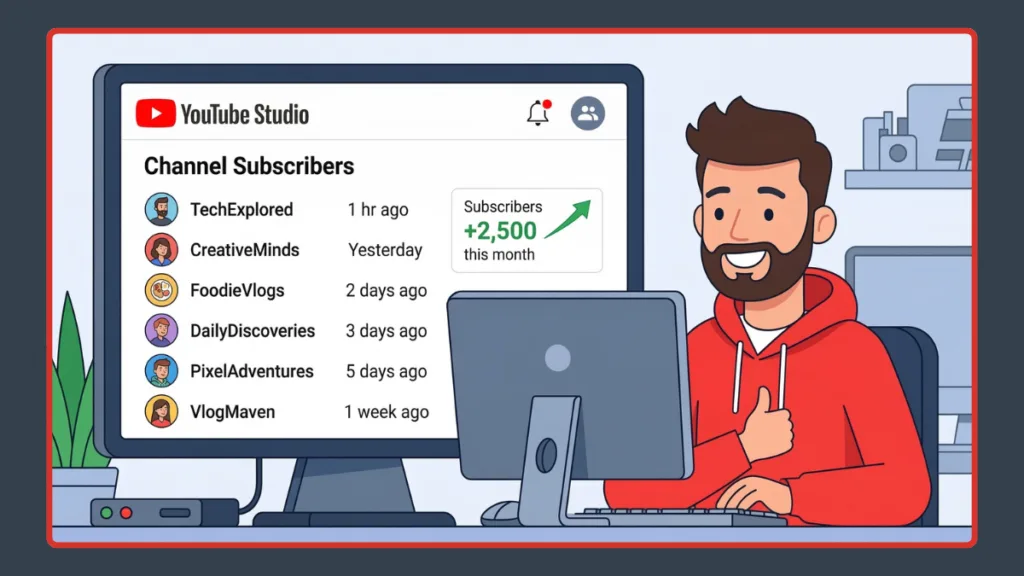
Why You Can’t See All Your Subscribers on YouTube: Private Subscriber Settings Explained
Many creators wonder why their subscriber list appears smaller than their subscriber count.
The main reason is YouTube’s privacy system.
Private Subscriptions
Users can choose to hide their subscriptions from public view.
If someone enables this setting:
- their subscription remains active
- their name does not appear in your subscriber list
Inactive or Deleted Accounts
Sometimes inactive or removed accounts may still affect subscriber numbers temporarily.
YouTube Privacy Policies
YouTube prioritizes user privacy, so it intentionally limits access to subscriber information.
Only subscribers who choose to make their subscriptions public can be seen by channel owners.
| Reason Subscribers Are Hidden | Explanation |
|---|---|
| Private subscriptions | Users hide their subscriptions |
| Privacy protection | YouTube protects user identity |
| Deleted accounts | Removed over time |
| Spam removal | Fake subscribers removed |
How to See Your Recent Subscribers on YouTube: Track New Channel Subscribers
YouTube makes it easy to track new subscribers through the Recent Subscribers section.
Steps to Check Recent Subscribers
- Open YouTube Studio
- Go to Dashboard
- Find Recent Subscribers
- Click See All
You can filter by time periods such as:
- Last 7 days
- Last 28 days
- Last 90 days
- Last 365 days
- Lifetime
| Filter | Best Use |
|---|---|
| 7 Days | Tracking weekly growth |
| 28 Days | Monthly channel progress |
| 90 Days | Seasonal trends |
| 365 Days | Yearly growth |
| Lifetime | Complete subscriber history |
Tracking recent subscribers helps creators identify which videos attract new viewers.
How to See Your First Subscribers on YouTube: Find Your Earliest Subscribers
Many creators are curious about their first subscribers, especially when their channel starts growing.
To see your earliest visible subscribers:
- Open YouTube Studio
- Go to Recent Subscribers
- Click See All
- Change the filter to Lifetime
- Sort by Date Subscribed
This may reveal your earliest public subscribers.
| Subscriber Type | Visibility |
|---|---|
| First Public Subscriber | Visible |
| First Private Subscriber | Hidden |
Early subscribers often become your most loyal audience members.
If you’re also curious about the channels you subscribed to first, you can read this detailed guide on how to see who you first subscribed to on YouTube.
How to See Where Your YouTube Subscribers Are From: Audience Analytics Guide
Even though you can’t see every subscriber name, YouTube provides detailed audience insights.
To view this data:
- Open YouTube Studio
- Go to Analytics
- Click the Audience tab
Here you can see information like:
- Subscriber countries
- Viewer age groups
- Gender distribution
- Active viewing times
| Audience Metric | Description |
|---|---|
| Audience demographics | Age and gender data |
| Geography | Viewer countries |
| Traffic sources | Where viewers discover your content |
| Watch time | Engagement levels |
Audience insights help creators create content tailored to their viewers.
How to Grow Your Subscribers on YouTube: Tips to Increase Channel Subscribers
Checking your subscriber list is helpful, but growing your audience is even more important.
Here are some proven ways to increase your subscribers.
Create Consistent Content
Posting regularly keeps viewers engaged and encourages them to subscribe.
Use Search-Optimized Titles
Well-optimized titles help your videos appear in search results.
Design Eye-Catching Thumbnails
Strong thumbnails increase click-through rates and attract new viewers.
Engage With Your Audience
Replying to comments and interacting with viewers builds loyalty and encourages subscriptions.
Ask Viewers to Subscribe
Simple reminders within videos often increase subscriber numbers.
| Growth Strategy | Benefit |
|---|---|
| Consistent uploads | Builds viewer loyalty |
| SEO titles | Improves discoverability |
| Thumbnails | Increases clicks |
| Audience interaction | Strengthens community |
Engagement and consistency are key factors in growing your YouTube subscribers.
A strong channel identity also helps attract subscribers. If you want to improve your channel branding, check out this step-by-step guide on how to change your YouTube username and display name:
Frequently Asked Questions About Seeing Your YouTube Subscribers
How do I see who subscribed to my YouTube channel?
You can see public subscribers by opening YouTube Studio, navigating to the Dashboard, and clicking See All under the Recent Subscribers section.
Can I see private subscribers on YouTube?
No. Private subscribers remain hidden due to YouTube’s privacy settings.
Can you see subscribers on the YouTube mobile app?
The mobile app shows subscriber count but not the full subscriber list.
Can I export my YouTube subscriber list?
YouTube does not provide an official export feature for subscriber names.
Why does my subscriber count not match my subscriber list?
This happens because many subscribers keep their subscriptions private.
Conclusion: Best Way to See Your Subscribers on YouTube
Knowing how to see your subscribers on YouTube helps you better understand your audience and track your channel’s growth.
The best way to view your subscribers is through YouTube Studio on desktop, where you can see a list of public subscribers and filter them by date. Mobile apps mainly show subscriber counts and analytics, but they provide limited access to subscriber names.
Even though you can’t see every subscriber due to privacy settings, the visible subscribers represent active supporters who publicly engage with your channel.
Focusing on meaningful engagement with your audience often matters more than simply counting subscribers.
By regularly checking your subscriber analytics, responding to comments, and improving your content strategy, you can build a strong, loyal community and continue growing your YouTube channel successfully.
Visit Our Post Page: Blog Page