
New to Apple CarPlay and unsure where to start? Apple CarPlay explained for dummies—learn how to set up and use Apple CarPlay, customize apps, enable Siri, and drive hands-free in 2026.
If you want to use your iPhone safely while driving, Apple CarPlay is one of the most powerful tools available today. It transforms your car’s infotainment system into a familiar, iPhone-like dashboard, letting you access navigation, calls, messages, music, and apps without taking your eyes off the road.
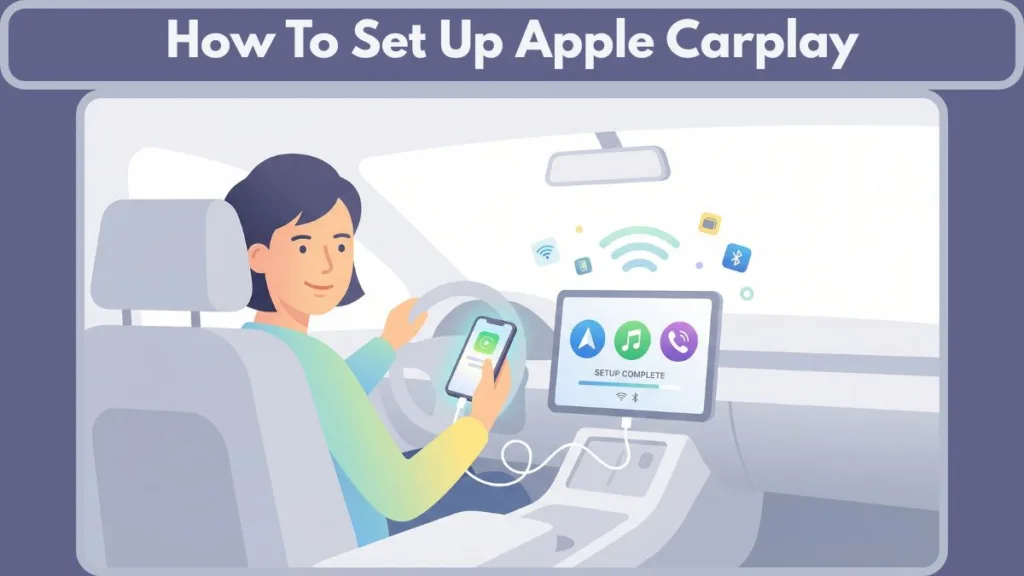
This Apple CarPlay guide is designed to walk you through everything—whether you’re setting it up for the first time, switching cars, troubleshooting issues, or unlocking advanced features most drivers never use.
What Is Apple CarPlay and How Does the Interface Work for Drivers
Apple CarPlay is a smart interface that mirrors supported iPhone apps onto your car’s touchscreen display. Instead of holding your phone, you interact with apps using voice commands, steering-wheel buttons, or simple on-screen taps. Technically, your iPhone does all the heavy lifting—processing the apps and data—while your car’s screen simply acts as a monitor. This ensures your interface is always up-to-date with your phone’s latest iOS features, regardless of how old your car is.
When you connect your iPhone, CarPlay:
- Integrates directly with your car’s receiver, often replacing the native manufacturer interface.
- Displays a simplified dashboard optimized for driving with large icons, high-contrast text, and limited text previews to minimize reading time.
- Prioritizes hands-free interaction using Siri to read messages aloud, dictate responses, and control smart home devices (like opening your garage door via HomeKit) from the road.
- Reduces distraction compared to standard Bluetooth systems by limiting complex app functions while the vehicle is in motion (e.g., blocking keyboard entry).
Unlike basic Bluetooth audio, CarPlay offers full navigation, messaging, and app control through deep iOS settings integration. Also, unlike Android Auto (which is exclusive to Android devices), CarPlay is built specifically for the Apple ecosystem, ensuring a seamless connection with your iPhone, Apple Watch, and even Apple Music SharePlay sessions.
Apple CarPlay Compatibility Requirements for iPhones and Vehicle Models
Before you begin the Apple CarPlay setup, make sure your devices are compatible.
iPhone Hardware and iOS Software Version Requirements for CarPlay
- Hardware: iPhone 5 or newer. For the best performance, iPhone XS or later is recommended to handle modern app updates smoothly.
- Software: iOS 7.1 or later is required, but for 2026 standards, iOS 18 or iOS 19 is highly recommended. These versions unlock advanced features like Sound Recognition (which alerts you to sirens or car horns) and Apple Intelligence enhancements for Siri.
- Cables: iPhone 15 and newer require a high-quality USB-C cable, while older models use a Lightning cable.
Supported Vehicle Manufacturers and Aftermarket Head Unit Compatibility
- Standard Support: Most vehicles from 2016 onward support CarPlay as a standard or optional feature.
- Connection Types: Some support wired CarPlay, some wireless, and some both (common in BMW, Audi, Ford, and newer GM models).
- Aftermarket Solutions: Older cars may require an aftermarket CarPlay head unit. Top-rated models for 2026 include the Sony XAV-9500ES for premium audio or the Pioneer AVH-W4500NEX for reliable wireless connectivity.
Also, ensure your vehicle’s firmware update is current. Outdated infotainment software is a common reason Apple CarPlay fails to connect or freezes during use.
Step by Step Apple CarPlay Setup Tutorial for Wired and Wireless Connections
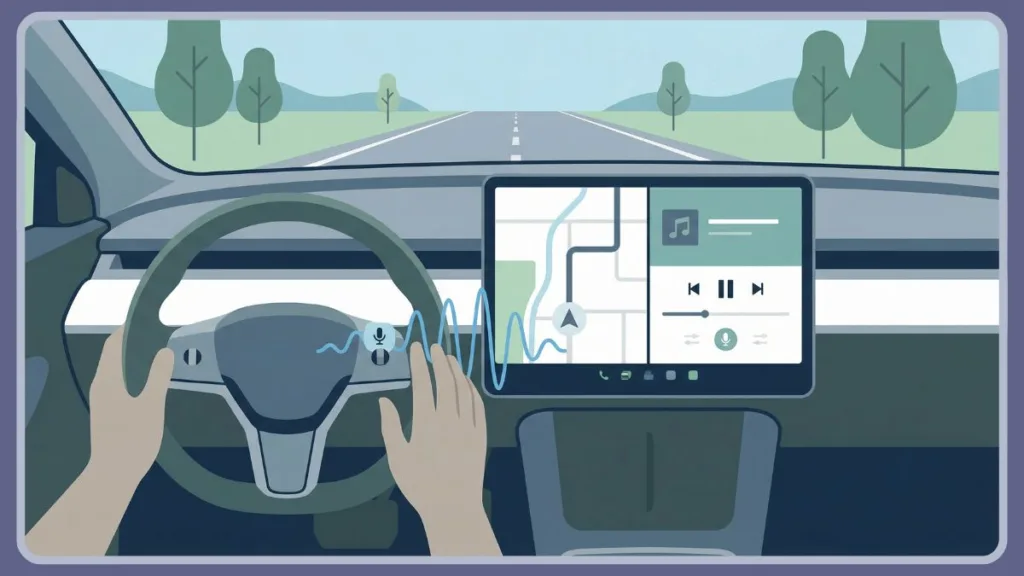
How to Connect Wired Apple CarPlay Using a USB Lightning Cable
If you’re using a cable, setup is straightforward, but pay attention to the permission prompts:
- Start your car and unlock your iPhone.
- Plug a Lightning cable or USB-C cable into the car’s USB port.
- Note: Make sure it’s a data port, not charge-only. Look for a battery icon (charge only) vs. a smartphone or CarPlay icon (data).
- Connect the other end to your iPhone.
- Critical Step: A prompt will appear on your iPhone asking to “Allow CarPlay While Locked.” Tap Allow. If you skip this, CarPlay will stop working whenever your screen goes dark.
- CarPlay launches automatically on your infotainment screen.
Once paired, Apple CarPlay starts automatically every time you plug in.
How to Set Up Wireless Apple CarPlay Without a USB Cable
If your car supports wireless CarPlay, the initial pairing requires Bluetooth:
- Enable Bluetooth pairing and Wi-Fi on your iPhone.
- Put your car’s infotainment system in wireless or Bluetooth pairing mode. (Consult your manual; often found under “Phone” or “Connect” settings).
- On many cars (like Toyota or Honda), you must press and hold the Voice Command button on the steering wheel to trigger the setup mode.
- Open Settings > General > CarPlay on your iPhone.
- Select your vehicle from the list and confirm the pairing code if prompted.
- From now on, CarPlay connects automatically when you enter your car—no cable required.
Important: Wireless CarPlay drains battery faster because it uses Wi-Fi for data transmission and Bluetooth for audio. This is why many drivers use a MagSafe car charger or a standard USB charger alongside wireless CarPlay.
Do You Need a Specific Cable to Use Apple CarPlay Features
No. You only need a cable for wired CarPlay. Wireless CarPlay works without a USB cord if your car supports it. However, keeping a cable in the glovebox is smart for long road trips to keep your battery topped up or as a backup if wireless interference occurs.
How to Use Apple CarPlay Interface and Features: Beginner Walkthrough
When CarPlay appears, you’ll see a clean grid of Apple CarPlay compatible apps. The interface is paginated; swipe left or right to see more apps.
Primary Methods to Control CarPlay Using Touchscreen and Voice Commands
- Touchscreen display: Tap icons directly to open apps, just like on an iPad.
- Steering-wheel buttons: Use volume keys, track controls, and the voice button to control Siri without moving your hands.
- Rotary Knobs/Touchpads: In cars without touchscreens (like some Mazda, Audi, or BMW models), use the central dial to scroll through and select icons.
- Voice commands: Press and hold the voice button or say “Hey Siri” to initiate commands without lifting a finger.
Essential Siri Voice Commands for Safe Driving and Hands Free Control
Siri is the safest way to interact. You can say:
- “Navigate to the nearest gas station.”
- “Send a message to Sarah saying I’ll be 10 minutes late.”
- “Play my driving playlist on Spotify.”
- “Call home.”
- “Announce my notifications” (Siri will read new texts automatically).
- “Find a charging station nearby” (using apps like PlugShare or ChargePoint).
This keeps you focused on the road while staying connected.
Apple CarPlay Dashboard Customization and App Management Settings
How to Rearrange Icons on the CarPlay Screen via iPhone Settings
You cannot move icons on the car screen itself; you must use your phone:
- Open Settings > General > CarPlay on your iPhone.
- Select your car from the list.
- Tap Customize.
- Add/Remove: Tap the green (+) to add apps or red (-) to hide them.
- Reorder: Drag the three lines (≡) next to an app to move it up or down. The top 8-10 apps will appear on your first screen.
How to Add Third Party Apps to Your Apple CarPlay Dashboard
Install supported apps on your iPhone. If an app supports CarPlay, it appears automatically. You generally cannot “install” apps directly to the car; they must exist on your phone first.
Using the Split Screen Dashboard View for Navigation and Music
On larger displays, the “Dashboard” view (accessible by tapping the bottom-left icon appearing as a grid) shows navigation, music controls, and upcoming calendar appointments or Siri suggestions simultaneously. This allows you to see your map and your music at the same time.
Top Apple CarPlay Compatible Apps List for Navigation and Entertainment in 2026
CarPlay supports apps focused on safety and utility. Popular categories include:
- Navigation: Apple Maps (with 3D city details and EV routing), Google Maps, Waze, and TomTom Go.
- Music & Audio: Apple Music, Spotify, Audible, Podcasts, iHeartRadio, Pandora, and Tidal (for Hi-Fi audio).
- Messaging: Messages, WhatsApp, Telegram, Zoom (audio only), and Slack.
- EV & Parking: PlugShare (find chargers), ChargePoint, SpotHero (find parking), and EasyPark.
- Calling: Phone, Microsoft Teams (audio only), and VoIP apps.
Can You Watch Netflix or YouTube Video Streaming on Apple CarPlay
No. Video apps are blocked to prevent distracted driving. While some aftermarket “AI Boxes” (like the Ottocast AI Box Nano) claim to bypass this, they are generally unsafe and often violate vehicle warranty terms.
Advanced Apple CarPlay: Tips and Tricks for Power Users and Automation
- Use Offline Maps: Download Apple Maps or Google Maps areas to your iPhone before traveling to places with poor signal. CarPlay will continue to navigate using the offline data.
- Driving Focus Mode: Go to Settings > Focus > Driving on your iPhone. You can set this to activate automatically when connected to CarPlay. It silences non-urgent notifications and can send an auto-reply to texts saying you are driving.
- SharePlay Music: Passengers can queue songs in Apple Music via their own phones (via a QR code or notification) while you keep approval control, so the driver doesn’t have to fiddle with the DJ duties.
- Parking Location Tracking: Your iPhone automatically remembers where you disconnected from CarPlay (Bluetooth/USB) and drops a “Parked Car” pin in Apple Maps so you can find your vehicle later.
- Change Wallpaper: On the CarPlay screen, go to Settings > Wallpaper to choose from various colored backgrounds to match your car’s interior.
- Find My Car: Use Siri to ask “Where is my car?” if you parked in a massive lot.
Troubleshooting Common Apple CarPlay Connection Issues and Fixes
If you are asking “Why is Apple CarPlay not connecting?”, try these fixes:
- Check the Cable: Use a certified Lightning cable or high-quality USB-C cable (look for MFi certified brands like Anker or Belkin). Cheap cables often fail to transmit data.
- Clean the Port: Check your iPhone’s charging port for lint or debris.
- Enable Siri: CarPlay requires Siri to be active. Go to Settings > Siri & Search and ensure “Listen for Hey Siri” or “Press Side Button for Siri” is on.
- VPN Check: Turn off VPN apps. VPNs (like NordVPN or ExpressVPN) often interfere with the local network connection required for wireless CarPlay.
- Content Restrictions: This is a common hidden issue. Go to Settings > Screen Time > Content & Privacy Restrictions > Allowed Apps and make sure the toggle for CarPlay is ON.
How to Fix Wireless CarPlay Keeps Disconnecting or Dropping
- Ensure Bluetooth and Wi-Fi are both on.
- Remove old pairings from both the iPhone (Forget This Car) and the car head unit (Delete Device) and reconnect from scratch.
- Reduce wireless interference (e.g., dash cams with Wi-Fi can sometimes interfere).
Wired Versus Wireless Apple CarPlay Comparison for Battery and Audio Quality
| Feature | Wired CarPlay | Wireless CarPlay |
| Stability | Excellent (Rarely drops) | Good (Can drop in high-interference areas) |
| Battery Charging | Yes (Fast charging) | No (Drains battery unless using a separate charger) |
| Convenience | Moderate (Plug-in required) | High (Auto-connect in pocket) |
| Audio Quality | Best (Lossless audio support) | Slight compression (Noticeable to audiophiles) |
Many drivers use wireless for short daily commutes and switch to wired for long road trips to ensure stability and battery health.
CarPlay Instruction Manual: Official Apple Guide Explained
While most users find Apple CarPlay intuitive, understanding the full range of features can sometimes require a deeper dive. If you want detailed protocols, clear icon explanations, and advanced setup configurations, it helps to consult an official reference.
For in-depth guidance, you can refer to the Apple CarPlay manual pdf. This resource walks you through everything from initial pairing and wired vs wireless setup to troubleshooting specific connection errors, ensuring you get the most out of your vehicle’s infotainment system.
The CarPlay instruction manual is especially useful if:
- You’re setting up CarPlay in a new or unfamiliar car
- Your dashboard icons or controls behave differently
- You’re dealing with recurring Apple CarPlay not working issues
- You want Apple’s official explanation of settings, permissions, and features
For most day-to-day use, the step-by-step guide in this article is easier and faster to follow. However, keeping the Apple CarPlay manual PDF bookmarked gives you a reliable backup when you need deeper technical clarity or manufacturer-specific details.
Aftermarket Upgrades for Older Vehicles That Do Not Have CarPlay
If your vehicle doesn’t support CarPlay:
- Aftermarket Head Unit: Install a double-DIN receiver from brands like Sony (e.g., XAV-AX6000), Pioneer (NEX series), or Alpine (Halo series). These provide the native CarPlay experience and often improve audio quality.
- Wireless Adapter: If you have wired CarPlay but want wireless, use the best wireless CarPlay adapter (dongle) like the Ottocast U2-AIR or Carlinkit 5.0. These plug into your USB port and act as a wireless receiver.
- Portable Display: You can buy standalone dashboard screens (like Car and Driver Intellidash) that mount to your dash and run CarPlay, transmitting audio to your car via FM radio or Aux cable.
Apple CarPlay Subscription Costs Data Usage and Privacy Policies
- Apple CarPlay subscription cost: Free. Apple does not charge for CarPlay, though some automakers (like BMW in the past) briefly tried to.
- Data Usage: Uses mobile data for navigation, music streaming, and Siri. Offline maps and saved music can reduce this usage.
- Privacy: Apple limits background tracking. Unlike some systems, CarPlay processes sensitive data on your phone, not the car, meaning your contacts and travel history aren’t permanently stored on the rental car’s computer.
Next Generation Apple CarPlay AI Features and Future Updates
While direct AI chat apps aren’t allowed yet, next-generation CarPlay is introducing smarter features powered by Apple CarPlay AI:
- Smarter Siri: Context-aware suggestions and predictive navigation based on your habits, powered by Apple Intelligence.
- Sound Recognition: A new accessibility feature that listens for sirens or car horns and alerts you visually on the screen—great for hearing-impaired drivers or loud music listeners.
- CarPlay Digital Key: Unlock and start your car with your iPhone (supported on select BMW, Hyundai, Kia, and Lotus models).
- EV Routing: Intelligent charge stop planning that reads your car’s battery level (on supported EVs like the Ford Mustang Mach-E, Porsche Taycan, and newly added Toyota EVs) to plan trips.
- Dashboard Takeover: The “Ultimate” next-gen experience, debuting in the Aston Martin DB12 and Porsche models, allows CarPlay to control the speedometer, climate, and radio across all screens.
Although you cannot run Gemini or ChatGPT natively on the dashboard display, improved voice recognition allows for smoother interaction with AI assistants via voice shortcuts if you have them set up on your iPhone.
Frequently Asked Questions About Apple CarPlay Data and Functionality
Frequently Asked Questions About Apple CarPlay Data and Functionality
What Is Apple CarPlay and How Does It Work for Safety
Apple CarPlay is a system that projects your iPhone apps onto your car’s display. It works by connecting your iPhone to the car via USB or Wi-Fi, allowing you to use navigation, music, and messaging apps through a simplified, driver-friendly interface controlled by Siri, touch, or knobs.
Does Apple CarPlay Cost Anything or Is It Free to Use
Apple CarPlay is completely free to use. There is no monthly subscription fee from Apple. However, using apps like Apple Music or Spotify will consume your mobile data plan, and some car manufacturers may charge a one-time fee for the hardware capability in older models.
How Does Apple CarPlay Work in a Car for Daily Driving
For daily driving, CarPlay works seamlessly by launching automatically when you start your car (wireless) or plug in your phone (wired). It takes over your infotainment screen to show your maps, music, and incoming messages, allowing you to keep your phone in your pocket or console while staying connected.
How to Set Up CarPlay on iPhone for the First Time
To set up CarPlay, simply plug your iPhone into your car’s USB port using a Lightning or USB-C cable. If using wireless, press and hold the Voice Command button on your steering wheel, then go to Settings > General > CarPlay on your iPhone to pair the devices.
What Is the Apple CarPlay Compatibility with iPhone Models
Apple CarPlay is compatible with every iPhone model from the iPhone 5 and newer. You must also be running iOS 7.1 or later, though for the best experience with modern apps and features, iOS 18+ is recommended.
Does Apple CarPlay Consume Mobile Data for Maps and Music
Yes, for navigation, streaming music, and live Siri queries.
Can You Disable Apple CarPlay While Charging Your iPhone
Yes. If you want to charge without launching CarPlay, you can disable it in your iPhone settings under Settings > General > CarPlay > [Your Car] > Forget This Car (temporary) or use a “charge-only” cable (less recommended).
Can Passengers Control the Music via SharePlay on CarPlay
Yes, via SharePlay in Apple Music. A notification can appear on passengers’ iPhones allowing them to join the session and control the queue without passing the driver’s phone around.
Final Thoughts on Driving Smarter with Apple CarPlay Integration
When you understand how to use Apple CarPlay, it becomes more than a convenience—it becomes a safer way to drive. By setting it up correctly, customizing the dashboard, and using hands-free features, you reduce distractions while staying connected.
Whether you’re using wired or wireless CarPlay, upgrading an older car, or exploring next-generation features, Apple CarPlay gives you a smarter, more controlled driving experience.
Visit Our Post Page: Blog Page