
Can’t find Out of Office in the new Outlook? Learn how to set up automatic replies, schedule your away message, and manage settings on Windows and web—quickly and stress-free.
Setting Up Out of Office in the New Outlook (2025)
If you’ve recently switched to the New Outlook and can’t figure out how to put Out of Office on New Outlook, you’re definitely not alone. One of the biggest changes Microsoft introduced with the redesigned interface is the removal of the familiar File menu, which is where Out of Office settings lived for years. As a result, many users assume the feature has been removed—when in reality, it’s simply been relocated.
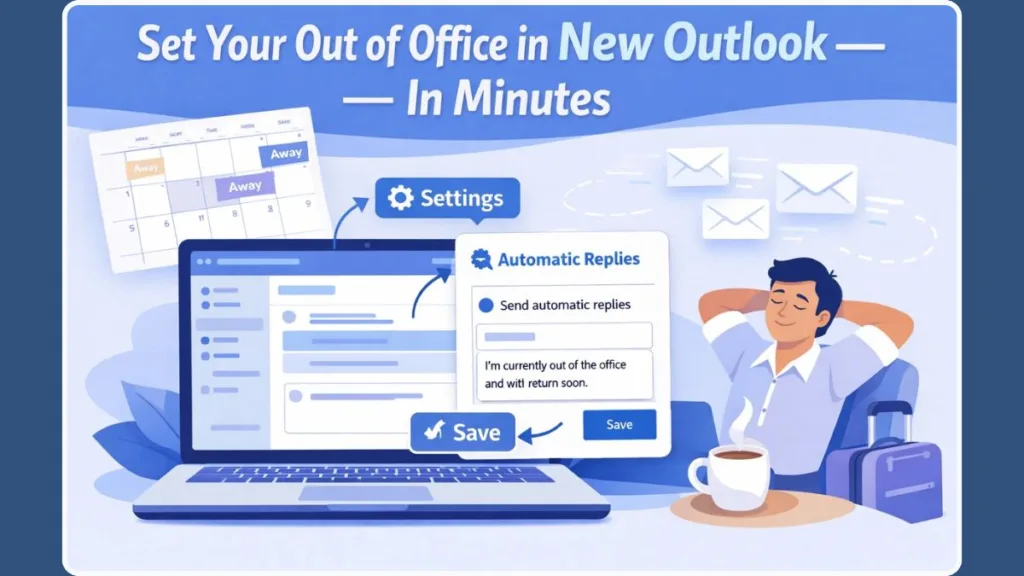
The 2025 UI Change That Caused the Confusion
This interface shift is the main reason searches for New Outlook automatic replies, set out of office New Outlook, and Outlook 365 out of office settings have spiked in 2025. People know the feature should exist; they just can’t find it anymore.
What Still Works (And What Hasn’t Changed)
Here’s the reassuring part: Out of Office (also called Automatic Replies) still works exactly as expected in the New Outlook. You can schedule start and end times, send different messages to people inside your organization and outside your organization, and even block your calendar while you’re away. Once it’s set up, Outlook automatically handles replies for you—no need to keep the app open or manually respond.
One Setup for Windows and Web
Even better, Microsoft has unified the experience. The steps are now the same whether you’re using New Outlook for Windows or Outlook on the web, which means you don’t have to relearn anything when switching devices. Once you understand where Microsoft moved the settings, enabling Out of Office becomes quick, predictable, and stress-free.
Where Is Out of Office in the New Outlook?
In the New Outlook, Out of Office is no longer tied to account actions under “File.” Instead, Microsoft moved it into the central configuration area called View settings, which is why so many users miss it at first.
Accessing View Settings in New Outlook
To begin, look at the top-right corner of the Outlook window and click the Settings (gear icon). This icon replaces several older menu paths and now acts as the main gateway to configuration options in the new interface.
From the Settings panel, select View settings. This section controls how New Outlook behaves, looks, and manages account-level features. Unlike Classic Outlook, where account tools were scattered across menus, the New Outlook groups them more logically—once you know where to look.
The Accounts Tab: New Home of Automatic Replies
Inside View settings, open the Accounts tab. This is an important shift: Microsoft now treats Automatic Replies as an account-specific feature rather than a general app function. Under Accounts, you’ll see Automatic Replies, which is the new home for Out of Office in New Outlook.
What You Can Control From Automatic Replies
This single location controls everything related to New Outlook automatic replies, including:
- Turning replies on or off
- Choosing a time period with start and end times
- Writing messages for internal and external senders
- Managing calendar availability while you’re away
Nothing activates until you explicitly save your changes, which gives you full control before anything goes live.
Key takeaway: In the New Outlook, Out of Office lives at Settings > View settings > Accounts > Automatic Replies
How to Set Up Out of Office in New Outlook (Step-by-Step Guide for 2025)

Step 1: Open Automatic Replies in New Outlook Settings
Once you’re inside Settings > View settings, head to Accounts and select Automatic Replies. This section is where Microsoft now centralizes all Out of Office and automatic reply controls in the New Outlook experience.
This applies equally to:
- New Outlook for Windows
- Outlook on the web (Outlook.com / Microsoft 365)
Because Microsoft unified these interfaces, you won’t see different steps depending on where you sign in. If you can access View settings, you’re in the right place.
Step 2: Turn On Automatic Replies in New Outlook
Use the Turn on automatic replies toggle to begin setup. At this stage, Outlook does not send any replies yet. The toggle simply unlocks the configuration options below, giving you time to review everything before activating it.
This design helps prevent accidental replies—especially useful if you’re preparing your Out of Office in New Outlook ahead of time.
Step 3: Schedule Your Out of Office Time Period
Enable Send replies only during a time period, then choose your start and end date. This is one of the most important settings in Outlook 365 out of office settings, because it ensures your replies turn on and off automatically without manual intervention.
When the time period is enabled, Outlook will:
- Start sending replies exactly at the selected start time
- Stop sending replies once the end time passes
You’ll also see additional options related to calendar behavior:
- Block my calendar to mark you unavailable
- Automatically decline new invitations during the selected period
These options help align your email replies with your actual calendar availability, reducing confusion for teammates trying to schedule meetings.
Step 4: Write Internal and External Out of Office Messages
Under Send automatic replies inside your organization, type the message your coworkers will receive. This message is usually more detailed and can include internal contacts or instructions.
Formatting tools allow you to:
- Adjust alignment
- Emphasize important dates
- Improve readability for longer messages
To send replies to people outside your company, enable Outside my organization and enter a separate message. This is especially useful if you want a more general response for clients or vendors while keeping internal details private.
You can also choose whether external replies go to everyone or contacts only, which adds an extra layer of control to your New Outlook automatic replies.
Step 5: Save and Activate Your Out of Office Settings
Click Save to activate your settings. Until this step, nothing is applied. Once saved, your Out of Office in New Outlook becomes active based on the schedule you selected.
If you ever need to make changes—like updating the return date or editing the message—you can revisit Automatic Replies, adjust the settings, and save again.
Important: Closing the settings panel without clicking Save will discard all changes.
Out of Office Message Templates for Outlook (Copy & Paste Examples)
Professional Internal Out of Office Template
Subject: Out of Office
Thanks for your message. I’m currently out of the office and will return on [date]. I’ll respond as soon as I’m back.
Client-Friendly External Out of Office Message
Thank you for reaching out. I’m away from the office until [date] and will reply once I return. For urgent matters, please contact [alternate contact].
Limited Access Out of Office Reply
I’m out of the office with limited email access. Responses may be delayed until [date].
Short and Direct Out of Office Message
I’m currently out of the office and will respond after [date].
These templates work well with Outlook web out of office messages and the desktop app. You can paste them directly into the message field and adjust dates or contact details as needed.
Tip: Clear dates and expectations reduce follow-up emails and help your Out of Office message do its job effectively.
How to Turn Off Automatic Replies in New Outlook
Disable Out of Office from Automatic Replies Settings
Turning off Out of Office is straightforward and follows the same path as setup.
Go to Settings > View settings > Accounts > Automatic Replies. Toggle automatic replies off, then click Save. Your New Outlook automatic replies stop immediately after saving.
If you configured a time period earlier, Outlook will automatically disable replies once the end date passes. However, it’s still a good idea to check the toggle when you’re back—especially if your return date changed or you extended your time away.
Quick reminder: Every change in Automatic Replies requires clicking Save. Without it, Outlook won’t apply the update.
Why Is Out of Office Not Working in New Outlook?
If you’ve done everything “by the book” and your Out of Office in New Outlook still isn’t replying like you expected, that’s frustrating—especially when you’re counting on those automatic replies to handle messages while you’re away.
The good news? Most issues come down to account type, timing, or server-side behavior, not a broken feature. Below are the most common causes, explained clearly and practically.
Unsupported Email Account Types (POP/IMAP vs Microsoft 365 & Exchange)
One of the most common reasons automatic replies in Outlook don’t work is the email account type. The Out of Office / Automatic Replies feature is designed to work with:
- Microsoft 365
- Exchange Online
- Work or school accounts
If your mailbox is connected via POP or IMAP (such as Gmail, Yahoo, or a custom domain), Outlook cannot send true server-based Out of Office replies. In these cases, the option may be missing or appear but fail silently.
What to do instead: Use Outlook Rules as a temporary workaround to send a basic reply while you’re away.
Incorrect Time Period or Date Settings
Another frequent issue is related to scheduling. If Send replies only during a time period is enabled but the start and end dates don’t include the current date and time, Outlook won’t send any replies.
Double-check:
- Start date and end date
- Time zone settings
- Your system’s current time
Even a small mismatch here can make it seem like your Outlook 365 out of office settings aren’t working.
Changes Not Saved in Automatic Replies
This is easy to miss in the New Outlook interface. Even if your message is written and the toggle is on, nothing activates until you click Save.
If you close the settings panel without saving, Outlook discards everything.
Quick check: Reopen Settings > View settings > Accounts > Automatic Replies and confirm the toggle is still enabled.
Sync Delays Between Outlook Desktop and Web
Because New Outlook for Windows and Outlook on the web both rely on Microsoft’s cloud services, changes may take a few minutes to sync.
During this short delay:
- Automatic replies may not send immediately
- Testing too quickly can give false negatives
Waiting a few minutes—or checking the settings on Outlook on the web—usually resolves this.
Testing Out of Office from the Same Email Address
Outlook will not send an automatic reply back to the same account that enabled it. This is expected behavior, but it often causes confusion.
Best way to test: Send an email from a different email address or ask a colleague to message you.
Shared Mailboxes and Delegated Access Limitations
If you’re setting Out of Office for a shared mailbox or a mailbox you manage for someone else, permissions matter.
In many cases, you’ll need:
- Full mailbox access
- Or administrator-level permissions
Without the right access level, Automatic Replies may appear available but won’t activate correctly.
Conflicts with Mail Forwarding or Outlook Rules
Server-side mail forwarding, transport rules, or complex inbox rules can interfere with automatic replies. Depending on how these rules are configured, Outlook may suppress Out of Office responses.
If you’re using forwarding:
- Temporarily disable it
- Or ask your IT admin to review rule priority
Temporary Microsoft Server or Service Issues
Occasionally, the issue isn’t on your end at all. Microsoft service outages, Exchange sync problems, or backend delays can prevent automatic replies from sending.
If everything looks correct:
- Sign out and back into Outlook
- Try setting Out of Office from Outlook on the web
- Check Microsoft service status if the problem persists
Quick Troubleshooting Checklist for New Outlook Out of Office
Before giving up, confirm the following:
- Your account supports Automatic Replies
- The time period includes the current date
- You clicked Save
- You tested using a different email address
- No forwarding or rules are conflicting
- External replies are allowed (if needed)
Key takeaway: When Out of Office is not working in New Outlook, the cause is almost always account limitations, time settings, or a missed Save—not a removed or broken feature.
New Outlook vs Classic Outlook – What Changed?
If you’re feeling disoriented in the New Outlook, you’re not imagining things. Microsoft didn’t just refresh the design—they restructured where key features live, including Out of Office (Automatic Replies). That shift is the main reason so many users think the feature is missing when it’s actually still there, just placed differently.
This change is part of Microsoft’s broader move toward a cloud-first, web-aligned Outlook experience, which became more pronounced as New Outlook rolled out widely across Windows in 2024 and 2025.
The Biggest Change: File Menu vs View Settings
In Classic Outlook, setting Out of Office was almost muscle memory:
- Classic Outlook path: File > Automatic Replies
This workflow existed for years and was deeply ingrained for long-time users. In the New Outlook, Microsoft removed the File menu entirely. Instead, account-level features—like automatic replies, signatures, and sync controls—now live inside View settings.
- New Outlook path: Settings (gear icon) > View settings > Accounts > Automatic Replies
The functionality itself hasn’t been reduced, but the mental model users relied on had to change. This navigation shift alone explains the spike in searches for “Where is Out of Office in New Outlook?”.
Interface Redesign: Cleaner Layout, Deeper Menus
The New Outlook interface is intentionally simpler and visually closer to Outlook on the web. Microsoft reduced top-level menus and grouped advanced features into fewer, centralized panels.
As a result:
- Fewer visible buttons on the main screen
- More reliance on the Settings (gear icon)
- Account features nested under View settings
This design reduces clutter but increases discoverability friction for users who expect one-click access—especially for features like New Outlook automatic replies.
Unified Experience Across Windows and Web
One of the most important structural changes is platform consistency. With Classic Outlook, the desktop app and web app behaved differently and often had separate instructions.
With the New Outlook:
- Outlook for Windows and Outlook on the web use the same settings layout
- The same steps apply for Outlook 365 out of office settings
- Troubleshooting is easier because UI differences are minimal
This consistency is intentional and reflects Microsoft’s strategy to reduce feature fragmentation across platforms.
What Stayed the Same Under the Hood
Despite the UI overhaul, the core Out of Office behavior did not change:
- Automatic replies are still server-based
- Scheduling still depends on start and end times
- You can still send different messages to inside and outside your organization
- Calendar blocking and invitation handling work the same way
In short, Microsoft relocated the controls but preserved the logic and reliability users depend on.
Why Microsoft Made These Changes
Microsoft’s long-term goal with New Outlook is to maintain one codebase that works consistently across devices and operating systems. By aligning the Windows app with the web version, updates roll out faster and features stay in sync.
Centralizing settings under View settings supports this goal, even if it introduces a short learning curve for users transitioning from Classic Outlook.
Once that adjustment happens, managing features like automatic replies in New Outlook becomes more predictable—especially for users who switch between desktop and browser throughout the day.
What This Means for Everyday Users
If you’re coming from Classic Outlook:
- Expect navigation changes, not missing features
- Look for account-level tools inside View settings
- Treat the gear icon as your new “File menu”
The shift can feel disruptive at first, but once you know where things live, the New Outlook becomes easier to manage across devices.
Key takeaway: Out of Office didn’t disappear in the New Outlook—it was repositioned to support a unified, cloud-first design. Once you move past the old File menu mindset and lean into View settings, everything falls back into place.
FAQ: New Outlook Out of Office
How do I find Out of Office in the New Outlook?
Go to Settings (gear icon) > View settings > Accounts > Automatic Replies—this is the only place for New Outlook automatic replies.
Why is my Out of Office not working in Outlook?
It’s usually due to an unsupported account, incorrect time period, missed Save, or testing from the same email address.
Can I set different Out of Office messages for external senders?
Yes, New Outlook lets you set separate messages for inside and outside your organization, with an option for contacts only.
Where are Outlook 365 Out of Office settings now?
All Outlook 365 out of office settings are under View settings → Accounts → Automatic Replies.
How do I turn on Out of Office in the Outlook mobile app?
Tap your profile icon > email account > Automatic Replies, and it will sync with New Outlook.
Why can’t I see Automatic Replies at all?
You’re likely using a POP/IMAP account or lack full access to a shared mailbox.
Does Out of Office work the same on Outlook.com?
Yes, Outlook on the web and New Outlook for Windows use the same steps and interface.
Final Thoughts – Set It Once, Disconnect Guilt-Free
Out of Office in New Outlook Is Still Reliable—Just Reorganized
Once you understand where Microsoft moved things, Out of Office in New Outlook stops feeling confusing and starts feeling dependable. The feature itself hasn’t been downgraded or limited—it’s simply been reorganized to fit Microsoft’s newer, cloud-first approach. Once that clicks, setting up New Outlook automatic replies becomes quick, predictable, and easy to trust.
Server-Based Automatic Replies You Don’t Have to Babysit
One of the biggest advantages of the New Outlook is that automatic replies are server-based. That means your Out of Office works even when your laptop is shut down, your browser is closed, or your phone is offline. As long as your Outlook 365 out of office settings are saved correctly, Outlook handles everything in the background without needing your attention.
Tip: You don’t need Outlook running for Out of Office to work—once saved, it runs independently on Microsoft’s servers.
One Consistent Experience Across Windows, Web, and Mobile
The consistency across platforms also matters more than it might seem at first. With New Outlook for Windows and Outlook on the web sharing the same settings layout, you no longer have to remember different steps depending on where you log in. Your message, schedule, and calendar behavior stay in sync, which reduces mistakes—especially when you’re setting things up in a hurry.
Takeaway: Learn the settings path once, and it works everywhere.
Why a Good Automatic Reply Is More Than a Courtesy
A properly configured automatic reply isn’t just a courtesy; it’s a boundary. It tells coworkers when to expect a response, reassures clients that they weren’t ignored, and gives you the space to step away without constantly checking your inbox. When paired with calendar blocking and clear dates, it removes ambiguity and prevents unnecessary follow-ups.
Tip: Clear dates and expectations reduce back-and-forth emails while you’re away.
One Last Check Before You Sign Off
Before you sign off, take one final moment to confirm your dates, skim your message for clarity, and click Save. After that, you can genuinely disconnect, knowing Outlook is doing exactly what it’s supposed to do.
Final takeaway: Once you learn the new settings path, Out of Office in New Outlook becomes a true “set it once” tool—so you can unplug fully, recharge properly, and come back without inbox anxiety.
Visit Our Post Page: Blog Page