
Want to take a break from someone’s posts without unfriending them? Learn how to snooze someone on Facebook for 30 days with simple steps for mobile and desktop, and see how to turn off snooze anytime.
Social media is meant to help us stay connected, but sometimes the constant flow of updates can make your feed feel overwhelming. Maybe a distant relative posts dozens of updates every day, a friend shares spoilers about your favorite show, or a coworker constantly posts content that simply doesn’t interest you. In situations like these, many people hesitate to unfollow or unfriend someone because it can feel too permanent or awkward.
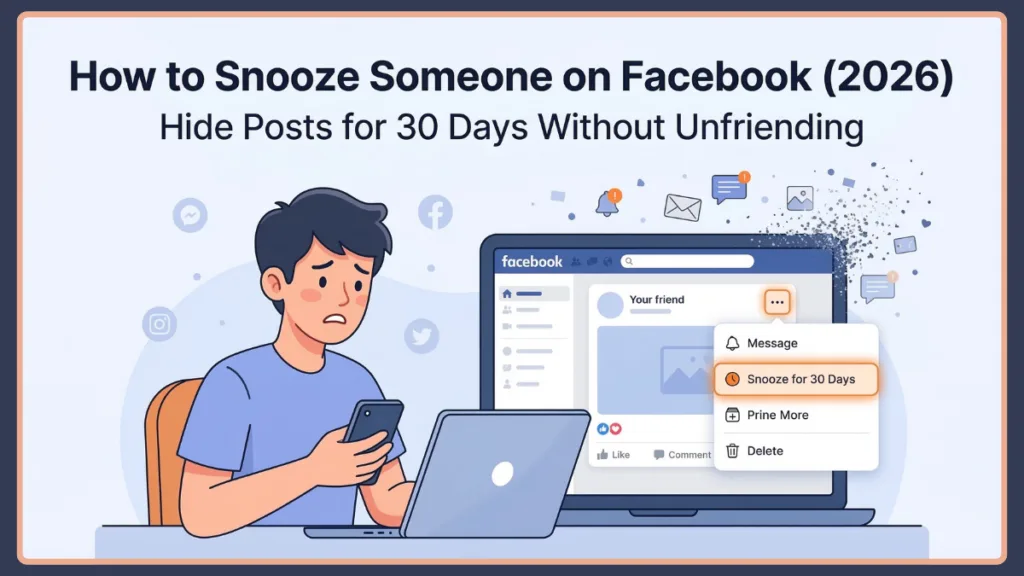
Fortunately, Facebook offers a simple feature that helps you take control of your feed without creating any social tension. Snoozing someone on Facebook allows you to temporarily hide their posts for 30 days while remaining friends.
It’s a practical and discreet way to declutter your News Feed and focus on the content that matters most to you.
This guide will walk you through everything you need to know about how to snooze someone on Facebook for 30 days, including how the feature works, how to use it on mobile and desktop, how to unsnooze someone, and what to do if the option isn’t showing up.
What Does Snoozing Someone on Facebook Mean?
Snoozing someone on Facebook means temporarily hiding posts from a friend, page, or group in your News Feed for a period of 30 days. During this time, their updates will not appear in your feed, but your connection with them remains unchanged.
Unlike unfollowing or blocking someone, snoozing is a temporary action designed to give you a short break from certain content.
Here are a few important things to know about the Facebook snooze feature:
- It’s completely private: When you snooze someone on Facebook, their posts disappear from your News Feed for 30 days, but they will never be notified that you snoozed them. This means you can quietly manage your feed without worrying about hurting someone’s feelings.
- It works on pages and groups: The snooze feature works not only for friends but also for Facebook pages, Facebook groups, and shared posts from other users.
- It reverses automatically: After the 30-day period ends, their posts automatically start appearing again in your News Feed unless you choose to snooze them again.
Why People Snooze Someone on Facebook
Many Facebook users search for ways to stop seeing someone’s posts without unfriending them because they want to maintain relationships while reducing the noise in their feed. There are several common reasons people choose to use the snooze feature.
Too Many Posts in the News Feed
Some friends or pages post frequently throughout the day. While their content might not be offensive, it can easily dominate your News Feed and push other updates out of view. Snoozing them helps restore balance.
Avoiding Content You’re Not Interested In
As your Facebook network grows, your feed can fill up with topics you might not care about. Political discussions, sports debates, promotional posts, or trending news can sometimes overwhelm your timeline. Snoozing allows you to temporarily filter out that content without disconnecting from the person.
Avoiding Spoilers
Many people use Facebook to discuss movies, TV shows, anime, or games. If you’re trying to avoid spoilers, snoozing certain friends or groups for a few weeks can protect your experience.
Taking a Break Without Causing Awkwardness
Unfriending someone can sometimes lead to uncomfortable conversations. The Facebook snooze feature offers a more diplomatic solution.
It gives you a quiet break while keeping the relationship intact.
How to Snooze Someone on Facebook for 30 Days
If you are wondering how to temporarily hide someone’s posts, the process is quick and only takes a few seconds. Follow these simple steps:
- Step 1: Open Facebook. Log in to your Facebook account using the mobile app or the Facebook website. Once you’re logged in, navigate to your News Feed.
- Step 2: Find a Post from the Person. Scroll through your feed until you find a post from the friend, page, or group you want to snooze.
- Step 3: Tap the Three-Dot Menu. Look for the three dots in the top-right corner of the post. Clicking or tapping this icon opens a menu with several options.
- Step 4: Select Snooze. From the menu, select “Snooze [Name] for 30 days.” Facebook will immediately apply the snooze setting.
- Step 5: Confirmation Message. A message will appear confirming that you won’t see posts from that person for the next 30 days. If you change your mind instantly, you can tap Undo.
Once this step is complete, the person’s posts will disappear from your feed for the entire snooze period.
How to Snooze Someone Using the Facebook Mobile App (Android & iPhone)
Many users access Facebook primarily through their phones, so understanding how to snooze someone using the mobile app is important. The steps are identical whether you are using an Android or iPhone.
Snoozing Someone from the News Feed
- Open the Facebook app on your phone.
- Scroll through your News Feed until you see a post from the person you want to snooze.
- Tap the three-dot icon at the top-right of the post.
- Select “Snooze [Name] for 30 days.” The change takes effect immediately.
Snoozing Directly from a Profile
If you prefer another method, you can also snooze someone directly from their profile page:
- Search for the person’s name in the Facebook search bar.
- Open their profile page.
- Tap the three dots near their profile information (usually near the Message button).
- Select Snooze for 30 days.
How to Unsnooze Someone on Facebook
Sometimes you might want to reverse the action before the 30-day period ends. In that case, you can easily unsnooze a friend by adjusting your feed settings.
Unsnooze Using Facebook Settings:
- Open Facebook and tap the Menu icon.
- Go to Settings & Privacy, then select Settings.
- Open News Feed Preferences (sometimes just labeled “Feed”).
- Tap Snoozed.
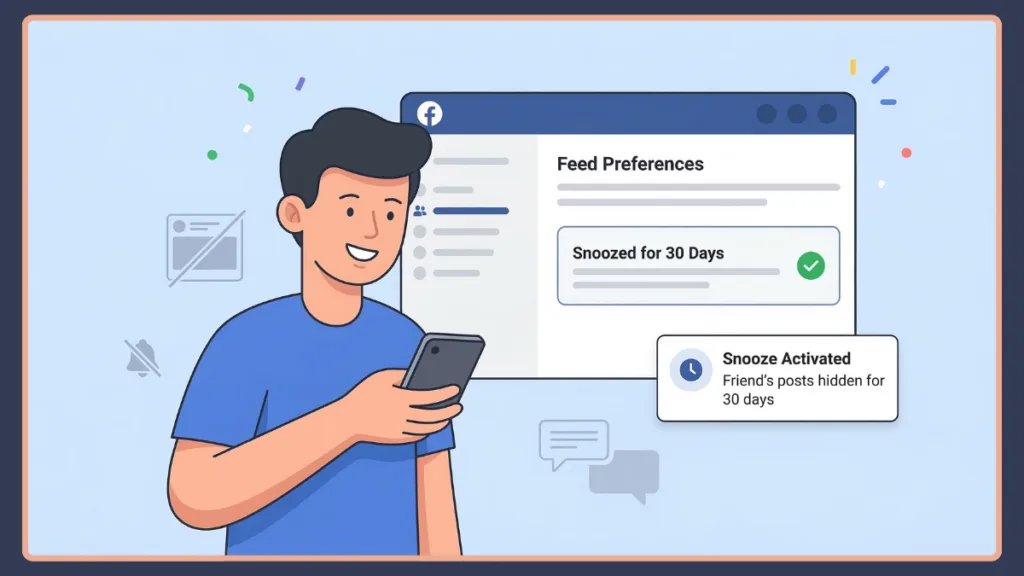
- You will see a list of people, pages, or groups that you have snoozed. Simply select the person and choose Undo to end the snooze.
This method works whether you are on a desktop computer or using your mobile phone.
What Happens After the 30-Day Snooze Ends?
Many users wonder what happens after the snooze period expires. Once the 30-day snooze period ends, Facebook automatically restores the person’s posts to your News Feed. You don’t need to take any action.
If their posts still feel overwhelming, you can simply snooze them again for another 30 days. There is no limit to how many times you can use this feature.
Why Can’t I Snooze Someone on Facebook?
Occasionally, users encounter issues finding the snooze option. There are a few common reasons this happens:
- They Are Already Snoozed: If you previously snoozed someone within the past 30 days, Facebook will temporarily hide the snooze option until the current period expires.
- The Post Source Is Different: Sometimes a friend shares posts from another page or profile. In these cases, Facebook may give you the option to snooze either the person who shared the post or the original page, changing how the menu looks.
- Your App Needs an Update: If you cannot find the snooze option at all, updating the Facebook app or refreshing the webpage can often restore the missing feature.
Did Facebook Remove the Snooze Feature?
A common question users ask is whether Facebook removed the snooze option. The answer is no. The snooze feature is still available and continues to work on both desktop and mobile devices.
However, Facebook occasionally updates its interface, which can make the feature appear in slightly different locations within the menu. If you cannot find it, always look for the three-dot menu on any post in your feed.
Snooze vs Unfollow vs Restrict on Facebook
Understanding the difference between these options helps you choose the best solution for your feed:
| Option | Duration | Visibility & Relationship Status |
| Snooze | Temporary (30 days). | Posts disappear from your feed and automatically return after 30 days. |
| Unfollow | Permanent until you choose to follow them again. | You remain friends but do not see their posts in your feed. |
| Restrict | N/A | Limits what someone can see from you. This mainly affects privacy settings rather than feed visibility. |
For many users, snoozing is the most balanced option because it offers temporary control without permanently altering relationships.
Can You Snooze Someone on Messenger or Instagram?
People often search for similar features on other platforms. While the exact “snooze” feature exists mainly on Facebook, other platforms offer similar tools to give you a break:
- Messenger: Messenger allows you to “mute” conversations so notifications stop appearing for a specific chat for a set duration.
- Instagram: Instagram uses a “mute” feature that lets you hide someone’s posts or stories from your feed without unfollowing them.
Frequently Asked Questions
How do I silence someone on Facebook for 30 days?
Open a post from the person in your News Feed, tap the three-dot menu in the top right corner, and select “Snooze for 30 days.”
How do I temporarily hide someone’s posts on Facebook?
Locate one of their posts, open the menu using the three-dot icon, and choose the snooze option to hide their content for a month.
How can I stop seeing someone’s posts without unfriending them?
The easiest method is to use the snooze feature. This hides their posts for 30 days while keeping your friendship intact. For a permanent solution, you can visit their profile and choose to “Unfollow” them.
Why is the snooze option missing on Facebook?
The feature may be hidden if the person is already snoozed within the past 30 days, or your Facebook app might need to be updated to the latest version.
How do I turn off snooze on Facebook early?
Go to Settings > News Feed Preferences > Snoozed, find the person’s name on the list, and select Undo.
Final Thoughts: Take Back Control of Your Facebook Feed
Facebook should feel like a place where you can stay connected with friends, family, and communities that matter to you. But when your feed becomes cluttered with too many posts from certain people, it’s completely reasonable to take a step back.
The good news is that snoozing someone on Facebook gives you a quiet and guilt-free way to do exactly that. You can temporarily hide posts, keep your connections intact, and enjoy a more balanced News Feed.
With just a few clicks, you can refresh your feed, reduce distractions, and focus on the content that truly interests you.
So if your timeline ever feels overwhelming, remember that the Facebook snooze feature is always there to help you take control—without causing any awkward conversations or unnecessary drama.
Visit Our Post Page: Blog Page