
Turn off Facebook notifications fast in 2026. Stop emails, push alerts, and pop-ups on iPhone, Android, and desktop. Fix notifications that won’t stop and take full control.
Facebook is great for staying connected—but constant push notifications, email alerts, red dot badges, and in-app sounds can quickly become overwhelming. Whether it’s friend requests and tags, endless activity reminders, or promotional marketplace alerts, these interruptions can distract you throughout the day. Many users today are actively searching for ways to stop Facebook notifications, turn off Facebook alerts, or completely disable Facebook notifications in 2026, especially as usage across multiple devices increases.
In the modern digital landscape, “notification fatigue” is a recognized phenomenon. Every ping triggers a dopamine micro-hit that can disrupt deep work, family time, or even your sleep. By 2026, with the rise of AI-curated feeds, the volume of “suggested” content alerts has only grown. Taking back your attention starts with a comprehensive audit of how, when, and where Facebook is allowed to interrupt your life.
The good news is that Facebook gives you full control over your notification preferences. You can either completely silence all alerts or fine-tune them so you only receive the updates that actually matter. This guide will walk you through everything—from quick fixes to advanced customization—so you can regain control of your notifications without missing anything important.
Quick Answer: Stop Facebook Notifications Fast
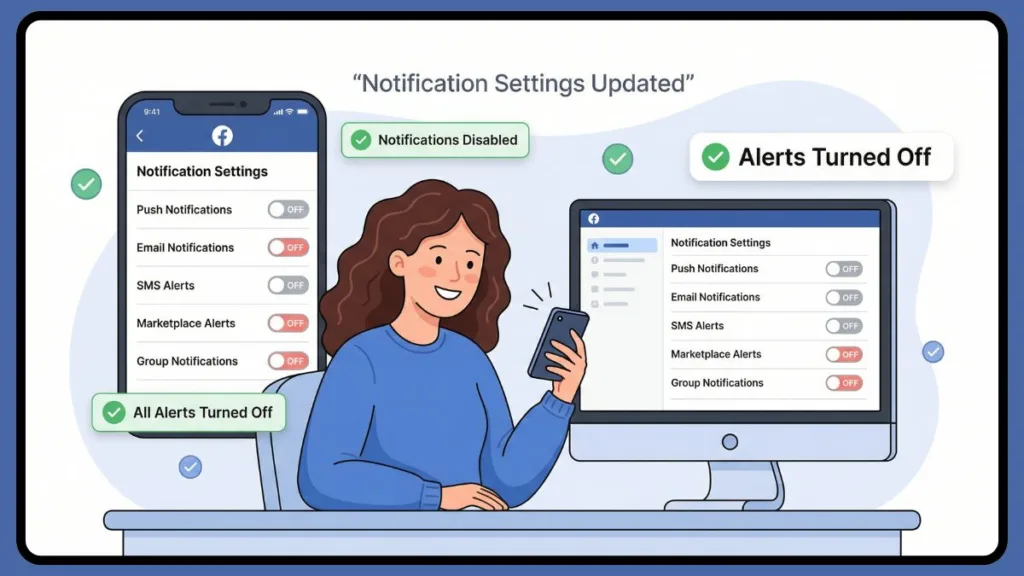
If you’re in a hurry and just want to stop the noise immediately, Facebook offers a quick way to reduce or completely disable notifications. Start by opening Facebook and navigating to Settings & Privacy, then go into Notification Settings. From here, you’ll see multiple categories of notifications that Facebook sends.
You can instantly turn off push notifications, which are the alerts that appear on your phone, along with email notifications that often clutter your inbox, and SMS alerts if you’ve enabled them. Beyond that, Facebook allows you to disable specific categories such as friend requests and tags, activity reminders like birthdays and memories, and even marketplace alerts that are often promotional.
This quick adjustment is the fastest way to stop Facebook notifications, turn off Facebook notifications, and reduce alerts instantly without diving into deeper settings. However, for long-term control, it’s better to understand each type of notification and manage them individually.
Types of Facebook Notifications You Can Control
Facebook sends different types of notifications across multiple channels, and understanding these is key to managing them effectively. The most common are push notifications, which appear directly on your mobile device, and these are often the most intrusive because they interrupt you in real time. Then there are email notifications, which can flood your Gmail inbox if not properly controlled, and SMS alerts, which some users still receive for account updates.
In 2026, Facebook has categorized these into distinct “Delivery Methods”:
- Push: These are the banners and sounds on your smartphone or browser.
- Email: Sent to your registered email address. These often include “Summary” emails which bundle multiple activities into one message.
- SMS: Text messages for high-priority alerts or two-factor authentication.
In addition to these, Facebook includes in-app sounds and red dot badges, which are visual and audio cues inside the app that signal new activity. While they may seem harmless, they can create a sense of urgency that pulls you back into the app repeatedly. You’ll also encounter notifications related to friend requests and tags, activity reminders such as birthdays and memories, and marketplace alerts or group updates.
Izoate Pro Tip: Red dot badges (those little numbers on the app icon) are specifically designed to exploit “completion bias”—the human urge to clear away notifications. Disabling these is often the single most effective way to reduce the “phantom urge” to check Facebook every five minutes.
Instead of disabling everything, managing these individually allows you to create a balanced experience. For example, you might want to keep friend request notifications but disable marketplace alerts or activity reminders. This approach gives you control without disconnecting you from important updates.
How to Stop Facebook Notifications on Desktop (PC/Mac/Chrome)
If you primarily use Facebook on a desktop or laptop, managing notifications through the browser is essential. Start by logging into your Facebook account and clicking on your profile or menu icon in the top-right corner. From there, navigate to Settings & Privacy, then select Settings, and open the Notifications section from the left-hand menu.
Inside this section, Facebook organizes notifications into categories such as comments, tags, reminders, and more. Each category has an Edit option that allows you to customize how you receive alerts—whether through push, email, or SMS. By going through each category, you can disable unnecessary notifications and keep only what matters.
Managing Browser-Level Controls (2026 Update)
In addition to Facebook’s internal settings, you should also manage your browser notifications. Browsers like Chrome, Edge, Safari, and Firefox can send alerts even if Facebook is minimized.
- Google Chrome: Click the padlock icon next to the URL > Site Settings > Notifications > Select Block.
- Microsoft Edge: Go to Settings > Cookies and site permissions > Notifications and remove Facebook from the “Allow” list.
- Safari (Mac): Go to Settings > Websites > Notifications and deny Facebook permissions.
Disabling these ensures that you stop Facebook notifications on Chrome/Desktop completely. This dual-layer control—Facebook settings plus browser settings—is crucial for eliminating unwanted interruptions on your computer.
How to Disable Facebook Notifications on Android
On Android devices, Facebook notifications can come from both the app and the system settings, so it’s important to manage both. Start by opening the Facebook app, tapping the menu icon, and navigating to Settings & Privacy → Settings → Notification Settings. Here, you can toggle off various alerts such as comments, tags, and reminders.
However, if notifications still persist, the stronger method is to control them at the device level. By 2026, Android has refined “Notification Channels,” allowing you to be extremely specific.
- Go to your phone’s Settings.
- Open Apps (or App Management).
- Select Facebook.
- Tap on Notifications.
- From here, you can disable notifications entirely or customize them further based on importance.
Understanding Android 16/17 Notification Channels
Android 16 and 17 allow you to toggle specific types of notifications from the system menu. For instance, you can allow “Direct Messages” but block “Marketplace” alerts entirely at the OS level, which prevents the app from even trying to push them to your screen.
This approach is particularly useful if you want to disable Facebook notifications on Android without uninstalling the app. It also ensures that no background processes or app updates re-enable notifications without your knowledge, providing complete control over how Facebook interacts with your device.
How to Turn Off Facebook Notifications on iPhone/iPad
For iPhone and iPad users, Apple’s system-level controls make it easy to manage notifications. Start by opening the Settings app, then scroll down to Notifications and select Facebook. Here, you can turn off Allow Notifications entirely, which will stop all alerts from appearing on your device.
iOS 26 Focus Filters and Summaries (2026 Context)
Apple’s iOS 26 has introduced sophisticated ways to manage social media noise without a total blackout using Liquid Glass UI elements and advanced Apple Intelligence:
- Scheduled Summary: Instead of getting alerts all day, you can choose to have all Facebook notifications delivered in a single batch at 8:00 AM and 6:00 PM.
- Focus Modes: Link Facebook notifications to a specific “Work” or “Sleep” Focus. When these modes are active, Facebook is automatically silenced.
- Visual Intelligence Filtering: iOS 26 can now use on-screen intelligence to prioritize notifications that contain direct questions or urgent information while silencing generic “suggested for you” alerts.
If you prefer more control rather than completely disabling notifications, you can customize how they appear. For instance, you can disable lock screen notifications so alerts don’t show when your phone is locked, or turn off sounds while still allowing banners or alerts to appear silently.
This is especially useful if you want to mute Facebook notification sounds but keep alerts visible, or prevent notifications from appearing on your lock screen. These small adjustments can significantly reduce distractions while still keeping you informed when needed.
Best Strategy to Stop Specific Facebook Notifications
Completely turning off notifications isn’t always the best solution. In many cases, it’s better to target specific types of notifications that are causing the most disruption.
1. Stop Facebook Group Notifications Only
Groups are often the biggest source of “clutter.” To silence them:
- Open the group you want to silence.
- Access Manage Notifications (usually found under the “Joined” button).
- Select Off or Highlights Only.
Tip: This is particularly helpful for large or inactive groups that generate constant updates.
2. Stop Notifications for One Person or Page
If notifications from a specific person or page are bothering you, you can adjust your settings to stop receiving updates from them without unfriending or unfollowing entirely. You can navigate to their profile, tap the “Following” button, and select Edit Notification Settings to silence their specific activity. This allows you to maintain connections while reducing noise.
3. Disable Birthday & Activity Notifications
Birthday alerts can be repetitive. Navigate to Notification Settings > Birthdays and toggle them off. Similarly, you can disable activity reminders and memories, which are often unnecessary for many users.
4. Stop Marketplace Alerts
Marketplace alerts tend to be promotional. Disable these under the “Marketplace” category in your notification settings to keep your phone clear of “Items you might like” pings.
How to Delete or Clear Facebook Notifications
Sometimes, the issue isn’t new notifications but the clutter of existing ones.
- On Desktop: Click the bell icon, locate a notification, and use the three-dot menu to remove it. You also have the option to “Mark all as read,” which helps clear the backlog of red dots instantly.
- On Mobile: Tap the bell icon, find the notification you want to remove, and use the three-dot menu to delete it.
While this doesn’t stop future notifications, it helps keep your notification panel clean and manageable. Keeping a “Zero Inbox” for notifications can actually lower digital anxiety.
How to Manage Facebook Notification Settings (Best Long-Term Fix)
The most effective way to control notifications is through Facebook’s notification preferences. By accessing Settings & Privacy → Notification Settings, you can review every category and decide which alerts are worth keeping.
A Deep Dive into Categories (2026 UI)
- Comments: Alerts when someone comments on your posts. (Keep for engagement).
- Tags: Alerts when someone tags you in a photo or post. (High priority for privacy).
- Reminders: “You have notifications you haven’t seen.”
Izoate recommends turning this OFF immediately.
- More Activity About You: Pokes, wall posts, etc.
- Updates from Friends: When specific friends post. (Use only for “Close Friends”).
- Friend Requests: Essential for social growth.
- People You May Know: Suggested friends. (Mostly spam; turn OFF).
- Pages You Follow: Updates from businesses or creators.
Why Facebook Notifications Are Not Stopping: Quick Fix
If you’ve already adjusted your settings but still receive notifications, there may be underlying issues.
Issue 1: Email Notifications Still Enabled
One common reason is that email notifications are still enabled, even if push notifications are turned off. Facebook treats these as two separate “pipes.” To fix this, go to Notification Settings > Email and change your frequency to “Only about your account, security, and privacy.”
Issue 2: Multiple Devices Syncing
Another issue could be multiple devices (like an old iPad or a work laptop) syncing notifications. If you have “Background App Refresh” enabled on an old device, it may still be pulling alerts and causing your primary phone to buzz.
Issue 3: Browser vs. App Conflicts
Browser notifications can also override app settings, especially on desktop. To fix this, make sure you disable notifications both within Facebook and in your browser settings (Chrome/Edge/Safari).
Issue 4: The “Ghost” Red Dot
Sometimes a red dot persists even when you have no notifications. To clear this, try logging out and back into your account. This refreshes your preferences and clears the cache that might be stuck on “unread” status.
How to Mute Facebook Notifications (Without Turning Everything Off)
If you don’t want to completely disable notifications, muting them temporarily is a great option.
1. Facebook Quiet Mode
Facebook has a built-in “Quiet Mode” found under Settings > Your Time on Facebook > Manage Your Time. When enabled, it mutes all push notifications and limits your ability to use the app during the scheduled window.
2. System Focus Modes
Most smartphones in 2026 offer Do Not Disturb or Focus Mode. In iOS 26, these are integrated with Apple Intelligence to ensure that your “Quiet Time” is respected across all Apple devices simultaneously.
Meta Business Suite: Managing Professional Notifications
For creators and business owners on Izoate, the Meta Business Suite introduces a third layer of notifications. If you manage a Facebook Page, you might be getting double-notified—once for your personal account and once for the Business Suite. To stop this:
- Open the Meta Business Suite app.
- Tap Settings > Notifications.
- Toggle off alerts for specific Pages or specific actions (like new Likes or non-critical comments).
- Set “Quiet Hours” within the Business Suite so your work notifications don’t interrupt your personal life after 6:00 PM.
Pro Tips to Reduce Facebook Notification Spam
Reducing notification spam doesn’t always require drastic measures.
- Turn Off “Reminders”: These are the most annoying alerts (e.g., “You haven’t checked your notifications today”). Disabling these alone reduces “guilt-tripping” alerts.
- Leave/Mute Inactive Groups: Every group you belong to is a potential source of pings. Do a monthly audit and leave groups you no longer engage with.
- Disable Promotional Alerts: Marketplace and “Offers” are essentially ads disguised as notifications. Turn them off.
- Reduce Frequency: Instead of “All,” set your email settings to “Summary” to get one daily email instead of 20.
FAQ
1. How do I turn off all Facebook notifications at once? You can disable all notifications by turning off every category in Notification Settings or using your device’s system settings (Settings > Apps > Facebook > Notifications > Off) for complete control.
2. Why am I still getting Facebook emails after turning them off? Email notifications may still be enabled separately. Make sure to navigate to Notification Settings > Email and select “Only about your account” to stop the marketing and social emails.
3. Can I mute Facebook notifications for a specific group? Yes, you can manage notifications within the group settings and turn them off or set them to “Highlights Only” without leaving the group.
4. How do I stop Facebook notifications on my computer? Disable notifications in both Facebook settings and your browser settings (Chrome, Edge, or Safari). Even if the site is muted, the browser might still have “Push” permission.
5. Does turning off notifications delete my Facebook messages? No, it only stops alerts. Your messages and data remain unchanged and will be waiting for you the next time you open the app.
6. How do I turn off push notifications but keep in-app alerts? In your phone’s notification settings, you can disable “Banners” and “Lock Screen” alerts but keep the “Red Dot” or “In-App” notifications enabled within the Facebook app itself.
7. How to stop Facebook “People You May Know” notifications? Go to Settings > Notifications > People You May Know and toggle off all alert types (Push, Email, SMS).
8. Can I schedule when I receive Facebook notifications? Yes, using Quiet Mode in the Facebook app or Focus Mode/Scheduled Summary on iOS and Android.
9. How do I stop birthday notifications? Go to Settings > Notifications > Birthdays and toggle them off.
10. Why did my notifications turn back on after an update? Occasionally, major app updates reset certain preference flags. It is recommended to check your notification settings after any major OS or Facebook app update.
11. How do I stop Marketplace “Items for You” notifications? This is found under Notification Settings > Marketplace. You can disable the sub-category for “Suggestions.”
12. Is there a way to mute notifications for just one person? Yes. Go to their profile, tap the “Friends” or “Following” button, and select “Edit Notification Settings” to mute their posts.
13. How do I stop sound alerts on my computer? In the Facebook desktop Notification settings, there is a toggle for “Play a sound when each new notification is received.” Turn this off.
14. What is the difference between “Mute” and “Disable”? “Mute” usually implies a temporary pause (like for 2 hours), while “Disable” is a permanent setting change.
15. Can I see a history of the notifications I’ve turned off? No, Facebook doesn’t provide a history of setting changes, but you can see your Activity Log to see what activity would have triggered a notification.
Conclusion
Learning how to stop Facebook notifications is less about completely shutting them down and more about customizing them to fit your lifestyle. Whether you choose to disable Facebook notifications entirely, mute them during certain hours, or fine-tune individual categories, the key is to take control of your notification preferences.
By 2026, the average person receives over 60 notifications per day across all apps. By trimming the Facebook noise, you can regain hours of focus and reduce digital stress. Remember, you should be the one deciding when to check Facebook, not the other way around.
By making a few smart adjustments, you can enjoy Facebook without constant interruptions, staying connected to what matters while avoiding unnecessary distractions. Regularly review your settings on Izoate and your mobile devices to maintain a clean dashboard, minimize stress, and manage your digital life like a pro.
Visit Our Post Page: Blog Page