
New to YouTube Live? Learn how to stream on YouTube, set up YouTube Live and OBS, avoid beginner mistakes, and go live with confidence.
You’re not here to read theory. You’re here because you want to go live on YouTube and the interface in front of you looks louder and more complicated than it should.
That reaction is normal.
As you sit here with YouTube Studio open, mouse hovering over Go Live, your job is not to understand everything—your job is to follow the flow in the right order.
We are right next to you, and we’ll move only as fast as the screen in front of you allows.
What Do You Need to Stream on YouTube Before You Can Go Live?
Before you touch OBS Studio or adjust a single setting, you need YouTube to give your channel permission to stream. You are working inside YouTube, and YouTube is strict about first-time access.
You need a verified YouTube account with Live Streaming enabled inside YouTube Studio. As you look at the Create button and click Go Live for the first time, you may notice something frustrating happens.
The 24-Hour Rule
After you enable Live Streaming, YouTube may require up to 24 hours before your channel can actually go live. During this time, the Go Live button may exist but will not work.
This is not an error. Nothing is broken. At this point, the correct action is to stop and wait. Trying to reinstall software or change settings here only creates confusion.
Basic Streaming Requirements (What Actually Matters)
| Requirement | Why It Matters in Real Streaming |
| Stable Internet (Upload Speed) | Prevents buffering, dropped frames, and stream disconnects. (Check your speed at Speedtest.net) |
| PC or Laptop | Handles encoding and keeps the stream stable under load |
| Microphone | Poor audio ruins streams faster than poor video |
| Webcam (Optional) | Adds trust and connection with viewers |
If any of these are weak, your stream may technically start but fail in quality, audio clarity, or stability.
How Does YouTube Live Streaming Actually Work?
Before you configure anything, it helps to understand what YouTube expects from you. When you stream, your computer sends a continuous live video feed to YouTube’s servers, and YouTube rebroadcasts that feed to viewers in real time. If your feed stutters, YouTube cannot fix it for you.
Inside YouTube Studio, you choose Visibility, Latency, and Live Chat behavior. As you switch between latency options, you should know why this matters.
| Latency Option | What You Experience | What Viewers Experience |
| Normal | More stable stream | Slight delay in chat |
| Low | Less delay | Higher risk of buffering |
| Ultra-Low | Fastest chat | Least forgiving if internet dips |
If you care more about smooth video than fast chat replies, choose Normal stability.
You may also notice a rehearsal or preview mode. This lets you test everything privately. Use it. It exists specifically to reduce beginner anxiety.
How Do You Stream on YouTube From a PC Step by Step?
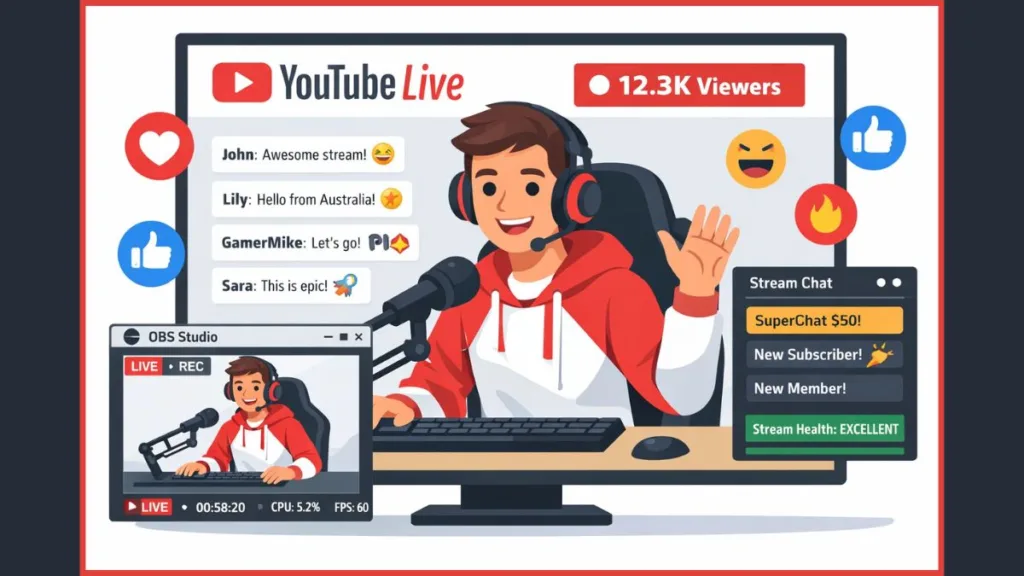
How Do You Enable Live Streaming in YouTube Studio?
- Open YouTube Studio.
- Click Create.
- Select Go Live.
- If this is your first time, YouTube will guide you through verification. As you move through these screens, you are simply unlocking access—nothing more.
If YouTube tells you to wait, that is the 24-Hour Rule taking effect. Stop here. Waiting is the correct technical solution.
How Do You Create a Live Stream in YouTube Studio?
- Once access is granted, click Go Live again.
- You will now see fields for Title, Description, Category, and Audience.
- As you type, you may feel pressure to be perfect. Don’t. These fields can be edited later. Right now, your goal is clarity, not branding.
You can choose to go live immediately or schedule the stream.
Strongly recommended: before your first public stream, create a test stream set to “Unlisted.” This lets you go live, open the stream on your phone, and check audio levels and sync in real time without viewers seeing your mistakes. When everything sounds right, you can confidently switch to Public next time.
How Do You Stream on YouTube Using OBS (Recommended)?
If you are on a PC, this is where control and quality come from.
How Do You Connect OBS to YouTube Safely?
- Install OBS Studio and open it.
- Return to YouTube Studio, locate your Stream Key, and copy it.
- Paste it into OBS → Settings → Stream.
Stream Key Security Warning
Never show your Stream Key on screen. Anyone who sees it can stream from your channel. If you think it was exposed, reset it immediately in YouTube Studio.
Important next step (do not skip): connecting the Stream Key is Step 1 only.
Before you click Start Streaming, go to the Sources box in OBS, click the + icon, and add:
- Video Capture Device (for your webcam)
- Display Capture (for your screen)
If you skip this, OBS will stream successfully—but viewers will see only a black screen.
Once pasted and sources are added, OBS and YouTube are fully linked.
How Do You Set the Best OBS Settings for YouTube Live?
Before you change numbers, understand why settings matter. Your bitrate, resolution, and frame rate control how hard your computer and internet are pushed. Higher numbers look better but fail faster.
| Setting | What It Affects | What Happens If Too High |
| Bitrate | Stream quality | Dropped frames, buffering |
| Resolution | Visual sharpness | Overloads CPU/GPU |
| Frame Rate (FPS) | Motion smoothness | Stream instability |
Inside OBS, choose settings your system can hold consistently. If OBS shows Dropped Frames, that is not a YouTube problem—it is your system telling you to lower the load. Stability always beats sharpness.
How Do You Stream on YouTube From Mobile?
- Open the YouTube app.
- Tap Create.
- Tap Go Live.
Mobile streaming works, but it is limited.
Note: to stream from mobile, YouTube requires at least 50 subscribers on your channel. (See YouTube’s Mobile Eligibility Rules). If you have fewer than 50, the Go Live option may appear but will not work. In that case, you must use a PC or webcam setup instead.
Even when available, mobile streaming gives you fewer controls, less reliable audio, and minimal moderation tools. Use it for quick updates or casual sessions, not complex gaming or tutorials.
What Should You Check Before Clicking Go Live?
Right before you go live, stop moving fast. Check your microphone levels, camera framing, internet connection, and the stream preview inside YouTube Studio.
If something looks off now, it will look worse once viewers arrive. Fix it here. This pause is what separates calm streams from chaotic ones.
How Do You Stream Games on YouTube Without Getting Copyright Issues?
Gaming streams add extra risk. Use Game Capture whenever possible because it is more stable and less demanding.
Copyrighted Music Warning
Many games include licensed radio or background music. This can mute your replay or trigger copyright claims. Before you go live, turn off in-game music or set it to zero.
This single setting prevents more problems than any advanced optimization ever will. (Consider using the YouTube Audio Library for safe background music).
How Do You Keep Viewers Engaged During a YouTube Live Stream?
At the start of your stream, talk—even if no one is there yet. Replays matter.
As viewers join, acknowledge them naturally. Clear titles, simple thumbnails, and a clean ending matter more than fancy overlays. Engagement comes from clarity, not complexity.
What Do You Fix When a YouTube Live Stream Goes Wrong?
If your stream won’t start, check whether Live Streaming is fully enabled and whether your Stream Key matches. If OBS shows Dropped Frames, reduce your settings immediately.
If audio drifts out of sync, fix it in OBS before ending the stream. Viewers notice these issues instantly, and fixing them fast builds trust.
What Are Realistic Best Practices for Beginner YouTube Streamers?
Do not stream for hours just because you can.
Short, consistent streams outperform long, chaotic ones. Save your streams. Cut clips from them. Repurpose them. Growth comes from repetition and refinement, not from one perfect broadcast.
FAQ: YouTube Live Streaming
How long can you stream live on YouTube?
You can stream as long as your connection remains stable and you follow platform rules.
Is YouTube live streaming free?
Yes. There is no cost to go live.
Can you stream on YouTube without OBS?
Yes, using the browser or mobile app, but OBS gives you control and reliability.
What internet speed do you need for YouTube live streaming?
You need enough upload speed to support your chosen bitrate with extra headroom for stability.
How do you see chat while gaming on one monitor?
You use your phone or tablet for chat, pop out the chat window, or dock chat inside OBS. Single-monitor streamers do this every day.
You don’t need to master everything today. You only need to follow the screen in front of you, one calm, correct step at a time.
Visit Our Post Page: Blog Page