
iPhone 16 stuck on Do Not Disturb? Learn how to turn off DND, disable Focus settings, remove schedules, and get your notifications back fast with simple steps.
We’ve all been there: You’ve just unboxed your shiny new iPhone 16, but for some reason, the world has gone silent. Notifications aren’t popping up, your best friend’s calls are going straight to voicemail, and that tiny, persistent crescent moon icon is staring back at you from the status bar. The feeling of missing an important alert—perhaps a work deadline or a family emergency—can be genuinely stressful, especially when you are still familiarizing yourself with the hardware of a brand-new device.
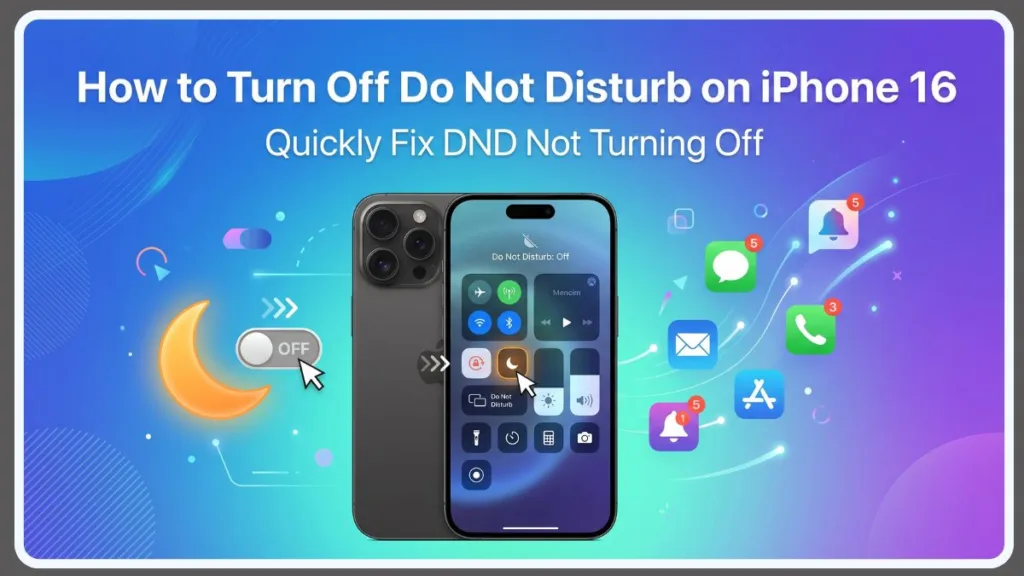
On the iPhone 16, Do Not Disturb (DND) isn’t just a simple toggle anymore—it’s a sophisticated part of the Focus mode ecosystem. Introduced to help users reclaim their “digital well-being,” Focus modes have evolved significantly with iOS 18. Whether it’s stuck because of a hidden schedule, an accidental automation, or a link to your favorite wallpaper, having your phone “stuck” in silence is frustrating.
This guide will walk you through the lightning-fast fixes to turn off Do Not Disturb and provide the advanced troubleshooting steps to ensure it stays off when you want it to. We will delve into the hardware-software synergy of the iPhone 16, exploring how the new Action Button and Apple Intelligence play a role in how your phone manages silence.
Want a Quick Fix? Turn Off Do Not Disturb in Seconds
If you just need to hear your phone ring right now, this is the fastest working solution. It bypasses deep settings and directly toggles the system state. This “emergency” method is what 90% of users need when they find their notifications unexpectedly silenced during the day.
Follow These Steps:
- Swipe down from the top-right corner of your screen (the area where the battery and Wi-Fi icons are) to open the Control Center.
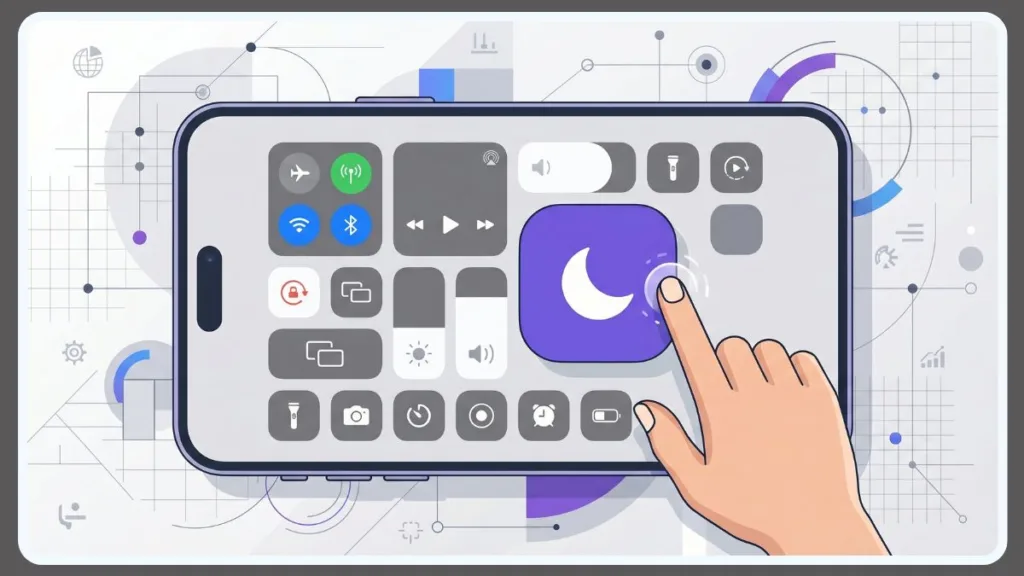
- Locate the crescent moon icon. In the new iOS 18 layout, this is typically part of a larger “Focus” module.
- Tap the icon once. If it goes from purple or white to a dimmed gray, Do Not Disturb is OFF.
- Look at your Dynamic Island or status bar; if the moon icon has vanished, you are officially back in “Ring” mode.
Note: Make sure you aren’t in another Focus mode like “Sleep” or “Driving.” If you see a different icon (like a bed or a car), tap that icon to disable the active Focus entirely. Sometimes, the “Reduce Interruptions” AI-powered mode can also look similar, so ensure the entire Focus module is inactive.
Method 1: Using the iPhone 16 Control Center
The redesigned Control Center in iOS 18 makes managing Focus mode on iPhone 16 highly visual and customizable. Unlike previous versions of iOS, you can now resize icons and create multiple pages of controls. If you can’t find the DND icon immediately, you may have accidentally moved it to a second or third page of your Control Center gallery.
- Access: Swipe down from the top-right corner.
- Identify: Look for the Focus tile. It will usually display “Do Not Disturb” or the name of whatever Focus profile is currently active. In iOS 18, this tile can be a small icon or a large interactive widget.
- Toggle: Tap the crescent moon icon directly for an instant off-switch.
- Deep Selection: If you see the word “Focus” but DND isn’t the active one, tap and hold the tile. This opens a full-screen menu where you can see all your available profiles—Work, Personal, Sleep, and Gaming. Tap the active one to deselect it.
Customizing Your Control Center for Better Access
If you find yourself constantly toggling DND, you can use the new iOS 18 “Edit” mode. Tap the plus (+) icon at the top left of the Control Center, and you can enlarge the Focus widget. A larger widget makes it nearly impossible to miss the status of your notifications at a glance. You can even place the DND toggle on its own dedicated page to prevent accidental activations while you are adjusting brightness or volume.
Method 2: Disable DND via Settings (Focus Mode)
If the Control Center isn’t responding or you prefer a more clinical approach, the iOS Focus settings menu is your best bet. This menu provides the most granular look at what exactly is silencing your phone.
- Open the Settings app on your iPhone 16.
- Scroll down to the second block of settings and tap on Focus.
- Select Do Not Disturb.
- At the very top, you can see the status toggle. If it’s active, you can toggle it OFF here.
This method is particularly helpful if you need to disable Focus on iPhone 16 at a system level to ensure no accidental swipes turn it back on. Within this menu, you can also see which other devices are influencing your status. For example, if your iPad is sitting on your desk in Do Not Disturb mode, it might be pushing that command to your iPhone via iCloud. Checking the Settings menu allows you to identify these “Cross-Device” conflicts.
Turn Off Do Not Disturb Without Control Center
Is your screen acting up, or are you just feeling a bit hands-free? You have options that don’t require swiping or precision tapping. The iPhone 16 is designed to be accessible through multiple input methods.
- Use Siri: Simply say, “Siri, turn off Do Not Disturb.” Siri will confirm with a “Done” or “I’ve turned off Do Not Disturb.” This is the most efficient way to turn off Do Not Disturb on iPhone 16 without Control Center, especially useful if you are driving or wearing gloves.
- The Action Button: If you have the iPhone 16 or iPhone 16 Pro, you have the Action Button located above the volume rockers. You can map this button to toggle DND. Go to Settings > Action Button and choose “Focus.” Now, a simple long-press of the physical button will silence or unsilence your phone instantly.
- The Settings Route: As mentioned above, navigating through the Settings app works even if your swipe-down gestures are failing due to a screen protector issue or a software lag in the Control Center.
Why Do Not Disturb Won’t Turn Off (And How to Fix It)
If you turn DND off only for it to “ghost” its way back on five minutes later, you aren’t dealing with a bug—you’re likely dealing with an automation. The iPhone 16 uses its A18 chip to run complex background processes that monitor your behavior to “help” you stay focused. Sometimes, this help is unwanted.
Is a Schedule Overriding You?
Many users forget they set a “Bedtime” or “Work” schedule months ago. These schedules act as “Hard Rules” that will re-enable DND the moment the clock hits a certain time.
- The Fix: Go to Settings > Focus > Do Not Disturb. Scroll down to the section labeled Set a Schedule. If you see a time range listed (e.g., “10:00 PM to 7:00 AM”) and it says “On,” tap it. You can either toggle it off or tap Delete Schedule to remove it entirely. This is the most common fix for users who wonder why their phone silences itself every night.
Is Focus Automation Re-Enabling It?
Your iPhone 16 might be too smart for its own good. Smart Activation uses machine learning to turn on DND when it thinks you shouldn’t be disturbed—like when you arrive at a specific GPS location (the gym or library) or when you open a productivity app like Slack or Outlook.
- The Fix: In the DND settings, check the Smart Activation section. If this is on, toggle it off. Additionally, check for “Automations” at the bottom of the Focus screen. If DND is linked to “When opening [App Name],” delete that trigger.
Is Focus Sync Causing the Issue?
If you have an iPad, a MacBook, or an Apple Watch, your “Share Across Devices” setting might be the culprit. Apple’s ecosystem is designed for continuity; if you turn on DND on your MacBook to finish a report, your iPhone 16 will follow suit to ensure you aren’t distracted by a buzz in your pocket.
- The Fix: In Settings > Focus, scroll down and toggle off Share Across Devices. This “unlinks” your iPhone’s silence from your other Apple products, allowing your phone to ring even if your Mac is in “Work” mode.
Is Your Lock Screen Linked?
One of the coolest features of iOS 18 can also be the most confusing. You can tie specific wallpapers to Focus modes. If you created a beautiful, dark Lock Screen for nighttime and linked it to “Sleep” mode, every time you switch back to that wallpaper, your phone will go silent.
- The Fix: Tap and hold your Lock Screen to enter the gallery. Look at the bottom of the wallpaper preview. If it says “Do Not Disturb” or “Sleep,” tap that text. Select “None” or a different Focus to unlink the wallpaper from the silence.
Apple Intelligence: Intelligent Breakthrough (iOS 18.2+)
With the 2026 updates to Apple Intelligence, the iPhone 16 now features Intelligent Breakthrough & Silencing. This AI analyzes the content of your notifications. It might decide that a text from your spouse saying “The house is on fire” should break through, while a “Sale at the Mall” notification should be silenced.
- The Fix: If you feel you are missing notifications because the AI is misjudging them, go to Settings > Focus > Do Not Disturb and turn off Intelligent Breakthrough. This restores “Standard” DND where only the people you’ve manually whitelisted can reach you.
How to Allow Calls While DND is On
Sometimes you want silence from the world, but you need your mom, your partner, or your boss to be able to reach you. You don’t have to turn DND off entirely to remain reachable for emergencies.
- Go to Settings > Focus > Do Not Disturb.
- Tap on People.
- Select Allow Notifications From. Here, you can tap the plus (+) icon and add specific contacts from your address book.
- Repeated Calls: Toggle on the switch for Allow Repeated Calls. This is a life-saving feature. If the same person calls you twice within a three-minute window, the second call will bypass Do Not Disturb and ring at full volume.
- Emergency Bypass: For the most critical people in your life, you can set “Emergency Bypass” within their contact card (Contact > Edit > Ringtones). This allows their calls and texts to ring even if the physical mute switch is on and DND is active.
How to Fix Do Not Disturb “Stuck” on iPhone 16
If you’ve tried every setting and the crescent moon icon simply refuses to leave your status bar, you may be facing a software hang. This happens occasionally when the Focus engine becomes unresponsive.
Restart Your iPhone
The classic “turn it off and back on” is a tech-editor favorite for a reason. It flushes the system RAM and reinitializes all background daemons, including the one responsible for Focus modes. For iPhone 16:
- Press and hold the Side Button and either Volume Button until the power-off slider appears.
- Slide to power off, wait 30 seconds, and turn it back on.
Update iOS
In 2026, Apple releases frequent “Rapid Security Responses” and iOS 18 point-updates. Many early bugs with the iPhone 16’s Focus system were resolved in subsequent updates.
- Go to Settings > General > Software Update and ensure you are running the latest firmware.
Reset Focus Settings
If one specific Focus mode (like DND) is acting erratically, it’s best to “nuke” it and start over.
- Go to Settings > Focus > Do Not Disturb.
- Scroll to the bottom and tap Delete Focus.
- Then, tap the plus (+) icon on the main Focus screen to recreate a fresh “Do Not Disturb” profile with default settings.
FAQ
How do I turn off Do Not Disturb on iPhone 16?
The fastest way is to swipe down from the top-right corner to open the Control Center and tap the crescent moon icon. This provides an instant override of the current silence state.
Why won’t Do Not Disturb turn off on my iPhone 16?
This is almost always caused by a Schedule or Smart Activation automation. Your phone thinks you are in a situation where you should be silent (like at work or during sleep hours) and re-enables the mode automatically. Check Settings > Focus > Do Not Disturb > Schedules to fix this.
How do I turn off Focus modes on iPhone 16?
Open the Control Center, tap and hold the Focus tile, and then tap the active Focus mode (highlighted in color) to deselect it. Once no mode is highlighted, your phone is back to standard ringer mode.
How do I disable Bedtime or Sleep Focus on iPhone 16?
Sleep Focus is often tied to the Health app. Go to Settings > Focus > Sleep and ensure the schedule is disabled. You may also need to check the Clock app > Alarms to see if a “Sleep Schedule” is turning the Focus on automatically.
Can you turn off Do Not Disturb permanently on iPhone?
Yes. To do this, you must delete all Schedules, turn off Smart Activation, and disable Share Across Devices. Once these triggers are gone, DND will only turn on if you manually tap the icon in the Control Center.
What is the difference between Silent Mode and Do Not Disturb?
Silent Mode (toggled via the Action Button) only mutes the audible ringer and alerts. Do Not Disturb goes further by hiding notifications from the Lock Screen, silencing calls, and preventing the screen from lighting up when a message arrives.
Conclusion
Do Not Disturb is a powerful tool for productivity and mental health, but on the iPhone 16, its integration with AI and cross-device syncing can occasionally lead to a silent phone when you need it loud. The transition to iOS 18 has made these settings more robust but also more layered. By mastering the Control Center shortcuts, auditing your Focus schedules, and understanding how Apple Intelligence filters your world, you can ensure you never miss an important notification again.
In the fast-paced digital world of 2026, being able to toggle your “availability” is a skill in itself. Whether you’re a gamer staying focused during a raid or a professional blogger trying to meet a deadline, knowing exactly how to control your iPhone 16’s silence is essential.
If your notifications are still acting weird after following these steps, it might be time to look into your app-specific notification settings or check if “Attention Aware” features are dimming your alerts! Once properly configured, your iPhone 16 will stop silencing notifications unexpectedly and start working exactly how you want it to.If you’re looking for the official word on how to manage these settings, Apple and major carriers provide excellent step-by-step documentation. These are great to link to in your blog to build authority and trust with your readers.
Official Apple Support Guides
If you’re looking for the official word on how to manage these settings, Apple and major carriers provide excellent step-by-step documentation. These are great to link to in your blog to build authority and trust with your readers.
Share Focus across your Apple devices Crucial for users who don’t realize their iPad or Mac is the reason their iPhone 16 is going silent.
How to turn Do Not Disturb off or on The primary destination for toggling DND. It covers Control Center, Settings, and how to troubleshoot if it keeps turning back on automatically.
Set up a Focus on iPhone Since DND is part of “Focus,” this guide explains how to customize allowed people, apps, and the new iOS 18 Intelligent Breakthrough filters.
Turn on or schedule a Focus Perfect for fixing the “it turns on by itself” issue. It explains how to delete schedules and location-based triggers.
Visit Our Post Page: Blog Page
\