
Want to turn off Face ID on iPhone in seconds? Learn how to disable Face ID, stop auto-unlock, and switch to passcode for better control and privacy in 2026.
If your iPhone keeps unlocking the moment it sees your face—or you simply want more control over your privacy—you can turn off Face ID on iPhone in just a few steps. Whether you want to disable it completely, stop it from unlocking your phone, or temporarily turn it off in an emergency, this guide covers everything clearly and practically.
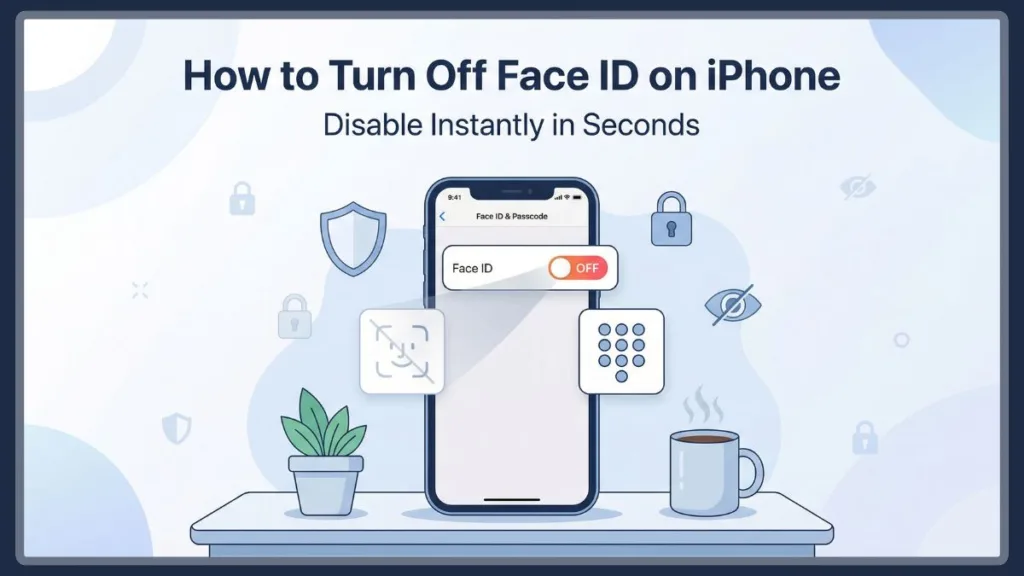
By the end, you’ll know exactly how to disable Face ID on iPhone, switch to a numeric passcode, and control how your device unlocks. This guide works across modern devices, including iPhone 12, 13, 14, 15, 16, and iPhone 17 models running iOS 17 through iOS 26, so you can follow along regardless of your device.
Choosing Your Method: A Quick Action Guide
| Goal | Method | Does it delete my Face Data? |
| Stop using it entirely | Reset Face ID | Yes |
| Stop just the Unlocking | Toggle “iPhone Unlock” | No |
| App-specific control | “Other Apps” Settings | No |
| One-time emergency | Side + Volume Shortcut | No |
What Changes When You Disable Face ID?
When you disable Face ID, your iPhone stops using biometric security (facial recognition) and switches entirely to your passcode for authentication.
That means your device behavior changes in subtle but important ways. Instead of simply glancing at your phone to unlock it, you’ll need to enter your passcode every time. This applies not only to unlocking your device but also to confirming purchases, signing into apps, and autofilling saved passwords if Face ID was previously enabled for those tasks.
Note on Apple Intelligence: In iOS 26, many AI-driven features use Face ID to verify your identity before accessing private data. If you disable Face ID, you will likely see more frequent passcode prompts when using advanced Apple Intelligence tools or Siri requests involving personal info.
In practical terms, you’ll enter a numeric passcode to unlock your phone, and Apple Pay, app logins, and password autofill may also require manual confirmation. Your lock screen security becomes intentional rather than automatic, which can be beneficial if you value control over convenience.
Another important detail is that turning off Face ID does not weaken your iPhone’s security in a dangerous way. Apple’s passcode system is still highly secure, especially if you use a strong six-digit or custom alphanumeric code. However, Face ID is statistically more resistant to random unauthorized access, so disabling it shifts the balance slightly toward user control rather than maximum automation.
In short: You gain more control, but lose some convenience.
Step-by-Step Instructions to Turn Off Face ID: Mastering the Setup
Let’s start with the most direct method.
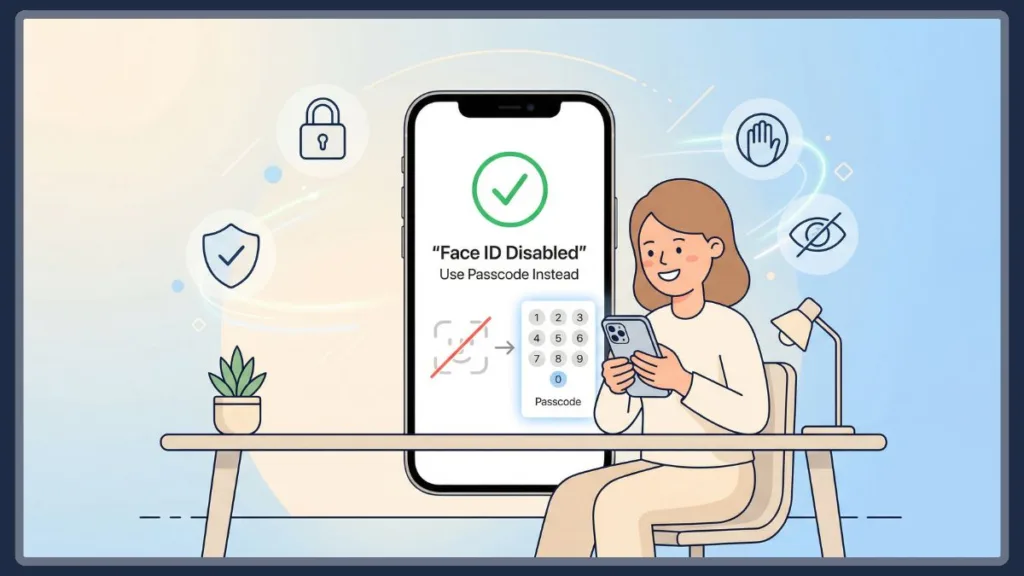
Option 1: Removing Your Facial Data Entirely
If you want to fully remove Face ID:
Open Settings, then scroll down and tap Face ID & Passcode. Enter your passcode when prompted, which ensures that only the device owner can modify these security settings. Once inside, tap Reset Face ID.
Important iOS 26 Security Alert: If you have Stolen Device Protection enabled and you are not at a Familiar Location (like your home or work), your iPhone will require a one-hour Security Delay before you can reset or change Face ID settings. This is a built-in safeguard to prevent thieves from locking you out.
When you do this, your iPhone deletes the stored facial recognition data. This includes the mathematical model created by the TrueDepth camera system. The removal is immediate and irreversible unless you set up Face ID again from scratch.
Once done, your iPhone will no longer recognize your face, and all Face ID data is removed.
Recommendation: This is the best option if you want to deactivate Face ID on iPhone permanently.
Option 2: Suspending Face ID Without Deleting Data
If you don’t want to reset it but still disable usage:
Go to Settings > Face ID & Passcode, then turn OFF all available toggles. These typically include iPhone Unlock, Apple Pay, iTunes > App Store, and Password AutoFill.
This approach is slightly different from resetting Face ID because your facial data remains stored on the device, but it is no longer actively used. This can be helpful if you plan to re-enable Face ID later without going through the full setup process again.
Key Point: This keeps your Face ID stored but stops it from being used anywhere.
Disabling Face ID for Unlocking Only: Selective Security
This is one of the most useful (and underrated) options. If your main issue is that your iPhone unlocks too quickly when you look at it, then do this:
Go to Settings > Face ID & Passcode and turn OFF iPhone Unlock.
Now your device will stay locked until you intentionally enter your passcode, even if your face is detected. However, Face ID will still work for other functions such as Apple Pay, app authentication, and password autofill.
This is especially useful in situations where your phone is frequently in your hand or near your face, such as while reading, working, or multitasking.
User Tip: This is perfect if you want control without fully removing Face ID.
Managing Face ID for Specific Apps and Payments: Granular Control
You can also control Face ID access app-by-app.
Open Settings > Face ID & Passcode, then tap Other Apps. Here, you’ll see a list of apps that have requested permission to use Face ID for authentication. You can toggle off any app individually.
You can also disable Face ID for Apple Pay, App Store purchases, or Safari password autofill directly within the same settings screen. This level of customization allows you to keep Face ID for sensitive actions like payments while disabling it for less critical apps, or vice versa.
Conclusion: This gives you granular control over authentication.
How to Temporarily Disable Face ID in Seconds: Rapid Response
Sometimes you don’t want to turn it off permanently—just disable it instantly.
The Emergency Hardware Shortcut
Press and hold the Side button and either Volume button at the same time. When the power screen appears, tap Cancel. At this moment, your iPhone disables Face ID temporarily and requires a passcode for the next unlock attempt.
Notification: You’ll see: “Passcode required to enable Face ID”
This method works instantly and does not require navigating through settings, making it ideal for urgent situations.
Note: Don’t hold the buttons too long, as it may trigger an Emergency SOS call depending on your settings.
Leveraging Emergency SOS Mode
When you press and hold the Side and Volume buttons for longer, your device can enter Emergency SOS mode. In this state, all biometric authentication—including Face ID—is disabled. The only way to unlock the phone is by entering the passcode.
This feature is specifically designed for safety scenarios, ensuring that no one can unlock your device using your face under pressure.
Security Focus: Best for security-critical situations.
The Stealth Shutdown Method
Go to Settings > General > Shut Down, then tap Cancel instead of powering off. This action temporarily disables Face ID until you unlock the device with your passcode again. It’s a lesser-known method but works reliably.
When Your iPhone Disables Face ID Automatically: System Safety
Your iPhone will automatically turn off Face ID in certain cases.
After five unsuccessful attempts to match your face, Face ID is disabled to prevent unauthorized access. If your device remains locked and unused for more than 48 hours, it also requires a passcode. Restarting your iPhone or receiving a remote lock command will trigger the same behavior.
Fact: This is built-in protection for your device security.
Why Users Choose to Turn Off Face ID: The Human Element
Here are real reasons users disable Face ID:
Privacy concerns are one of the most common reasons. Some users are uncomfortable with the idea of their phone unlocking simply by looking at it, especially in shared environments. Others worry about situations where someone might try to unlock their device without consent.
There are also cases where children may accidentally or intentionally unlock a parent’s phone by pointing it at their face. Similarly, Face ID may unlock unintentionally while you are using your phone in close proximity.
Some users simply prefer the predictability of a passcode. Typing a code requires deliberate action, which can feel more secure in certain contexts.
Insight: If any of these sound familiar, disabling Face ID makes sense.
A Simple Look at How Face ID Operates: Behind the Sensors
Face ID uses the TrueDepth camera system located at the top of your iPhone.
When you look at your phone, it projects thousands of invisible infrared dots onto your face. These dots map the structure of your face in detail. An infrared camera then captures this data and sends it to the device’s processor, which creates a secure mathematical representation.
This representation is stored locally on your device and used for authentication. It is not stored as an image but as encrypted data that cannot be easily reversed or reconstructed. Face ID also adapts over time if your appearance changes—such as growing a beard, wearing glasses, or using accessories.
Is Disabling Face ID the Right Move for You?
Face ID is extremely secure.
Apple estimates that the chance of a random person unlocking your iPhone using Face ID is about 1 in 1,000,000. The data used for Face ID is encrypted and stored only on your device. It is not uploaded to cloud services or shared externally.
However, no system is perfect. Face ID can be triggered unintentionally if your phone is pointed at your face, and in rare cases, people with very similar facial features may bypass it.
The Decision: The choice depends on Convenience vs. Control.
What to Do if You Can’t Disable Face ID: Troubleshooting Guide
If you’re facing issues, there are a few things to check.
If the Face ID settings are greyed out, restarting your iPhone often resolves the issue. In some cases, restrictions or screen time settings may prevent changes to Face ID.
If your TrueDepth camera is damaged or obstructed, Face ID may not function properly. This can happen due to hardware issues, water damage, or screen replacements that affect the sensor alignment. If Face ID is not working correctly, resetting and setting it up again can sometimes fix recognition problems.
Warning: If hardware is damaged, Face ID may stop working entirely.
Transitioning to Manual Security: Using Passcode Only
To rely only on passcode:
Go to Face ID > Passcode, then turn OFF all Face ID-related options. If you want to completely remove stored data, tap Reset Face ID. After this, your iPhone will always require your passcode for unlocking, payments, and authentication.
This setup is often preferred by users who prioritize manual control or operate in environments where automatic unlocking is not ideal.
Frequently Asked Questions
How do I turn off Face ID on my iPhone?
Go to Settings > Face ID > Passcode > Reset Face ID or disable all toggles. This stops Face ID from being used for unlocking, payments, and apps.
How do I temporarily disable Face ID for security?
Press and hold the Side + Volume button, then tap Cancel. This instantly disables Face ID until you unlock your phone with a passcode.
Does turning off Face ID delete my face data?
Yes, if you tap Reset Face ID, your stored facial data is completely removed from the device.
Can I disable Face ID for Apple Pay only?
Yes. Go to Face ID > Passcode and turn off Apple Pay while keeping other options enabled.
Can I use an iPhone without setting up Face ID?
Absolutely. You can skip Face ID entirely and use a passcode-only setup.
Why does my iPhone keep asking to set up Face ID?
This usually happens after updates or resets. You can ignore it or disable Face ID from settings.
Wrapping Up: Taking Charge of Your iPhone Security
Turning off Face ID on iPhone isn’t just about disabling a feature—it’s about taking control of how your device protects your data.
Whether you want full privacy, prefer a passcode, or need a quick emergency solution, there are multiple ways to manage Face ID effectively. You can disable it completely, limit it to specific features, or temporarily turn it off when needed.
The flexibility built into iOS ensures that you are never locked into a single method of authentication. You can always switch between Face ID and passcode depending on your comfort level and situation.
Final Thought: You now have multiple ways to do it—instantly and safely.
If you ever change your mind, you can always turn Face ID back on. Until then, your iPhone will stay locked exactly when you want it to be.
Visit Our Post Page: Blog Page