
Samsung stuck in Safe Mode? Learn how to turn off Safe Mode on Samsung phones in 2026 using proven fixes, including restarts, volume button checks, recovery mode, and hardware causes.
When your Samsung phone boots into Safe Mode and refuses to exit, you’re not facing a random Android quirk. You’re seeing a protective response from the system.
Safe Mode activates because your device detects something that could interfere with a normal startup, such as a software conflict, a stuck hardware button, or unstable power delivery.
From your perspective, it feels like the phone is ignoring your input. From the system’s perspective, it’s limiting what loads so it can stay operational. Because of that, the solution depends on what triggered Safe Mode, not how many times you restart the phone.
As you move through this guide, you’ll start with fast, surface-level fixes and then transition into deeper troubleshooting paths designed for phones. That are stuck in a Safe Mode loop or behave unpredictably during startup.
What Is Safe Mode on Samsung and Why Is My Phone in Safe Mode?
Safe Mode on Samsung is a restricted startup state where the system loads only essential Android services and disables all third-party apps. When your phone enters this mode, it’s trying to isolate instability. You’ll notice that downloaded apps don’t open, widgets disappear, and custom features stop working. That behavior is intentional.
Safe Mode usually turns on because the system detects abnormal conditions during boot.
For example, if the volume down key is pressed—or appears pressed—while the phone powers on, Android interprets that as a request to enter Safe Mode. The same thing happens if a system update is interrupted, if a corrupted app crashes the system repeatedly, or if a deeper software glitch prevents Android from completing a normal startup sequence.
In more serious cases, hardware problems, such as a damaged button or failing battery, can force Safe Mode every time the device turns on.
You’ll always know Safe Mode is active because you see “Safe mode” at the bottom of the screen.
This label is not cosmetic. It confirms that Android has deliberately restricted startup because it believes normal operation could worsen the problem.
How to Turn Off Safe Mode on Samsung (Standard Methods That Usually Work)
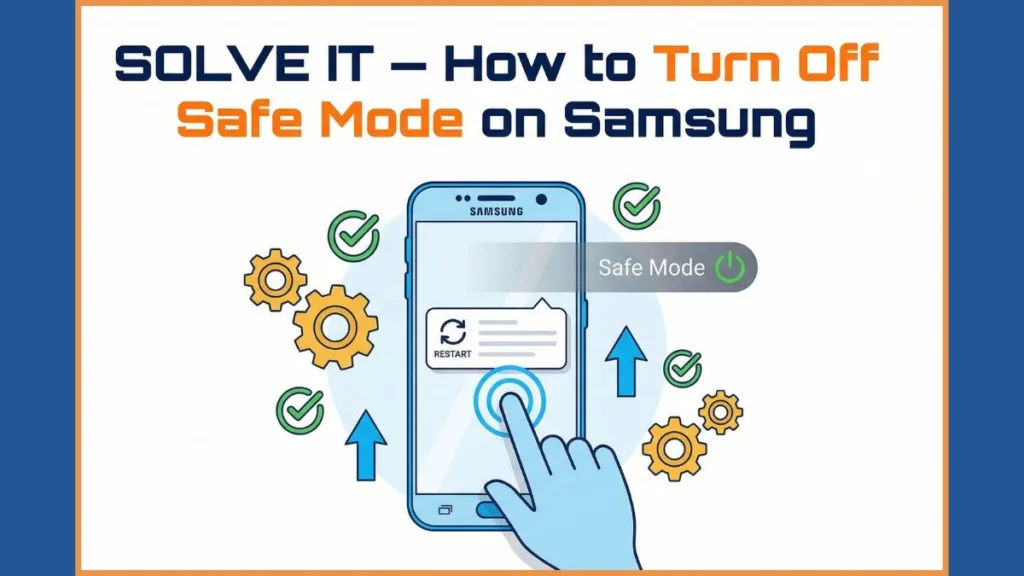
How Do You Exit Safe Mode on a Samsung Phone by Restarting Normally?
If Safe Mode activated due to a temporary issue, a normal restart is often enough to exit it. From your side, this means you’re asking the system to attempt a clean boot without any unusual input.
You press and hold the power button, select Restart, and wait for the device to power cycle. During this process, it’s critical that you do not touch any physical buttons, especially the volume down key. If the phone boots normally and the Safe Mode label disappears, the system has confirmed that the triggering condition is no longer present.
If Safe Mode returns immediately, the phone is telling you the underlying condition still exists.
How to Turn Off Safe Mode Samsung Using the Notification Panel
On some Samsung models, you can exit Safe Mode directly through the system interface. When your phone is stable enough to stay on, you swipe down the notification panel and see a message stating that Safe Mode is enabled. Tapping this notification prompts the system to restart automatically.
This option works only when the phone can remain powered on long enough to complete the reboot.
If the device freezes, shuts down, or restarts on its own, the issue goes deeper than a temporary software state.
Samsung Safe Mode Won’t Turn Off? Use These Advanced Fixes
Samsung Stuck in Safe Mode Due to Volume Down Button Not Working?
When Safe Mode won’t turn off, the most common cause is a stuck or malfunctioning volume down button. During startup, Android checks the state of hardware buttons. If the system detects the volume down key as pressed—even slightly—it assumes you are intentionally requesting Safe Mode.
You start by removing the phone case, since tight or warped cases often press against buttons without you realizing it. As you press the volume down key repeatedly, pay close attention to how it feels compared to the volume up key. If it feels loose, sticky, recessed, or inconsistent, the system may be misreading its state. Cleaning around the button with compressed air can help if dust or debris is interfering.
If the volume down button is physically damaged, no software setting can override it. Safe Mode will continue until the hardware issue is fixed.
Does Powering Off Completely Fix a Safe Mode Loop on Samsung?
A full shutdown resets more internal states than a standard restart. When you power the phone off completely, you allow residual electrical charge to drain from internal components, including sensors and button circuits.
You shut the device down, wait at least 60 seconds, and then power it back on using only the power button. If Safe Mode was triggered by a temporary power or sensor issue, this clean start can allow the system to boot normally.
Why Does My Samsung Shut Down or Not Stay On in Safe Mode?
Can Battery or Charging Failure Lock Samsung in Safe Mode?
If your phone shuts down as soon as you unlock it, refuses to charge past 0%, or powers off randomly even while plugged in, the problem isn’t Safe Mode itself. It’s power stability. Android requires consistent voltage during startup. When the battery or charging system can’t provide it, the system may remain in Safe Mode because it can’t safely complete a normal boot.
From your perspective, it feels like Safe Mode is causing the shutdowns. In reality, Safe Mode is a response to the unstable power condition.
When power delivery is unstable, repeated restarts and factory resets often fail because the phone cannot stay on long enough to finish the process.
How to Get Out of Safe Mode on Samsung Using Recovery Mode
When Safe Mode is caused by a software error rather than hardware, Samsung recovery mode can help. Recovery mode loads a minimal environment separate from Android, allowing you to reboot the system without launching apps or user-level services.
You power the phone off, then press and hold Power and Volume Up until the recovery screen appears. From there, selecting Reboot system now forces the device to attempt a clean startup.
This process does not delete data.
It can break a Safe Mode loop caused by corrupted system states or interrupted updates.
Why Does My Samsung Keep Going Into Safe Mode?
When Safe Mode activates on every boot, the system is consistently detecting the same failure condition. Most often, this is due to a hardware issue with the volume down key, but interrupted updates, corrupted cache data, or persistent third-party app crashes can also trigger it repeatedly.
From the system’s point of view, nothing has changed between boots, so it continues to protect itself by limiting startup.
Safe Mode isn’t malfunctioning—it’s working exactly as designed.
Should You Factory Reset to Remove Safe Mode on Samsung?
A factory reset can resolve Safe Mode only when the root cause is software corruption that persists across reboots. If your phone can reliably enter recovery mode and stay powered on, a reset may clear damaged system files or problematic apps.
However, a reset will not fix hardware problems. If a button is stuck, if the battery is unstable, or if the phone shuts down mid-process, the reset will either fail or leave you with data loss and the same problem afterward.
Because a factory reset permanently erases data, attempting it on an unstable device carries significant risk.
When Does Safe Mode Mean Hardware Repair Is Required on Samsung?
Safe Mode almost always points to hardware failure when it appears on every boot, when the volume down button behaves abnormally, or when the phone shuts off immediately after unlocking. Persistent charging issues or a battery that never rises above 0% further confirm that software fixes won’t resolve the problem.
At this stage, continuing to adjust settings or reinstall software will not change the outcome.
Professional inspection or hardware repair is the only reliable solution.
FAQ: Samsung Safe Mode Issues
How do I get my Samsung out of Safe Mode?You restart the phone without pressing any buttons. If Safe Mode returns, you inspect the volume down key and attempt a reboot through recovery mode to rule out software-related causes.
Why is my Samsung phone stuck in Safe Mode?
In most cases, a stuck volume button or unstable power condition is forcing Android to remain in Safe Mode to protect the system.
How do I turn off Safe Mode without the power button on Samsung?
If your model supports it, you use the Safe Mode notification in the notification panel. You can also reboot the device from Samsung recovery mode without relying on the power button for normal operation.
Does Safe Mode delete my data on Samsung?
No. Safe Mode does not remove apps or erase personal data. It temporarily disables third-party apps for troubleshooting.
Which button turns off Safe Mode on Samsung?
There is no button that turns Safe Mode off. However, a pressed or faulty volume down button can force Safe Mode to remain active during startup.
Key Takeaway: Why Safe Mode on Samsung Keeps Appearing
Safe Mode isn’t something to fight against—it’s something to interpret. When quick fixes don’t work, repeated restarts only hide the real issue. You focus instead on button behavior, power stability, and recovery tools.
Once the underlying trigger is removed, Safe Mode turns itself off, and your Samsung phone returns to normal operation.
Useful Resources for Fixing Samsung Safe Mode Issues
When your Samsung phone is stuck in Safe Mode, having reliable references helps you confirm what you’re seeing on-screen and decide whether the issue is software-related or hardware-related. The resources below align directly with the troubleshooting paths explained in this guide.
Official Samsung Support – Exit & Use Safe Mode: This official guide shows how to exit Safe Mode by restarting or using the Safe Mode notification, and explains what Safe Mode does on Galaxy phones and tablets.
Official Samsung Support – Start and Exit Safe Mode: A step-by-step support page outlining how to start and exit Safe Mode on Galaxy devices, including using the power menu and volume buttons.
Samsung Community Tips on Safe Mode: Community-driven guidance on entering Safe Mode from the power down screen and offers additional context on how Safe Mode interacts with system behavior.
Google Support – Exiting Safe Mode on Android: A general Android support thread explaining how to restart normally to exit Safe Mode and highlighting normal reboot behavior.
Visit Our Post Page: Blog Page