
Are you looking to disable Simple Build in Fortnite PC? This quick guide helps you turn off auto-build, restore manual controls, and enjoy smoother building and editing.
Why PC Players Want to Turn Off Simple Build in Fortnite
If you’ve been playing Fortnite on PC for a while, you already know how much your building speed, precision, and editing control impact every fight.
That’s exactly why many players feel thrown off when Simple Build suddenly changes how structures get placed.
Simple Build automatically chooses your structure based on where you’re looking — which can disrupt your rhythm and timing.
Instead of the crisp, manual inputs you’re used to, this feature takes over parts of the process, and that can get frustrating fast.
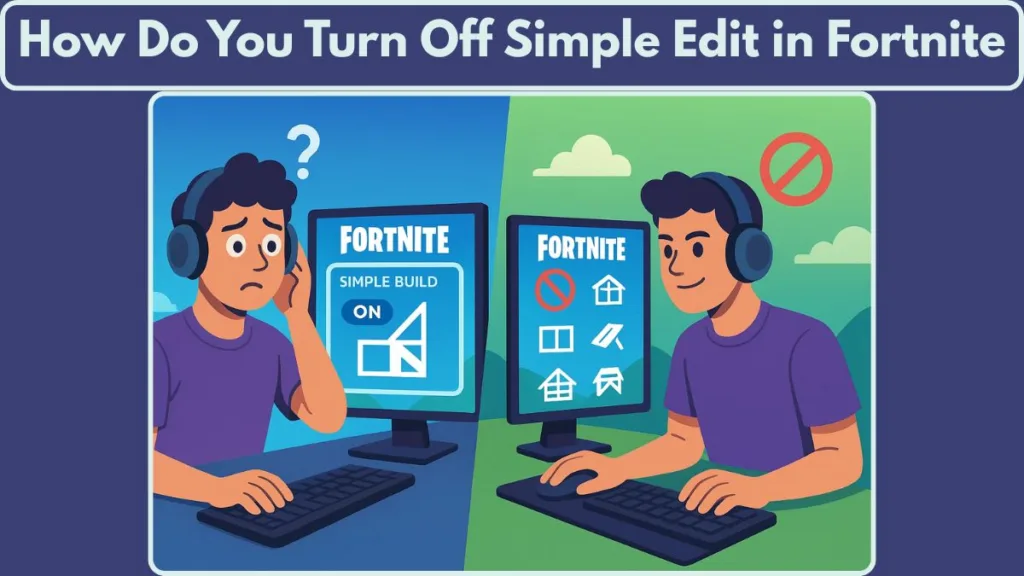
Simple Build arrived with Chapter 7, marking a shift toward making building more accessible for players who find traditional mechanics overwhelming.
Most PC players switching back from Zero Build, returning after a long break, or pushing toward competitive gameplay want their full control back.
Turning off Simple Build restores manual building mechanics, improves reaction timing, and prevents accidental ramps or floors.
This guide walks you through everything you need to know so you can get back to playing with the fast, responsive building PC players depend on.
What Simple Build Is: How Fortnite’s New Auto-Build System Works
Fortnite’s Simple Build feature was introduced as part of Chapter 7, giving players a more accessible entry point into building. It was added to help players who struggle with the fast-paced nature of traditional build mechanics.
Instead of manually selecting each structure, Simple Build lets the game decide which piece to place based on where you’re looking — a system designed for players who want ease over precision.
In Simple Build, Fortnite automatically picks the structure depending on your camera direction — floors, ramps, walls, or ceilings are placed without cycling through building pieces.
This approach reduces the number of actions required for each build. You don’t have to scroll or switch pieces; the game reads your angle and places the corresponding structure.
Because of this, building feels simplified. You focus more on movement and less on managing keybinds, which makes it ideal for beginners, casual players, or those returning after a long break.
At the same time, this convenience comes with a tradeoff. You lose manual precision, exact piece control, and the ability to react instantly in competitive situations.
Simple Build’s purpose is clear: make building approachable, predictable, and friendly for newcomers—especially players transitioning from modes like Zero Build.
Why PC Players Disable Simple Build: Performance, Precision & Competitive Control
Why Simple Build Breaks High-Level PC Performance
PC players rely heavily on fast reactions and exact inputs, especially during high-pressure build fights.
That’s why many quickly realize that Simple Build, while helpful for newcomers, doesn’t match the level of control they need during intense gameplay moments.
How Simple Build Impacts Consistency in Fights
One of the biggest concerns is the impact on performance consistency. When every structure is placed exactly when—and where—you intend, your edits, rotations, and defensive moves feel smooth and predictable.
With Simple Build, the system makes those choices for you, which can cause delays or unexpected structures in tight battles.
Competitive players prefer full manual control because it keeps their building predictable, responsive, and timing-accurate.
This sentiment isn’t just anecdotal — many in the competitive community argue that automatic or simplified build/edit modes introduce delays or limitations compared to manual building (beebom.com).
Loss of Precision for Competitive Players
The other major factor is precision. PC players often use optimized keybinds and practice advanced building patterns.
Automated structure selection removes that precision, making it harder to execute tight edits, piece control, or clean retakes — all essentials for competing at higher levels.
Momentum and Mechanical Flow Get Interrupted
There’s also the matter of maintaining momentum. When you’re used to placing structures at high speed, even a small interruption in control can break your flow.
Simple Build introduces that risk by simplifying actions that PC players have already mastered.
For players aiming to improve competitively, disabling Simple Build helps restore confidence, speed, and mechanical reliability.
Why Disabling Simple Build Matters for Progression
In short, PC players turn off Simple Build not because it’s “bad” — but because they’ve outgrown the automation and want the freedom to build exactly how they intend, without any unpredictable behavior interrupting their rhythm.
How to Turn Off Simple Build in Fortnite PC: Step-by-Step Settings Guide
If you’re ready to switch back to full manual building, the good news is that disabling Simple Build on PC is quick and straightforward — but knowing exactly where to look helps avoid confusion.
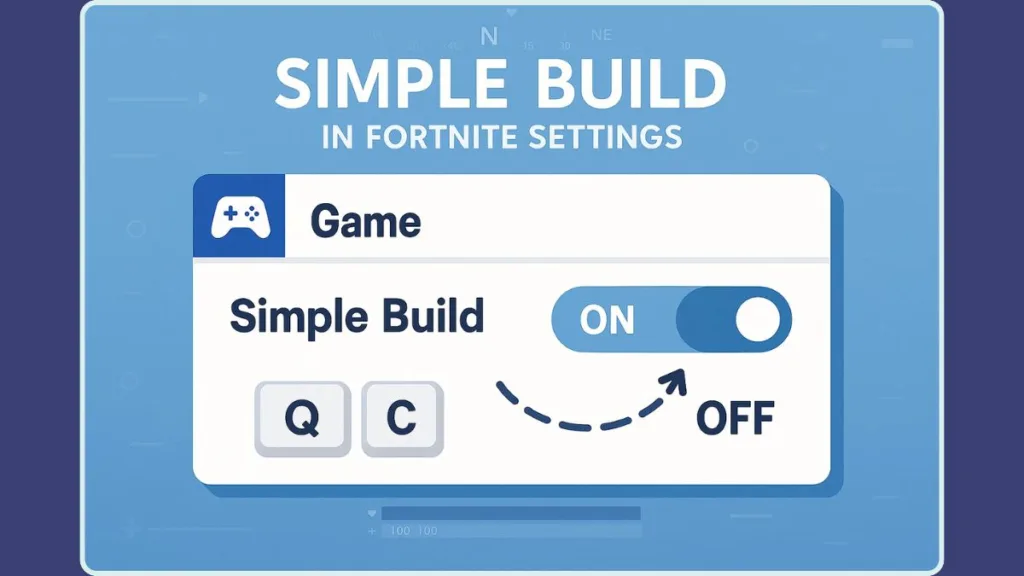
Below is a clear walkthrough plus some extra tips to ensure everything works as expected.
Step-by-Step Path to Disable Simple Build
- Open the Menu from the top-right corner of your Fortnite screen.
- Click on Settings (the gear icon).
- Select the Game tab — it’s the fourth icon from the left.
- Scroll down until you reach the Building section.
- Locate the Simple Build toggle and set it to Off.
- (Optional, but recommended) If you use building edits, also find Simple Edit and toggle it Off to fully restore manual control.
Once switched off, Fortnite returns immediately to manual building controls — no restart required.
Why This Works: What the Setting Actually Does
The Simple Build toggle switches off Fortnite’s automated build-choice logic. When disabled:
- You regain full manual control over structure placement.
- You must manually select each building piece (walls, floors, ramps, ceilings).
- This helps avoid accidental builds and ensures maximum control over structure type and placement timing.
Turning off Simple Edit alongside Simple Build ensures you don’t get unintended edits or automated placements — keeping your building and editing precise, intentional, and predictable.
What to Do Immediately After Disabling: Recommended Checks
After you disable Simple Build (and Simple Edit), it’s worth verifying a few things to ensure everything matches your expectations.
- Check your keybinds to confirm they’re set correctly.
- Test in Creative Mode to ensure manual building functions smoothly.
- Verify Edit Controls to make sure edits and resets feel natural.
- Save Settings so nothing resets after updates or mode changes.
Bonus Tip: Clean Building Setup for Competitive PCs
If you’re turning off Simple Build to push for competitive-level play, consider pairing this change with a few other settings:
- Use Turbo Building for faster structure placement.
- Adjust Pre-Edit Settings to refine your editing flow.
- Optimize your keybinds for comfortable, high-speed building.
These adjustments, combined with disabling Simple Build, help you maintain the speed, precision, and control that PC players rely on.
What Happens After Disabling Simple Build: Full Manual Building Restored
Once Simple Build is turned off, the game hands full building control back to you. Every structure — walls, floors, ramps, ceilings — now depends entirely on your inputs, which can make a dramatic difference in how building feels.
You’ll immediately notice more consistency and predictability. No more automated guesses about what you intended to build. Instead, what you press is what appears — clean, direct, and intentional. That control becomes especially noticeable in high-pressure fights or during fast build/edit sequences.
With manual building restored, you get back responsive control and accurate structure placement — exactly when and where you want them.
Over time, this helps rebuild your muscle memory, enabling sharper edits, smoother rotations, and faster defensive/offensive moves. That sense of control and reliability often gives PC players a dependable advantage — especially in competitive or ranked matches.
Recommended PC Building Settings: Optimal Controls After Turning Off Simple Build
Turning off Simple Build is a great first step — but pairing it with smart building settings amplifies the benefits. Here are some of the most recommended settings and why they matter:
Turbo Building: Speed Up Structure Placement
Enabling Turbo Building lets you hold down the build key to continuously place structures. This drastically speeds up walls, ramps, and other pieces during fights or rushes. Many competitive players rely on this for fast building.
Confirm Edit on Release: Cleaner, Faster Edits
With Confirm Edit on Release turned ON, your edits finalize the moment you release the edit button. This reduces input delay and speeds up edit-to-shoot or edit-to-build transitions.
Reset Building Choice / Disable Pre-Edit Option: Avoid Mistakes
Ensuring Reset Building Choice is set correctly prevents your building menu from switching pieces unexpectedly. Turning off Pre-Edit also avoids accidental edits or unwanted build shapes during fast fights, giving you more stability.
Optimize Keybinds: Build How You Play Best
Customizing your keybinds — walls, floors, ramps, edit — ensures you can execute advanced techniques quickly. Many pro players fine-tune binds for comfort and mechanical speed.
Test Your Setup in Practice Mode
After adjusting settings, try them in Creative Mode. Practice building, editing, resets, and ramp rushes to ensure everything feels responsive, smooth, and ready for competitive matches.
Troubleshooting Simple Build Issues: Fix When the Setting Won’t Turn Off
If Simple Build doesn’t turn off right away, don’t worry — it’s usually a small hiccup. These issues can happen after updates, mode changes, or settings glitches.
Here are some tried-and-tested fixes used by players globally.
Make Sure Fortnite Can Save Your Settings
Sometimes the reason toggles don’t stick is because the game’s configuration file is set to Read-Only.
On Windows: navigate to %localappdata% > FortniteGame > Saved > Config > WindowsClient, find GameUserSettings.ini, right-click > Properties > uncheck Read-Only > Apply. Then relaunch Fortnite.
This simple step ensures Fortnite has permission to write your preferences — which often fixes persistent toggle problems.
Disconnect Accessories or Controllers Temporarily
If you use a controller or external device while switching build settings, the game might default to controller-based presets.
Unplug your controller, reopen Settings > Game Tab > Building, and toggle Simple Build Off.
This often clears device conflicts.
Reset Only Building Settings Instead of All Controls
A full settings reset isn’t necessary. Instead, scroll to the Building category and reset just that section.
This clears corrupted building configs while protecting your other custom controls.
Double-Check Keybinds to Avoid Input Conflicts
If two actions share the same keybind, Fortnite may fall back to simplified modes.
Check the Keyboard/Mouse Controls tab and confirm that your Wall, Floor, Ramp, Edit, and Reset binds don’t overlap.
Relog or Restart to Fix Sync Issues
If your settings sync to the cloud, they may overwrite local changes.
Logging out and back into your Epic account, or restarting the game, can force a clean sync and let Simple Build turn off properly.
Re-enable Builds in Creative/Test Mode First
Sometimes checking your build behavior in Creative Mode helps identify whether the issue is settings-related or mode-specific.
Place walls, ramps, floors, and edits to verify everything responds correctly.
Check for Game Updates or File Errors
Occasionally a new update or corrupted file can prevent toggles from applying.
Ensuring your game is fully updated, or verifying/rebuilding config files, can resolve stubborn issues — especially ones caused by corrupted settings.
FAQ: Simple Build, Simple Edit & Fortnite PC Building Settings Explained
Where is the Simple Build option in Fortnite Chapter 7?
You’ll find Simple Build under Settings > Game tab > Building section. That’s where you can toggle Simple Build ON or OFF.
Does Simple Build cause input lag?
Not exactly, but because Simple Build automates structure selection, it can feel less responsive than manual building. That perceived delay can seem like input lag during fast fights.
How do I turn off Simple Edit on PC?
Go to Settings > Game tab > Building, then set Simple Edit to Off. That restores manual editing control so you choose exactly how to change your builds.
Is Simple Build better for beginners?
Yes, Simple Build lowers building complexity and reduces the number of controls needed. For beginners or casual players, it’s easier and more approachable than full manual building.
How do I reset building settings to default in Fortnite?
In Settings > Game tab > Building, choose Reset to Default under building options. This resets only building-related settings, preserving your other preferences like sensitivity or graphics.
Why won’t my Simple Build setting stay off?
If toggles don’t stick, it might be due to file permission issues, controller-preset overrides, or conflicting keybinds. Checking those — and ensuring settings properly save — usually fixes the problem.
Does turning off Simple Build affect editing?
No, disabling Simple Build only affects how structures are placed. Editing behavior depends on Simple Edit. If Simple Edit is still ON, editing remains simplified. To fully restore classic building + editing, disable both.
Final Recommendation: Best Practices After Disabling Simple Build on PC
Once you’ve turned off Simple Build, the next step is to make sure your building feels smooth, controlled, and competitive. This is where a few simple habits — backed by what many experienced players recommend — can make a huge difference.
Start by spending a few minutes in Fortnite Creative Mode. It’s a pressure-free environment, ideal for warming up your manual building and getting re-used to placing structures yourself. Try building walls, doing simple ramp rushes, and running through edits until your movements feel natural. This kind of practice is a go-to method for many players improving their fundamentals.
A short warm-up session helps rebuild your muscle memory and keeps your reactions sharp.
It’s also worth tweaking your keybinds if you haven’t already. Many pro and competitive players fine-tune binds for walls, ramps, floors, and edits to match their hand comfort and reflex strategy — that can dramatically improve your building flow.
For players aiming to improve seriously, don’t overlook mouse sensitivity and DPI settings. Matching your camera movement and building speed helps a lot when executing high-speed edits, quick rotations or sudden defenses: smooth aim + smooth build = big advantage.
Finally, build a personal routine around checking — especially after updates. Because updates can sometimes reset or tweak settings, it’s smart to ensure your manual controls, edit binds, and building options remain exactly how you prefer before diving into competitive matches.
Consistency is the real key — the more stable your setup, the more confident you’ll play.
With manual building restored and your settings dialed in, you’re set up for faster reactions, cleaner edits, and a tighter feel in every match.
Visit Our Post Page: Blog Page