
Accidentally blasted a loud video on Facebook? Learn the true ways to mute the Fb app: disabling sounds in your Media settings. Get step-by-step guides for mobile and desktop.
You’re scrolling Facebook in a quiet room, you tap by mistake, and the worst-case scenario happens: a loud video blares or an annoying click echoes around you. Now you’re frantically searching, “how do you turn off sounds on Facebook?”
Keep in mind that Facebook and Messenger use completely separate sound systems, so you’ll need to adjust both—along with your device settings—to fully silence notifications.
Can You Completely Turn Off Sounds on Facebook?
Let’s answer that question immediately: even after disabling all settings, Facebook cannot be fully “muted” in every scenario—manual video playback and some system-level sounds may still occur.
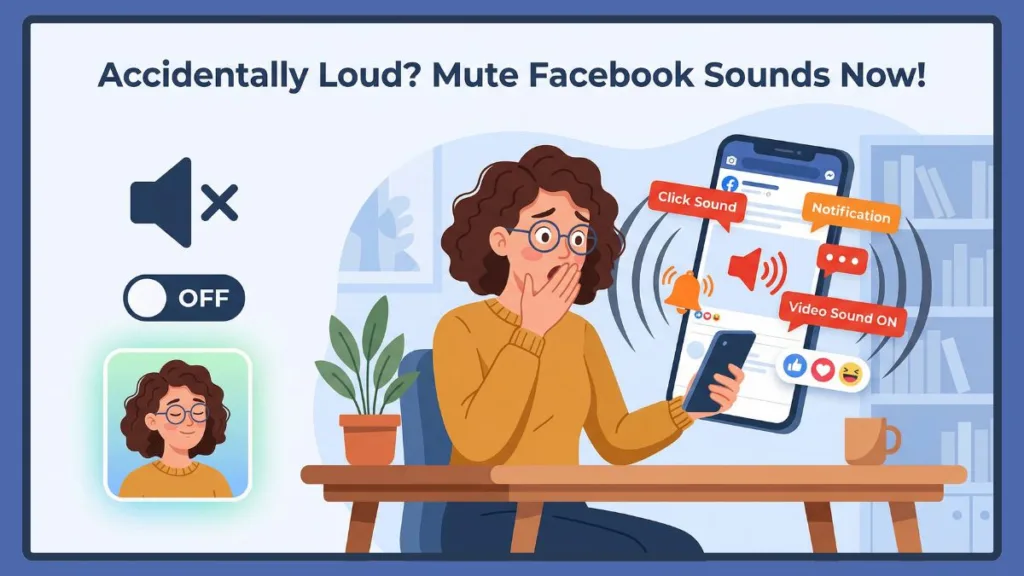
Once you open the app, different features have their own audio triggers, and you can’t silence them all with a single button. The “disable all sounds” method everyone is looking for is actually the process of turning off audio in three distinct places: your Media settings, Notification alerts, and the Messenger app.
This guide will show you exactly how to do that, explain what happens when you disable these settings, and provide strategies to manage annoying alerts gracefully.
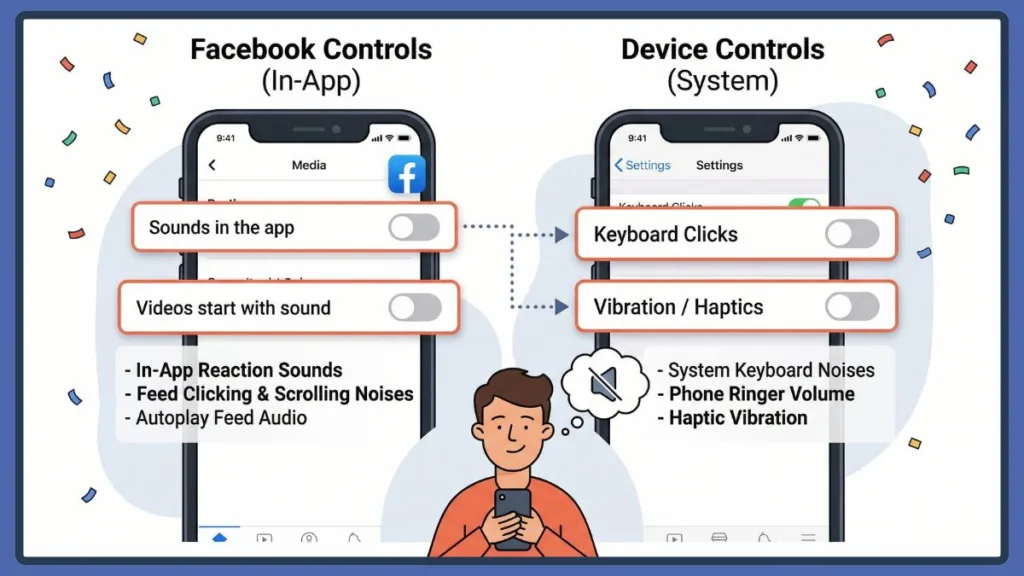
Understanding Facebook Controls vs. Device Controls
Before diving into the steps, it is crucial to clearly separate what Facebook controls versus what your phone controls. If you don’t adjust the right one, you will still hear noises.
| Control Category | Sound Type | What It Controls |
| Facebook Controls | In-app sounds | The clicks, pops, and refresh noises while browsing. |
| Facebook Controls | Notification sounds | The ringtone that plays when you get a new alert. |
| Facebook Controls | Video/Story sound | Autoplaying audio on your feed. |
| Device Controls | Volume | The overall loudness of media on your phone or computer. |
| Device Controls | Keyboard clicks | The ticking noise when you type a comment. |
| Device Controls | Vibration (Haptics) | The physical buzzing of your phone. |
How to “Mute” (Disable) In-App Facebook Sounds
Unexpectedly hearing a pop or click when you like a post can feel annoying. The only reliable way to turn off Facebook sound effects and clicking noises is to disable them in advance through your Media settings. This removes the sounds you hear during everyday interactions like scrolling, liking posts, or refreshing your feed.
Step-by-Step on Mobile (iPhone & Android)
- Open your Facebook profile and tap the Menu (bottom-right on iPhone, top-right on Android).
- Select Settings & Privacy → Settings.
- Scroll down and select Media.
- Locate Sounds in the app and tap the toggle to turn it OFF.
- Locate Videos start with sound and tap the toggle to turn it OFF.
- Locate Stories start with sound and tap the toggle to turn it OFF.
These steps work on both Android and iPhone. Whether you’re trying to turn off Facebook sounds on a Samsung device or silence clicking noises on an iPhone, the Media settings control all in-app sound effects.
Step-by-Step on Desktop
On desktop, Facebook doesn’t offer a dedicated “in-app sound” toggle like mobile. You can only turn off notification sounds and control video autoplay, but interaction sounds (like clicks) aren’t a configurable feature.
- Click your profile picture in the top right.
- Navigate to Settings & Privacy → Settings.
- On the left side, click Notifications.
- Scroll down to the Browser section, locate Play a sound for notifications, and toggle it OFF.
Tip: This setting only disables notification alert sounds—it doesn’t mute videos, live video audio, or Messenger web sounds (unless disabled separately).
How to Manage Sound Notifications You Receive
Receiving push alerts is different from standard Facebook app sounds. Facebook isolates notification audio, giving you control over your chat and alert interactions separately.
Step-by-Step to Turn Off Notification Sounds
- Go to Settings & Privacy → Settings → Notifications.
- Tap Push.
- Turn OFF Sounds.
Where to Find Your Sound Dashboard
- Mobile: Tap the Menu icon, go to Settings & Privacy → Settings, and select Notifications.
- Desktop: Type “Notifications” in your settings search bar or go directly to the Notifications page.
In-App Clicks vs. Push Notifications
| Alert Type | What It Does |
| In-App Clicks | Disables the pops and whooshes that happen while the Facebook app is actively open on your screen. |
| Push Notifications | Removes the actual ringtone that alerts you when the app is closed without hiding the visual notification. |
How to Turn Off Facebook Messenger Sounds
Messenger is a top pain point for users trying to quiet their phones because it operates independently from the main Facebook app.
Step-by-Step for Messenger
- Open the Messenger app.
- Tap the Menu (three lines) or your profile picture in the top corner.
- Tap the gear icon to open Settings.
- Select Notifications & sounds.
- Toggle Sounds OFF.
Turning this off ensures that incoming messages and calls won’t bypass the silent settings you just configured in the main Facebook app.
How to Manage Video Autoplay & Reels Audio
Facebook occasionally blasts sound from Reels, videos, or Stories. Controlling these features prevents sensory overload:
- Silence Autoplay: Go to Settings & Privacy → Settings → Media and turn OFF Videos start with sound. Also disable Stories start with sound to prevent unexpected audio while viewing stories.
- Understand Reels Audio: Even after disabling autoplay sound, Reels may still play audio when opened manually. You’ll need to tap the speaker icon to mute individual clips.
Troubleshooting: Facebook Sounds Not Turning Off
If sounds are still playing after following the steps above, try these high-impact fixes:
- Check for Updates: Facebook updates may reset sound settings back to default. Always double-check your Media preferences after an update.
- Multiple Devices: You must disable sounds on each device separately. Silencing your iPhone won’t silence your iPad.
- Clear App Cache: If you are on Android and the settings don’t seem to apply, clear the Facebook app cache in your phone’s native Settings.
- Reinstall the App: If severe bugs persist and the app keeps making noise, uninstall and reinstall Facebook to force a clean slate.
FAQ About Turning Off Sounds on Facebook
How do I turn off Facebook sounds in the latest app?
Use the Media menu in Settings to turn off in-app sounds, and the Notifications menu to silence push alerts.
Can I undo a loud sound after tapping a video?
No — once the video starts playing, you can only stop it by hitting your phone’s physical volume down button or tapping the on-screen speaker icon.
Where is the Messenger sound page and how do I silence it?
You can access it directly through the Messenger app by going to Settings, selecting Notifications & sounds, and toggling it OFF.
What does turning off in-app sounds mean on Facebook?
It removes the UI audio feedback (like clicks, pops, and refresh sounds) from your everyday interactions without silencing your incoming push notifications.
Conclusion: Efficiently Managing Facebook Sounds
Facebook sounds are meant to be an engaging feature, but managing them effectively is key to a smooth social experience. The Media settings menu is the most reliable method for disabling in-app noises, while the Notifications page works well for dismissing loud push alerts.
By following this guide, and remembering to separate your Facebook settings from your phone’s native settings, you can stay in control of your sound notifications and handle loud videos gracefully.
Once you disable sounds in Media, Notifications, and Messenger, Facebook becomes significantly quieter. While it may not offer a single universal mute button, this method gives you full control over every major sound source.
Visit Our Post Page: Blog Page