
Struggling to disable voice chat? Learn how to turn off voice chat in Roblox permanently on PC & Mobile. Fix missing settings and block microphone access.
You’re here because voice chat is on in Roblox, and you want it off—now. As you look at your screen, you may already notice the microphone icon, the green mic indicator, or even a mic floating above your character’s head. That’s your signal that voice chat is active. Muting volume won’t fix this. Lowering sound won’t fix this. You need to disable voice chat at the right level, and that’s exactly what you’re going to do step by step.
This guide walks you through every working method—account-level settings, in-game controls, and device-level microphone blocks—so you stay in control, protect privacy, and play without interruptions.
What Roblox Voice Chat Is and Why It Turns On Automatically
As you navigate Roblox today, voice chat is no longer an experimental feature. Once your account meets the 13+ account requirement and completes age verification, Roblox can enable voice chat automatically.
You don’t always get a prompt. You don’t always get a clear explanation. You simply join a game, and suddenly your mic is live.
As you open a voice-enabled experience, Roblox connects your input device immediately if permissions already exist. That’s why you might hear chaotic lobbies, random background noise, or your own mic picking up sound without you touching a setting. This is normal behavior on Roblox—but it doesn’t mean you have to accept it.
Why You Might Want to Turn Off Voice Chat in Roblox
If you’re trying to play quietly, voice chat works against you. If you’re sharing a room, streaming music, or just don’t want strangers hearing you, voice chat becomes a privacy issue. Parents often assume voice chat is off by default for safety. It isn’t always.
You may also notice spatial voice, where sound moves based on player distance. That can feel immersive—or overwhelming. Turning it off is a valid choice. Wanting peace is not a misuse of the platform. It’s basic control.
How Do You Turn Off Voice Chat in Roblox Quickly?
If you want the fastest result, block Roblox from using your microphone at the device level. That stops voice chat everywhere, permanently, regardless of Roblox updates or missing toggles.
- If you want session-based control, disconnect voice chat inside the game you’re currently playing.
- If you want account-level control, you can turn off voice chat in Roblox settings—but only if the option appears for your account.
You’ll walk through all three. Start with the one that matches how much control you want.
How Do You Turn Off Voice Chat Using Roblox Settings?
Where to Find Roblox Voice Chat Settings (If They Exist)
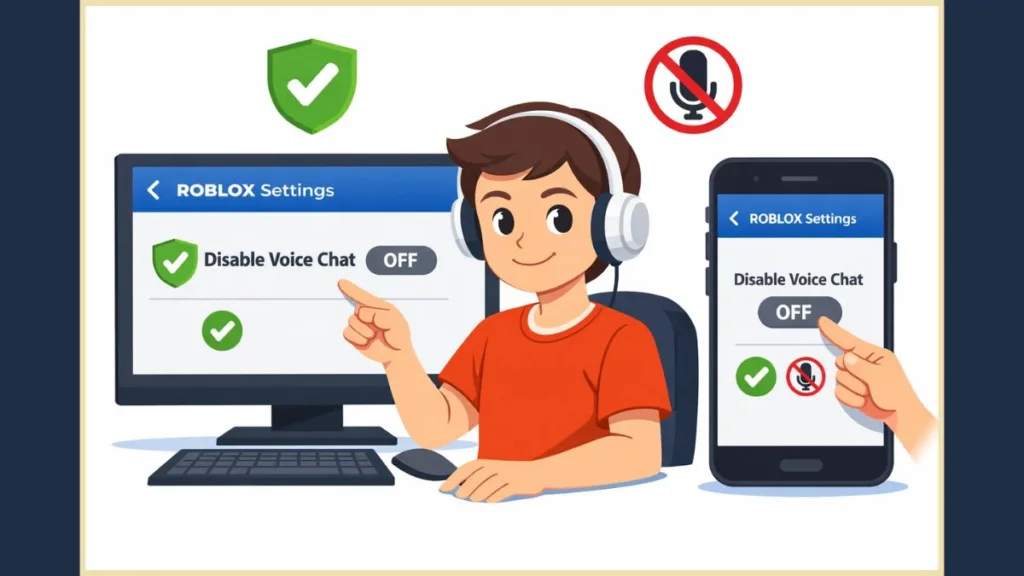
As you open Roblox and click Settings, go directly to Privacy or Privacy & Content Restrictions. From there, look for Communication Settings. If your account supports it, you’ll see a toggle labeled Use microphone to chat with voice.
When you switch this toggle off, the green microphone disappears. That’s Roblox telling you voice chat is disabled at the account level.
At this point, pause and confirm. Refresh the page. Reopen Roblox. If the toggle stays off, voice chat is disabled globally for this account.
Note: “If you do not see a voice chat toggle at all, this is not a mistake. Roblox does not show this option to every eligible account.”
This is where many users get stuck. If the toggle isn’t there, move on immediately. Don’t waste time refreshing or reinstalling.
How Do You Turn Off Voice Chat Inside a Roblox Game?
How to Disconnect Voice Chat During Gameplay
Join a game where voice chat is active. As you load in, look for the microphone icon or voice indicator. Now press Esc or tap the Roblox menu icon. Open Settings inside the game menu.
You will see Disconnect Voice Chat. Click it. The mic icon changes to a red slash, and the overhead microphone disappears.
At this point, voice chat is off—but only for this session. If you leave the game or join another experience, Roblox may reconnect voice chat automatically.
This method is fast and reliable, but it is not permanent.
How Do You Permanently Turn Off Voice Chat by Blocking the Microphone?
This is the most secure option. If Roblox cannot access your microphone, voice chat cannot function. Period.
How to Turn Off the Mic for Roblox on iPhone
Open Settings on your phone. Scroll to Privacy & Security, then tap Microphone. You’ll see a list of apps. Find Roblox. Switch it off. For more details on managing iOS permissions, visit Apple’s official privacy support page.
As soon as you do this, Roblox loses microphone access. Even if voice chat is enabled in settings, it cannot activate.
How to Disable Roblox Microphone Access on Android
Open Settings, then go to Apps. Select Roblox. Tap Permissions. Set Microphone to Don’t allow. You can learn more about managing Android permissions in Google’s Android Help Center.
Now, no Roblox game can access your mic. This applies across all experiences.
How to Turn Off the Mic for Roblox on Windows PC
Open Windows Settings. Go to Privacy & Security, then Microphone. Scroll down to Let desktop apps access your microphone. Turn this off, or specifically restrict Roblox if listed. See Microsoft’s guide on camera and microphone privacy for full steps.
This immediately disables voice chat on PC.
“Device-level microphone blocking overrides all Roblox voice chat settings.”
This is the closest thing to a permanent off switch.
Why Can’t You Find the Voice Chat Toggle in Roblox Settings?
You’re not missing anything. Roblox settings behave differently depending on account status, age verification, region, and platform. Some controls were moved from account-level settings to in-game menus. Others simply do not appear.
If your account hasn’t completed age verification, voice chat settings may remain hidden entirely. If your account is verified, the toggle may still disappear due to feature rollouts.
This inconsistency is why relying on device microphone permissions is safer.
What’s the Difference Between Muting and Turning Off Voice Chat?
- Muting lowers sound.
- Disabling stops communication.
If you mute game audio, voice chat still runs in the background. If you mute a player, others can still hear you. If you disconnect voice chat, it stops temporarily. If you block the microphone, it stops completely.
When you want privacy, only disabling works.
Is Turning Off Roblox Voice Chat Safe for Kids?
Yes—and it’s recommended.
If you manage a child’s account, do not rely on in-game toggles alone. Use parental controls and block microphone access at the device level. This ensures strangers cannot hear your child, even if a game supports voice chat.
If the account is under 13, voice chat should not appear—but device controls provide an extra layer of safety.
Frequently Asked Questions About Roblox Voice Chat
Can you disable voice chat on Roblox for under 13 accounts?
Under-13 accounts do not have access to voice chat, but device microphone restrictions ensure complete protection.
How do you get rid of the microphone above your head in Roblox?
Disconnect voice chat in-game or block microphone permissions. The overhead mic disappears immediately.
How do you mute everyone else in Roblox voice chat?
Muting players works temporarily, but disconnecting voice chat stops all voice communication.
Is Roblox voice chat on by default?
For eligible, verified accounts, voice chat can activate automatically when joining supported games.
Why can’t you turn off voice chat in Roblox settings?
Because the global toggle may not appear for your account. Use in-game disconnect or device-level microphone blocking instead.
Final Recommendation You Can Trust
If you want voice chat fully off and never want to think about it again, block Roblox’s microphone access on your device. Use in-game disconnects only when you need a quick fix. Treat Roblox’s account toggle as optional—because it may not exist for you.
That’s how you stay in control, protect privacy, and play on your terms.
Visit Our Post Page: Blog Page