
Want to stay prepared for sudden weather changes in 2026? Learn how to turn on weather alerts on your Apple iPhone using simple steps. Enable severe weather warnings, rain notifications, and emergency alerts through the Weather (Apple app) and never miss important updates again.
Living in an age of hyper-connectivity means our smartphones are much more than just communication tools; they are our digital assistants, our navigators, and our personal meteorologists. The evolution of mobile weather tracking has transformed how we interact with our environment.
Checking the forecast on your iPhone has become second nature for millions of people around the world. It’s fast, convenient, and filled with endless local forecast options. But sometimes, proactive safety matters more than convenience.
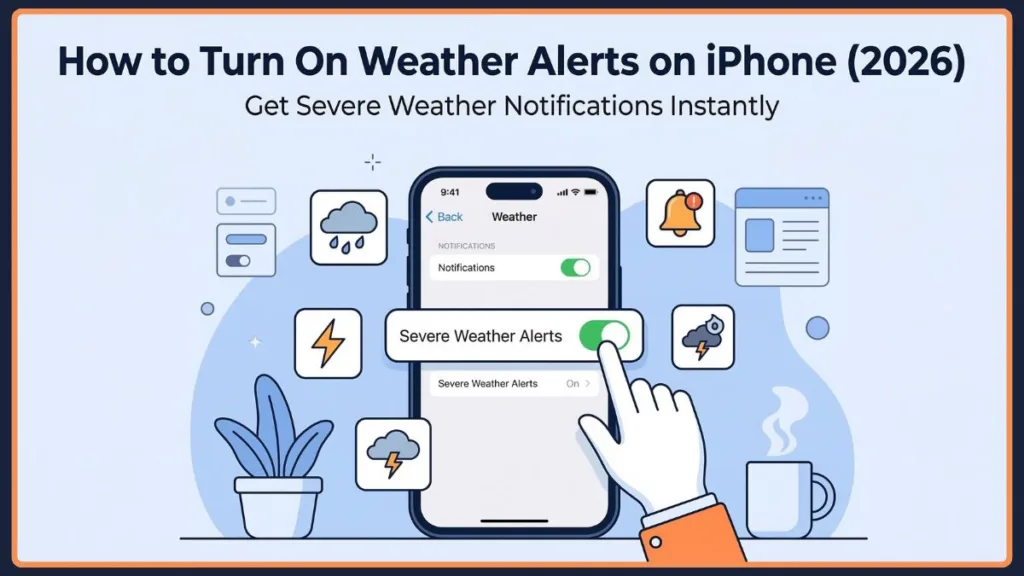
Whether you’re planning an outdoor event, commuting, or simply wish to keep yourself safe during severe storm warnings, learning how to turn on weather alerts on iPhone can help you maintain control over your day.
The landscape of mobile weather reporting shifted dramatically when Apple acquired the beloved hyper-local weather app, Dark Sky. This acquisition laid the groundwork for entirely native, system-level meteorological warnings. Instead of relying on a patchwork of third-party widgets, iPhone users now have access to robust, built-in forecasting tools powered by high-level data from the National Weather Service (NWS), the National Oceanic and Atmospheric Administration (NOAA), and Apple’s proprietary algorithms.
In recent iOS updates—specifically iOS 16, iOS 17, and iOS 18—Apple made major changes to the built-in Apple Weather app, integrating advanced push notifications that warn you before precipitation starts. For instance, iOS 18 introduced even deeper integrations, allowing the app to automatically pull your “Home” and “Work” locations from your Contacts for seamless tracking, and prominently displaying the “Feels Like” temperature right at the top of the interface whenever it differs significantly from the actual air temperature. This shift has left countless users searching for the best ways to configure these alerts effectively.
Fortunately, there are reliable methods and settings that let you enable, organize, and customize your iPhone weather alerts. Let’s explore these options in detail and walk through every step to safeguard your daily plans.
Why You Might Want to Enable Weather Alerts on iPhone for Daily Preparedness
Understanding the psychology of preparedness is crucial in our modern world, especially as global weather patterns become more unpredictable and extreme. There’s nothing wrong with wanting a little advance notice—especially when weather conditions can change in an instant. While you can always open the app manually, there are smart ways to let your phone do the work for you.
Here are the most common reasons people want to turn on weather alerts on iPhone:
- Daily commutes: Many professionals rely on timely alerts to avoid getting caught in sudden downpours on their way to work. Knowing that rain is 15 minutes away allows you to grab an umbrella or delay your walk to the subway, saving you from arriving at the office completely soaked.
- Outdoor planning: You don’t want a weekend trip or holiday surprise to be spoiled by unexpected snow or heavy rain. Whether you are hosting a backyard barbecue, planning a hiking expedition, or managing an outdoor wedding, hyper-local alerts ensure you can pivot your plans to an indoor venue before the first drop falls.
- Severe weather safety: Some alerts are critical by nature, warning you of dangerous thunderstorms or extreme heat. In regions prone to sudden flash floods, tornadoes, or hazardous air quality drops, having a device in your pocket that instantly vibrates with a life-saving warning is absolutely invaluable.
- Travel monitoring: Many users prefer to have their phone track and display weather changes for multiple saved cities while traveling. This is incredibly helpful for frequent flyers who need to know if their destination is experiencing a blizzard that might delay their flight, or for parents wanting to keep an eye on the weather where their college-aged children live.
Regardless of your reason, the Apple Weather app offers tools like precise location tracking, severe weather warnings, and next-hour precipitation alerts to help you stay in control of your environment.
The Role of Smart Home Integrations with iPhone Weather Alerts
Beyond just your iPhone, setting up these alerts opens the door to incredible Apple HomeKit automations.
If your ecosystem is connected, a severe weather alert triggered on your phone can potentially be linked to smart home routines—such as automatically closing your smart blinds during a high-wind storm or turning your smart lights blue when rain is imminent.
Can You Still Get Accurate Weather Alerts on iPhone in 2026? (iOS Updates Explained)
The short answer is a resounding yes. The mobile weather app market used to be heavily fragmented. For years, third-party apps were the go-to option for anyone looking for reliable push notifications. However, Apple has significantly upgraded its native systems.
Here’s what has changed in recent iOS updates:
- Official Apple Upgrades: Starting with iOS 16 and continuing through iOS 18, advanced weather alert features have been integrated directly into the native app. This means you no longer need to pay expensive subscription fees to third-party developers just to get a basic rain notification. The native integration also plays flawlessly with your Apple Watch, delivering wrist-taps when a storm is brewing.
- Next-Hour Notifications: You can now receive highly accurate alerts 60 minutes before rain or snow begins. This feature utilizes complex radar data to predict precipitation intensity minute-by-minute. Note that while this feature is expanding globally, it relies heavily on local meteorological radar availability.
- Government Integrations: Severe weather alerts now tie directly into government-issued safety warnings. This ensures that when a national meteorological institute issues a critical advisory, your phone acts as a direct broadcast receiver.
If your device is updated, you can easily activate these features. Below is a detailed guide on how to do it.
How to Turn On Weather Alerts Using the Native Apple Weather App
Before you dive into the app itself, you must ensure your system permissions are aligned. Without the correct location data, your phone cannot accurately warn you about a storm cell moving into your specific neighborhood.
If your Settings app is properly configured with Location Services set to “Always” and “Precise Location” turned on, here’s how to use the built-in app to enable alerts quickly and efficiently.
Step-by-Step Guide to Enable a Severe Weather Alert on iOS
- Sign in to your iPhone and open the built-in Weather app.
- Go to your saved locations by tapping the list icon in the bottom-right corner.
- Locate the three-dot menu in the upper right corner and tap it.
- Click on Notifications from the dropdown menu.
- Confirm your selection when prompted by tapping Continue and then Allow.
- Toggle on Severe Weather Alerts and Next-Hour Precipitation.
Your device will then monitor the forecast, effectively delivering warnings directly to your lock screen. If you own an iPhone with a Dynamic Island (like the iPhone 15 or iPhone 16 Pro series), you may even see precipitation warnings seamlessly expand at the top of your screen as Live Activities, keeping you updated without interrupting your workflow.
How to View Weather Alerts for Multiple Locations on iPhone
- Go to the Weather app > Location List.
- Here you’ll find a list of all your saved cities.
- Tap any city, open its notification settings, and toggle the alerts on. These notifications remain active for all selected areas if needed.
Tracking multiple cities is a massive advantage for digital nomads and remote workers. If you are managing a team in London while living in New York, knowing that they are experiencing a massive snowstorm helps you anticipate connectivity issues or delays with empathy.
Key Points to Remember When You Turn On Weather Alerts
- Turning on alerts requires your Location Services to be active.
- You can enable notifications for multiple cities simultaneously.
- The feature requires iOS 16, iOS 17, or iOS 18 to work at full capacity.
- Next-hour precipitation alerts are only available in supported countries and regions. As of the latest updates, this highly localized feature is fully supported in the United States, the United Kingdom, Ireland, Australia, Japan, and several European nations, with Apple constantly expanding its radar data partnerships.
How to Turn On Emergency Weather Alerts on iPhone for Critical Warnings
It is vital to understand the difference between standard Weather app notifications and carrier-level emergency broadcasts. While the Weather app warns you about an upcoming thunderstorm, government alerts are designed to warn you about immediate threats to life and property.
If you are concerned about extreme weather, setting up government emergency alerts is the best long-term solution. This allows you to receive critical warnings (like AMBER alerts and public safety notifications) independent of the standard Weather app.
How to Set Up Government Emergency Alerts on Your Device
- Visit the Settings app on your iPhone.
- Click on Notifications.
- Scroll to the very bottom to find Government Alerts.
- Toggle on the specific alerts you wish to receive.
Benefits of Using Emergency Alerts During Extreme Weather
- Critical safety: Ensures you are notified during major emergencies or natural disasters.
- Bypasses restrictions: These alerts often sound even if your phone is on silent.
- Ideal for storm-prone areas: Perfect for maintaining safety in regions with tornadoes or hurricanes.
In the United States, this framework is part of the Wireless Emergency Alerts (WEA) system. The distinct, loud alarm tone it uses is intentionally jarring. It is designed to wake you up in the middle of the night if a tornado is touching down near your home, overriding almost all user settings to ensure your survival.
Additional Ways to Customize Your Weather Privacy and iPhone Alerts
A common complaint among smartphone users is notification fatigue. Getting buzzed every time there is a light drizzle can quickly become annoying. Fortunately, iOS is deeply customizable. Even if you have the main alerts set up, you can still take control of your notification experience using the following strategies:
1. Adjust Focus Mode Settings Go to Settings > Focus. This ensures that Do Not Disturb modes don’t accidentally block your critical weather updates. You can specifically whitelist the Weather app in your Focus settings, marking its alerts as “Time Sensitive.” This ensures that even while you are deep in a work meeting, a severe flash flood warning will still push through.
2. Customize Banner Notifications Go to Settings > Notifications > Weather. Change how alerts appear (Lock Screen, Banners, or Notification Center) so they don’t clutter your screen. If you find temporary banners disappear too quickly, you can switch the Weather app’s banner style to “Persistent,” ensuring the warning stays at the top of your screen until you manually swipe it away.
3. Use Weather Widgets Add a Weather widget directly to your Home Screen or Lock Screen. Provides discreet, instant visual updates without waiting for a push notification. With the introduction of iOS 17’s StandBy mode, turning your iPhone horizontally on a MagSafe charger transforms it into a smart display. Having a large weather widget visible on your nightstand is an excellent, passive way to check the morning forecast the second you wake up.
Each of these methods complements the others, giving you multiple layers of control over how you receive your local forecast.
Considering Third-Party Alternatives for Mobile Weather Tracking
While the native Apple app is fantastic, power users might still crave more data. If you are an absolute weather enthusiast, pairing your native alerts with third-party services like Carrot Weather (known for its humorous, AI-driven personality), AccuWeather, or The Weather Channel app can provide supplementary radar layers and long-term predictive models.
Limitations of Weather Alerts on iPhone You Should Consider
Meteorology is an incredibly complex science. Even the most powerful supercomputers in the world cannot predict the weather with absolute, flawless certainty. Even with these tools, there are a few things you should know:
- Weather predictions are not 100% perfect; sudden micro-storms can occasionally be missed.
- Leaving Precise Location on “Always” can slightly drain your battery faster. To mitigate this, ensure your iPhone’s battery health is optimized, and close out of heavy background apps when you know you are running low on juice.
- If you fail to update your iOS, you may lose access to the newest alert features.
- Focus modes can suppress notifications if you forget to whitelist the Weather app.
Understanding these limits ensures that you know what to expect while managing your iPhone’s notification settings.
Final Thoughts on How to Turn On Weather Alerts on iPhone to Stay Protected
The tools we have at our disposal today are nothing short of miraculous compared to relying on the evening news for tomorrow’s forecast. While Apple has changed how notifications work over the years, there are highly effective ways to manage your weather alerts today.
To summarize:
- Use the native Weather app to toggle on Severe Weather and Next-Hour Precipitation.
- Try adding multiple cities if you travel frequently.
- Set up Government Alerts for ongoing safety during extreme conditions.
- Adjust your Focus Modes and Notification Banners to keep alerts visible but unobtrusive.
These methods ensure you remain informed, your outdoor plans stay intact, and your daily commutes remain dry. Being proactive and using these built-in tools helps you maintain control, even as Apple continues to evolve its iOS systems and features. 🌦️📱
Frequently Asked Questions (FAQ) About iPhone Weather Alerts
Q1: Can you really get rain alerts right before it happens?
Yes. You can get alerts using the Next-Hour Precipitation feature inside the Weather app’s notification settings, which warns you up to 60 minutes before rain or snow. This hyper-local precision is powered by high-resolution radar data, allowing your phone to see exactly where a raincloud is positioned in relation to your GPS coordinates.
Q2: How do I turn on emergency weather alerts on my iPhone?
Go to Settings → Notifications, scroll down to Government Alerts, and toggle emergency and public safety alerts on. These alerts are transmitted by your local cell towers using cell broadcast technology, meaning they won’t congest networks during a major crisis and will reach you instantly.
Q3: Why am I not getting weather alerts on my iPhone?
This usually happens because Location Services are disabled, notifications are turned off in settings, or an active Focus Mode is blocking the alerts. Additionally, ensure that “Background App Refresh” is toggled on for the Weather app in your General settings so it can constantly fetch the latest meteorological data without you opening the app.
Q4: How do I hide or silence weather alerts at night?
You can use the Sleep Focus mode or Do Not Disturb in your settings to silence push notifications while you sleep. Keep in mind, however, that depending on the severity of the threat and your region’s local broadcast laws, extreme Presidential or National emergency alerts may still bypass your Sleep Focus to ensure your physical safety.
Q5: Can I get weather alerts for multiple locations?
Yes. When you add a new city to your Weather app list, you can open the notification menu for that specific city and turn on alerts. However, remember that next-hour precipitation tracking requires sophisticated radar infrastructure. If you add a remote village in a country without supported radar grids, you may only receive general severe weather alerts rather than minute-by-minute rain predictions.
Q6: Does leaving Location Services on “Always” for weather alerts drain my battery?
While it does use slightly more power than the “While Using the App” setting, Apple has optimized iOS to be highly efficient. The app relies on significant location changes and low-power GPS polling to fetch data, so the impact on modern iPhone batteries is generally minimal for the safety value it provides.
Q7: Do I need Wi-Fi or cellular data for weather alerts to work?
Yes. Standard push notifications from the Apple Weather app require an active internet connection (either Wi-Fi or cellular) to receive the data payload from Apple’s servers. However, Government Emergency Alerts use cellular broadcast technology, meaning they can often reach your phone even if your standard data connection is weak, as long as you are connected to a cell tower.
Q8: What happened to the Dark Sky app?
Apple acquired Dark Sky in 2020 and subsequently shut down its standalone app and API for third-party developers. However, the beloved technology wasn’t lost; Apple completely integrated Dark Sky’s famous minute-by-minute precipitation forecasting and radar aesthetics directly into the native iOS Weather app, making it a free feature for all iPhone users.
Useful Resources to Master Your iPhone Weather and Emergency Alerts
If you want to dive even deeper into customizing your mobile safety and notification settings, it’s always a great idea to consult the official documentation.
Here is a curated list of authoritative guides from Apple and national meteorological services to help you maximize your iPhone’s capabilities.
- Apple Support: Check the Weather on iPhone — This is Apple’s official, comprehensive guide on how to navigate the native Weather app. It provides detailed instructions on how to interpret specific weather icons, manage your Location Services for precise tracking, and switch between temperature units like Fahrenheit and Celsius.
- Apple Support: Government, Emergency, and Enhanced Safety Alerts — If you want to understand exactly how life-saving broadcasts work on your device, this official page breaks down the mechanics of the Wireless Emergency Alerts (WEA) system. It explains how AMBER alerts, Public Safety alerts, and Test alerts function, and specifically details how these critical warnings interact with your Apple Watch and Wi-Fi networks.
- The National Weather Service (NWS) on Wireless Emergency Alerts — For readers in the United States, understanding the science and policy behind severe warnings is incredibly valuable. The NWS provides an excellent overview of exactly what criteria must be met (such as extreme wind speeds or imminent tornado touchdowns) before a localized emergency broadcast is pushed to your mobile carrier.
Visit Our Post Page: Blog Page