
Need to unblock someone on FB? Learn how to unblock a person on Facebook in 2026 using reliable steps for every device, including mobile, desktop, and Messenger, plus understand what happens after unblocking and how to avoid common mistakes.
Maybe it was an argument. Maybe you needed a break. Or maybe you blocked someone by mistake. Whatever the reason, you can reverse it anytime on Facebook—you just need to know where the option lives.
Blocking is often done in the heat of the moment. It can feel like the easiest way to stop unwanted messages, avoid uncomfortable interactions, or protect your privacy. But situations change. Time passes. People grow. And sometimes, reopening communication feels like the right move.
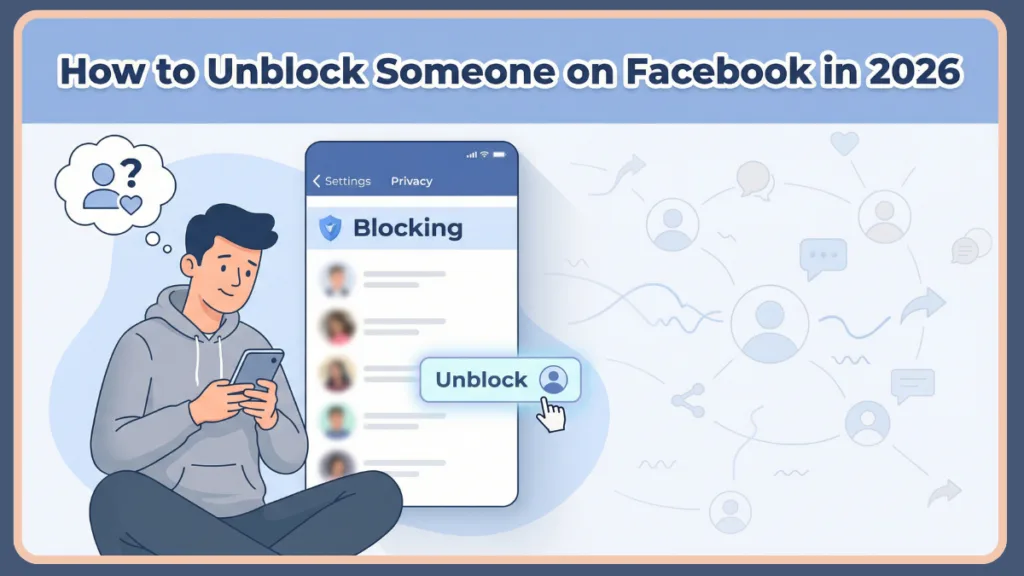
The challenge? Facebook doesn’t place the unblock option somewhere obvious. You won’t see it on someone’s profile. You won’t find a simple “Unblock” button next to their name in search. Instead, it’s stored inside your account settings, which makes many users assume the option doesn’t exist.
It does. And it’s easier than you think.
Here’s the quick answer:
To unblock someone on Facebook, go to Settings & Privacy → Settings → Blocking, find their name in your blocked list, and tap or click “Unblock.” Confirm your choice to restore access.
That’s the short version. Now let’s walk through everything step by step—on mobile, desktop, and even Messenger only—plus what actually happens after you unblock someone and how to troubleshoot common issues.
Trying to Unblock Someone on the Facebook App? Follow These Steps (Android & iPhone)
If you’re using the Facebook app on your phone, the process is very straightforward. The steps are nearly identical whether you’re on Android or iPhone.
Ready to Unblock a Profile or Page on Mobile? Do This
- Open the Facebook app and make sure you’re logged into your account.
- Tap the three-line menu icon (☰). This is usually in the top-right corner on Android and bottom-right on iPhone.
- Scroll down and select Settings & Privacy, then tap Settings.
- Under the section labeled Audience & Visibility, tap Blocking.
- You’ll now see a full list of people and Pages you’ve blocked. This includes profiles, business Pages, and sometimes nicknames from groups.
- Tap Unblock next to the name you want to remove from the block list.
- Confirm your choice when prompted.
That’s it. The restriction is removed immediately, although it may take a few moments for changes to fully reflect across the platform.
Want to Unblock a Nickname in a Facebook Group?
If you blocked someone’s nickname within a Facebook group:
- Go to Settings → Blocking inside the Facebook app.
- Locate the nickname in your blocked list.
- Tap Unblock, then confirm.
Once unblocked, you’ll begin seeing their posts and comments inside that group again. They will also be able to tag you and interact with your content in that group.
This is helpful if your issue was limited to group interactions rather than your entire Facebook connection.
Before You Unblock on Mobile, Keep These Things in Mind
- Unblocking someone does not automatically make you friends again.
- You must send a new friend request if you want to reconnect.
- Facebook does not notify the person when you unblock them.
- If your posts are set to “Public,” they may be able to see them again.
- There is typically a waiting period (around 48 hours) before you can block the same person again.
Understanding these points prevents confusion later.
Using a Computer and Need to Unblock Someone on Facebook Desktop?
If you’re accessing Facebook from a browser on your computer, the process is equally simple.
Here’s Exactly How to Unblock Someone on the Facebook Website
- Log in at Facebook.com.
- Click your profile picture in the top-right corner of the screen.
- Select Settings & Privacy, then click Settings.
- On the left-hand side, look for Blocking and click it.
- You’ll now see your blocked list.
- Click Unblock next to the person’s name.
- Click Confirm to complete the process.
The person is now unblocked.
Wondering What Changes Immediately After Unblocking on Desktop?
Once unblocked:
- They can see your public posts again.
- They may appear in search results.
- You can visit their profile.
- You can send them a friend request.
However, none of this happens automatically—you must initiate reconnection if desired.
Curious About the 48-Hour Waiting Rule?
Facebook applies a waiting restriction after you unblock someone. Typically, you cannot block that same person again for about 48 hours.
This rule exists to prevent repeated blocking and unblocking in short cycles.
So before clicking “Unblock,” take a moment to be sure of your decision.
Only Want to Unblock Messages? Here’s How to Unblock Someone on Messenger Only
Yes, and this is something many people don’t realize.
Facebook and Messenger have separate blocking systems. That means you can unblock someone in Messenger without restoring full Facebook access.
This separation applies to Facebook Messenger.
What Happens If You Unblock Them in Messenger Only?
If you unblock them only in Messenger:
- They can send you messages again.
- They can call you on Messenger.
But if they’re still blocked on Facebook:
- They cannot see your profile.
- They cannot view your posts or stories.
- They cannot tag you.
This setup gives you more control over communication boundaries.
Need to Unblock Messages Only on Mobile? Follow These Steps
- Open the Messenger app.
- Tap the Menu icon.
- Go to Settings.
- Tap Privacy & Safety.
- Select Blocked Accounts.
- Choose the person’s name.
- Tap Unblock Messages and Calls.
Now messaging is restored, while Facebook profile restrictions remain unless changed separately.
This option is useful if you only want to reopen communication—not your full social profile.
Wondering What Happens After You Unblock Someone on Facebook?
This is one of the most searched questions about unblocking. Many users worry about privacy, visibility, and notifications.
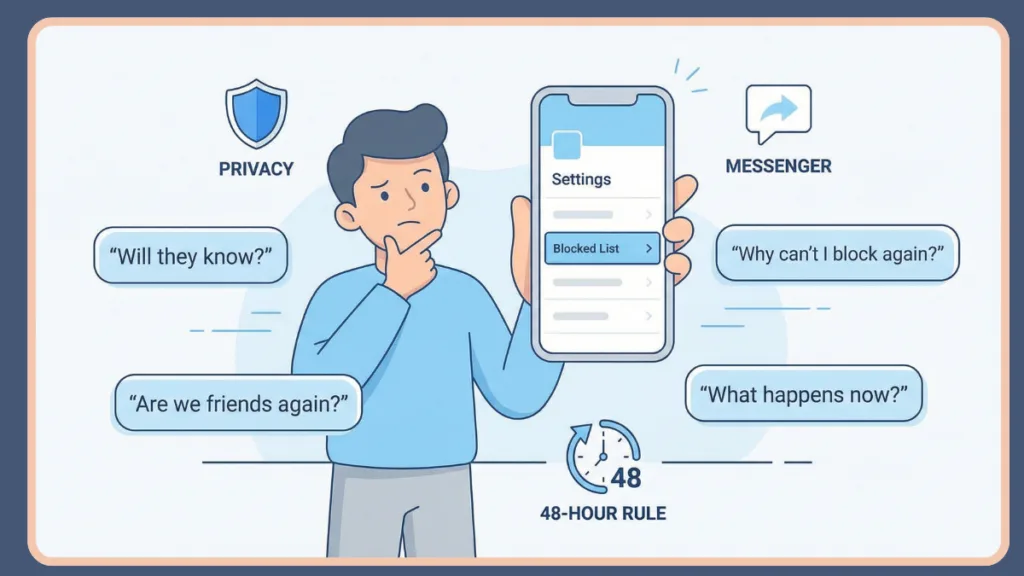
Here’s exactly what changes—and what doesn’t.
- They can see your public posts again.
- They may find your profile in search results.
- You are not automatically friends again.
- You must send a new friend request to reconnect.
- Old Messenger chats remain intact unless you deleted them.
- Facebook does not notify them about the unblock.
- You cannot immediately block them again due to the waiting restriction.
Unblocking simply removes the restriction. It does not restore your previous relationship status, shared interactions, or tags automatically.
Can They See Old Posts?
- They can see any content that is currently set to “Public.”
- Posts shared only with “Friends” will remain hidden unless you become friends again.
Do Comments and Likes Reappear?
If they had previously commented or liked your posts before being blocked, those interactions may still exist, depending on your privacy settings and whether posts were deleted.
Blocking does not erase history—it only restricts visibility and interaction going forward.
Can’t Find the Unblock Option? Here’s Why You Might Not Be Able to Unblock Someone
If the unblock option isn’t working or you can’t find it, don’t panic. There are common reasons for this.
Did You Just Unblock Them? The 48-Hour Rule Might Apply
If you recently unblocked someone, Facebook may not allow you to block them again immediately. This waiting period can sometimes cause confusion.
Has Their Account Been Deactivated or Deleted?
If the person deactivated or permanently deleted their account, their name may disappear from your blocked list. You cannot unblock a profile that no longer exists.
Facing an App Glitch or Technical Bug?
Sometimes the issue is simply a temporary glitch.
Try these quick fixes:
- Close and reopen the app.
- Log out and log back in.
- Clear app cache (on Android).
- Update the Facebook app to the latest version.
- Restart your device.
Most minor bugs resolve quickly.
Blocked Them in Messenger Only?
If you blocked someone only in Messenger, you must unblock them inside Messenger settings. Facebook profile settings will not affect Messenger-only blocks.
Understanding where the block was placed is key.
Looking for Your Blocked List on Facebook? Here’s Where to Find It
Sometimes you simply need to review who you’ve blocked.
On Mobile
Menu (☰) → Settings & Privacy → Settings → Blocking
On Desktop
Profile picture → Settings & Privacy → Settings → Blocking
This section displays all blocked profiles, Pages, and sometimes group nicknames.
Reviewing this list occasionally can help you manage your privacy settings more intentionally.
Thinking About Privacy Before You Unblock Someone?
Before removing someone from your block list, consider your privacy settings.
- Check who can see your future posts.
- Review past posts visibility.
- Confirm your friend list privacy.
- Adjust story sharing settings if needed.
Unblocking restores access, so ensure your privacy controls reflect your comfort level.
Still Have Questions? Here Are FAQ About Unblocking Someone on Facebook
Will they know if I unblock them?
No. Facebook does not send a notification. However, they may realize it if they search for you and find your profile accessible again.
Can they see old messages after I unblock them?
Yes. Unblocking does not delete past chats in Messenger. Messages remain unless you manually delete them.
Do we become friends again automatically?
No. You must send a new friend request.
Can I unblock someone anonymously?
Yes. The process is private.
Can I block someone again immediately after unblocking?
No. There is typically a 48-hour waiting period.
Can I unblock someone who deleted their account?
No. If their account no longer exists, there is nothing to unblock.
Can I unblock a Facebook Page the same way?
Yes. Pages appear in the same blocked list area, and you can unblock them similarly.
Final Thoughts: Ready to Unblock Someone on Facebook?
Unblocking someone on Facebook is simple once you know where to look. Whether you’re using mobile, desktop, or Messenger only, the process takes just a few taps or clicks.
What matters most is understanding what unblocking actually does—and what it doesn’t.
- You won’t automatically become friends again.
- They won’t receive a notification.
- Old messages will remain.
- There’s a waiting period before blocking again.
You stay in full control of your privacy and interactions.
Now you know exactly how to unblock someone on Facebook—clearly, confidently, and with complete awareness of what happens next.
Useful Resources to Help You Manage Blocking on Facebook
If you want to go deeper, double-check official steps, or explore related privacy settings, here are some reliable resources. These include official Meta documentation as well as detailed step-by-step guides from Izoate to help you stay fully in control of your Facebook experience.
These are direct resources from Facebook and Meta Platforms:
- Facebook Blocking & Unblocking Help (Official Guide): Step-by-step instructions for unblocking profiles and Pages on both mobile and desktop.
- Manage Your Blocking Settings: Learn how to access your blocked list and manage restrictions under Audience & Visibility.
- Messenger Blocking & Unblocking (Official): Explains how blocking works in Facebook Messenger and how to unblock messages or calls separately from Facebook.
- Facebook Privacy Policy: Understand how profile visibility, public posts, and data settings work.
- Facebook Community Standards: Learn why blocking tools exist and how Meta structures its safety features.
- Report a Problem to Facebook: If the unblock option isn’t working or something feels off, you can report it directly.
If you’re managing blocks, there’s a good chance you might also need help with these related situations. These Izoate guides walk you through everything in a clear, practical way:
- How to See Blocked People on Facebook (View Your Blocked List): A complete guide to finding and reviewing everyone you’ve blocked.
- How to Block Someone on Facebook Messenger (Without Them Knowing): Learn how to block messages privately without restricting full profile access.
- How to See Who Has Blocked You on Facebook: Reliable ways to check if someone has blocked you.
- How to Tell if Someone Blocked You or Just Deactivated Their Account: Understand the difference between being blocked and an account being removed.
Visit Our Post Page: Blog Page