
Struggling to delete stubborn software or bloatware? Learn How to Uninstall Apps on Windows 11 using Settings, CMD, and PowerShell. Discover 5 working methods to force remove programs and free up disk space.
If you want to free up storage space, remove unused software, or get rid of apps slowing down your system, uninstalling apps on Windows 11 is one of the simplest and most effective solutions. Whether you’re dealing with clutter, preinstalled bloatware, or a stubborn app that refuses to uninstall, Windows 11 gives you multiple safe ways to remove applications.
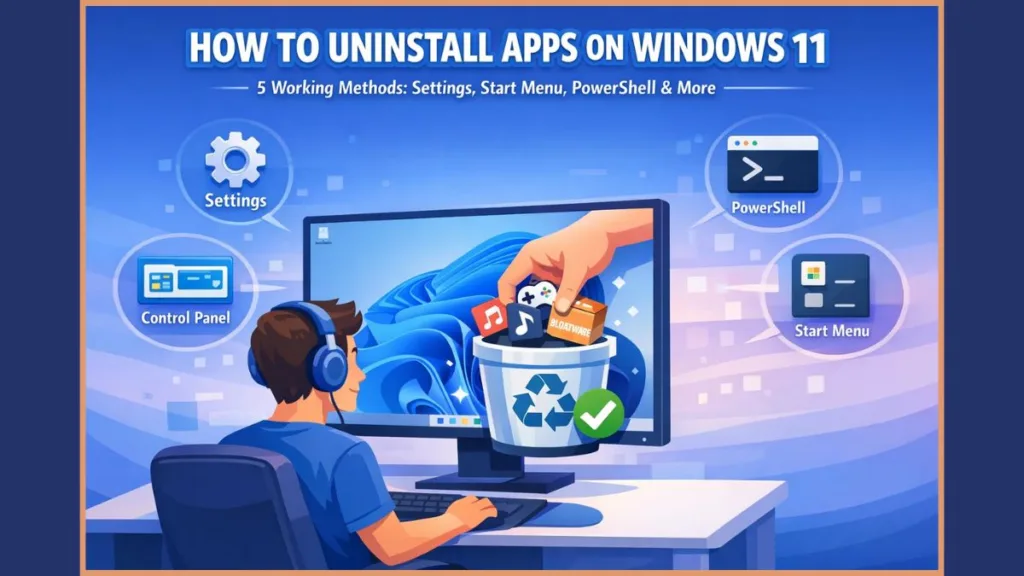
More importantly, knowing the correct uninstall method helps you avoid leftover files, registry clutter, and performance issues that often occur when apps are removed incorrectly. As a result, following proper uninstall steps directly improves system stability.
We recommend you follow the methods below in order—from the fastest option to more advanced solutions—so you can uninstall apps efficiently without harming your system.
Things to Know Before Uninstalling Apps on Windows 11
Before you uninstall any app, you should understand a few important points to avoid mistakes or data loss.
- Not all apps are the same: Windows 11 includes Microsoft Store apps, traditional desktop programs, and built-in system apps. Some built-in apps can’t be uninstalled via Settings alone.
- Some apps may be installed for all users or only the current user, affecting how removal behaves.
- Administrator permission may be required to uninstall certain programs.
- Uninstalling an app may delete its settings or stored data, so back up anything important first.
In addition, desktop software often stores files in multiple locations such as Program Files, AppData, or the Windows Registry. Because of this, using official uninstall methods matters far more than manually deleting folders.
Once you understand these basics, you can safely move on to uninstalling apps.
All Working Methods To Remove Apps in Windows 11
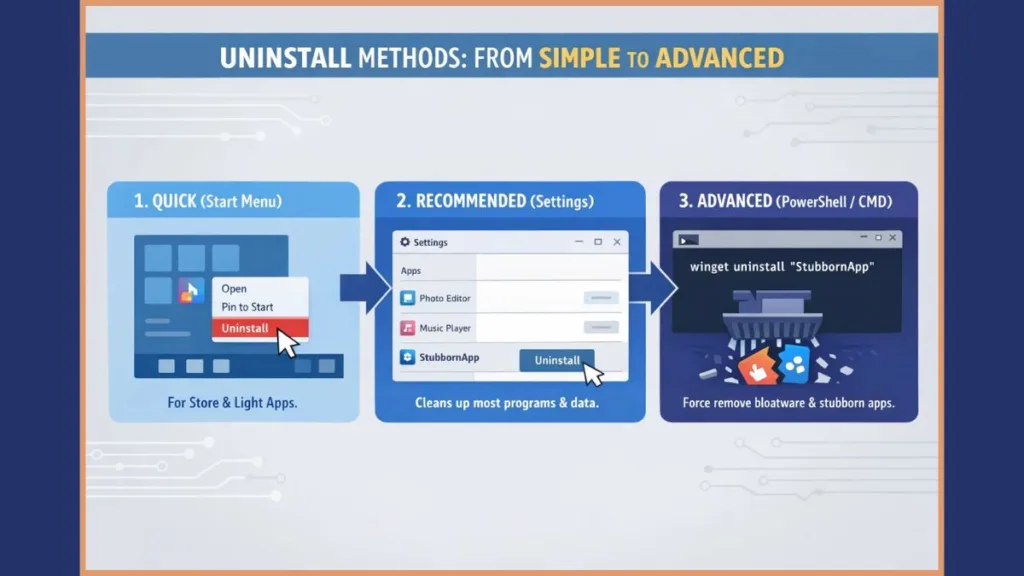
Method 1: Uninstall Apps Directly from the Start Menu (Fastest Way)
If you want the quickest way to uninstall apps on Windows 11, this is the method we recommend you try first.
Steps:
- Open the Start menu.
- Look for the app you want to uninstall (you can search by name).
- Right-click the app.
- Select Uninstall.
What this method works for: Directly removes many Microsoft Store apps and some desktop applications via a single click.
Limitations: For certain desktop programs, this option will redirect you to Settings > Installed apps to complete the uninstall process. Some system components won’t show an uninstall option.
For example, apps like Calculator, Spotify, or WhatsApp installed from the Microsoft Store usually uninstall instantly using this method. However, heavier programs such as Adobe software or antivirus tools often redirect you to a full uninstall wizard.
As a result, this method works best for lightweight apps and quick cleanups.
Method 2: Uninstall Apps Using Windows 11 Settings (Recommended)
This is the most reliable and user-friendly method, especially if you want full control over installed apps.
Steps:
- Press Win + I to open Settings.
- Go to Apps from the left sidebar.
- Click Installed apps (it lists all apps and programs).
- Scroll to or search for the app you want to remove.
- Click the three-dot menu next to the app.
- Select Uninstall and confirm.
Note for newer Windows 11 Versions (23H2 and later): Some built-in tools (like Game Bar, Microsoft Store, or Phone Link) have been moved to a new section called System Components. If you cannot find an app in the standard list, try navigating to Settings > System > System Components to manage them.
Why we recommend this method:
- Shows all installed apps in one place including those installed via Store and traditional installers.
- Lets you search and sort apps, making bulk cleanup easier.
Additionally, sorting apps by size helps you quickly identify storage-heavy programs like games, video editors, or development tools. Because of this, the Settings method is ideal when your main goal is freeing disk space on Windows 11.
Method 3: Uninstall Programs Using Control Panel (Classic Method)
Some older desktop programs don’t uninstall properly through Settings. In those cases, the Control Panel method still works perfectly, though newer Windows 11 builds increasingly redirect you back to Settings.
Steps:
- Type Control Panel in the Start Search box and open it.
- Navigate to Programs → Programs and Features.
- Find the program you want to remove.
- Right-click it and select Uninstall.
- Complete the uninstall wizard if shown.
Best used when:
- The app doesn’t appear in Settings.
- You’re uninstalling legacy or older desktop software.
For instance, older versions of Java, printer utilities, or enterprise software often appear only in Control Panel. Therefore, this method remains essential for compatibility reasons.
Method 4: Uninstall Apps Using PowerShell or Winget (Advanced Users)
If you want to remove built-in apps, bloatware, or multiple apps at once, advanced tools like PowerShell or Windows Package Manager (winget) are excellent.
PowerShell Steps:
- Open Windows Terminal or PowerShell as Administrator.
- To list installed Store apps, run:PowerShell
Get-AppxPackage | select Name, PackageFullName - To remove a built-in Store app, run (replace
<PackageFullName>with the exact name):PowerShellGet-AppxPackage <PackageFullName> | Remove-AppxPackageThis removes the app for the current user.Easier Command: Instead of typing the full complex name, you can use wildcards. For example, to remove the “Your Phone” app:PowerShellGet-AppxPackage *YourPhone* | Remove-AppxPackageCommon Bloatware Names to Try: You can use the wildcard command above with these common package names:*XboxGamingOverlay*(Xbox Game Bar)*WindowsCamera*(Camera App)*MicrosoftSolitaireCollection*(Solitaire)*ZuneMusic*(Media Player)
Winget Steps:
- Open Windows Terminal (Admin).
- List installed apps using:PowerShell
winget list - Use the uninstall command with the app’s exact name or ID:PowerShell
winget uninstall <AppName or --id AppID>You can add flags like--source wingetto avoid Store agreement prompts.
When to use this method:
- An app refuses to uninstall using normal methods.
- You want to remove multiple apps via script.
- You’re comfortable with command-line tools.
For example, IT administrators often use winget to uninstall bloatware across multiple systems. Likewise, advanced users rely on PowerShell to remove built-in apps like Xbox components or trial software.
Important warning: Removing system apps incorrectly may impact stability. Only uninstall apps you fully understand.
Method 4b: Uninstall Apps Using Command Prompt (WMIC)
If you prefer the classic Command Prompt (CMD) over PowerShell, you can use the WMIC tool for older desktop programs (MSI installers).
Steps:
- Open Command Prompt as Administrator.
- Type
wmic product get nameto list installed software. - To uninstall, type:DOS
wmic product where name="Program Name" call uninstall - Type
Yto confirm.
Important Note: Microsoft officially deprecated WMIC in 2024. While it still works on many current versions of Windows 11, it is no longer installed by default on the newest “Insider” builds or the upcoming 24H2 update. If the command is not recognized, you may need to add it via Settings > System > Optional Features, or switch to the PowerShell method above.
How to Uninstall Apps That Won’t Uninstall on Windows 11
If an app refuses to uninstall, don’t panic—this is common and usually fixable.
Try these solutions in order:
- Restart your PC and try again.
- Run the uninstall process as administrator.
- Check if the app is running in the background and close it.
- Run the official Troubleshooter: Download and run the Microsoft Program Install and Uninstall Troubleshooter. It helps automatically repair corrupted registry keys that block removal.
- Boot into Safe Mode and uninstall.
- Use the winget command or PowerShell if standard methods fail.
In many cases, antivirus software, VPN clients, or system utilities block uninstall attempts while running. Therefore, closing background processes often resolves the issue instantly.
How to Remove Preinstalled or Bloatware Apps on Windows 11
Windows 11 ships with many preinstalled Microsoft Store apps. You can remove many of these using Settings or PowerShell (for apps without an uninstall button).
- Advanced environments like enterprise may support Group Policy removal for built-in apps—not typically available to standard Home or Pro users.
- Because bloatware varies by manufacturer, laptops from different brands may include additional tools or trial software. As a result, reviewing installed apps after first setup is always a smart practice.
Frequently Asked Questions (FAQ)
Why can’t I uninstall some apps on Windows 11?
Some are system-protected or running in the background, or the uninstall option is blocked for built-in functionality.
How do I uninstall Microsoft Store apps?
Use the Start menu, Settings > Installed apps, or PowerShell / winget if no uninstall button appears.
Can I reinstall an app after uninstalling it?
Yes — reinstall via Microsoft Store or the original installer. If you deleted a built-in system app and want it back, you can run this PowerShell command to reinstall all default apps: Get-AppxPackage -AllUsers| Foreach {Add-AppxPackage -DisableDevelopmentMode -Register "$($_.InstallLocation)\AppXManifest.xml"}
Is it safe to uninstall default Windows 11 apps?
Many are safe to remove, but avoid removing apps tied to system features.
What happens if I delete an app incorrectly?
Incorrect removal may leave leftover files and settings; use proper uninstall methods to avoid this.
Tips to Keep Windows 11 Clean and Organized
- Review installed apps regularly.
- Use Storage Sense to automate cleanup.
- Avoid installing unnecessary software.
- Keep apps updated to reduce errors.
Over time, consistent maintenance prevents performance slowdowns and storage issues.
Conclusion: Choose the Best Way to Uninstall Apps on Windows 11
If you want the fastest solution, the Start menu method works instantly. For reliability, Settings is your best choice. Older programs uninstall better through Control Panel, while PowerShell or winget gives advanced users precision control.
We recommend you always start with the simplest method and move to advanced options only when necessary. With the right approach, uninstalling apps on Windows 11 is safe, quick, and effective.
Official Useful Resources (Windows 11 App Uninstall)
Microsoft Support – Uninstall Apps in Windows 11: The official Microsoft guide explaining how to uninstall apps using Start menu, Settings, and Control Panel, including notes on built-in apps and limitations.
Microsoft Program Install and Uninstall Troubleshooter: An official Microsoft troubleshooting tool that helps fix issues where apps won’t uninstall, fail midway, or are missing from the app list.
Windows Package Manager (winget) – Microsoft Learn: Official documentation for winget, Microsoft’s command-line tool used to install and uninstall apps on Windows 11 safely and efficiently.
Visit Our Post Page: Blog Page