
Accidentally liked a Facebook Reel? Learn 2 quick ways to unlike a reel on Facebook, even if you scrolled past it or lost the video. Discover how to manage your privacy, reset your algorithm, and master your digital footprint. (2026 Guide)
Accidentally liked a Reel while scrolling your Facebook feed? Don’t worry—you’re not alone, and you haven’t done anything permanent.
We’ve all been there: your thumb slips while you are trying to mute a loud video in a quiet waiting room, or you double-tap by mistake while viewing a profile you didn’t intend to interact with.
In the fast-paced world of short-form content, where Facebook Reels now compete directly with TikTok and YouTube Shorts, these micro-interactions happen in milliseconds. However, they can have lasting effects on what you see next.
If you want to remove a like from a Facebook Reel, we guarantee you can do it quickly and privately, even if you’ve already scrolled past the video.
In this comprehensive guide, you’ll learn how to unlike a Reel on Facebook, whether you still see the Reel right in front of you or need to find it later using your Activity Log.
Beyond just fixing a simple mistake, mastering this skill helps you curate your digital footprint and signals to the Facebook algorithm exactly what you want—and don’t want—to see. Every time you remove a like, you are essentially voting “no” on that type of content, helping you reclaim control over your social media experience.
2 Proven Methods to Remove a Like From a Facebook Reel
Facebook gives you two reliable, built-in ways to undo a like on a Reel.
The right method depends entirely on whether the Reel is still visible on your screen or if it has already been lost in the endless scroll of your news feed. Let’s look at the immediate fix first before diving into the archival tools that power Facebook’s backend.
Method 1: How to Unlike a Facebook Reel Immediately (The Quick Fix)
If the Reel is still on your screen, this is the easiest solution.
When you tap the thumbs-up icon on a Facebook Reel, it turns blue (or shows a reaction emoji like a heart or laughing face). To undo it, simply tap the same button again. The reaction is removed instantly.
This method:
- Works for all reactions: Whether you accidentally hit “Like,” “Love,” “Haha,” or “Angry,” tapping the icon again neutralizes the interaction.
- Takes one tap: It is a binary toggle; on (blue/colored) means liked, off (gray/white) means unliked.
- Leaves no trace in your news feed: The system deletes the data point before it solidifies in your long-term history.
For example, imagine you are browsing late at night and watching a Reel from a creator you don’t follow—perhaps a cooking video or a political commentary. You accidentally hit “Love” instead of “Share.”
If you leave that reaction, Facebook’s recommendation engine might assume you are deeply interested in that specific political niche or cooking style, flooding your feed with similar content tomorrow. By immediately tapping the icon again, you revert the action before the platform cements that interest in your profile.
If you accidentally liked a Reel on Facebook and noticed it right away, this is the fastest and safest fix.
However, life happens. Sometimes the app crashes, your battery dies, or you simply scroll away too fast before realizing our mistake. In those cases, the video is gone from your immediate view, but the “like” remains in the database. To fix this, we need a deeper tool: the Activity Log.
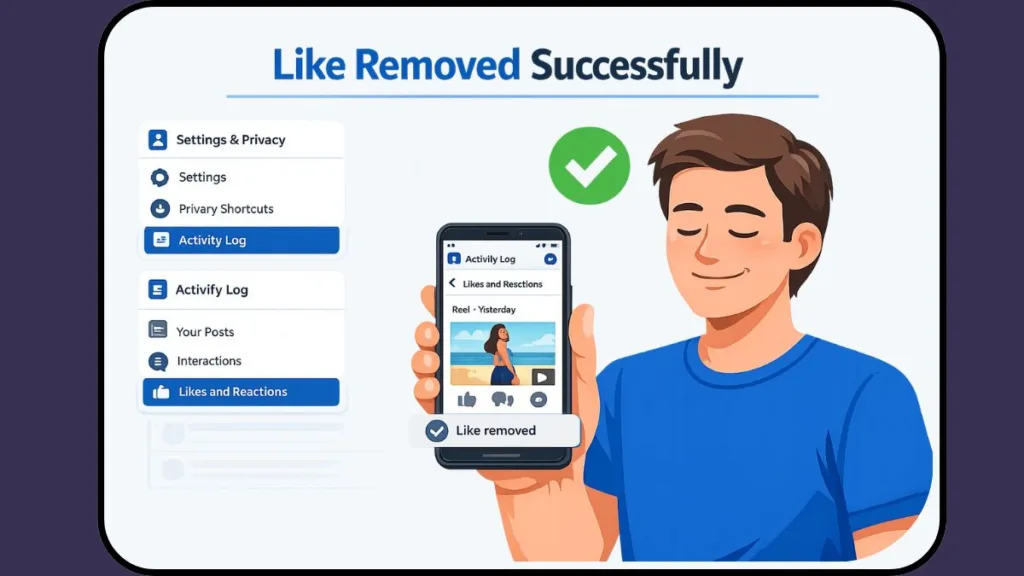
Method 2: How to Unlike a Reel on Facebook After Scrolling (Activity Log Guide)
If you’ve already scrolled past the Reel and can’t find it anymore, don’t panic. This is where the Activity Log becomes essential. This method works identically for both the mobile app and desktop versions of the platform.
Think of the Activity Log as your personal “black box” recorder for Facebook.
Unlike platforms like TikTok, which offer limited history visibility, Facebook’s Privacy Center services keep a granular, timestamped record of every interaction you have ever made—from the day you created your account. This gives you total control to revise history, ensuring that your public persona matches your current intentions.
On the Facebook App (Android & iOS):
- Open Facebook and go to your Menu/Profile: Tap your profile picture in the bottom right (iOS) or top right (Android) to open the main navigation menu.
- Tap on Settings & Privacy > Settings: You will see a gear icon; tapping this opens the master control panel for your account.
- Scroll down to “Your Activity” and tap Activity Log: This section is often located near the bottom of the list, grouped with “Information” and “Permissions.”
- Tap the arrow next to Interactions to expand the menu: The log sorts data by category. “Interactions” covers likes, comments, and other engagement.
- Select Likes and reactions: This filters out comments and shares, showing you a clean list of just the content you have emotionally reacted to.
- Find the Reel you liked: The list is chronological, with the newest likes at the top. You should see the video title or a thumbnail.
- Tap the three dots (…) next to it and choose Unlike or Remove reaction: A small pop-up menu will appear at the bottom of the screen confirming the removal.
On Computer/Desktop:
- Click your profile picture in the top right: This opens the dropdown menu for account management.
- Select Settings & privacy > Activity Log: On desktop, this is often easier to find as it requires fewer clicks than mobile.
- In the left sidebar, click Interactions > Likes and reactions: The desktop interface provides a sidebar specifically for navigation, making it faster to jump between categories.
- Locate the Reel and click the three dots (…) to remove the like: Hovering over the entry will reveal the options button on the right side of the row.
This method works even if:
- The Reel is days or weeks old: You can scroll back years if necessary.
- The video no longer appears in your news feed: Even if the algorithm has stopped showing it, your record of liking it remains until you delete it.
- You liked it by mistake while scrolling quickly: This is common with “ghost touches” or when handing your phone to a child.
For instance, you might recall liking a viral video last week that turned out to be a hoax or misinformation. At the time, you thought it was funny, but now you realize it was fake news.
By using this method, you can retroactively “vote” against that content, dissociating your profile from it. If you’re searching for how to unlike a reel on Facebook after scrolling, this is the most reliable solution because it accesses the server-side data directly.
How to Find Liked Reels on Facebook History
Facebook does not have a separate “Liked Reels” tab on your main profile like Instagram does, which can be confusing for users who switch between apps. However, every Reel you’ve liked is saved in your interactions history.
You’ll find them here: Activity Log > Interactions > Likes and reactions
This section acts as your complete record of reactions across posts, short-form videos, and Reels. It is a unified database.
If you don’t see the Reel immediately—perhaps you are a very active user who likes dozens of posts a day—you can use the Filters button inside the Activity Log to search by date.
To illustrate, if you know the accidental like happened specifically during your lunch break on Tuesday, you can tap Filters, select Date, and set the range to that specific day. This saves you from the tedium of scrolling through hundreds of interactions.
This feature is part of Facebook’s broader Access Your Information service, designed to help users manage their personal data transparency in compliance with global privacy laws.
Furthermore, if you remember the specific category of the interaction, you can sometimes filter by “Videos you’ve liked” vs “Posts you’ve liked” depending on the current version of the Facebook update.
How to Unlike All Reels on Facebook at Once (Bulk Delete)
Sometimes, a single unlike isn’t enough. You might need a fresh start, a “digital detox,” or a way to completely reset your feed recommendations.
If you want to clean up old activity, Facebook allows bulk management, saving you hours of tapping.
- Open your Activity Log (following the steps in Method 2).
- Go to Likes and reactions.
- Tap the checkbox next to multiple items. On mobile, you might need to tap a “Select” or “Manage” button first to reveal the checkboxes. You can also select “All” to wipe a specific time period.
- Tap Remove at the bottom of the screen. A confirmation dialog will ask if you are sure you want to remove these interactions.
This is useful if you want to reset your interaction history or limit how the Facebook algorithm personalizes your news feed.
Consider a scenario where your child used your phone and liked dozens of gaming Reels, toy reviews, or cartoons that you have absolutely no interest in. Suddenly, your feed is cluttered with Minecraft videos instead of the news and updates you actually want.
Instead of unliking them one by one, which could take an hour, you can batch-select them and wipe the slate clean in seconds.
This bulk action effectively “retrains” your Facebook Watch feed to stop showing you unrelated content. It is a powerful way to tell the algorithm, “Ignore this data; it wasn’t me.“
FAQs: Privacy and Notifications When You Unlike a Reel
Having covered the “how-to,” let’s address the common anxieties surrounding privacy, social etiquette, and notifications. Many users hesitate to unlike content because they fear offending the creator or triggering a notification.
Does unliking a Reel notify the creator?
No. When you unlike a Reel, the original notification is removed from the creator’s dashboard. The creator does not receive a new alert saying “John Doe unliked your video.” The system handles this silently. This ensures your privacy is protected even if you make a mistake on a friend’s post or a stranger’s content.
Will someone know if I like and unlike a Reel immediately?
No. If you undo the reaction quickly, there is usually no visible record for the creator. While push notifications can be fast, the system processes the “undo” command faster than it typically pushes the alert to the creator’s device. Unless the creator was staring at their notifications screen at that exact second, they will never know.
Can you unlike a Reel if you scrolled past it?
Yes. As long as the Reel appears in your Activity Log, you can remove the like at any time. This applies even if the original video has been deleted by the creator; your record of the interaction remains in your log until you remove it. If the creator deletes the video, the entry in your log might say “Attachment Unavailable,” but you can still delete your reaction record.
Where is the activity log for Reels on Facebook? You’ll find it under Settings and Privacy > Activity Log > Interactions > Likes and reactions. It is not located in the “Reels” tab itself; it is housed in the general account settings because it applies to all content types.
How do I clear my liked Reels history?
You can remove likes individually or in bulk from the Activity Log. There is no single “Clear All History” button for likes like there is for “Search History,” but the batch removal tool works effectively for this purpose. If you want to clear your watch history (videos you viewed but didn’t like), that is a separate category in the Activity Log under “Videos you’ve watched.”
Common Mistakes When You Remove Likes on Facebook
While the process is straightforward, there are technical pitfalls and misunderstandings that can compromise your account security or fail to solve the problem.
- Confusing Save with Like: “Saving” a Reel adds it to your private “Saved” collection so you can watch it later; it does not publicly count as a like, nor does it notify the creator in the same way. If your goal is to bookmark a recipe for later, use “Save.” If you want to boost the creator, use “Like.” Unliking a video does not unsave it, and vice versa.
- Using third-party tools: Never use unauthorized apps or browser extensions that claim to “Clean your Facebook” or “Manage Likes.” These often pose a severe privacy risk. Many “Facebook Cleaner” apps are actually phishing scams designed to steal login credentials or harvest your data. Stick to the native tools provided by Meta within the official app; they are sufficient for the job and secure.
- Assuming unliking removes comments: It doesn’t. You must delete comments separately. Unliking only removes the reaction (the thumbs up); your text comment will remain visible to the public until you manually delete it from the “Comments” section of the Activity Log.
- Ignoring the “Trash” folder: When you delete a post you made, it goes to a Trash folder for 30 days. However, when you remove a reaction (like), it is usually deleted instantly and permanently. Do not expect to find a “Restorable Likes” folder if you change your mind later; once a like is gone, you must find the video again to re-like it.
Final Thoughts: Control Your Facebook Algorithm
If you accidentally liked a Reel on Facebook, you’re always in control. You can undo the reaction instantly or remove it later through the Activity Log—privately and safely.
The platform is designed to give you this reversibility because user intent changes, and accidental touches are inevitable on touchscreens.
We recommend you check your Activity Log today not just to fix mistakes, but to actively curate your feed. By removing likes from content you didn’t enjoy, you train the Facebook algorithm to show you better videos next time.
Taking charge of your interaction history ensures that your social media experience remains enjoyable, relevant to your actual interests, and free of clutter. Your feed should reflect who you are today, not who you were when you accidentally clicked a button three months ago.
Visit Our Post Page: Blog Page