
Trying to disconnect your Apple Watch from iPhone? Learn how to unpair Apple Watch with or without the iPhone. Keeping your data safe, remove Activation Lock, and reset the watch before selling or switching phones.
As you look at your Apple Watch and iPhone, you’re usually already inside a decision moment. You may be preparing to sell the watch, switch to a new iPhone, hand it to someone else, or fix a syncing issue that refuses to resolve. At this point, unpairing your Apple Watch from your iPhone is not optional housekeeping—it is the correct system-level action that resets the relationship between the devices safely and completely.
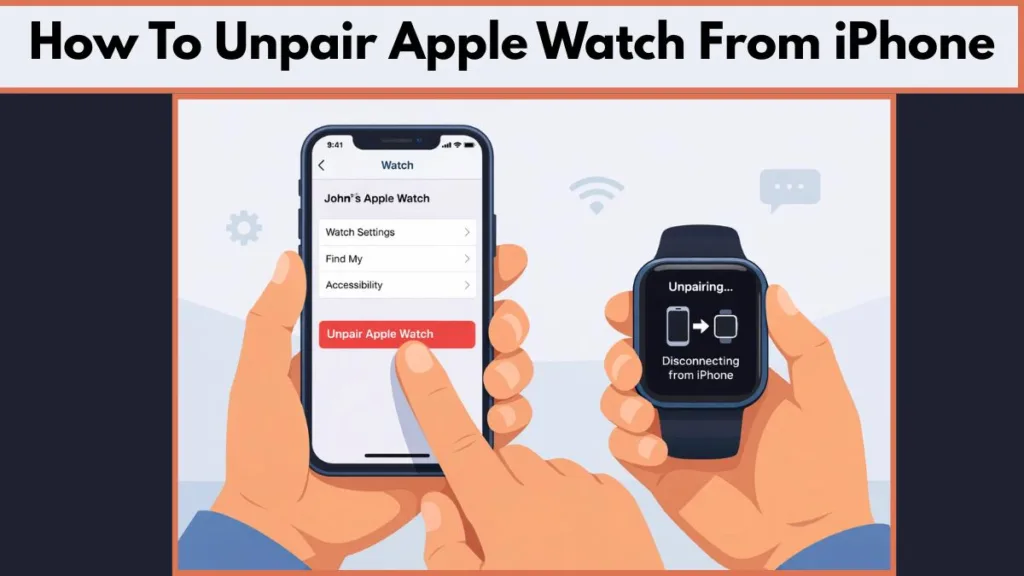
When you unpair properly, you are not just breaking a Bluetooth connection. You are erasing the watch, creating a secure backup, and removing Activation Lock in a controlled sequence designed by Apple. As long as you follow what appears on screen and do not bypass confirmation steps, your health data, activity history, and account access remain protected.
When and Why You Need to Unpair Your Apple Watch
As you consider unpairing, you may recognize a familiar situation. You might be upgrading to a newer Apple Watch, switching to a different iPhone, or preparing the watch for a new owner. In other cases, you may be looking at notifications that no longer arrive, workouts that fail to sync, or Bluetooth behavior that feels unreliable.
At this point, unpairing acts as a clean system reset. When you unpair, the watch is restored to factory state, pairing records are cleared, and Activation Lock is handled correctly so the next setup does not fail. This step prevents setup loops, pairing errors, or a watch being locked to the wrong Apple ID later.
What Happens to Your Data Before You Unpair
Before you tap anything, pause and look at what the system is preparing to do. When you unpair using your iPhone, the Watch app automatically creates a backup of your Apple Watch data. As you wait on this screen, your settings, installed apps, and most health and fitness data are saved to the iPhone and, if enabled, synced to iCloud. You may notice a short delay or spinner, which is normal and does not require action.
If you unpair without the iPhone, the behavior changes. When you confirm the erase directly on the watch, the watch resets immediately, no backup is created, and Activation Lock remains active. At this point, the data on the watch is permanently removed, and you must manually remove the device from your Apple ID to allow future use. Understanding this difference helps you avoid unexpected data loss.
How to Unpair Apple Watch From iPhone (Recommended Method)
If your iPhone is available, this is the method you should use. It handles backup, erase, and Activation Lock in one guided flow.
Unpair Apple Watch Using the Watch App on iPhone
As you keep both devices close together, open the Watch app on your iPhone. As you look at the bottom of the screen, you will see the My Watch tab. At the top, you may see All Watches if more than one watch has been paired.
Tap All Watches, then tap the i icon next to the watch you want to remove. At this point, you will see Unpair Apple Watch. When you tap it, you may hesitate because the system clearly warns that the watch will be erased. That hesitation is expected and confirms the process is working correctly.
If your watch supports cellular, you may now see a screen asking whether to keep or remove the cellular plan. If you plan to pair the watch again soon, keep the plan. If you are selling or giving the watch away, remove it to avoid billing issues.
Next, enter your Apple ID password. This step disables Activation Lock and ensures the watch is no longer tied to your account. As you wait, you may see a progress indicator while the backup completes. Stay on this screen and allow the process to finish without interruption.
“Unpairing will erase all content and settings from this Apple Watch.”
When the watch restarts and shows the pairing screen, the unpairing process is complete.
How to Unpair Apple Watch Without iPhone Access
If your iPhone is lost, broken, or unavailable, you can still proceed, but the system behaves differently.
Unpair Apple Watch Directly From the Watch Settings
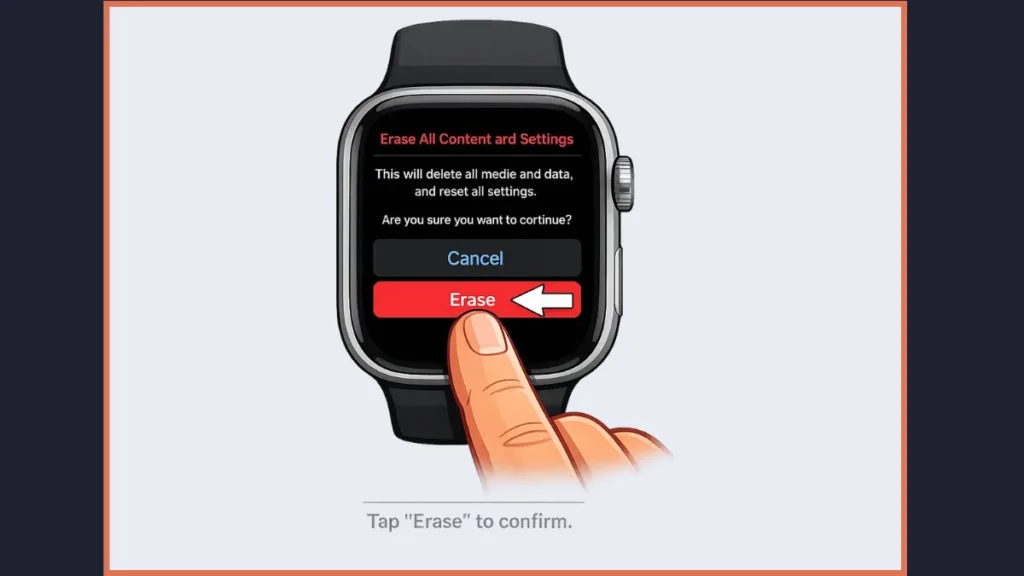
As you wake your Apple Watch, open Settings. Scroll and tap General, then continue until you see Reset. When you tap Erase All Content and Settings, you may pause at the warning screen. This is where many users hesitate because the action is irreversible.
Enter your passcode if prompted. If your watch has a cellular plan, you may see the option to keep or remove it. After you confirm, the watch erases itself and restarts. When you see the setup screen, understand clearly that Activation Lock is still active and the watch remains associated with your Apple ID.
How to Remove Activation Lock After Unpairing Without iPhone
At this point, switch to a browser and sign in to iCloud using your Apple ID. As you open Find My, you will see a list of devices connected to your account. Select your Apple Watch.
If the watch has not finished erasing, erase it first. When that completes, choose Remove from Account. This step permanently detaches the watch from your Apple ID.
“Removing this device will allow it to be activated by another user.”
Once you confirm this action, Activation Lock is removed, and the watch can be set up again without restrictions.
How to Reset Apple Watch Without Passcode (Force Unpair)
If you don’t remember the passcode, connect the watch to its charger and keep it connected. Press and hold the Side button until the power screen appears. When you see it, press and hold the Digital Crown until Reset appears.
Tap Reset and confirm. As the reset begins, the watch erases itself and unpairs. When you try to set it up again, the system will ask for the original Apple ID password, confirming that security remains intact.
What to Do If Apple Watch Won’t Unpair or Gets Stuck
If you notice the unpairing screen taking too long or becoming unresponsive, pause and avoid repeating the action.
Restart both the watch and the iPhone once, then try again. If the Watch app still does not complete the process, removing the watch through iCloud > Find My is the correct fallback. Repeated attempts or force-closing the app often delay resolution rather than fixing it.
Unpairing Apple Watch Before Selling or Giving It Away
Before handing the watch to someone else, look for three confirmations.
The watch should display the pairing screen. Your Apple ID should no longer list the watch under devices. Any cellular plan should be removed if the next owner will not use it. When all three are true, the watch is fully prepared for transfer.
Frequently Asked Questions About Unpairing Apple Watch
Does unpairing an Apple Watch erase it?
Yes. Unpairing erases all data. When done using the iPhone, a backup is created first.
Do you lose data if you unpair your Apple Watch?
No, as long as you unpair using the iPhone. Your data is backed up automatically.
How do you unpair an Apple Watch if you don’t have the phone?
Erase it from Settings, then remove it from your Apple ID via iCloud.
How do you remove Activation Lock from an Apple Watch?
Sign in to iCloud, open Find My, and remove the watch from your account.
Can you reset an Apple Watch without the previous owner?
No. Activation Lock requires the original Apple ID.
How do you force an Apple Watch to unpair?
Reset it using the charger, Side button, and Digital Crown, then sign in with the original Apple ID.
Final Checklist Before Pairing Your Apple Watch Again
Confirm that a backup exists if you needed one. Confirm Activation Lock is removed. Confirm the watch shows the pairing screen. When all three align, you can confidently pair the watch again or pass it on, knowing your data, account access, and security remained protected throughout the process.
Visit Our Post Pagte: Blog Page