
Can’t remove a tag on Facebook? Learn how to untag yourself on Facebook instantly from photos, posts, and stubborn comments using our step-by-step 2026 guide.
We’ve all been there. You wake up to a notification that someone has tagged you in a spammy post, an unflattering photo, or a heated argument in a comment section that you want nothing to do with.
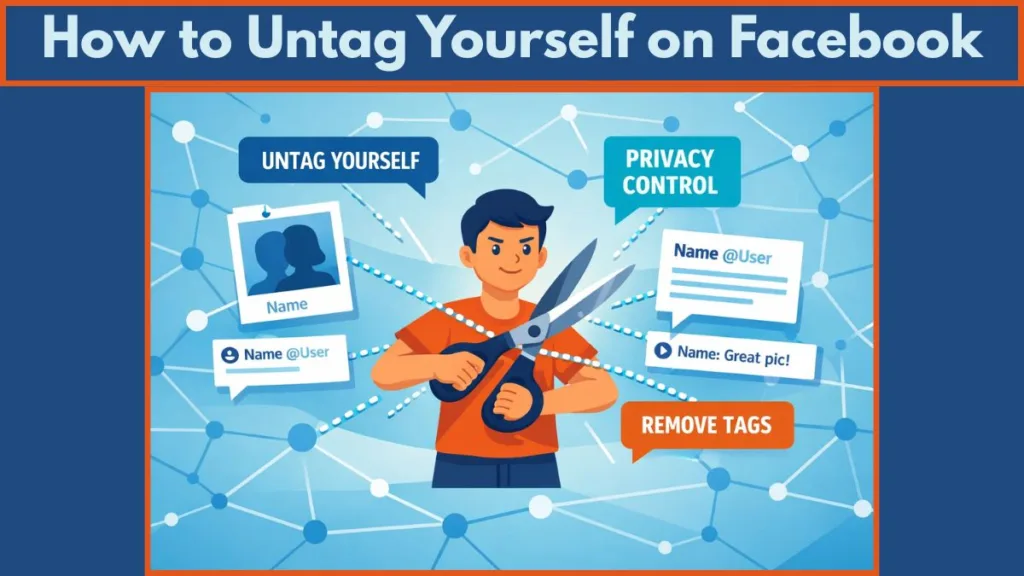
While the social network makes it easy to tag people, they sometimes make it surprisingly difficult to remove yourself from Facebook tags—especially when dealing with comments or malicious spam.
If you are wondering how to untag yourself on Facebook, you are in the right place. This guide will cover the standard methods for photos and posts, how to use the “Activity Log” to bulk untag photos, and a hidden workaround to remove stubborn tags from a comment when the button seems to be missing.
How to Untag Yourself from Facebook Photos and Posts: The Standard Way
For most photos and timeline posts, the process is straightforward. However, keep in mind that when you remove a tag on Facebook, it only removes the post from your timeline.
The content still exists on the other person’s profile (just without your name linked to it).
On Desktop (Web)
- Open the photo or post you are tagged in.
- Click the three dots (…) in the top right corner of the post.
- Select “Remove tag” from the menu.
- Click OK to confirm.
On Mobile (iPhone & Android)
If you are trying to figure out how to untag yourself on Facebook on iPhone or Android, the steps are similar but the location differs:
- Navigate to the post or tap the photo so it opens in full view.
- Tap the Tag Icon (usually at the top right) to see the list of tagged people.
- Find your name in the list and tap on it.
- Select “Remove Tag”.
2025 Update: On some newer versions of the Facebook app, if you do not see the tag icon immediately, tap the three dots (…) in the corner. You may see a menu option labeled “View” or “Manage”. Tap that to reveal the “Remove Tag” option.
How to Remove a Tag from a Facebook Comment: The “Hidden” Trick
This is the most frustrating issue users face. Sometimes, when you want to untag yourself from a comment, you click the three dots and the “Remove Tag” option simply isn’t there. This often happens if you aren’t friends with the person who tagged you, or due to mobile app glitches.
If you can’t find the button, try this “Report Workaround” (a method frequently used by tech-savvy users to force the option to appear):
- Locate the Comment: Find the specific comment where you are tagged.
- Open Options: Click or tap the three dots (…) next to the comment.
- Select Report: Choose “Report comment” or “Give feedback or report this comment.” (Don’t worry, you aren’t actually getting the person in trouble yet).
- Choose “I don’t want to see this”: On the reporting menu, select the option that says “I don’t want to see this.”
- Remove the Tag: Once you select that option, Facebook often presents a secondary menu. Look for a link that says “Remove tag.”
Alternative Method (For Stubborn Tags)
If the above method does not show the “Remove tag” link, users have reported success with this specific path in the latest app version:
- Select “Find Support or Report Comment”.
- Tap on “Spam”.
- On the confirmation screen, look for the option “Untag Yourself From This Comment”.
Important Note: This method breaks the hyperlink to your profile, so you will no longer get notifications. However, your name may still remain in the comment as plain text (black text instead of a blue link).
How to Bulk Untag Photos Using the Activity Log
If you need to clean up your digital footprint and remove tags from multiple photos at once, doing it one by one is too slow. Use the Activity Log settings to handle this in bulk.
- Go to your Facebook profile and tap the three dots (…) near your “Edit Profile” button.
- Select Activity Log.
- Scroll down and select “Activity You’re Tagged In”.
- Select “Photos you’re tagged in” or “Posts you’re tagged in.”
- Check the boxes next to all the posts you want to remove.
- Tap “Remove Tags” at the bottom of the screen.
Update for Bulk Management: In the latest mobile update, look for the “Manage Activity” button at the top of your Activity Log. This often provides a smoother interface for selecting multiple posts to “Archive” or “Untag” in bulk.
Tip: This is the fastest way to audit your profile if you have been tagged in spam bots’ posts.
How to Stop People From Tagging You on Facebook (Prevention)
You can’t technically stop people from typing your name, but you can use privacy settings to stop those tags from appearing on your public profile without your permission. This is essential for social media privacy.
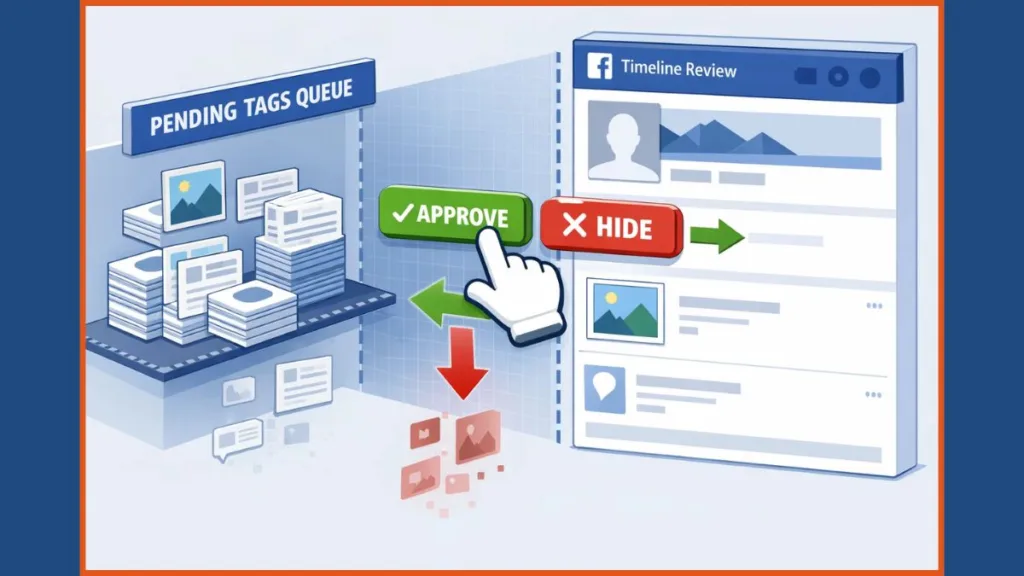
Enable Timeline Review
- Go to Settings & Privacy > Settings.
- Scroll down to Profile and Tagging.
- Look for the Reviewing section.
- Turn ON the switch for “Review posts you’re tagged in before the post appears on your profile.”
Navigation Update: In the modern Facebook Settings menu (Meta Accounts Center layout), you may find “Profile and Tagging” nested under a section called “Audience and Visibility”.
Now, when someone tags you, it will stay in a “Pending” state (often called pending tags). It won’t show up on your wall until you manually approve it.
Pro Tip: Restrict Tag Visibility
If you want to ensure that even if you are tagged, no one else sees it, go to Settings > Audience and Visibility > Profile and Tagging. Find the setting “Who can see posts you’re tagged in on your profile?” and change it to “Only Me”.
Frequently Asked Questions (FAQ)
Does the person know if I untag myself on Facebook?
No. Untagging is a discreet action. Does untagging notify the person? No, Facebook does not send a notification. They will only know if they look at the photo again and notice your name is gone.
Why can’t I untag myself on Facebook comments?
This is often a UI glitch or a restriction based on your friendship status with the commenter. If you are struggling with how to remove a tag from a comment, try using the “Report > I don’t want to see this” method outlined above to force the untag option to appear.
If I untag myself, does the photo get deleted?
No. Untagging only removes the link to your profile. The photo remains on the uploader’s account and news feed. If you want the photo deleted completely, you must ask the person to delete it or report it to Facebook for violating community standards.
Can friends still see untagged photos?
Once you remove yourself from Facebook tags, the photo will no longer appear on your timeline. However, anyone who is friends with the person who posted the photo (or if the post is Public) can still see it on the uploader’s timeline.
Final Thoughts
Managing your privacy on social media can be tricky, but these tools give you control back. We recommend turning on Timeline Review today—it’s the best way to prevent unwanted tags from cluttering your profile in the future.
Did the “Report” trick work for you? Let us know in the comments below!
Visit Our Post Page: Blog Page