
Wondering how to update an Xbox controller on PC without an Xbox console? Learn the two best ways to update your controller using Windows 10/11.
If you want smooth gameplay, better connectivity, and fewer controller issues on your PC, updating your Xbox controller is something you should never ignore. Microsoft regularly releases firmware updates that fix bugs, improve performance, and enhance compatibility with Windows games and platforms like Steam. We recommend you update your Xbox controller on PC whenever an update is available to ensure the best gaming experience.
This guide walks you through every reliable way to update an Xbox controller on Windows 10 or Windows 11, even if you don’t own an Xbox console. More importantly, you’ll also learn how to avoid common update mistakes that often frustrate PC gamers.
Additionally, the Xbox Accessories app now also supports extra features like Copilot mode, button remapping, trigger sensitivity tuning, and profile switching, all of which require your controller firmware to be up to date. Because of this, updating your Xbox controller on PC directly impacts both performance and customization.
Why Updating Your Xbox Controller Matters
Updating your Xbox controller firmware maximises its capabilities and compatibility. While Microsoft doesn’t release controller updates as frequently as Windows updates, firmware updates are critical when they do arrive. In fact, many PC gamers fix controller issues simply by installing the latest firmware.
When you update your Xbox controller on PC, you benefit from:
- Improved wireless and USB connectivity
- Bug fixes that solve random disconnections or input lag
- Better compatibility with Windows games, Steam, and accessories
- Support for new features and performance improvements
For example, many players experience reduced latency in fast-paced games like shooters or racing titles after updating the controller firmware. We guarantee you that keeping your controller up to date reduces common issues many PC gamers face, especially on Windows 11 systems.
How Do You Know If Your Xbox Controller Needs an Update?
You usually know your Xbox controller needs an update when:
- You experience frequent disconnections or lag
- Buttons or triggers behave inconsistently
- Games fail to recognise the controller properly
- The Xbox Accessories app shows an “Update required” message
In addition, if your controller works fine on console but behaves oddly on PC, outdated firmware is often the reason. If no update option appears, your controller is already running the latest available firmware for your PC environment, which generally means no action is needed.
Best Ways to Update Your Xbox Controller on PC
There are two practical ways to update an Xbox controller on a Windows PC. One updates the firmware, and the other updates the driver. Although both are useful, firmware updates should always be your first priority. Therefore, we recommend you start with Method 1, as it’s the official and most reliable approach.
Method 1: The Best Way — Using the Xbox Accessories App
This is the recommended and official method to update your Xbox controller on Windows 10 or Windows 11. Microsoft designs firmware updates specifically to work through this app, which makes it the safest option.
What you need:
To update your Xbox controller on PC, you need a Windows 10 or Windows 11 computer, as the Xbox Accessories app is supported only on these versions. You also need a USB cable that supports data transfer—USB-C is required for newer Xbox Series X|S controllers. Finally, make sure the Xbox Accessories app is installed on your system from the Microsoft Store before you begin the update process.
Using a laptop or desktop PC does not matter, as long as the USB port is stable and the system is fully powered.
Steps to update your Xbox controller on PC:
- Install and open the Xbox Accessories app.
- Connect your Xbox controller to your PC using a USB cable or the Xbox Wireless Adapter for Windows.
- Once connected, the app will automatically detect the controller.
- If an update is required, you’ll see an “Update required” prompt.
- Select it and follow the on-screen instructions.
- Do not disconnect or move the controller during the update process.
- Wait until the update completes (usually takes a few minutes).
After completion, your controller firmware is fully updated and ready to use. At this point, you can also create custom profiles, remap buttons, or test inputs inside the app.
Important notes:
Updating your Xbox controller over Bluetooth is not supported, so you must use a USB cable or the Xbox Wireless Adapter for Windows. Always ensure the cable you use supports data transfer, as charging-only cables can cause update failures. During the update, keep the controller connected and powered at all times, and avoid moving or disconnecting it until the process is complete. If you’re using a stereo headset adapter, keep it attached during the update so it can receive firmware updates as well.
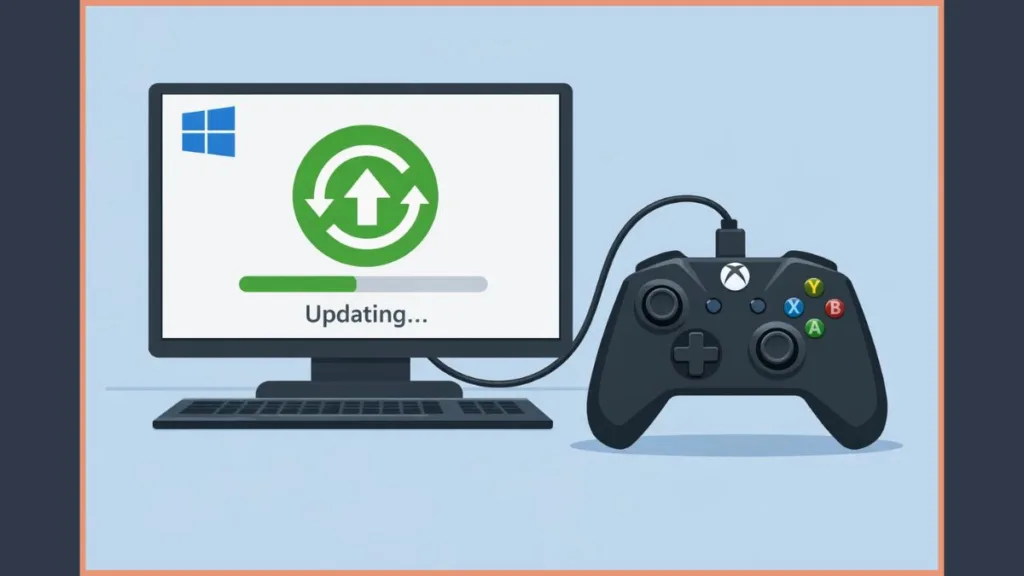
Method 2: Updating Xbox Controller Driver via Device Manager
This method updates the driver, not the firmware. It’s useful if Windows isn’t detecting your controller properly or if the Accessories app fails to recognise it.
Steps:
- Connect your Xbox controller to the PC using a USB cable.
- Open Device Manager.
- Expand Xbox Peripherals or Human Interface Devices.
- Right-click the Xbox controller and select Update driver.
- Choose Search automatically for drivers.
If Windows reports that the best driver is already installed, no further action is needed. However, keep in mind that driver updates do not replace firmware updates.
Update Xbox Controller via USB vs Bluetooth: Which Is Better?
| Feature | USB Connection | Bluetooth Connection |
|---|---|---|
| Firmware updates | Required for firmware updates | Not supported for firmware updates on PC |
| Stability | Stable and fast | May cause connection drops on some systems |
| Microsoft recommendation | Recommended by Microsoft | Not recommended for updates |
| Use case | Best option for updating and gaming | Suitable only for gameplay, not updates |
Because of these differences, we recommend you always use a USB cable or the official Xbox Wireless Adapter when updating your Xbox controller. Bluetooth is convenient, but it is not designed for firmware installation.
Troubleshooting: Xbox Controller Won’t Update
If your Xbox controller won’t update on PC, try these fixes step by step:
- Use a different USB cable that supports data transfer
- Restart your PC and reopen the Xbox Accessories app
- Make sure Windows 10 or Windows 11 is fully updated
- Re-pair the controller if Bluetooth or Wireless errors occur
- Disconnect Bluetooth and use a wired connection instead
- Do not remove accessories during the update
- Try a different USB port on your PC
FAQ: Xbox Controller Update Questions
Does updating the controller improve performance?
Yes. Firmware updates can improve stability, connectivity, and overall controller responsiveness. In many cases, updates also reduce input delay and fix trigger or stick calibration issues. We recommend you install available updates when prompted.
Can you update your Xbox controller without the Accessories app?
On a PC, no. The Xbox Accessories app is required for firmware updates. Without it, you can only update drivers or use console-based update methods.
How do you know if your Xbox controller needs an update?
If the Xbox Accessories app shows an update prompt or you face connection or performance issues, your controller likely needs an update.
Can you update an Xbox controller wirelessly on PC?
Not directly over Bluetooth. Bluetooth updates aren’t supported on PC. You must use USB or the Xbox Wireless Adapter.
Final Thoughts
If you want the best performance from your Xbox controller on PC, keeping it updated is essential. We recommend you use the Xbox Accessories app and a USB connection for the safest and most effective update process. This simple step can eliminate many common controller problems and ensure smooth, uninterrupted gameplay.
If you follow this guide, we guarantee you’ll have a fully updated Xbox controller ready for any PC game.
Useful Resources & References
If you want official tools and reliable help related to updating your Xbox controller on PC, these resources are worth bookmarking:
Official Tools & Downloads
Xbox Accessories (Microsoft Store) – The official app required to update Xbox controller firmware, remap buttons, and customise controller settings on Windows 10/11.
Xbox Accessories App Support – Microsoft’s official guide explaining how the Xbox Accessories app works and how it helps manage Xbox controllers.
Official Support & Troubleshooting
Update Your Xbox Wireless Controller – Microsoft’s step-by-step support page covering controller updates via PC, USB, or console.
Controller Firmware Troubleshooter – Official help if your Xbox controller won’t update or the update fails.
Update the Xbox Adaptive Controller – Dedicated guidance for users updating the Xbox Adaptive Controller firmware.
We recommend you rely on these official resources to ensure safe updates, accurate instructions, and the best long-term controller performance on PC.
Visit Our Post Page: Blog Page