
Want to upload contacts to Gmail? Learn 4 simple ways to upload contacts to Gmail in 2026, including step-by-step guides for Excel and mobile.
Introduction: Why Uploading Contacts to Gmail Matters
If you use Gmail for work, business, or personal communication, having an organized and complete contact list saves you time and prevents mistakes.
In today’s fast-paced digital environment, efficiency is everything. Manually typing email addresses one by one is not only slow, but it also increases the risk of errors and missing important connections. Imagine the frustration of losing a potential client’s details simply because of a typo or a lost business card. The modern professional relies on speed and accuracy, and a fragmented address book acts as a bottleneck to productivity.
Whether you are switching from another email service like Yahoo or Outlook, setting up a new Gmail account, managing multiple accounts, or backing up your contacts to the cloud, knowing how to upload contacts to Gmail gives you full control over your address book.
Key Benefit: By mastering this process, you ensure that your network is safe, searchable, and synced. This synchronization extends beyond just email; it integrates with your calendar, Google Maps, and even your phone’s dialer.
You can add a single contact in seconds or upload thousands of contacts in bulk using the right method, transforming a chaotic list of numbers into a powerful networking asset.
In this guide, you’ll learn four proven ways to upload contacts to Gmail, suitable for both beginners and advanced users. We recommend you choose the method based on how many contacts you need to add and the device you’re using.
What Are the Different Ways to Upload Contacts to Gmail?
Understanding the available tools is the first step toward digital organization. Gmail offers multiple built-in options to add or import contacts, ensuring flexibility regardless of your technical skill level.
Overview of Methods
There are several distinct approaches designed for different situations. One option is saving a contact directly from an email you have already received, which is ideal for making immediate connections without leaving your inbox. This method captures the sender’s details exactly as they appear in the message header.
Another approach involves manually adding contacts using the Google Contacts interface, a method that is perfect for detailed data entry where you need to input specific fields like physical addresses, birthdays, or job titles.
For those dealing with large datasets, uploading contacts in bulk using a CSV or vCard file is the best choice. This is particularly useful for Excel users and large database migrations where manual entry would be impossible.
Finally, you can choose the option of transferring contacts from another Gmail account, which becomes essential during rebranding, changing jobs, or account consolidation.
Quick Summary: If you only want to save one or two people, manual methods work well. If you want to upload hundreds or thousands of contacts, importing a file is the fastest and safest option.
4 Methods to Upload Contacts to Gmail
Below are the four most reliable methods you can use to upload contacts to Gmail. You can use one method or combine multiple methods depending on your needs.
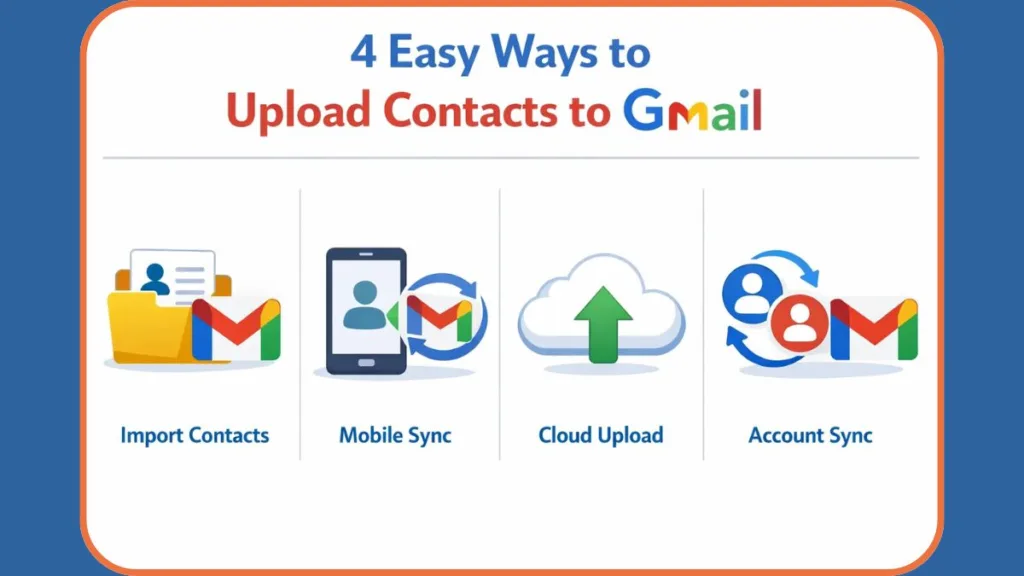
Method 1: Add Contacts to Gmail from a Received Email
Usage Guide: This method is best for saving 1–2 contacts quickly, though it is not recommended for bulk uploads.
This is the simplest method and takes less than a minute. If someone emails you and you want to save their contact details, Gmail lets you do it directly from the message. This seamless integration allows you to build your address book organically as you communicate, ensuring you capture active connections.
Steps to Add a Contact from an Email
To begin, open your web browser and sign in to your Gmail account. Navigate through your inbox to locate and open the email from the person you want to add.
Once the email is open, hover over or click the sender’s profile picture or name to trigger the contact card. This small pop-up window displays their basic information.
Finally, click the Add to Contacts icon, which looks like a user with a plus sign.
The contact is instantly saved to your Gmail contacts list.
You can follow these steps on desktop, mobile, or tablet. However, we recommend this method only when you’re saving a small number of contacts, as it becomes very slow for large lists. Furthermore, this method often only saves the name and email; you may need to edit the entry later to add phone numbers.
Method 2: Add Contacts Using Google Contacts (Manual Entry)
Usage Guide: This approach is best for adding small lists or managing contacts manually.
Using Google Contacts, you can manually create and manage contacts that automatically sync with Gmail. This method provides the most control over specific data fields, such as job titles, company names, and phonetic pronunciations, ensuring your database is rich with detail.
On Desktop
Start by opening your browser and signing in to Gmail. Look for the Google Apps icon (the nine dots) in the top-right corner to reveal the ecosystem menu and open Google Contacts.
From there, click the Create Contact button located in the top left corner. You can then enter the contact’s name, email address, phone number, and other details like physical address or birthday.
Once finished, click Save.
Note: To add multiple contacts manually, choose Create Multiple Contacts, enter details for each contact, and save them together. This feature uses a label system to group these new entries immediately, keeping your list organized from the start.
On Android
Open the Contacts app on your Android phone or tablet and tap the + (Add) icon usually found in the bottom corner.
You must then choose your Google account as the save location.
Crucially: Ensure you do not select “Device Storage” or “SIM Card,” as those will not sync to the cloud.
Enter the contact details and tap Save.
The contact will sync automatically with Gmail, becoming available on any other device you log into.
On iPhone (iOS)
Open the Contacts app on your iPhone or iPad and tap the + icon. Enter the contact details and tap Done.
Next, navigate to your device settings to ensure these sync with Google. Open Settings → Contacts → Accounts, add your Gmail account if it isn’t there already, and enable Contacts sync.
This ensures all newly added contacts appear in Gmail. By bridging the Apple and Google ecosystems, you ensure data availability across all platforms.
Pro Tip (Mobile Sync): If you are switching phones and want to upload your entire existing phone book to Gmail, you don’t need to add them one by one. Go to your phone’s Settings > Accounts > Google > Sync and toggle “Contacts” to ON. This acts as an automated background upload service.
Method 3: Bulk Import Contacts to Gmail from Excel (CSV) or vCard
Usage Guide: This method is best for bulk uploads involving hundreds or thousands of contacts. Key terms to remember here include Import contacts to Gmail from Excel, CSV import, and Google Contacts template.
If you want to upload many contacts at once, this is the fastest and most efficient method. We recommend this approach for professionals, businesses, and anyone migrating contacts from another service like Outlook, Salesforce, or HubSpot.
Before You Start: The CSV Formatting Guide
To avoid “Import Failed” errors, your file must be formatted correctly because Google requires a specific schema to understand your data.
First, you must prepare a CSV (Comma-Separated Values) or vCard (VCF) file, which you can create using Microsoft Excel, Google Sheets, or Apple Numbers.
Crucial Step: Ensure the file includes clear headers in the first row. Google prefers standard headers such as
First Name,Last Name,Email Address, andPhone Number. Using these exact headers helps Google map the data to the correct fields automatically.
Additionally, note that Gmail allows you to import up to 3,000 contacts at a time.
Warning: If you have more than 3,000 contacts, you must split the file into smaller batches to prevent browser timeouts and API errors.
Steps to Upload Contacts Using a CSV File
Begin by opening your browser and navigating to Google Contacts (contacts.google.com).
On the left menu, click Import and then click Select File.
Choose your CSV or vCard file from your computer.
Finally, click Import and wait for the process to complete.
Once finished, all contacts from the file will appear in Gmail and across your Google services. You will see a “Imported on [Date]” label applied to these contacts, making it easy to review them as a group and verify the upload was successful.
Common Issues and How to Avoid Them
Several issues may arise during this process. Formatting errors are common, so use Google’s recommended CSV format listed above; if you are unsure, you can export a blank template from Google Contacts first to see the correct headers.
Duplicate contacts can also occur, so review your list and use the “Merge & fix” option in Google Contacts, which intelligently scans for matching emails or names.
To avoid import failures, split large files into smaller batches.
Data Safety: Finally, to mitigate data loss risk, always back up your existing contacts before importing.
Method 4: Import Contacts from Another Gmail Account
Usage Guide: This method is best for switching or merging Gmail accounts.
This method helps you move contacts from an old Gmail account to a new one. This is particularly common when leaving a job or graduating from a university with a student account that is about to expire.
Steps to Export Contacts from the Old Account
First, sign in to your old Gmail account and open Google Contacts.
Click the Export button and select the contacts you want to transfer.
Choose Google CSV as the format and download the file. This format is natively optimized for re-importing into the Google ecosystem, ensuring no data fields are lost in translation.
Steps to Import into the New Account
Sign out of the old account and log in to your new Gmail account.
Open Google Contacts and click Import.
Select the exported CSV file and confirm the import.
After processing, your contacts will appear just like they did in the old account. This seamless transfer preserves not just names and numbers, but also notes and address data.
Tips to Upload Contacts to Gmail Without Errors
To ensure your data remains pristine during the transfer, consider these best practices.
Use the Correct Format: Always use the correct format by ensuring your file is saved as .csv or .vcf, as standard Excel files (.xlsx) will not work directly.
Batch Your Uploads: You should also batch your uploads by importing contacts in smaller batches (under 3,000) to prevent freezing, which also makes troubleshooting easier if an error occurs.
Review and Merge: It is vital to review after uploading to check for jumbled names or missing numbers immediately, as custom fields sometimes do not map correctly without manual intervention. Additionally, merge duplicates using the built-in tool to clean up your list, as Google Contacts is excellent at identifying when “John Doe” and “J. Doe” share the same email.
Important: Back up first by exporting your current contacts before making major changes, as a simple export acts as a restore point should anything go wrong.
We recommend following these tips to avoid common mistakes and ensure a smooth upload process.
Frequently Asked Questions (FAQs)
How do I upload contacts to Gmail?
You can add contacts manually, import a CSV file, save contacts from emails, or transfer them from another Gmail account. The bulk import method is best for large lists, while manual entry offers precision for individual additions.
Can I upload contacts to Gmail from Excel?
Yes. However, you cannot upload an .xlsx file directly. You must go to File > Save As in Excel and choose CSV (Comma Delimited). Then, import that file using Google Contacts.
How do I import contacts into Google Contacts?
This is the same as uploading to Gmail. Go to contacts.google.com, click Import in the sidebar, and select your file. The contacts will automatically appear in Gmail once the upload is complete.
What file format does Gmail use for contacts?
Gmail primarily supports CSV (Comma-Separated Values) and vCard (VCF) formats. CSVs are best for transferring from Outlook or spreadsheets, while vCards are standard for Apple devices.
Can I upload contacts to Gmail from my phone?
Yes. On Android, you can sync your device contacts to Google via Settings > Google > Settings for Google Apps > Google Contacts sync. On iPhone, go to Settings > Contacts > Accounts, add your Gmail account, and toggle “Contacts” to ON.
Why are my contacts not importing into Gmail?
This usually happens due to formatting issues (bad headers) or file size limits. Check that your CSV columns match Google’s standard fields (Name, Email, Phone) and that the file is not corrupted.
How do I merge duplicate contacts in Gmail? Open Google Contacts and look for the “Merge & fix” option in the left sidebar. Google will scan your list and suggest duplicates that can be combined into a single entry with one click.
How to fix Gmail contacts import not working?
If the import fails, try these steps: 1) Ensure headers are correct (e.g., “First Name”, “Email”). 2) Save the file as CSV (Comma delimited). 3) Split the file if it has more than 3,000 rows. 4) Use the “Google CSV” format when exporting from another account.
How to convert Excel to Gmail contacts CSV?
Open your Excel spreadsheet, click on File, then select Save As. In the file format dropdown menu, choose CSV (Comma delimited) (*.csv). This creates a file compatible with Google’s import tool.
Why aren’t my Gmail contacts showing after import?
It may take a few minutes for the sync to complete across devices. Refresh the page. Also, check the “Imported on [Date]” label in the sidebar; your contacts might be there but not yet merged with your main “Contacts” list.
Common Problems When Uploading Contacts to Gmail
Users frequently encounter specific hurdles during the upload process.
Why Aren’t They Showing Up Yet?
Contacts not appearing after import is a common issue that can often be resolved by refreshing the page or checking your internet connection to ensure the sync has completed.
Is Your CSV File Acting Weird?
CSV file errors may arise if there are special characters causing breaks in the file, which often happens when importing from non-English databases.
Seeing Double? (Duplicate Entries)
Duplicate entries are another possibility, where you may have uploaded the same person twice; in this case, use the “Merge & Fix” tool.
Why Is Some Info Missing?
Finally, if you notice missing names or email addresses, check your original spreadsheet to ensure the data was in the correct columns.
Note: Most of these issues can be fixed by correcting the file format or reviewing contacts after import.
Pros and Cons of Uploading Contacts to Gmail
When considering whether to upload contacts to Gmail, it is helpful to weigh the advantages against the potential downsides.
| Aspect | Details |
| Pros | Saves time, supports bulk uploads, centralizes contacts, syncs across all Google services & devices. |
| Cons | CSV formatting issues can be tricky, potential duplicates, initial setup time for large lists. |
Final Thoughts: Choose the Right Method for Your Needs
Uploading contacts to Gmail doesn’t have to be complicated. If you only need to save one contact, manual methods work well. If you’re dealing with large lists, CSV imports are the most reliable option.
We recommend choosing the method based on your situation and always backing up your contacts before making changes. Once uploaded, your contacts are available across Gmail and other Google services, helping you stay organized and connected without effort.
Visit Our Post Page: Blog Page