
Can you use a Mastercard gift card on Amazon? Learn how to use it on your Amazon account and use leftover balance easily without declined payments.
If you want to use a Mastercard gift card on Amazon, you absolutely can—but only if you do it the right way.
Consequently, you might run into declined payments, split-payment issues, or unused balances simply because Amazon handles prepaid cards differently than standard bank-issued credit or debit cards.
Unlike traditional cards linked to a bank account, Mastercard gift cards are prepaid. That single difference is the reason behind most of the checkout failures you encounter.
If you do not understand how Amazon verifies payments, you risk seeing error messages, losing time, or leaving money unused on the card.
In this guide, we show you exactly how to use a Mastercard gift card on Amazon, the specific mistakes you must avoid, and the best method that we guarantee will ensure your balance doesn’t go to waste, even if you only have a small amount left.
Quick Answer: Can You Use a Mastercard Gift Card on Amazon?
Yes. However, we recommend you use the most reliable method, which is to reload your Amazon Gift Card balance using the prepaid Mastercard first.
- Why? Specifically, this approach prevents “insufficient funds” declines and allows you to split payments—something Amazon does not allow when you try to use a prepaid card directly at checkout.
- The Fix: Jump to Method 2 (The Reload Trick) if you want to avoid headaches, failed transactions, and wasted balances.
Can You Use a Prepaid Mastercard on Amazon? (Yes, but There’s a Catch)
Amazon accepts Mastercard as a payment method, which means your prepaid Mastercard gift card technically works like a debit card.
However, the catch is that Amazon does not fully support prepaid cards the same way it supports regular credit cards. This limitation leads to three major problems that you are likely to face if you try to use the card directly.
The 3 Main Problems You Might Face
1. Declines & “Payment Revision Needed” Errors Amazon runs a “test charge,” also known as an authorization hold, before approving your payment. If the system cannot verify sufficient funds beyond the purchase amount, the transaction fails.
In many cases, you may even see a success message initially, followed by an email titled “Payment Revision Needed,” indicating Amazon later rejected the card during the final processing stage.
2. No Split Payments at Checkout Amazon does not allow you to split a single transaction between a prepaid card and another card.
For example, if your cart total is $55 and your Mastercard gift card has $50, the transaction will fail—even though you are only short by $5.
3. Recurring Bills Are Blocked You generally cannot use prepaid Mastercard gift cards for recurring subscriptions like Amazon Prime, Kindle Unlimited, or Audible.
These services require a payment method with a renewable line of credit, which prepaid cards do not have.
To avoid all three issues, we recommend you use Method 2 below.
What You Need Before Using a Mastercard Gift Card on Amazon
Before you try to check out, you must ensure the card is fully ready for online use.
If you skip this step, Amazon will likely reject the card immediately—no matter how much money is on it.
You need:
- The 16-digit card number
- The expiration date
- The CVV code
A Registered Billing Address (Critical Step)
Most prepaid cards—such as Vanilla, OneVanilla, or GiftCardMall—do not come with a billing address attached by default.
Therefore, you must visit the website listed on the back of your card (for example, Vanila Gift, MyBalanceNow, or PrepaidGiftBalance) and register your current ZIP code.
Important: Amazon verifies payments using the Address Verification System (AVS). If the ZIP code does not match exactly, the transaction fails instantly.
Check Brand-Specific Rules
If you are using a Vanilla or OneVanilla card, we recommend you wait at least 60 minutes after registering your ZIP code before using the card on Amazon. Their systems often lag when updating address information.
Alternatively, if you have a Secure Spend or Green Dot card, you may need to log into the issuer’s app and manually enable “Online Transactions” or “International Use” (even for U.S.-based websites) to avoid automatic security blocks.
Avoid Dormancy Fees
Many prepaid cards charge a “Dormancy Fee” (often around $3.95 per month) if the card is unused for 90 days.
However, if you live in states like California or New York, state laws may prohibit these fees for at least 12 months.
Regardless of where you live, using the full balance quickly—especially by reloading your Amazon balance—prevents your money from being slowly drained by these hidden costs.
Method 1: Add the Card as a Payment Method (Standard Way)
Best for: One-time purchases where the card balance is significantly higher than the purchase total.
This is the standard checkout process. It works only if your purchase amount is lower than the funds on the card by at least $1.00.
Step-by-Step Instructions:
- Go to Your Account > Your Payments on Amazon.
- Select Add a payment method > Add a credit or debit card.
- Enter your Mastercard gift card details carefully.
Pro Tip: For the “Name on Card” field, if your card does not have your name printed on it, we suggest you enter something that matches the card wording, such as “Gift Card Recipient” or “A Gift For You.” This can reduce rejection odds.
- When asked for a billing address, make sure it matches the ZIP code you registered with the card issuer.
- Save the card and proceed to checkout.
Important Limitation: The $1 Authorization Hold
Amazon places a temporary $1.00 authorization hold to verify new cards.
If you have a $50 card and try to buy a $50 item, Amazon attempts to charge $51 (purchase + hold). As a result, the transaction declines due to “Insufficient Funds.”
To fix this, we recommend you always leave a buffer. If you have a $50 card, only attempt to spend $49.00.
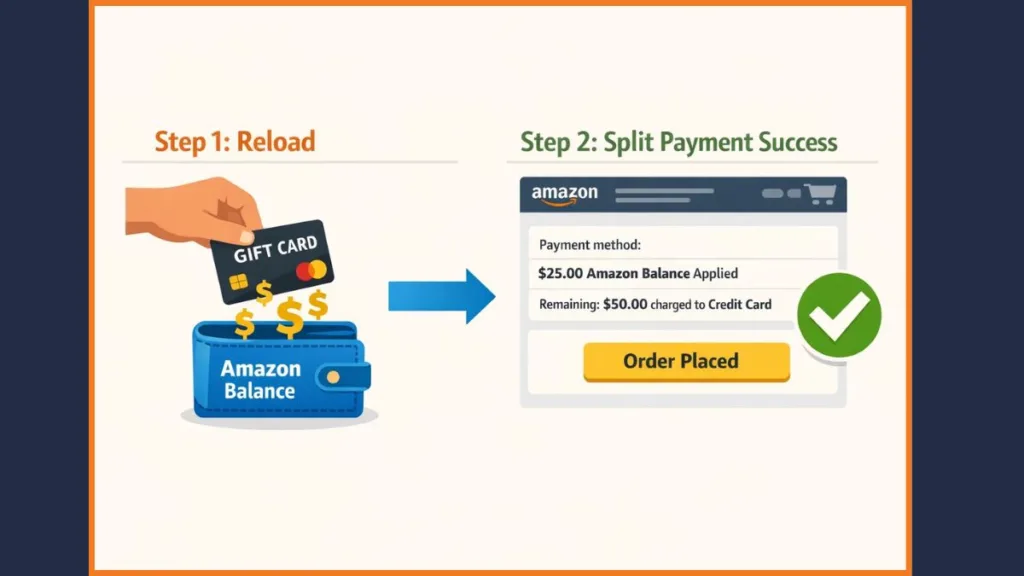
Method 2: Reload Your Amazon Balance (The “No-Fail” Method)
Best for: Splitting payments, using the full balance, and avoiding declines entirely.
This is the industry-standard workaround that we guarantee works best. By turning your prepaid funds into Amazon Balance, you bypass authorization holds and Amazon’s “no split payment” restriction.
Why This Method Works Best:
- No $1 Hold Issues: You can load a precise amount while leaving a small buffer.
- Split Payments Enabled: Amazon Balance can be combined with a credit or debit card at checkout.
- Funds Never Expire: Unlike prepaid cards, Amazon Balance remains valid indefinitely.
Step-by-Step Instructions:
- Navigate to Reload Your Balance on Amazon (found under “Gift Cards” or by searching “Reload Balance”).
- Check your prepaid card balance on the issuer’s website.
- Enter the reload amount.
Pro Tip: If your card has exactly $50.00, we recommend you reload $49.00 first. This leaves room for the authorization hold.
- Select Add a card and enter your prepaid Mastercard details.
- Complete the reload. Funds usually appear in your Amazon Balance within five minutes.
- Clean-Up Step: After 3–5 days, the $1 hold disappears. You can then reload the remaining dollar if desired.
Minimum Note: The minimum reload amount is typically $0.50 or $1.00 depending on your region.
How to Use a Partial Mastercard Gift Card Balance
Imagine you have $24 left on a gift card, but you are eyeing a $100 item.
Naturally, you might want to use that $24 first and pay the rest with your credit card. However, this is difficult because Amazon does not allow you to split payment between two cards at checkout.
As a result, you might be tempted to abandon small balances entirely.
The Solution: Fortunately, there is a simple fix. We recommend you use Method 2 above to reload your Amazon Balance with that exact $24.
Once the funds are in your account, proceed to checkout for your $100 item. Amazon will automatically apply the $24 balance first, and then you can easily charge the remaining $76 to your main credit or debit card.
Alternative Options (Advanced Users): If you prefer using third-party tools, services like Kasheesh allow you to “stack” multiple prepaid cards into one virtual debit card to use at checkout. While effective, this adds an extra step.
Similarly, apps like Prepaid2Cash will buy your card if you simply want the cash in your bank account.
However, we warn you that they charge high fees (often 5–15%), so using the Amazon Reload method remains the best value for getting every cent out of your card.
Troubleshooting: Why Was My Mastercard Gift Card Declined?
If your transaction failed, it is almost always due to one of the following reasons. Here is how you can fix them quickly.
1. The “Ghost” Authorization Hold If you attempted to spend the exact balance on your card, this is likely the culprit. Amazon tries to authorize a slightly higher amount to check the card’s validity.
We recommend you simply reduce the transaction amount by $1.00 to resolve this.
2. Missing Billing ZIP Code If the issuer has no ZIP code on file, Amazon’s security check will fail. You should register the ZIP code on the issuer’s website immediately.
If the website does not support this, we suggest you try using your shipping address as the billing address—sometimes this works if the card has lax AVS settings.
3. Recurring Payment Flags (Prime Subscriptions) If you are trying to pay for Prime or another subscription directly, the transaction will likely be blocked.
To get around this, reload your Amazon Balance first. Then, go to Your Prime Membership settings, select Change Payment Method, and check the box that says “Use your Gift Card Balance.”
Refund Timelines: If you cancel an order, Amazon Balance is refunded almost instantly. However, refunds to a Prepaid Mastercard take 3–5 business days, and sometimes up to 30 days depending on the issuer.
We strongly recommend you never throw away the physical card until you are sure you will not need a refund!
Brand-Specific Notes (Vanilla & OneVanilla)
If you are using Vanilla or OneVanilla cards, patience is key. You should wait up to 60 minutes after registration before retrying a transaction, as their servers can be slow to update.
Alert: As of late 2024, the MyVanilla app is being discontinued—we advise you to use the website only for balance checks to avoid errors.
For Secure Spend or Green Dot users, remember that you must enable “online transactions” manually in the app or website settings before the card will work.
FAQ: Mastercard Gift Cards on Amazon
How do I add a prepaid Mastercard to my Amazon wallet?
Go to Your Payments > Add a payment method and enter the card details after you have registered the ZIP code.
Why is my Mastercard gift card declined on Amazon?
Most failures happen due to the $1 authorization hold or a missing billing ZIP code.
Can I split payment between a prepaid card and a credit card?
Not directly. We guarantee the only way to do this is to reload your Amazon Balance with the prepaid card first.
Do I need to register my Mastercard gift card? Yes. Amazon requires an AVS check, and unregistered cards usually fail.
Final Recommendation
We recommend you stop trying to use the card directly at checkout—it is prone to errors, declines, and wasted balance.
Save time and frustration by using Method 2: Reload your Amazon Balance with the prepaid funds. This approach guarantees you can use every cent, avoid dormancy fees, and combine payments seamlessly for larger purchases.
Visit Our Post Page: Blog Page