
Want to use Microsoft Teams effectively? Discover proven Teams tips, channel organization strategies, and admin best practices to boost your daily productivity.
Most companies use Microsoft Teams as a glorified chat box, completely missing the fact that they are sitting on a fully integrated, AI-powered digital workspace. Microsoft Teams is more than just a messaging app. It’s a powerful collaboration hub designed to centralize communication, meetings, file sharing, and project management in one place. Yet many teams only scratch the surface—using it for simple chat and video calls while missing the deeper features, automation bots, and newly released AI capabilities that truly drive productivity.
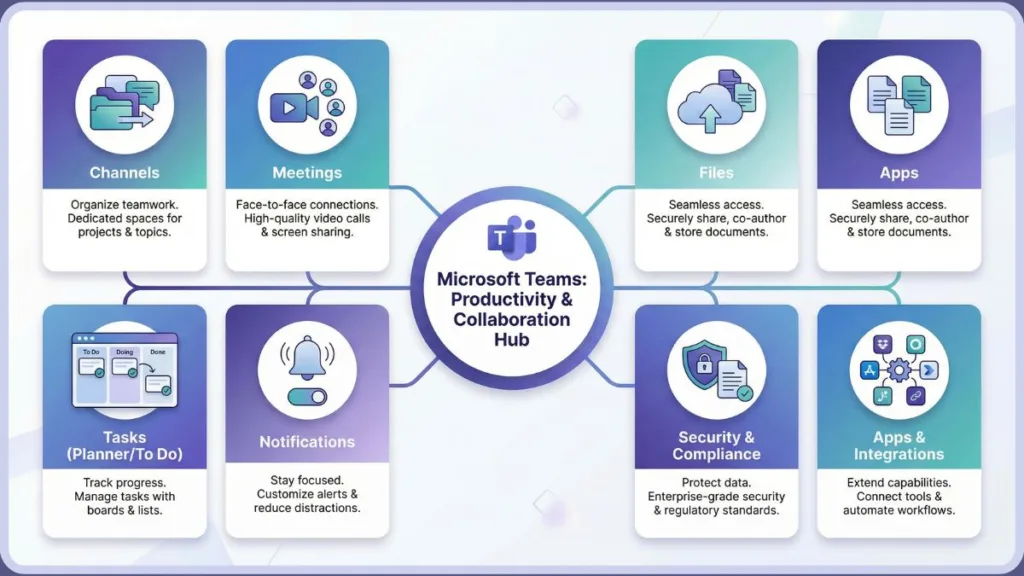
With over 320 million daily active users, Microsoft Teams has become one of the most widely used collaboration platforms in the world. Included with most Microsoft 365 subscriptions, it integrates seamlessly with tools like SharePoint, OneDrive, Outlook, OneNote, Planner, and now Microsoft Copilot, making it a complete digital workspace rather than a standalone chat tool.
If you’ve ever felt overwhelmed by endless channels, constant pinging notifications, or scattered files, you’re not alone. This complete Microsoft Teams guide will walk you through how to use Microsoft Teams effectively—covering organization, meetings, collaboration features, advanced AI integrations, governance, remote work strategies, and best practices that actually make a measurable difference.
Microsoft Teams Tutorial: Understanding Teams Collaboration Features
Before diving into advanced tips, it’s important to understand how Microsoft Teams is structured. Many inefficiencies begin with simply misunderstanding the architecture of the platform.
At its core, Teams consists of:
- Teams – Groups of people collaborating on a project, department, or initiative.
- Channels – Dedicated spaces inside a team for specific topics.
- Chat – Private one-to-one or group conversations. (Note: Microsoft’s new 2025 Unified Chat and Channels view now merges these to reduce context-switching!)
- Meetings & Calls – Video conferencing and voice communication.
- Files – Document storage powered by SharePoint.
- Apps & Integrations – Tools that extend functionality (like Trello or Jira).
- Tabs – Customizable app placements within channels.
- Bots & AI tools – Automated assistants (like Copilot) for productivity.
Channels vs Teams: What’s the Difference?
A Team is the container. Channels are subdivisions within it. For example, a “Marketing Team” might include channels like “Campaigns,” “Content,” and “Social Media.”
Understanding channels vs teams helps avoid clutter. Instead of creating multiple separate teams for similar projects, structure them into organized channels under one umbrella Team.
Teams also supports different access levels for channels:
- Standard channels: Open to all members.
- Private channels: Restricted access (invite-only within the team).
- Shared channels: Cross-organization collaboration without giving full guest access to your entire tenant.
Choosing the right type improves governance and collaboration clarity.
Teams Status and Presence
Your availability indicator (Available, Busy, Away, Do Not Disturb) helps teammates understand when to reach out. You can update status manually or use slash commands in the top search bar like:
/available/away/busy/dnd(Do Not Disturb)
Presence syncs automatically with your Outlook calendar, meaning if you’re in a scheduled meeting, your status reflects that. This reduces unnecessary interruptions and improves communication flow in remote teams.
Pro Tip: You can also set a Status Duration. Click your profile picture, set your status, and select “Duration” so it automatically reverts back when you are done with a task.
How to Organize Teams Channels for Better Productivity
One of the biggest reasons Teams becomes chaotic is poor structure. A clean setup saves hours every week and prevents communication silos.
Avoid Duplicate Team Names
Microsoft allows duplicate names by default. That’s risky. Before creating a team, search for existing names to prevent confusion. For example, two departments might create “Website Redesign” teams separately. Over time, this leads to lost files and mixed conversations. Always verify naming before launching a new team. ### Establish Clear Naming Conventions
Use structured formats like:
- Project – Department – Region (e.g., Project_Alpha_Marketing_US)
- Client – Campaign – Year * Department – Country
Naming conventions help users quickly identify where conversations belong, especially in large organizations where employees are part of multiple teams.
For IT Admins: You can enforce these automatically using Microsoft Entra ID P1 naming policies so users cannot create non-compliant team names.
Create Teams Per Project
If people are working on multiple complex projects, create dedicated teams per project instead of mixing discussions in one place. This prevents cross-project confusion and improves file searchability.
Use Standard, Private, and Shared Channels Wisely
- Standard channels: Open to everyone in the team.
- Private channels: Limited members for focused collaboration (creates a separate, secure SharePoint sub-site).
- Shared channels: Collaborate with external partners without granting full team access.
Good Teams governance starts with thoughtful channel organization and clarity about communication purpose.
Microsoft Teams Tips and Shortcuts to Work Faster
Small productivity features can significantly reduce friction in daily work. These micro-optimizations compound over time.
Teams Keyboard Shortcuts
Keyboard shortcuts save time during calls and chats. Mastering Teams keyboard shortcuts eliminates repetitive mouse navigation and speeds up workflow significantly.
- Ctrl + Shift + M → Mute/unmute
- Ctrl + N → New chat
- Ctrl + Shift + K → Raise hand
- Ctrl + Shift + O → Toggle video
- Ctrl + E → Jump to search bar
- Ctrl + Shift + P → Blur background instantly
To see all shortcuts at any time, press: Ctrl + . (For Mac users, swap Ctrl with Cmd).
Slash Commands and Search Operators
Use slash commands in the top search bar for instant navigation:
/goto→ Navigate to a specific channel/call→ Start a call with someone/appname→ Launch an app/saved→ View all your bookmarked messages
Advanced Search Operators (Keyword Query Language):
Stop losing old messages. Type these modifiers directly into the search bar:
From:Jane Doe(Finds messages specifically from Jane)In:Marketing Team(Restricts search to a specific channel)Subject:Q3 Report(Searches only subject lines)
Use @Mentions Strategically
Tag individuals or teams using @Name. Avoid overusing mentions, as excessive notifications reduce effectiveness. Use channel mentions (@channel) sparingly to avoid alert fatigue across the whole department.
Pin Important Chats and Rename Them
Pin high-priority conversations so they stay at the top. This ensures important client or project discussions remain visible.
Power User Tip: Click the pencil icon at the top right of a group chat to Rename the Chat (e.g., “Q3 Launch Brainstorm” instead of just a list of five coworkers’ names).
Schedule Messages for Later
Right-click the send button to schedule messages. This is especially helpful for remote teams in different time zones and supports healthier work-life boundaries.
Use Immersive Reader
Hover over a long message, click on the three-dot menu, and select “Immersive Reader.” This removes distractions, enlarges the text, and can even read the message aloud to you—great for processing dense information.
Teams Meeting Tips: How to Use Microsoft Teams Effectively for Meetings
Meetings are central to collaboration. Here’s how to make them productive instead of time-consuming.
Schedule Meetings in Teams
Use the Teams calendar to schedule meetings directly. This integrates with Outlook automatically and centralizes communication. Teams also allows “Meet Now” for instant discussions without leaving a channel.
Teams Video Call Best Practices
- Use background blur or custom backgrounds: Keep your personal space private.
- Turn on Together Mode: Places participants in a shared virtual background (like an auditorium) to reduce meeting fatigue.
- Share screen effectively: Use “PowerPoint Live” to present so you can still see the audience and your notes simultaneously.
- Use breakout rooms: Teams breakout rooms are especially useful for training sessions, workshops, and brainstorming.
- Record meetings for documentation: Store them directly in OneDrive/SharePoint.
- Enable live captions for accessibility: The 2025 updates now include an Interpreter agent that allows participants to speak and listen in their preferred languages through real-time speech-to-speech interpretation.
Capture Notes and Assign Tasks
Integrate OneNote for structured notes. Use Planner or the To-Do tab to assign tasks. Turning discussions into actionable items is one of the best Microsoft Teams best practices.
With Copilot in Teams, you can now generate meeting notes and exact task assignments automatically based on the meeting transcript!
Teams Troubleshooting Audio
If audio fails:
- Check device settings within Teams (gear icon).
- Test microphone in device settings.
- Restart Teams.
- Verify internet stability.
- Update device drivers.
Proactive testing prevents delays. Microsoft has also rolled out Voice Isolation mode, an AI-powered noise suppression feature that learns your voice profile and actively blocks out other people talking in your background.
Teams File Sharing and Document Collaboration Best Practices
Files in Teams are powered by SharePoint. Understanding this backend structure prevents document confusion.
How to Share Files in Microsoft Teams
Upload documents via the Files tab. They are automatically stored in SharePoint under the associated team site.
Never use private chats to store long-term project files, as those are stored in your personal OneDrive rather than the shared team SharePoint, making them harder to recover if you leave the company.
Real-Time Collaboration and Loop Workspaces
Multiple users can edit Word, Excel, and PowerPoint files simultaneously within Teams. Version history ensures changes are trackable.
New Loop Workspace Integration: Microsoft Loop components (tables, checklists, paragraphs) can now be embedded directly into Teams channels. They update in real-time across Outlook, Teams, and Word, meaning no more jumping between apps to co-author a quick list.
Organize Files With Folders
Create structured folders inside channels. Avoid random uploads to the root directory. ### Teams Integrations With SharePoint and Outlook
- Sync files using the OneDrive client to your desktop File Explorer/Finder.
- Schedule meetings synced with Outlook.
- Manage permissions centrally via SharePoint.
- Avoid making file libraries private unless necessary, as it restricts collaboration.
How to Use Teams for Remote Work and Hybrid Teams
Remote teams require intentional communication strategies to avoid burnout and isolation.
Establish Teams Etiquette
- Use Chat for private, quick, or casual conversations.
- Use Channels for collaborative, asynchronous project discussions.
- Avoid unnecessary
@mentions. - Define response expectations (e.g., “Chats expect a response in 1 hour; Channel posts expect a response within 24 hours”).
- Keep meeting agendas clear.
Use Microsoft Places for Hybrid Work
A major addition for hybrid teams is Microsoft Places. This platform lives inside Teams and helps organizations coordinate hybrid work by streamlining in-office scheduling, managing hot-desking, and letting colleagues know which days you will be in the physical office versus working remotely.
Encourage Active Participation
Schedule regular check-ins. Assign responsibilities clearly. Encourage the use of video during meetings when appropriate, but respect “camera-off” days to combat fatigue.
Use Translation and Live Captions
Real-time translation removes language barriers. Live captions improve accessibility and inclusivity. Teams breakout rooms enable interactive workshops and training sessions across global teams. Sign Language Mode is also available to automatically elevate signers to the main video feed when signing is detected.
Teams Integrations, Apps, and AI Bots to Boost Productivity
Teams becomes powerful when connected to other tools, acting as a single pane of glass for your daily work.
Teams Integrations
Integrate third-party apps as tabs within channels to eliminate switching between platforms:
- Trello / Asana / Jira: For project management.
- Smartsheet: For spreadsheet workflows.
- Adobe Creative Cloud: For design asset sharing.
Teams Apps and Bots
Bots like AttendanceBot, Polly (for rapid polling), and Who Bot provide automation. Microsoft also provides an SDK for custom bot development. Connect Teams with Live Chat software on your website to handle customer inquiries directly, improving response time.
The Power of Microsoft 365 Copilot & Copilot Studio
The biggest 2025 game-changer is Copilot in Teams.
- Copilot File Summary: Summarizes lengthy PDFs or Word docs dropped into chat automatically.
- Copilot Chat: Pinned at the top of your chat list, you can ask Copilot to summarize your week, recap unread messages, and track down action items.
- Copilot Studio: Organizations can easily build their own custom “Agents” without coding.
For example, you can build an HR FAQ Agent to answer employee policy questions instantly or a Sales Follow-up Agent to draft pricing proposals based on previous channel chats.
Teams Notifications Settings: How to Reduce Distractions
Over-notification causes severe workplace burnout. You must take control of your interface.
Customize Teams Notifications Settings
Go to Profile → Settings → Notifications.
Choose your preferred style:
- Banner + Email (Loudest)
- Banner only (Standard)
- Off (Quiet)
You can also set email summaries every 10 minutes, hourly, or daily, or turn off email digests completely. You can now also customize the size of your notifications (Comfy vs Compact) to save screen real estate.
Block Out “Focus Time” with Viva Insights
Information workers take an average of 23 minutes to return to a task after an interruption. Open the Viva Insights app in Teams, click the ‘Wellbeing’ tab, and set up a Daily Focus Plan. Teams will automatically block out 1-2 hours on your calendar daily and switch your status to “Do Not Disturb,” silencing all incoming notifications while you do deep work.
Mute Conversations and Hide Channels
Mute noisy channels or large group chats while still keeping them accessible in your history. Click the three dots next to a channel and click Hide to tidy up low-priority projects that you don’t need to look at every day. Reducing Teams notifications improves focus dramatically and enhances productivity.
Microsoft Teams Admin Guide: Governance & Compliance
For IT administrators, governance is critical. Without it, Teams turns into the “Wild West” of shadow IT and data sprawl.
Teams Security and Compliance
Teams supports enterprise-grade security via Microsoft Purview:
- Data loss prevention (DLP): Prevents users from sharing credit card numbers or SSNs in chats.
- eDiscovery & Retention policies: For legal holds.
- Regulatory compliance: Supports HIPAA, GDPR, PCI.
Applying Sensitivity Labels
You can apply Sensitivity Labels (e.g., General, Confidential, Highly Confidential) to Teams. If a user selects “Highly Confidential” during Team creation, the system can automatically restrict guest access, block external sharing, and apply encryption behind the scenes.
External vs Guest Access
- External access: Allows domain-based communication (chatting with someone at another company via Teams).
- Guest access: Creates controlled accounts with limited permissions inside your Azure Active Directory to collaborate on files.
It’s recommended to keep global access enabled, but force Team Owners to review and prune guests quarterly using Access Reviews.
Teams Governance Lifecycle
- Assign multiple team owners: Prevent “Ownerless Teams” if an employee leaves the company. Always require at least two owners.
- Monitor usage: Use the Teams Admin Center to pull engagement reports.
- Automate cleanup with expiration policies: Set rules so that Teams inactive for 365 days are automatically archived or deleted.
- Use Third-Party Governance Tools: Tools like ShareGate or Syskit Point can help you automate policy enforcement, migrate channels easily, and deploy custom Team templates to prevent governance debt.
Strong governance prevents long-term clutter and security risks.
Microsoft Teams Training for Employees & Onboarding
Effective Teams onboarding ensures adoption success. You cannot just hand users the software and expect them to know how to use it optimally.
Create an Onboarding Checklist
Include:
- Naming conventions to follow.
- Channel structure expectations.
- File management standards (e.g., “Don’t sync the whole root drive, just what you need”).
- Communication guidelines (When to chat vs. email vs. call).
- Notification setup walkthrough.
Drive Continuous Training
Encourage peer champions. Share updates when new features (like new AI capabilities) launch. Refer to the Microsoft 365 Adoption Guide for structured implementation support. Training transforms Teams from a tool into a productivity engine.
The 3 Biggest Teams Mistakes Destroying Your Productivity
While we’ve covered the best practices (centralizing files, using channels, smart notifications), it is equally important to stop doing things that actively harm collaboration. Avoid these top three pitfalls:
- Creating Too Many Teams (Team Sprawl): The most common mistake. Users create a whole new Team for a two-week event, rather than just adding a Channel to an existing Team. This fragments files and creates navigation nightmares.
- Overusing @Mentions and @Team: Tagging
@everyoneor@teamfor minor updates gives everyone a hard notification. Doing this too often trains your colleagues to ignore Teams alerts entirely. Define communication guidelines and stick to them. - Neglecting Governance & File Organization: Leaving notifications unconfigured, not assigning multiple owners, ignoring naming conventions, and dumping files outside of folders will turn Teams into a chaotic dumping ground within six months. Review governance quarterly. —
Microsoft Teams Licensing: Standard vs. Premium
Depending on your business needs, the standard Teams license may not be enough. In recent updates, Microsoft has split advanced features into a Teams Premium add-on license.
| Feature Category | Microsoft Teams (Standard) | Teams Premium Add-On |
| Meeting Protection | Standard encryption | End-to-End Encryption (E2EE), custom watermarks to prevent screenshots, block chat copying. |
| Webinars & Events | Standard webinars | Host Town Halls up to 10k attendees, require manual registration approvals, virtual Green Rooms for presenters. |
| AI Features | Basic live captions | Live translated captions/transcripts in real-time. |
| Virtual Appointments | Basic scheduling | Advanced Bookings API, SMS notifications to clients, custom waiting rooms, queue analytics. |
| Branding | Standard backgrounds | Custom organizational backgrounds, custom Together Mode scenes, branded meeting lobbies. |
If your company relies heavily on secure, large-scale webinars, handles highly confidential R&D meetings requiring watermarks, or runs B2C virtual appointments (like telehealth), Teams Premium is highly recommended.
FAQ: Microsoft Teams Tips and Best Practices
How do I use Microsoft Teams effectively for meetings?
Schedule meetings inside Teams, utilize tools like PowerPoint Live and breakout rooms, record sessions to SharePoint, capture notes with OneNote, and assign tasks seamlessly through Planner. Leverage Copilot to summarize the meeting transcript automatically.
What are the best practices for Microsoft Teams collaboration?
Use structured channels rather than infinite group chats. Set communication guidelines, manage notifications aggressively, assign clear responsibilities, and centralize files in designated SharePoint folders.
How do I organize channels and teams for better productivity?
Create teams per overarching department or major project, apply strict naming conventions (e.g., Dept_ProjectName), avoid duplicate names, and limit channel sprawl. Use private channels only when security demands it.
What are the top Microsoft Teams tips and tricks?
Use keyboard shortcuts (Ctrl + Shift + M to mute), slash commands (/busy), advanced search operators (From:Name), scheduled messages, pinned chats, and aggressive notification settings to protect your focus.
How can I reduce Teams notifications and distractions?
Customize your notification settings to “Banner Only” or turn non-essential channels completely off. Mute noisy chats, limit @mentions, enable Viva Insights Daily Focus time, and read email digests instead of reacting to real-time alerts.
Conclusion: Turning Microsoft Teams Into a True Work Hub
Microsoft Teams is one of the most powerful collaboration platforms available today. But its effectiveness depends entirely on structure, discipline, and smart feature usage.
By organizing teams properly, reducing notification noise, leveraging AI and third-party integrations, implementing IT governance best practices, and continuously training employees, you transform Teams from a simple messaging app into a complete, secure digital workplace hub.
Start small. Clean up your channel structure. Optimize your meetings. Control your notifications. Expand your integrations thoughtfully. Maintain governance. That’s how you truly use Microsoft Teams effectively.
Recommended Resources for Mastering Microsoft Teams
To help you continue optimizing your workspace and stay up-to-date with the latest features, here are some of the most helpful official resources and training guides:
- Official Microsoft Teams Video Training: A comprehensive, free library of short video tutorials directly from Microsoft covering everything from basic chat to advanced meeting setups.
- Complete List of Teams Keyboard Shortcuts: Bookmark this official Microsoft page to keep the full, updated list of time-saving shortcuts for both Windows and Mac on hand.
- Microsoft 365 Adoption Hub: An excellent resource for team managers and IT admins, featuring downloadable templates, day-in-the-life guides, and governance strategies to help roll out Teams to your company.
- Microsoft Teams Tech Community Forum: The best place to ask highly specific troubleshooting questions, report bugs, and connect with other Teams administrators and power users.
- Download Microsoft Teams: Need to install the app on a new device? Get the official desktop and mobile versions directly from the source.
Visit Our Post Page: Blog Page