
Beginners guide to Windows 11 with step-by-step tips, setup essentials, and easy navigation tricks to help you use Microsoft Windows 11 confidently from day one.
Why Windows 11 Feels Different — and Why That’s Okay
Stepping into Windows 11 for the first time can feel a little surprising. The centered Start menu, the polished look, and the refreshed layout often create a moment of “Wait… where did everything go?”
This sense of UI shift is completely normal, especially if you’re moving from an older version like Windows 10. Windows 11 officially launched on October 5, 2021, and since then it has continually evolved with updates to improve usability, security, and performance.
A big part of what makes Windows 11 feel different is its redesigned user interface. Microsoft moved away from the classic left-aligned taskbar and Live Tiles from Windows 10, opting instead for a centered taskbar and a simplified app grid in the Start menu.
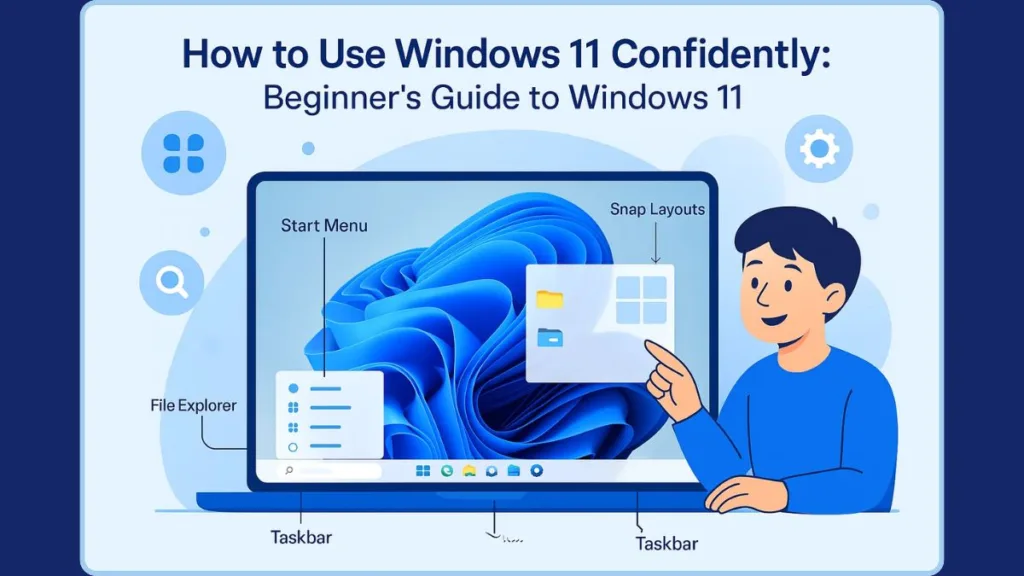
Rounded corners, refreshed icons, and the Fluent Design system bring visual consistency across the OS, making the interface feel cleaner and more modern.
This sense of change can be confusing at first — especially if muscle memory from Windows 10 makes you look for familiar tools in familiar places — but it’s also part of what makes Windows 11 feel more approachable once you get comfortable with it.
What helps is knowing the system was intentionally designed with beginners in mind. Instead of clutter, you get a smoother path to the tools you use daily. Features that support everyday tasks—like the simplified layout, guided search, and organized settings—make it easier to build confidence at your own pace.
If you’re feeling unsure about how to use Windows 11, you’re not alone. Many new users experience a bit of interface friction at the start. The good news? Windows 11 reduces that friction quickly once you understand where essential elements live.
This guide will walk you through those basics so you can move from “What changed?” to “This actually feels easier.”
By the end, you’ll understand the Windows 11 basics, know how to navigate the new experience safely, and feel ready to explore its thoughtful improvements — because Windows 11 isn’t just different; it’s designed to help you do more with less effort.
System Requirements & First Steps (The Clean-Slate Mindset)
Before you dive into the Windows 11 basics, it helps to make sure your device is ready for the upgrade. Microsoft designed the system to run smoothly only on hardware that meets certain standards, and understanding these requirements removes a lot of confusion right from the start.
Check if Your PC Meets the Requirements
To install or upgrade to Windows 11, your PC must support a few important technologies. The good news? Checking these only takes a moment.
Most modern PCs already include:
- TPM 2.0 (Trusted Platform Module) — a secure cryptoprocessor that helps protect sensitive data and ensures system integrity.
- Secure Boot — a UEFI feature that helps prevent unauthorized software from loading during startup.
- A compatible processor — at least 1 GHz with 2 or more cores on a 64-bit CPU.
- 4 GB of RAM or more for smooth performance.
- 64 GB of storage to install system files and apps.
- A DirectX 12–compatible graphics card with a WDDM 2.x driver.
If you’re unsure about your device’s compatibility, Microsoft offers the PC Health Check app so you can quickly see if your system is ready and avoid unexpected installation issues.
Benefits of Using a Microsoft Account
While Windows 11 can work without one on some devices or editions, signing in with a Microsoft account enhances your experience in meaningful ways.
You get:
- OneDrive backup and automatic syncing,
- Easy access to the Microsoft Store,
- Smooth integration with Outlook, Teams, and other Microsoft services.
Recent versions of Windows 11 often require an account and internet connection during setup, ensuring your device is linked and your settings remain consistent across PCs.
A Fresh Start for New Devices
If you’ve just unboxed a new PC with Windows 11 pre-installed, you’re starting with what Microsoft calls a clean-slate setup.
The initial walkthrough guides you through:
- Choosing your language and region,
- Connecting to Wi-Fi,
- Setting privacy preferences,
- Signing in with a Microsoft account.
These first steps create a foundation that makes the rest of your Windows 11 experience feel more natural. With the essentials configured early, you can focus on learning how to use Windows 11 and tailoring your setup to match your workflow.
Signing In & Accessing the Windows 11 Desktop
Your first moments with Windows 11 begin at the lock screen, and understanding this starting point helps you feel more in control right away. Whether you’re upgrading or opening a new device, Windows 11 keeps the sign-in process simple, secure, and beginner-friendly.
A Closer Look at the Lock Screen
When you wake your PC, you’ll see a clean interface showing the date, time, and quick status icons. This screen is also where optional Lock Screen widgets may appear, giving you glanceable info like weather or tips before signing in. You can customize or remove these through Settings > Personalization > Lock Screen if you prefer a minimalist look.
A single click or press of any key transitions you to the sign-in screen, where you choose how to access your system.
Windows 11 supports multiple sign-in methods, including:
- Windows Hello for face or fingerprint recognition
- PIN
- Password
Using features like Windows Hello gives you a faster and safer way to log in without typing credentials every time.
Switching Between User Accounts
If your PC is shared with family or coworkers, you’ll notice small profile icons on the bottom or left side of the sign-in screen. These help you switch accounts instantly, ensuring everyone has their own personalized setup.
Landing on the Windows 11 Desktop
Once you sign in, you’re taken directly to the Windows 11 desktop, your main workspace. This is where you’ll access apps, manage files, and explore the refreshed layout of the operating system.
The desktop’s simplified design is intentional — helping beginners focus on essential tools without distraction. You’ll see the centered taskbar, the new Start menu icon, and any shortcuts you choose to place on your screen later.
Why This Matters for New Users
Many beginners worry about clicking the wrong thing or accidentally changing settings. The good news is that the sign-in and desktop areas are designed to be safe to explore. Nothing you click here will delete files or affect system performance.
Learning how to access and understand the desktop is an important first step in becoming comfortable with how to use Windows 11, especially if you’re transitioning from Windows 10 or navigating a PC for the very first time.
When you’re ready, we’ll move into the next section and start breaking down what each part of the desktop does — so the interface feels familiar, not intimidating.
Meet Your New Desktop: What Everything Means Now
Once you’re signed in, the Windows 11 desktop becomes your primary workspace — the area where you launch apps, manage windows, access settings, and personalize your environment. The interface has been intentionally redesigned to feel calmer, clearer, and more beginner-friendly.
Understanding each part of the desktop helps you navigate confidently and removes the uncertainty many new users feel when switching to a modern operating system.
The New Start Menu (Your Shortcut to Everything)
Right at the center of your taskbar, you’ll see the refreshed Start menu, one of the most noticeable visual changes in Windows 11. Microsoft redesigned it based on the principles of Fluent Design to provide a cleaner, more focused starting point.
Inside the Start menu, you’ll find:
- Pinned apps arranged in a simple grid
- A powerful Search box for finding anything — apps, files, emails, settings
- A Recommended section that shows recently opened files and newly installed apps
- Account controls and power options at the bottom
The Start menu no longer includes Live Tiles, which reduces clutter and makes it easier for beginners to identify what they need. If you prefer the traditional left-aligned layout, you can change the Taskbar alignment in Settings > Personalization > Taskbar — a small but helpful tweak that often eases the transition from Windows 10.
Taskbar & Quick Settings (Your Control Center)
The taskbar is the horizontal strip at the bottom of the screen, acting as a central hub for your apps and essential controls. In Windows 11, the taskbar has been rebuilt with smoother animations, cleaner icons, and better touch responsiveness. According to Microsoft, this is part of creating a more unified visual ecosystem across apps and system surfaces.
Your taskbar includes:
- The Start button
- Frequently used or pinned apps
- The Task View button for multitasking
- The Widgets icon
- System indicators like Wi-Fi, audio, and battery
Another major update is Quick Settings, which replaces Windows 10’s Action Center. By clicking the Wi-Fi, battery, or sound icons, you’ll instantly access controls for:
- Brightness
- Volume
- Network settings
- Bluetooth
- Accessibility features
- Battery saver
This new layout saves beginners from digging through layers of menus and provides a faster way to adjust everyday essentials. You can even customize Quick Settings to include tools you use most often.
Widgets Panel (Your Personal Info Hub)
Windows 11 brings back Widgets, but in a more streamlined and useful form. The Widgets panel slides out from the left side of the screen, offering at-a-glance information such as:
- Weather updates
- Calendar appointments
- News headlines
- Stocks
- Sports scores
- Traffic information
Widgets are powered by Microsoft’s AI-driven Microsoft Start feed, which learns what topics you prefer. You can personalize the feed using the Manage Interests link so that it displays content that actually matters to you.
For beginners, Widgets create a simple, friendly dashboard for daily updates — without needing to open individual apps.
Virtual Desktops (Organize Your Digital Space)
Windows 11 enhances Virtual Desktops with smoother animations, custom wallpapers per desktop, and easier switching. You can access this feature by selecting the Task View button or pressing Win + Tab.
Virtual desktops help you organize your digital life by separating tasks such as:
- Work projects
- School assignments
- Personal browsing
- Gaming sessions
Each desktop can hold its own arrangement of windows and apps, making multitasking more manageable and reducing screen clutter. This feature is especially useful for beginners who want to keep different activities organized but are not yet comfortable with heavy multitasking.
Your Desktop Icons & Background
The main desktop area is yours to customize. Windows 11’s Personalization menu gives you access to:
- Wallpapers (including new high-resolution themes)
- Color accents
- Light and Dark mode
- Icon size and layout options
- Desktop icon visibility controls
You can right-click the desktop to quickly adjust:
- Icon size (small, medium, large)
- Auto-arrange and align to grid
- Show or hide desktop icons
This flexibility helps you build a workspace that’s visually comfortable and easier to navigate, especially if you’re still learning how to use Windows 11 efficiently.
Why This Overview Helps Beginners
Learning what each part of the desktop does removes the uncertainty that often comes with a new operating system. With a modern layout, intuitive controls, and helpful features like Quick Settings, Widgets, and Virtual Desktops, the Windows 11 desktop becomes a friendly environment instead of an overwhelming one.
As you continue through this guide, you’ll discover how these elements work together to make everyday tasks simpler, faster, and more enjoyable — the essence of the Windows 11 experience.
File Explorer: Your Guide to Files, Folders & Navigation
The File Explorer in Windows 11 is the heart of your file management experience. It’s where all your documents, downloads, photos, and program files live — and understanding how to use it gives you a stronger sense of control over your PC.
Windows 11 brings a refreshed design, enhanced navigation, and helpful organizational tools that make it easier for beginners to browse and manage files confidently.
Opening File Explorer the Easy Way
Windows 11 offers several convenient ways to open File Explorer, so you can choose whichever method feels most natural:
- Select the folder icon directly from the taskbar
- Press Windows key + E for instant access
- Search for “File Explorer” using the Start menu search box
- Right-click the Start button and select File Explorer from the Quick Link menu
These shortcuts make everyday tasks — like locating downloads or opening documents — simple and familiar, especially if you’re still getting used to how to use Windows 11.
Navigating Folders with Confidence
Windows 11 organizes File Explorer with a cleaner, more intuitive layout to help beginners move around easily.
The Navigation Pane on the left gives you quick access to:
- Home (a central hub with recent items and favorites)
- Quick Access, where your frequently opened folders appear
- OneDrive, for cloud-stored files
- This PC, showing your drives and main folders
- External storage devices like USB drives or SD cards
Using the expand arrows next to folders helps you drill down into subfolders without losing your place. Microsoft updated the icons and spacing to match the system’s modern look, making it easier to understand what each folder represents at a glance.
You’ll also notice path breadcrumbs at the top of the window. These clickable links let you jump back to previous folders quickly, reducing the back-and-forth that often frustrates new users.
Managing Files with the Simplified Command Bar
The classic ribbon interface from older Windows versions has been replaced by a streamlined Command Bar, making key actions easier to find.
It includes essential file management commands such as:
- Copy
- Paste
- Rename
- Cut
- Delete
- Share
- Sort and Group by
This layout adapts based on what you have selected. For example, choosing a folder displays folder-specific tools, while highlighting an image shows actions like rotate or set as background.
Right-clicking any file opens a modern context menu with simplified icons for speed and clarity. If you need advanced options, the “Show more options” link displays the classic menu — a helpful bridge for users transitioning from older versions.
Finding Files Faster with Built-In Search
The built-in Search bar at the top-right of File Explorer helps you locate files instantly, even if you can’t remember exactly where you saved them.
You can search by:
- File name
- Keywords
- File types like
.pdf,.png,.docx - Tags or metadata (for supported files)
Windows uses indexing to speed up searches, especially in common folders like Documents, Pictures, and Downloads. If you need broader or deeper searches, you can adjust indexing settings through Control Panel > Indexing Options.
This feature is especially beneficial for beginners who want quick results without exploring multiple folders manually.
Adjusting Icon Sizes for Better Visibility
Viewing preferences play a big role in how comfortably you use File Explorer. Windows 11 lets you adjust icon sizes and layouts through the View menu:
- Extra large icons (great for images)
- Large icons
- Medium icons (default for most users)
- Small icons
- List view
- Details view (best for sorting files by size, date, or type)
- Tiles and Content views for folder-rich layouts
For beginners, switching to larger icons or choosing Details view can make it easier to find files quickly and understand what each item represents.
Tabs: A Powerful Addition for Multitasking
Windows 11 introduces tabs in File Explorer — a long-requested feature that makes managing multiple folders much easier.
With tabs, you can:
- Open several folders in one window
- Drag files between tabs
- Compare folder contents side by side
- Reduce screen clutter by avoiding multiple windows
You can open a new tab with Ctrl + T, close one with Ctrl + W, or rearrange them by dragging. This feature is especially helpful for beginners who want smoother multitasking without overwhelming the desktop.
Sorting, Grouping & Organizing Files Efficiently
To keep your workspace tidy, File Explorer provides tools to structure the way you view and manage files.
You can organize items by:
- Name
- Date modified
- Type
- Size
- Date created
Grouping options allow you to cluster items based on shared attributes, making large folders easier to skim. The Sort and Group by menus are accessible from both the Command Bar and the right-click context menu.
OneDrive Integration for Seamless Cloud Sync
Windows 11 integrates OneDrive directly into File Explorer, allowing you to:
- Store files in the cloud
- Access them across multiple devices
- Free up local storage
- Restore previous versions of files
Files synced with OneDrive show status icons indicating whether they are:
- Available offline
- Cloud-only
- Syncing
- Shared with others
This is especially useful for beginners who want simple, automatic backup without additional apps.
Why File Explorer Matters for Beginners
File Explorer is where your digital life is stored. Whether it’s photos, school assignments, work documents, or downloads, this is the tool you’ll use every day to find, organize, and manage files. Windows 11 enhances this experience with clearer icons, improved performance, quicker search tools, cloud integration, and multitasking features like tabs — making it easier for new users to feel in control from the very beginning.
A strong understanding of File Explorer sets the stage for smoother workflows, better organization, and a more confident Windows 11 experience overall.
Essential Settings Every Beginner Should Change Immediately (Step-by-Step)
Windows 11 includes a range of settings that shape how your PC looks, feels, and performs. Adjusting these essentials early on helps beginners feel comfortable, reduces visual clutter, and ensures your device runs smoothly and securely.
Each of these settings is designed to make your experience more intuitive as you get familiar with how to use Windows 11 day by day.
Personalization Settings (Make Windows 11 Feel Like Yours)
Customizing the look and feel of your system is one of the easiest ways to create a workspace you actually enjoy using. Windows 11 offers a sleek personalization menu with modern wallpapers, dynamic themes, and fluid visual effects that match the rest of the interface.
Change Your Theme & Accent Color
Navigate to Settings > Personalization > Themes
Here you can browse curated theme packs that combine wallpapers, sounds, and color palettes. Windows 11 includes four main theme categories: Glow, Captured Motion, Sunrise, and Flow, each designed with the Fluent Design aesthetic.
Switching to Dark Mode under Colors reduces eye strain and extends battery life on OLED screens.
Update Your Wallpaper
Select Background to choose a picture, slideshow, or custom wallpaper folder. You can also browse the Microsoft Store for additional theme packs that automatically change your wallpaper throughout the day.
Customize the Start Menu
Go to Personalization > Start to modify what appears:
- Toggle Show recently added apps
- Enable or disable Recommended files
- Add folders like File Explorer or Settings to the Start menu
These refinements help beginners find essential tools without clutter.
Display & Text Settings (Improve Visibility and Comfort)
Making sure your display settings are optimized ensures clarity, readability, and comfort — especially important for new users adjusting to a sharper and more compact interface.
Adjust Text Size
Open Settings > Accessibility > Text Size
Increase text size using the slider; this adjustment automatically updates across apps, menus, and websites while preserving layout integrity.
Modify Display Scaling
Under Settings > System > Display, you can change the Scale to enlarge UI elements system-wide. Recommended options are usually displayed automatically based on your monitor resolution.
Set Up Night Light
Enable Night Light under Display to filter out blue light. You can also schedule it to turn on at sunset or set custom hours.
Choose Display Resolution & Refresh Rate
Scroll down to Advanced Display to adjust your refresh rate if your monitor supports it. A higher refresh rate (like 120Hz or 144Hz) makes animations smoother across the desktop.
Privacy & Security Settings (Protect Your Data Early)
Windows 11 includes a strong set of privacy controls, giving you the power to manage how apps use your information.
Check App Permissions
Go to Settings > Privacy & security > App permissions to control access to:
- Location
- Camera
- Microphone
- Contacts
- Call history
- Pictures & videos folder access
Adjusting these permissions ensures apps only use the features you approve.
Review Diagnostic Data
Under Diagnostics & feedback, you can:
- Limit the amount of diagnostic data sent to Microsoft
- Clear previously stored data
- Disable personalized experiences based on your usage
These controls offer greater transparency and reduce unnecessary background communication.
Enable Security Features
Open the Windows Security dashboard to review important protection features like:
- Virus & threat protection
- Firewall & network protection
- Device security
- Core isolation (memory integrity)
- Smart App Control for blocking untrusted apps (available on newer builds)
Keep Windows Updated
Under Windows Update, make sure Automatic updates are turned on. Updates improve security, stability, and performance while introducing new Windows 11 features throughout the year.
Quick Settings Adjustments (Fast Access to Everyday Tools)
Quick Settings provides immediate access to frequently used features, making your daily workflow faster and more efficient.
Customize Quick Settings Tiles
Open Quick Settings by clicking the Wi-Fi, battery, or sound icon in the taskbar. Select Edit quick settings to add or remove tiles like:
- Bluetooth
- Airplane mode
- Night Light
- Battery saver
- Project screen
- Cast
- Accessibility shortcuts
Organizing this panel up front saves beginners time and prevents them from navigating deep menus.
Adjust Volume, Brightness & Network Settings
Quick Settings centralizes these options in one spot. You can connect to new networks, manage Bluetooth devices, or switch output devices (like speakers or headphones) without opening the full Settings app.
Taskbar Settings (Make Navigation Easier)
The Windows 11 taskbar is designed to be flexible. Adjusting it early helps beginners make the interface more familiar and easier to navigate.
Useful Changes to Explore
Go to Settings > Personalization > Taskbar to adjust:
- Taskbar alignment (center or left)
- Visibility of widgets like Chat, Widgets, and Task View
- Which system tray icons appear
- Behavior settings like Show badges and taskbar corner overflow
Customize Icon Behavior
You can choose how icons behave when many windows are open. Some updates allow grouping or ungrouping icons, reducing confusion for beginners who multitask often.
Additional Recommended Settings for Beginners
Enable Storage Sense
Under Settings > System > Storage, turn on Storage Sense to automatically clear temporary files and manage cloud-backed content.
Set Default Apps
To avoid confusion when opening files, go to Settings > Apps > Default apps and choose your preferred programs for web browsing, email, music, photos, and more.
Setup Focus Sessions
Windows 11 includes Focus Sessions in the Clock app, helping new users build better work habits and reduce distractions.
Why These Settings Matter for Beginners
These essential settings lay the foundation for a smoother, safer, and more personalized Windows 11 experience. Whether you’re adjusting visibility, strengthening privacy, improving system performance, or customizing your workspace, each step brings you closer to a setup that feels comfortable and intuitive.
Everything you customize now will make navigating the rest of Windows 11 easier as you continue learning and exploring its features.
New Features You’ll Love (And How They Work)
Windows 11 delivers a collection of modern upgrades designed to reduce friction, support productivity, and make everyday computing more enjoyable. These features not only give the system a fresh look but also make it easier for beginners to understand how to use Windows 11 without feeling overwhelmed.
Each improvement is built around simplicity, efficiency, and personalization — helping you feel more at home from day one.
Snap Layouts & Snap Groups (Effortless Multitasking Made Simple)
One of the most celebrated Windows 11 new features is the enhanced multitasking experience powered by Snap Layouts and Snap Groups.
How Snap Layouts Help You Stay Organized
Hover over the maximize button on any window, and a menu of layout options appears. These layouts allow you to place windows in structured arrangements such as:
- Two equal side-by-side panels
- A three-column layout for research-heavy workflows
- A grid arrangement for complex multitasking
- A large window on one side with smaller stacked windows on the other
These presets eliminate the guesswork of resizing windows manually.
Snap Groups Keep Your Workflow Intact
When you snap multiple windows into a layout, Windows 11 automatically creates a Snap Group. Hovering over the app icons in the taskbar shows your saved arrangement, allowing you to return to an entire workflow with a single click.
This is extremely valuable for beginners who want to stay organized without juggling multiple windows.
Enhanced Widgets Panel (Your Smart Information Dashboard)
The Widgets panel is a modern, AI-enhanced feature that brings personalized updates directly to your desktop.
You’ll find useful, real-time information such as:
- Local weather and temperature
- Calendar events and reminders
- Headlines curated by Microsoft Start
- Sports scores and market updates
- Trending news tailored to your interests
The panel slides out from the left side of your screen, giving you quick visibility without interrupting your current task. You can customize your feed via the Manage Interests option, ensuring widgets reflect what matters most to you.
Widgets are especially helpful for beginners who prefer at-a-glance information instead of navigating through multiple apps.
Virtual Desktops (Separate Work, Play & Personal Life)
Virtual desktops offer one of the best ways to stay organized — especially if you use your device for multiple activities.
What You Can Do With Virtual Desktops
- Create a desktop for work tasks
- Keep a separate desktop for gaming or entertainment
- Organize school or study materials on another
- Assign unique wallpapers to each desktop for quick identification
Simply open Task View or press Win + Tab to create or switch between desktops. Animations are smoother, transitions are quicker, and Windows 11 makes the entire experience feel more intuitive.
This is especially helpful for beginners who want to reduce desktop clutter without closing apps.
Microsoft Teams Chat (Instant Communication Built-In)
With Windows 11, Microsoft Teams Chat is integrated right into the taskbar. This allows for quick messaging, video calls, and instant connectivity — all without needing the full Teams app.
What You Can Do
- Start a chat from the taskbar icon
- Sync contacts through your Microsoft account
- Join meetings directly from notifications
- Send quick emojis or messages without switching screens
This feature makes communication easy for beginners who may not be familiar with messaging apps or video conferencing tools.
Touch, Pen, and Voice Improvements (More Natural Interaction)
Windows 11 optimizes the OS for more natural interaction, especially on touch-enabled devices.
Touch Enhancements
- Improved multi-finger gestures
- Larger touch targets for easier tapping
- Smoother window animations
Pen Input Enhancements
- Haptic feedback on supported pens
- Smoother inking for apps like Whiteboard and OneNote
Voice Typing
The new voice typing tool, powered by online speech recognition, allows you to dictate text by pressing Win + H. It automatically adds punctuation and supports accurate transcription, making it ideal for beginners who type slowly or prefer hands-free interaction.
Redesigned Microsoft Store (Faster, Friendlier, and More Flexible)
The Microsoft Store has been completely rebuilt to be faster and easier to browse. The interface is clean and beginner-friendly, making it simple to discover new apps, games, and entertainment.
Key Upgrades
- Support for more app types, including Win32 apps
- Simpler category navigation
- Better integration with Amazon Appstore for Android apps (available in select regions)
- Curated collections for productivity, creativity, and gaming
Beginners benefit from a safer, centralized place to install software without worrying about harmful downloads.
Improved Gaming Features (A Better Experience for Players)
Windows 11 brings several gaming enhancements powered by Xbox technologies.
Key Features
- DirectStorage reduces load times by allowing faster communication with SSDs
- Auto HDR improves color range in supported games
- An upgraded Xbox app gives easier access to Game Pass titles
Even if you’re not a heavy gamer, these improvements help Windows 11 perform better for graphically intensive tasks.
Security & Performance Enhancements (Smarter and More Secure)
Windows 11 raises the security baseline with requirements like TPM 2.0 and Secure Boot, which help protect against modern threats.
Performance Enhancements Include
- Faster wake-from-sleep times
- More efficient memory management
- Reduced background activity for improved battery life
- Automatic Windows Update improvements to minimize disruption
These changes help beginners feel safer and enjoy a smoother, more reliable system.
Why These Features Matter for Beginners
Whether you’re exploring Snap Layouts, checking updates through Widgets, organizing your workspace with Virtual desktops, or connecting with others using Teams Chat, these features are designed to make your daily tasks easier and more intuitive.
Each tool reduces complexity and gives beginners confidence as they learn how to use Windows 11 without feeling overwhelmed.
Everyday Essentials: Things Beginners Want to Do
Learning the everyday actions in Windows 11 builds confidence quickly. These essential tasks—opening apps, browsing the internet, finding files, taking screenshots, and shutting down safely—are the foundations of your daily computer use.
Each feature is designed to be intuitive, especially for beginners exploring how to use Windows 11 for the first time.
How to Open Apps Quickly
Windows 11 gives you several simple ways to launch apps, helping you find what you need without digging through menus.
Ways to Open Apps
- Select the Start menu and choose from your Pinned apps.
- Use the Search bar to type the name of any app.
- Pin commonly used apps like Edge, Photos, or File Explorer to the taskbar.
- Press Windows key + number key to open taskbar apps based on their position.
- Right-click the desktop and open apps directly from context menus if they were recently used.
You can also right-click an app and choose Pin to Start or Pin to taskbar to keep your favorite tools one click away.
How to Browse the Internet Using Microsoft Edge
Browsing is one of the most frequent tasks for beginners, and Microsoft Edge—Windows 11’s default browser—offers fast performance, improved security, and easy-to-use tools.
Get Started with Edge
- Launch Microsoft Edge from Start or the taskbar.
- Enter a website link or search query in the address bar.
- Open multiple pages using tabs, conveniently displayed at the top.
- Use Favorites to bookmark important sites.
- Read clutter-free articles using Immersive Reader, available on supported web pages.
- Use Collections to save groups of webpages for research, shopping, or planning.
Edge also includes built-in features such as tracking prevention, password monitoring, and SmartScreen protection to keep beginners safe online.
How to Connect to Wi-Fi
Connecting to Wi-Fi in Windows 11 is straightforward and uses the updated Quick Settings panel.
Steps to Connect
- Click the network icon in the taskbar.
- Select your preferred Wi-Fi network from the list.
- Enter the password, if required.
- Toggle Bluetooth or Airplane mode as needed.
- Use Manage Known Networks under Settings to control which networks automatically reconnect.
Windows 11 remembers your Wi-Fi networks, so you don’t have to reconnect manually each time.
How to Open Files Like Documents and Photos
Finding and opening files is an essential part of your everyday workflow.
Ways to Open Files
- Double-click files in File Explorer.
- Right-click and choose Open with to select a specific app.
- Use the Search bar to locate documents based on file name or file type.
Common File Apps
- Notepad for quick notes or text files
- Microsoft Word for documents
- Photos for viewing and editing images
- Movies & TV for video playback
- Paint for simple image edits
Windows 11 automatically assigns default apps, but you can change these at any time under Settings > Apps > Default apps.
How to Take a Screenshot in Windows 11
Screenshots help you save information or share details with others. Windows 11 supports several capture methods.
Popular Screenshot Shortcuts
- PrtScn: Copies your entire screen to the clipboard.
- Windows + Shift + S: Opens Snipping Tool for a custom capture, including rectangular, freeform, window, and full-screen snips.
- Windows + PrtScn: Saves a full-screen screenshot directly to Pictures > Screenshots.
- Alt + PrtScn: Captures just the active window.
The improved Snipping Tool allows you to draw, highlight, crop, and save screenshots more efficiently.
How to Manage Downloads
Your downloaded files—images, installers, PDFs, music, and more—are typically saved in the Downloads folder.
To Manage Downloads
- Open File Explorer and choose Downloads from the sidebar.
- Sort files by Name, Date, Type, or Size.
- Move important files to Documents, Pictures, or custom folders.
- Delete unnecessary downloads to free up storage space.
- Use the Recycle Bin to restore accidentally deleted files.
Edge also includes a Downloads menu (Ctrl + J) that lets you quickly open, run, or locate downloaded files.
How to Shut Down Your PC Safely
Shutting down properly ensures your work is saved and your computer stays healthy.
Safe Shutdown Methods
- Open the Start menu, select the Power button, then choose Shut down.
- Press Alt + F4 on the desktop to open the shutdown dialog.
- Right-click the Start button and select Shut down or sign out.
- Use Ctrl + Alt + Delete to access shutdown options if the system is unresponsive.
Avoid using the physical power button unless the device is frozen, as forcing shutdowns can interrupt updates or damage open files.
Why These Essentials Matter for Beginners
These everyday tasks form the core of your Windows 11 experience. Whether you’re connecting to Wi-Fi, opening apps, browsing with Microsoft Edge, or taking screenshots, each action helps you navigate the system more naturally. When beginners master these essentials, Windows 11 becomes less intimidating and far more enjoyable — setting the stage for exploring more advanced Windows 11 tips and tricks later o
Windows 11 Keyboard Shortcuts Cheat Sheet
Keyboard shortcuts are one of the fastest ways to feel confident and efficient while navigating Windows 11. They help you move around the system effortlessly, manage windows with precision, and complete everyday tasks without digging through menus. For beginners, learning even a handful of shortcuts can dramatically improve speed and comfort, making the system feel more intuitive and approachable.
Below is a comprehensive, beginner-friendly cheat sheet packed with the most useful Windows 11 shortcuts, organized by the tasks you’ll perform most often.
Essential Windows Navigation Shortcuts
These shortcuts help you open key features, browse the interface, and move between apps quickly.
- Windows key — Open the Start menu, the central hub for apps and settings
- Windows + A — Open Quick Settings (Wi-Fi, volume, brightness)
- Windows + N — Open the Notifications Center and calendar
- Windows + E — Open File Explorer instantly
- Windows + I — Launch Settings
- Windows + L — Lock your PC quickly
- Windows + D — Show or hide the desktop
- Windows + M — Minimize all windows
- Windows + Shift + M — Restore minimized windows
- Windows + S — Open Search, ideal for finding apps, files, or web results
- Windows + Tab — Open Task View to access open apps and virtual desktops
These shortcuts reduce mouse reliance and help beginners navigate Windows 11 basics smoothly.
Multitasking & Window Management Shortcuts
Windows 11 is built for organized multitasking, thanks to tools like Snap Layouts and Snap Groups. These shortcuts make managing your windows simple and precise.
- Windows + Arrow keys — Snap windows to edges or corners
- Windows + Z — Open Snap Layouts menu
- Windows + Shift + Arrow keys — Move windows between monitors
- Alt + Tab — Switch between open apps
- Ctrl + Alt + Tab — See all open apps without holding keys
- Alt + F4 — Close the active window
- Windows + Ctrl + Arrow keys — Switch between virtual desktops
- Windows + Ctrl + D — Create a new virtual desktop
- Windows + Ctrl + F4 — Close the current virtual desktop
These shortcuts help beginners learn how to use Windows 11 multitasking features with confidence and ease.
File & Folder Management Shortcuts
Managing files becomes much easier with these simple commands used inside File Explorer.
- Ctrl + C — Copy
- Ctrl + X — Cut
- Ctrl + V — Paste
- Ctrl + A — Select all items in a folder
- Ctrl + Z — Undo the last action
- Ctrl + Y — Redo the last action
- Ctrl + Shift + N — Create a new folder instantly
- Delete — Move to Recycle Bin
- Shift + Delete — Permanently delete (bypasses Recycle Bin)
- Alt + Enter — Open Properties of a file or folder
- F2 — Rename a file
These shortcuts are key to mastering the File Explorer Windows 11 guide and staying organized.
Screenshot Shortcuts (Fast, Flexible, and Built-In)
Windows 11 gives you multiple ways to take screenshots depending on your needs.
- Windows + Shift + S — Open Snipping Tool for freeform, rectangular, window, or full-screen snips
- Windows + PrtScn — Save full-screen screenshot to Pictures > Screenshots
- PrtScn — Copy full screen to clipboard
- Alt + PrtScn — Capture only the current window
- Windows + Alt + PrtScn — Screenshot using Xbox Game Bar
- Windows + G — Open Xbox Game Bar (includes screenshot and recording tools)
The updated Snipping Tool allows editing, highlighting, cropping, and saving — ideal for beginners documenting steps or sharing help requests.
Browser Shortcuts for Microsoft Edge
Browsing becomes faster and more enjoyable with these simple Edge shortcuts.
- Ctrl + T — Open a new tab
- Ctrl + Shift + T — Reopen the last closed tab
- Ctrl + W — Close current tab
- Ctrl + Tab — Switch to the next tab
- Ctrl + Shift + Tab — Switch to the previous tab
- Ctrl + L — Highlight the address bar
- Ctrl + D — Bookmark the current page
- Ctrl + J — Open Downloads
- F5 — Refresh the page
- Ctrl + 0 — Reset zoom level
These shortcuts help beginners browsing with Microsoft Edge feel more efficient and in control.
Accessibility Shortcuts (Helpful for Everyone)
Windows 11 includes thoughtful tools to support accessibility, and many shortcuts are useful for everyday tasks too.
- Windows + + (Plus) — Open Magnifier
- Windows + Esc — Exit Magnifier
- Windows + U — Open Accessibility settings
- Windows + Ctrl + Enter — Toggle Narrator
- Windows + H — Activate voice typing
- Windows + Ctrl + C — Turn color filters on or off
- Windows + Alt + B — Toggle high-contrast mode
These features create a more comfortable environment for new users who may need clearer visuals or hands-free typing options.
System Tools & Quick Commands
These shortcuts open powerful built-in tools that help beginners explore Windows safely and troubleshoot common issues.
- Windows + R — Open the Run dialog
- Windows + X — Open the Power User Menu (Task Manager, Device Manager, etc.)
- Ctrl + Shift + Esc — Open Task Manager
- Windows + Pause/Break — Open System Information
- Windows + K — Open Cast menu to connect wirelessly to displays
- Windows + P — Choose display mode (extend, duplicate, second screen only)
These are especially useful for users learning more advanced Windows 11 tips and tricks.
Why Keyboard Shortcuts Matter for Beginners
Shortcuts dramatically reduce the learning curve by giving you fast, predictable ways to interact with your PC. They help streamline multitasking, boost productivity, and eliminate the frustration of navigating through multiple menus — especially when you’re still learning the layout of Windows 11.
Even learning just a few shortcuts can transform your experience, making your computer feel faster, smoother, and easier to use.
Troubleshooting Confidence: “If Something Looks Wrong, Don’t Panic”
Even with the smoother, more stable design of Windows 11, beginners may still encounter moments when something looks off — an app freezes, the Wi-Fi disconnects, or the taskbar behaves differently than usual. These situations can feel overwhelming, especially if you’re still learning the Windows 11 basics, but the key is simple: stay calm. Most issues are temporary and can be fixed with a few guided steps.
This section helps you build real troubleshooting confidence, so you always know what to try first and how to safely correct common problems.
Start with the Simplest Fixes First
Many issues disappear by taking small, safe steps that refresh the system.
Begin with These Quick Actions
- Close the misbehaving app using Alt + F4.
- Press Ctrl + Shift + Esc to open Task Manager, then select the stuck app and choose End task.
- Restart your PC using Start > Power > Restart — one of the most effective ways to clear temporary glitches.
- Unplug peripherals (USB drives, headphones, webcams) if the device became unresponsive and reconnect them.
A quick restart refreshes system memory and background processes, helping beginners resolve issues without deep technical knowledge.
What to Do If the Internet Stops Working
Connectivity issues are extremely common — but almost always easy to fix.
Step-by-Step Wi-Fi Checking
- Open Quick Settings and toggle Wi-Fi off and back on.
- Make sure the Airplane Mode tile is switched off.
- Click the arrow beside your network name to view connection properties.
- Try disconnecting and reconnecting to your Wi-Fi network.
- Restart your router if no devices can connect.
- Run Network Troubleshooter under Settings > System > Troubleshoot > Other troubleshooters.
Windows 11 also includes Advanced Network Reset under Network & Internet > Advanced network settings, which reinstalls all network adapters — helpful if you’ve tried everything else.
When Windows Looks “Different” Than Before
Updates or accidental clicks may cause icons to move, the taskbar to shift, or colors to change — all common beginner concerns.
Restore Your Familiar Layout
- Right-click the desktop, open View, and adjust icon size or alignment.
- Go to Settings > Personalization > Taskbar to restore missing icons or realign the taskbar.
- Re-enable hidden Start menu folders through Personalization > Start > Folders.
- Open Settings > System > Display to reset Scale or Resolution if items look too large or tiny.
- If the taskbar suddenly disappears, restart Windows Explorer through Task Manager.
Knowing these steps prevents unnecessary panic when something visually changes on your screen.
If Apps Won’t Open or Keep Crashing
App issues can come from outdated software, missing system components, or corrupted settings.
Try These App Fixes
- Restart the app
- Update the app through Microsoft Store > Library > Update all
- Right-click the app in Settings under Apps > Installed apps, then choose Advanced options
- Click Terminate, Repair, or Reset (these tools fix most app-level issues)
- Ensure your system is updated via Windows Update
Repairing apps does not affect your personal files, making this safe for beginners exploring how to use Windows 11 without risks.
If Your PC Feels Slow or Unresponsive
A slow computer is frustrating, but Windows 11 provides several easy tools that beginners can use safely.
Speed Up Your PC with These Tips
- Close unused apps from Task Manager
- Restart the PC if it’s been running for several days
- Clear temporary files through Settings > System > Storage
- Enable Storage Sense to automatically remove unneeded files
- Disable unnecessary startup programs via Task Manager > Startup apps
- Check for Windows Updates, which often fix slowdowns or bugs
These steps help reclaim system resources and improve overall performance.
Let Windows Help You: Built-In Troubleshooters
Windows 11 includes intelligent troubleshooters that automatically detect and correct many issues.
Useful Troubleshooters Include
- Internet Connections
- Playing Audio
- Printers
- Windows Update
- Keyboard
- Bluetooth
Find them under Settings > System > Troubleshoot > Other troubleshooters.
Each tool provides guided steps and clear explanations, making troubleshooting easier for new users.
When in Doubt: Use System Restore or Recovery Tools
If a problem started after an installation or update, Windows 11 gives you safe ways to roll back changes.
Beginner-Friendly Recovery Tools
- System Restore: Reverts settings and drivers to a previous working point.
- Reset This PC: Reinstalls Windows while keeping your personal files intact.
- Advanced Startup (Recovery Environment): Offers deeper repair options like startup repair or command line tools.
These options let you recover your system without fear — perfect for beginners building troubleshooting confidence.
Why You Shouldn’t Fear Troubleshooting
Beginners often imagine the worst when something behaves differently, but Windows 11 is built with layers of protection, automatic recovery systems, and user-friendly tools. You won’t “break” your PC by exploring menus, checking settings, or running troubleshooters.
Learning these simple steps transforms your experience from stressful to empowering — helping you feel in control even when unexpected glitches appear.
Frequently Asked Questions
Is Windows 11 difficult to use for beginners?
No. Windows 11 is designed to be simple and intuitive with a cleaner layout, centered Start menu, and improved navigation. Features like Quick Settings, Snap Layouts, and Widgets make it easier for beginners to learn and use
What are the first things I should do after setting up Windows 11?
Customize your theme, Start menu, and display settings, review privacy permissions, enable Storage Sense, update Windows, and install essential apps from the Microsoft Store.
Where did everything move in Windows 11?
The Start menu is now centered, Quick Settings replaces Action Center, Widgets have their own panel, and File Explorer uses a simplified command bar. Right-click menus are cleaner with a Show more options link.
How do I customize the Windows 11 Start menu?
Go to Settings > Personalization > Start to adjust pinned apps, recommended files, and add folder shortcuts. You can also change taskbar alignment here.
How do I take screenshots in Windows 11?
Use:
- Windows + Shift + S for Snipping Tool
- Windows + PrtScn to save screenshots automatically
- PrtScn to copy screen to clipboard
- Alt + PrtScn for active window screenshots
Can I move the Start menu back to the left?
Yes. Go to Settings > Personalization > Taskbar > Taskbar behaviors and set Alignment to Left.
How do I find my files in Windows 11?
Search using the Start menu, File Explorer search bar, or browse through Quick Access and the Home section in File Explorer.
What are Snap Layouts, and how do they work?
Hover over the maximize button to pick a layout. Windows organizes apps into preset arrangements, and Snap Groups let you restore them quickly.
Do I need a Microsoft account to use Windows 11?
A Microsoft account is recommended because it enables syncing, OneDrive backup, and Store access. Some editions allow creating a local account for offline use.
How do I keep Windows 11 safe and updated?
Turn on Windows Update, keep Microsoft Defender active, enable SmartScreen, and regularly check Privacy & Security settings.
Why does Windows 11 feel different from Windows 10?
Windows 11 uses a modern Fluent Design layout with centered taskbar, rounded corners, new Quick Settings, updated File Explorer, and better touch/voice interactions.
What should I do if Windows 11 freezes or something looks wrong?
Try closing apps via Task Manager, restart your PC, run Windows Update, use built-in troubleshooters, or repair/reset apps under Advanced options. Tools like System Restore can roll back changes safely.
Summary: Your First Week With Windows 11
Your first week with Windows 11 is all about becoming familiar with its clean layout, learning where things live, and building confidence as you explore everyday tasks. Windows 11 is designed to offer a modern, user-friendly experience that feels productive and intuitive right from the start.
“Windows 11 introduces a simplified, fluid interface built to help you focus on the essentials.”
What starts as UI change quickly becomes a smoother, more predictable experience once you get comfortable with essential areas — the Start menu, File Explorer, taskbar settings, and the improved Quick Settings panel.
“These redesigned elements help you access important tools with less clutter and fewer steps.”
During these early days, you’ll get used to opening apps from the centered Start menu and browsing the web with Microsoft Edge.
You may also begin experimenting with Snap Layouts and Snap Groups, features that neatly organize open windows to support smarter multitasking.
“Snap Layouts give beginners a clear visual guide to arranging screens efficiently.”
As the week progresses, you might explore Widgets — a customizable panel that displays weather, news, calendar updates, photos, and more.
Widgets refresh throughout the day, helping you stay informed with minimal effort.
“Widgets bring personalized, real-time information directly to your desktop.”
It’s also helpful to try virtual desktops, which let you create separate workspaces for different activities — one for browsing, one for work, and another for personal tasks.
“Virtual desktops help reduce clutter and keep your digital life organized.”
This week is also an ideal time to adjust important preferences — your theme, taskbar alignment, privacy controls, Night Light, and Storage Sense.
These small adjustments make your system feel more personal, comfortable, and optimized for daily use.
“Customizing your device early ensures a setup that matches your lifestyle and workflow.”
You may encounter small moments of uncertainty, but that’s normal.
Whether something looks different after an update or a tool doesn’t behave as expected, Windows 11 includes built-in guides, troubleshooters, and safety nets to help you fix issues without worry.
“Troubleshooting tools in Windows 11 guide you step-by-step so you never feel stuck.”
By the end of your first week, what once felt unfamiliar now becomes natural.
You’ve learned how to navigate, customize, search, organize files, multitask, browse safely, and adjust core settings — all foundational pieces of a solid beginner’s guide to Windows 11.
“You’re not just learning Windows 11 — you’re starting to use it with confidence and control.”
With these fundamentals in place, you’re ready to explore more Windows 11 tips and tricks, advanced personalization options, and time-saving features that will shape your ideal workspace.
“Your journey with Windows 11 doesn’t end here — it only becomes smoother, smarter, and more enjoyable.”
Conclusion: Windows 11 Is a Fresh Start — Not a Complicated One
Stepping into Windows 11 isn’t about learning a difficult new system — it’s about embracing a cleaner, more intuitive, and modern way to use your PC. Windows 11’s design follows Microsoft’s updated Fluent Design System, which focuses on clarity and ease with rounded corners, softer visuals, and refreshed icons that make everyday use feel more approachable.
“Windows 11 introduces a simplified, fluid interface built to help you focus on the essentials.”
Everything in the operating system — from the center-aligned Start menu to the updated taskbar settings and streamlined Quick Settings panel — is designed to help beginners feel comfortable and confident as they navigate. These adjustments aren’t just cosmetic; they reflect a thoughtful reorganization of tools to reduce friction and support smoother workflows.
“These redesigned elements help you access important tools with less clutter and fewer steps.”
Windows 11 isn’t asking you to relearn everything. Instead, it offers a fresh start, giving you features that become easier the more you use them. Tools like Snap Layouts, Snap Groups, and Widgets help you stay organized, informed, and efficient without complicating your day-to-day experience.
This guide demonstrated how mastering the Windows 11 basics — navigating the Start menu, customizing your theme, adjusting privacy settings, and organizing your workspace — transforms early uncertainty into real confidence.
As you begin completing simple tasks such as opening apps, browsing the web, or managing files, Windows 11 becomes more familiar and comfortable.
Windows 11 is also built to help you feel secure while exploring. With modern protections like hardware-backed security, Microsoft Defender, and automatic system updates, you can tweak settings and experiment without worrying about harming your device.
“Windows 11 gives beginners a system that grows with them — not against them.”
As you continue using your PC, you’ll discover more Windows 11 tips and tricks, personalization options, and productivity features tailored to help you work smarter and more comfortably.
This operating system isn’t just an upgrade — it’s a platform created to evolve with your needs.
In the end, Windows 11 is not a complicated leap; it’s a welcoming, refreshing upgrade that makes everyday computing smoother, more intuitive, and genuinely enjoyable.
With a little curiosity and a few simple steps, it quickly begins to feel like home.
“Your Windows 11 journey is just beginning — and you’re already off to a strong start.”
Visit Our Post Page: Blog Page