Want to watch JioTV on a bigger screen? Learn how to watch JioTV on PC or laptop without using an emulator with this simple, step-by-step guide using a safe browser-based method.
You are likely attempting to access Jio TV on laptop to watch high-demand content like live cricket on Star Sports or news on Aaj Tak, only to discover that there is no official Jio TV PC download available for Windows or macOS.
This limitation forces you to rely on small mobile screens, which is far from ideal for watching live sports or lengthy entertainment broadcasts. We understand that this is a significant inconvenience when you want to utilize your laptop’s larger display for a premium viewing experience.
Consequently, the standard advice on the internet often involves installing resource-heavy Android emulators like BlueStacks 5 or Nox Player. However, these third-party services can severely impact your system’s performance by draining battery life and consuming excessive CPU cycles.
We guarantee you that there is a more efficient, strictly technical solution available. By using a specific PowerShell script known as JioTV Go, you can create a lightweight local server that bridges the Jio TV app services directly to your web browser.
This guide provides you with a direct, step-by-step procedure to implement this Jio TV for PC solution without installing bloated software.
Why Choose the No-Emulator Method for Jio TV on PC?
To understand why we recommend this method over traditional emulation, you must first understand the technical bottlenecks of standard Android emulators. Software like BlueStacks requires significant processing power and RAM to virtualize an entire Android operating system on your Windows machine.
As a result, this often leads to overheating, persistent system lag, and frustrating application crashes during crucial moments of a broadcast.
In contrast, the Jio TV for laptop method we provide utilizes a command-line interface tool. This tool logs into your Jio account securely and streams the video data directly, effectively creating a Jio TV web version without the overhead of a graphical Android interface.
This approach ensures:
Resource Efficiency: You use less than 100MB of RAM, compared to the gigabytes required by emulators like MemuPlay.
Visual Clarity: You avoid the cluttered mobile interface and intrusive ads, receiving a clean video stream similar to premium OTT platforms.
Hardware Compatibility: You can run this effectively on older laptops (e.g., Windows 10 Home dual-core machines) without dedicated graphics cards.
Stream Quality: We guarantee you will experience native Full HD streaming quality directly in your browser or VLC Media Player.
Step-by-Step Guide: How to Install Jio TV on Windows
Follow these instructions precisely to configure your system. We recommend you read through all steps once before executing them to familiarize yourself with the process.
Step 1: Launch Windows PowerShell with Admin Privileges
First, you must execute the installation commands with administrative privileges. This step ensures the script has the necessary permission to write the Jio TV setup file components to your system directories.
Press the Windows Key on your keyboard to open the Start Menu.
Type PowerShell in the search bar.
Right-click on the Windows PowerShell application in the results.
Select Run as Administrator from the context menu.
Click Yes immediately if the User Account Control (UAC) prompt appears.
Step 2: Execute the Jio TV PC Download & Server Start Commands
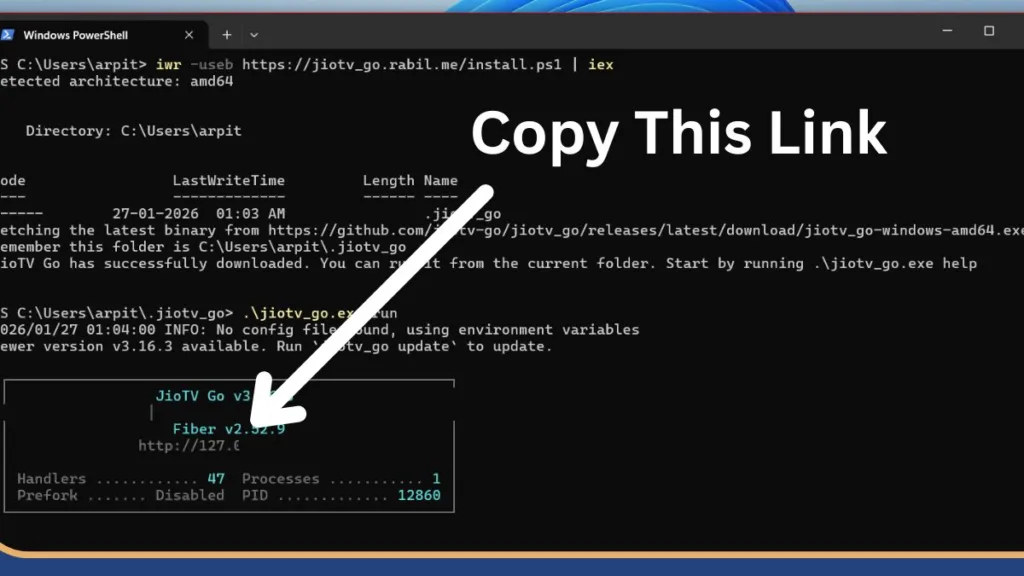
Next, you will execute two specific commands. You can verify these details directly on the official JioTV Go Get Started page. The first command downloads the necessary Jio TV APK for PC alternatives from the repository, and the second command initializes the local
1. Download the Tool: Copy the following command exactly as it appears. We recommend you use the copy-paste function to avoid typing errors. Paste it directly into your blue PowerShell window and press Enter:
Allow the process a few moments to complete the download. You will see progress indicators confirming the file transfer as the script fetches the latest binaries.
2. Start the Server: Subsequently, once the download prompt returns control to you, paste this second command and press Enter:
.\jiotv_go.exe run
Important: You will immediately see a confirmation message indicating that the server has started. Look for a URL in the text that usually starts with http://192... or http://localhost:5001/ and copy this link.
Steps To Install Jio TV Without Emulator
Note:You must keep this PowerShell window open. We recommend you simply minimize the window to the taskbar. Closing it will immediately terminate the data tunnel and stop your live TV on laptop stream.
Tip: We recommend you simply minimize the window to the taskbar. Closing it will immediately terminate the data tunnel and stop your live TV on laptop stream.
Step 3: Access the Jio TV Web Version Dashboard
With the server running quietly in the background, you can now access the user interface through your preferred web browser.
Launch your browser (Google Chrome, Microsoft Edge, or Mozilla Firefox are fully supported).
Enter the following local address into the URL bar: http://localhost:5001/
Press Enter to load the dashboard.
Step 4: Complete Jio TV Login for PC Using OTP
You will be presented with a minimal Jio TV login for PC screen. This step establishes the secure authentication required to decrypt and access the live content.
Enter your active Jio Mobile Number in the designated field.
Click the Send OTP button to request a One-Time Password.
Check your mobile device for the SMS containing the code.
Enter the OTP into the web interface to complete the login process.
Once authenticated, you will have immediate access to the full directory of Live TV channels. Simply click on any channel icon to begin streaming your favorite shows immediately.
Pro Tip: Stream via VLC Media Player for HD Quality
For the most stable viewing experience, we recommend you utilize an external media player like VLC Media Player. While browsers are convenient, they can sometimes struggle with specific video codecs or hardware acceleration, leading to minor buffering. VLC handles these streams more efficiently.
Navigate to the Settings or Dashboard area of the Jio TV web interface you just opened.
Locate the Playlist URL or M3U URL section.
Copy this URL to your clipboard.
Open VLC Media Player on your desktop.
Press Ctrl + N to open the “Open Network Stream” dialog box.
Paste the URL into the network URL field and click Play.
Note: This method ensures you have granular control over volume, aspect ratio (e.g., forcing 16:9), and audio tracks, providing a superior viewing experience comparable to a set-top box.
Troubleshooting: Fix Black Screen & Jio TV Login Issues
If you encounter issues, they are likely due to Windows security settings or content DRM restrictions. Follow these corrective actions to resolve them.
Issue 1: “Black Screen” or “Audio Only”
This is typically caused by Digital Rights Management (DRM) protocols preventing the video from rendering in the browser.
Solution: We recommend you disable Hardware Acceleration in your Chrome or Edge browser settings. Alternatively, utilizing the VLC Media Player method detailed above typically bypasses this rendering issue entirely, restoring the video feed.
Issue 2: PowerShell says “Running scripts is disabled”
Your Windows security policy is preventing the installation script from executing to protect the system.
Solution: You must change the execution policy to allow the script. Run the following command in PowerShell: Set-ExecutionPolicy RemoteSigned -Scope CurrentUser Type Y and press Enter to confirm the change. Then, re-run the installation command from Step 2.
Issue 3: The video is buffering
This usually indicates a bandwidth limitation or connection stability issue.
Solution: Ensure your internet connection speed is at least 10 Mbps for HD streaming. Furthermore, verify that you have not accidentally closed the PowerShell window. It must remain open to maintain the active data connection.
FAQ: Common Questions About Watching Jio TV on Laptop
Is this method safe?
Yes. The software used, JioTV Go, is open-source, allowing developers to transparently inspect the code on GitHub. However, we advise you to always verify commands before running them in PowerShell to ensure system safety.
Does this use my mobile data?
Yes. Since the content is streamed over the internet, data consumption occurs. Whether you use Wi-Fi or a mobile hotspot, the service consumes data from your plan just as it would on the mobile app.
Can I watch Star Sports/JioCinema content here?
You can view live broadcast channels included in your Jio plan, such as Star Sports or Colors. However, for on-demand content like movies or specific web series, we recommend you use the official JioCinema for PC website for the best compatibility.
Conclusion
By following this guide, you have successfully bypassed the limitations of mobile-only streaming. You now have a fully functional, lightweight method to watch Jio TV on laptop without compromising system performance.
We guarantee that maintaining this setup will provide a superior and lag-free viewing experience compared to any Jio TV PC download emulator solution. If you followed the steps precisely, your stream should be running smoothly now.