
Is your Outlook display looking huge or difficult to read? Get your Outlook back to normal size today. This guide explains how to fix your zoomed-in view for good.
It can be incredibly frustrating to open your email and find that everything looks “huge” or, conversely, that the text is so tiny you have to squint to read it. If you are wondering why your Outlook is so zoomed in or how to get your Outlook back to normal size, you are in the right place.
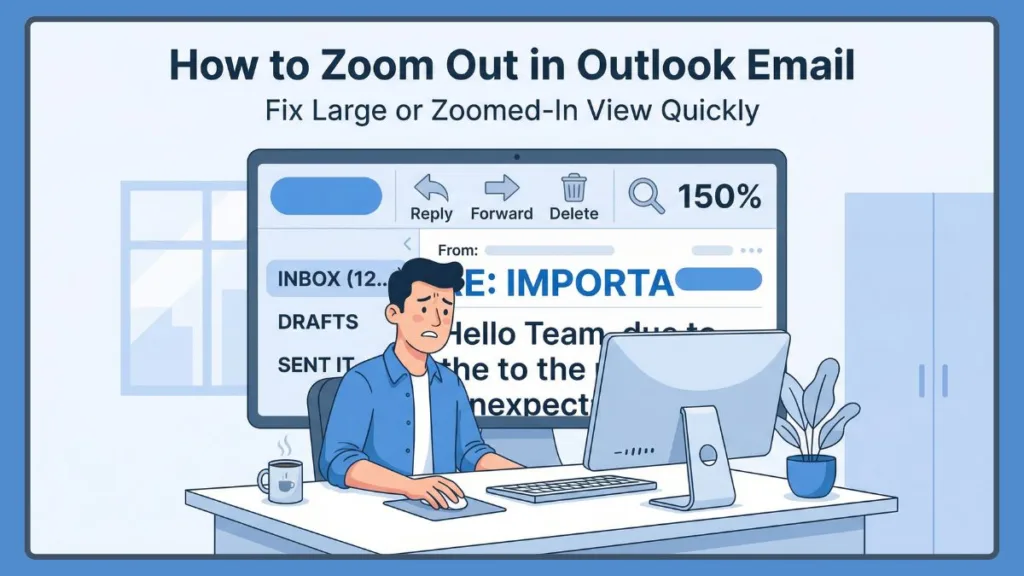
Outlook handles zoom settings differently depending on which version you use, but the fix is usually just a few clicks or a quick keyboard shortcut away. This guide will show you exactly how to change the viewing size in Outlook so you can stop squinting and start reading comfortably again.
How to Zoom Out Outlook Email Using Keyboard Shortcuts
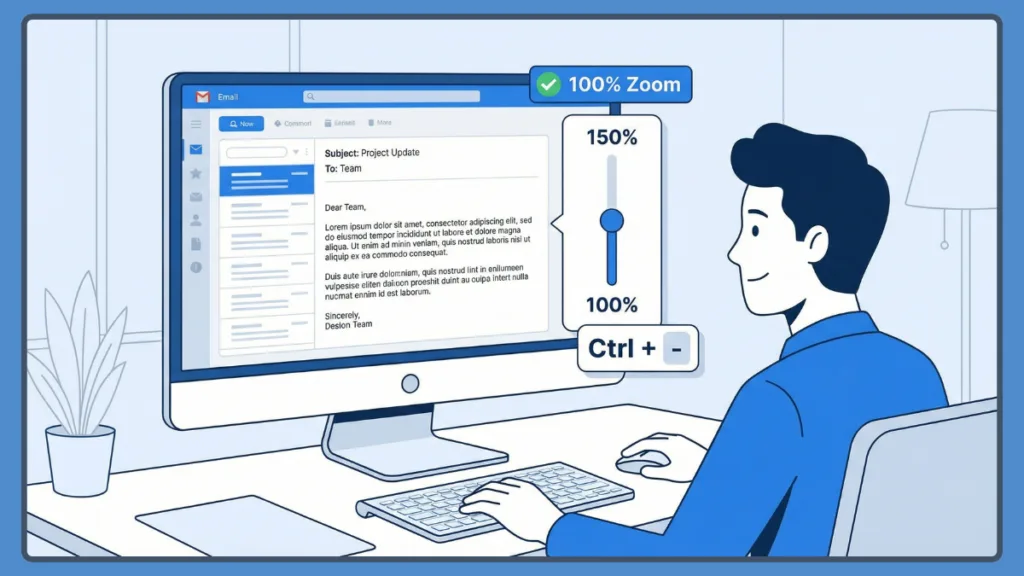
The absolute fastest way to unzoom your screen in Outlook is to use a keyboard shortcut. If you find your screen looking massive and want to know how to zoom out on Outlook email using keyboard commands, simply press Ctrl + 0 (the number zero).
This is the “reset” command that instantly snaps your view back to the standard 100% size. It is the ultimate “fix-it” button for when you’re wondering “why does my Outlook look huge?” It works across most versions of Outlook and is the best first step to try.
If you want to adjust the size more gradually, you can use these Outlook email zoom out keyboard shortcuts:
- How to Zoom Out: Hold the Ctrl key and press the Minus (-) key.
- How to Zoom In: Hold the Ctrl key and press the Plus (+) key.
- The Mouse Trick: Hold the Ctrl key and scroll your mouse wheel down to zoom out or up to zoom in.
This is often the most intuitive way to find a comfortable viewing level while you are reading or writing an email. This “Ctrl + Scroll” method is particularly powerful because it is context-sensitive.
If you click into the Message List (the middle pane where your subject lines are), the shortcut might not always work depending on your version. However, the second you click into the Reading Pane or a pop-out message window, this shortcut becomes active.
This is a core accessibility feature of Microsoft 365, designed to ensure that users with visual impairments can quickly scale content without diving into deep settings menus.
How to Zoom Out in New Outlook and Outlook 365 Online
The New Outlook and the web version of Outlook 365 operate a bit differently because they are cloud-based. If you are using these versions and need to know how to zoom out in New Outlook, you can find specific zoom controls on the View tab of the top ribbon.
Simply click the Zoom button and use the plus or minus symbols to adjust the text. If you want a more permanent change to how your inbox looks, you can head into the settings.
Click on the gear icon, then go to Mail, then Layout. Here, you will find a section for Text size and spacing where you can choose between small, medium, or large. This setting specifically adjusts the “density” of your inbox:
- Small: Fits more emails on the screen by reducing padding and font size.
- Medium: The standard Microsoft 365 balance.
- Large: Provides more white space and larger text, which is excellent for high-resolution monitors where standard text can look minuscule.
If the “large” option still isn’t quite right for you, many people find it easier to zoom out in Outlook Mail by opening it in a web browser and using the browser’s own zoom settings.
Browsers like Google Chrome, Microsoft Edge, and Mozilla Firefox allow you to set a “Per-Site Zoom.” This means you can set Outlook.com to 125% and your other tabs will stay at 100%. To do this, simply press Ctrl + Plus or Minus while the browser is active, and the browser will remember this preference specifically for the Outlook URL.
How to Zoom in Outlook Classic Using the Status Bar
If you are using the classic version of Outlook, the most prominent tool is the Zoom Slider. You can find this at the very bottom-right corner of your window in the status bar.
Dragging the slider to the left will zoom you out, while dragging it to the right zooms you in. Sometimes, the Zoom Slider might go missing, leaving you wondering how to zoom in Outlook classic.
If you don’t see it, simply right-click anywhere on the bottom status bar and ensure there is a checkmark next to Zoom Slider. This status bar is highly customizable. You can also toggle features like “Items in View,” “Filter,” and “Quotas.” If you are on a laptop with a smaller screen, keeping the status bar clean can actually give you a few more pixels of reading space.
Setting a Permanent Zoom Level for the Outlook Reading Pane
One of the best features of Classic Outlook is the ability to set a permanent zoom level so you don’t have to keep adjusting it. Click the percentage number (like 100%) next to the slider to open the Zoom dialog box.
Choose your preferred level, check the box that says Remember my preference, and click OK. This ensures that every email you open stays at that perfect size. This “Remember my preference” feature was a highly requested update in older versions of Office, as previously, Outlook would revert to 100% every time you switched folders.
Troubleshooting Why Zoom in Outlook is Greyed Out
A common issue people run into is trying to click the Zoom button on the ribbon only to find it is greyed out and unclickable.
This usually happens because Outlook hasn’t “registered” that you are working in the email yet. To fix this, simply click your mouse anywhere inside the body of the email you are reading or writing.
Once your cursor is active in the text area, the Zoom button should become available. Another reason for a zoom in Outlook greyed out situation is the type of file you are viewing.
If you are looking at a plain text email (.txt format), some advanced formatting and zoom features on the ribbon might be restricted. Additionally, if your Outlook is in “Protected View” because the email originated from an outside source, the ribbon may be locked until you click “Enable Editing” or “Trust this sender.”
How to Zoom Out on Outlook Email Mac and Calendar Views
If you are using a Mac, the process is very similar, but you will use the Command (⌘) key instead of the Ctrl key. To zoom out on Outlook email Mac, press Command + Minus (-).
This shortcut also works when you want to know how to zoom out on Outlook calendar Mac, which is a great way to see more of your weekly schedule at once without scrolling.
On macOS, you also have the benefit of system-wide gestures. If you have a trackpad, you can often use the “pinch-to-zoom” gesture within an open email window to quickly scale the content.
This is a very fluid way to handle zoom, similar to how you would zoom into a photo on an iPhone. Ensure that “Smart Zoom” or “Pinch to Zoom” is enabled in your System Settings under the Trackpad section to use this feature.
How to Change the Default Font and Viewing Size in Outlook
If you find that the zoom is fine but the actual text you type is always too small, you might want to change your default font rather than the zoom level.
In Classic Outlook, you can do this by going to File, then Options, then Mail, and clicking on Stationery and Fonts. Here, you can set a permanent font size for all new messages and replies so they are always easy to read from the moment you start typing.
Using Third-Party Tools Like Kutools for Outlook Zoom
For those who want even more control, there are third-party tools like Kutools for Outlook that can force the app to stay at a specific zoom level across every single window you open.
This is a great “set it and forget it” solution if you find the native Outlook settings aren’t sticking the way you want them to. Kutools provides a dedicated “Zoom” tab in its options where you can check a box to “Enable auto zoom” and specify a precise percentage for reading, composing, and replying windows individually.
How to Zoom in Outlook Folder Pane and Advanced View Settings
Sometimes the problem isn’t the zoom of the email itself, but the size of the font in your Inbox list (the list of senders and subjects).
To fix this in Classic Outlook, go to the View tab on the ribbon and select View Settings. From there, click on Other Settings. You will see options to change the “Column Font” and “Row Font.” Increasing these will make your inbox much easier to navigate without affecting the size of the emails themselves. If you need to zoom in Outlook folder pane, this is the menu where those adjustments happen.
Changing Text Size and Spacing: Roomy vs. Compact
In the New Outlook and Web versions, this is handled by the “Density” setting found in the quick settings menu. Choosing “Roomy” instead of “Compact” adds significant space between emails. This can reduce eye strain and make the interface feel less cluttered, providing a much better user experience for those handling high volumes of messages.
Fixing Outlook Display Issues with Windows Scaling Settings
If everything in Outlook—including the menus, the ribbon, and the buttons—looks too small, the issue might not be an Outlook setting at all, but a Windows Display setting. Modern 4K monitors often require “Display Scaling.” To check this:
- Right-click on your Desktop and select Display Settings.
- Look for Scale and layout.
- Check the “Change the size of text, apps, and other items” dropdown.
Often, Windows recommends 125% or 150% for high-resolution screens. Adjusting this will scale all of Office (Word, Excel, Outlook) simultaneously, ensuring that the entire user interface is proportional and readable.
Best Practices and Tips for Better Outlook Readability
To ensure a comfortable long-term experience, consider these additional tips:
- Immersive Reader: If you are struggling with a particularly long or poorly formatted email, use the “Immersive Reader” feature found under the View tab. This strips away distractions, allows you to increase word spacing, and can even change the background color to a “Sepia” or “Dark” theme to reduce blue light exposure.
- Dark Mode: Switching to a Dark Theme (File > Office Account > Office Theme > Black) can make text pop more and reduce the glare that often makes users want to zoom in further than necessary.
- The “Ctrl + Mouse Wheel” Habit: Make this your default move. Whether you are in a web browser, an Excel sheet, or an Outlook email, this universal gesture is the most efficient way to manage your digital environment.
By using these methods, you can customize your workspace to be as large or as compact as you need, ensuring that your time spent in Outlook is comfortable and productive.
Whether you are a power user leveraging third-party add-ins or someone just trying to fix a “huge” screen after an accidental click, these steps provide a complete roadmap to a better viewing experience.
Visit oue Post page: Blog Page