
Send to Kindle failing with Error E999? Learn how to fix the internal processing error caused by EPUB metadata, encoding issues, and file structure problems.
When Send to Kindle fails with Kindle Error E999, what you’re seeing on your screen is not a temporary sync glitch, a weak connection, or a broken Kindle. You are encountering a server-side document processing failure that occurs after Amazon receives your file but before it can convert it into a Kindle-readable format. This distinction matters because it determines what actions actually fix the problem and which ones waste your time.
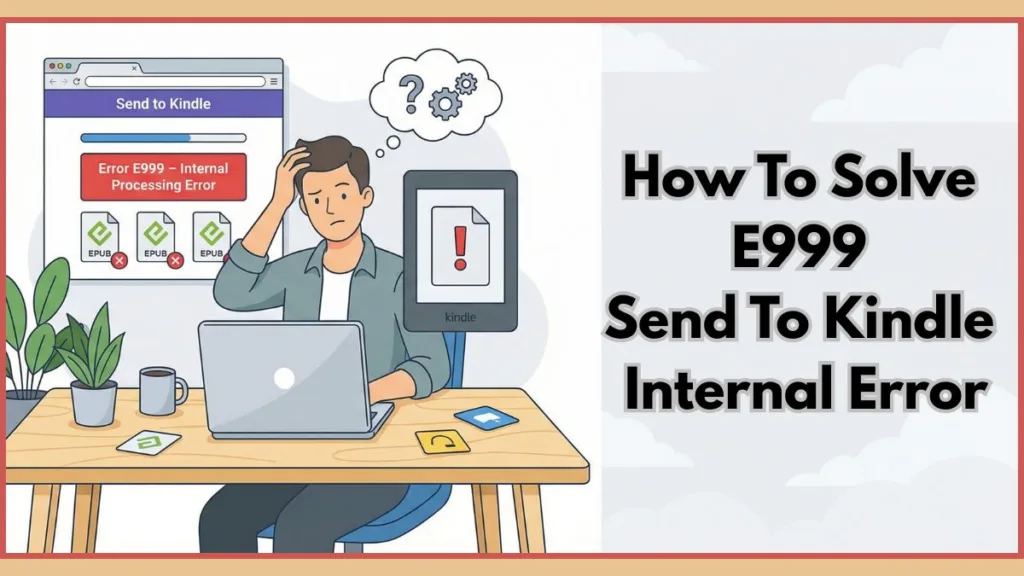
As you follow this guide, you’ll understand what error E999 on Kindle really means, why only one EPUB often fails while others succeed, and how to apply reliable fixes that align with how Amazon’s conversion system behaves when processing personal documents.
What Is Kindle Error E999 and What Does Kindle E999 Internal Error Mean?
Kindle Error E999, also referred to as Send to Kindle internal error E999, occurs when Amazon’s document processing system fails while converting a file you’ve sent. From your side, you upload an EPUB using email, the Send to Kindle app, or the web interface, and the transfer appears to complete. The failure happens after that point, during Amazon’s internal validation and conversion phase.
In most real-world cases, Kindle E999 EPUB error scenarios occur because Amazon’s servers inspect the file and find data they cannot safely interpret. This inspection includes metadata fields, encoding rules, internal file structure, and header integrity. If any of those checks fail, the system stops processing and returns error E999.
This is why restarting your Kindle, switching networks, or reinstalling the Send to Kindle app doesn’t help. The failure occurs before the file ever reaches your device, which means the problem exists entirely at the file-processing level.
When Does Send to Kindle Error E999 Usually Appear?
You usually encounter Send to Kindle error E999 while performing actions that otherwise feel routine. For example, you might email an EPUB to your Kindle address and receive a Kindle email document delivery failed message shortly afterward. Alternatively, you may upload the file through the Send to Kindle app, watch the progress bar complete, and then see an immediate failure notification.
This error often becomes confusing when one document uploads without issue while another fails repeatedly using the same account and device. If you’re sending files from an iPhone, a desktop browser, or to a Kindle Paperwhite, the experience feels inconsistent. However, when the same EPUB fails across devices or even across different accounts, that behavior tells you the issue is tied to the file itself.
This is a classic example of the Amazon Kindle ‘Send to Kindle’ failed pattern, where the system is functioning correctly but rejecting a document that doesn’t meet processing requirements.
What Causes Kindle Error Code E999 Based on Real User Behavior?
Why Can Invalid EPUB Metadata Trigger Kindle Error E999?
The most common reason you see Kindle error code E999 is invalid or broken EPUB metadata, especially the metadata language tag. Every EPUB includes descriptive information that tells reading systems how the content should be handled. When this information is missing, malformed, or set to an invalid value, Amazon’s conversion system refuses to proceed.
From your perspective, the file may open normally in desktop readers, which makes this failure misleading. Amazon’s servers apply stricter rules. If the language field is missing or incorrectly encoded, validation fails instantly. This explains why editing metadata using Calibre ebook management tools (download the latest version from the official Calibre website) resolves many cases where users need to fix Kindle error E999.
How Do Encoding and Structural Issues Cause Kindle E999 EPUB Error?
If metadata appears correct but Send to Kindle internal error E999 continues appearing, the problem often lies deeper in the EPUB’s structure. Files with corrupted headers, broken packaging, or invalid UTF-8 encoding may still open locally but fail during server-side parsing.
These problems are common in EPUBs created through scraping tools, bulk generators, or unreliable converters. When Amazon’s servers detect inconsistencies they cannot safely repair, they stop processing immediately. On your screen, this looks like a generic Kindle internal error processing document, even though the underlying cause is structural.
Are Multiple Kindle Email Addresses the Cause of Send to Kindle Error E999?
Seeing multiple Kindle email addresses often leads you to believe something is misconfigured. In reality, each Kindle device and app is assigned its own email address by design. This setup supports parallel delivery and does not interfere with document conversion.
Even when your personal document settings and approved email list (verify your settings at Amazon’s Manage Your Content and Devices) are correct, Kindle E999 internal error still occurs if the file fails validation. This confirms that email configuration is not responsible for the error.
If the document fails Amazon’s internal checks, the delivery method doesn’t matter.
How Do You Fix Kindle Error E999 Step by Step?
Here is a quick summary of the most effective methods to resolve this error before we dive into the steps:
| Fix Method | Best Used For | Success Rate |
| Edit Metadata | Files with missing language tags or author data. | High |
| Repair EPUB | Files with corrupted headers or bad encoding. | Moderate |
| Convert (EPUB > MOBI > EPUB) | Stubborn files that fail other methods. | Highest |
How Does Calibre Fix Kindle Error E999?
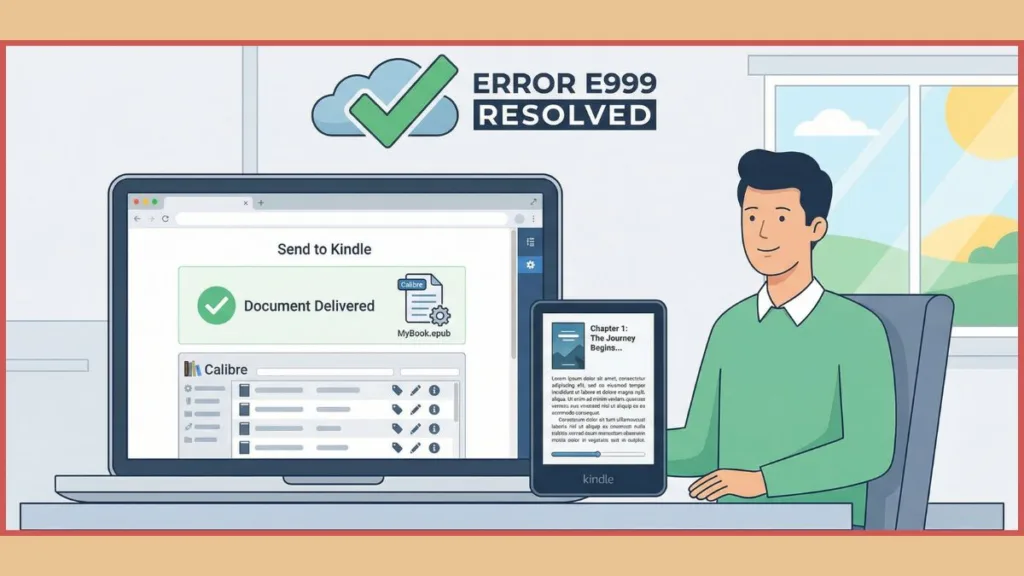
When you need to fix Send to Kindle error E999, correcting EPUB metadata is the most reliable solution. Using Calibre, you open the EPUB and directly edit its metadata. When you explicitly set the language field to a valid value, such as English (en), you remove one of the most common validation failures.
Once saved, Calibre rewrites the internal metadata. When you resend the file, Amazon’s servers now recognize the document as valid and continue processing. This approach explains why Kindle E999 Calibre fix methods are consistently successful.
Can Repairing an EPUB Fix Send to Kindle Internal Error E999?
If metadata changes don’t resolve the issue, repairing the EPUB addresses deeper structural problems. Repair tools rebuild internal components, normalize encoding, and correct corrupted headers that trigger validation failures. You can use free online tools like ePub Validator to check if your file has hidden structural errors before sending.
After repair, the document behaves differently during Amazon’s conversion process. Instead of failing, the system completes processing successfully, and Amazon Kindle send to Kindle failed messages disappear.
Does Converting EPUB to MOBI Fix Kindle Error E999?
In more stubborn cases, converting the file from EPUB to MOBI and then back to EPUB resolves Kindle error E999. During this double conversion, Calibre reconstructs the entire document using clean defaults, correcting structural inconsistencies and metadata problems automatically.
This method is widely recommended because EPUB to MOBI conversion forces a complete rebuild, often succeeding where direct repairs do not. That’s why the method to convert EPUB to fix E999 remains a reliable fallback solution.
Why Does Only One EPUB Show Error E999 While Others Work?
This behavior feels random, but it follows Amazon’s design. Kindle validates each document independently. If one EPUB contains invalid metadata or a corrupted file header, it fails. Another EPUB sent moments later may succeed because it passes validation.
This explains why deregistering your Kindle, reinstalling apps, or checking for Amazon server issues rarely fixes the problem. Until the problematic document is corrected, Kindle error E999 will continue appearing for that file alone.
How Can You Avoid Kindle Error E999 in the Future?
Avoiding “why does my EPUB say error E999” situations requires consistent file preparation. Before sending EPUBs, you should verify metadata, ensure proper encoding, and process the file through Calibre once to standardize its structure.
Do not assume that local readability guarantees Kindle compatibility. Amazon’s conversion system applies stricter rules than most readers, and small metadata errors can still cause Send to Kindle web interface error messages to appear.
Kindle Error E999 FAQ
How do I fix the E999 error on my Kindle?
You fix it by correcting the document, not the device. Editing metadata, repairing the EPUB, or reconverting it using Calibre addresses the root cause.
Why does Send to Kindle keep failing?
Send to Kindle keeps failing because Amazon’s servers cannot process the document during conversion due to invalid metadata, corrupted headers, or encoding issues.
What does Send to Kindle internal error mean?
It means the file uploaded successfully but failed Amazon’s validation or conversion checks before delivery.
Can a bad EPUB file cause error E999?
Yes. A malformed EPUB is the most common cause of Kindle E999 EPUB error.
Does Send to Kindle still support EPUB?
Yes, but only when the EPUB meets Amazon’s formatting, metadata, and encoding requirements. For official details, refer to Amazon’s Send to Kindle Support Page.
Related Kindle Errors You Might See
While E999 is common, you may encounter other codes that look similar but have different causes.
| Error Code | What It Signals | The Root Cause |
| E013 | Incompatible Format | The file type is not supported by Kindle. |
| E014 | Unapproved Email | The sender’s email is not on your Approved List. |
| E999 | Internal Processing Failure | Metadata, header, or encoding issues (Server-side). |
While these errors appear similar, they originate from different system checks. Kindle Error E999 specifically indicates an internal processing failure, not a permission or format support issue.
Bottom Line
Kindle Error E999 is not a Kindle problem. It’s a file problem. Once you correct metadata, repair structural issues, or rebuild the document using Calibre, Send to Kindle works as expected. When your files align with how Amazon’s conversion system actually operates, delivery becomes predictable and reliable again.
Useful Resources for Fixing Kindle Error E999
When Send to Kindle fails with Error E999, having the right official tools and validators makes troubleshooting faster and more reliable. The resources below directly support metadata correction, EPUB validation, and Send to Kindle delivery checks discussed in this guide.
Official Amazon Resources
Amazon – Send to Kindle Support Page: This is the official reference for supported file formats, Send to Kindle behavior, and delivery limitations. It helps you confirm whether your EPUB meets Amazon’s current processing requirements and explains how Amazon handles personal document conversion.
Amazon – Manage Your Content and Devices: Use this dashboard to verify approved email addresses, personal document settings, and delivery permissions. While email settings are not the cause of Error E999, this page helps you rule out permission-related errors like E014.
EPUB Editing and Conversion Tools
Calibre (Official Website): Calibre is the most reliable tool for fixing Kindle Error E999. You use it to edit EPUB metadata (especially the language tag), repair file structure through conversion, and rebuild corrupted documents by converting EPUB to MOBI and back to EPUB.
EPUB Validator (IDPF / W3C Standard Tool): This validator checks EPUB files for hidden structural problems, encoding errors, and invalid metadata. If your file passes local readers but fails Send to Kindle, this tool often reveals the exact reason Amazon rejects it.
EPUB Repair and File Validation Tools
Online EPUB Repair Tools: These tools normalize EPUB structure, correct broken headers, and clean encoding issues. They are especially useful for EPUBs created by scraping tools or automated generators that introduce formatting inconsistencies.
Visit Our Post Page: Blog Page