
Need a safe Microsoft Visual C++ Redistributable download? Get official Microsoft links for the 2015–2022 package and fix missing DLL errors fast.
Ever tried to fire up a brand-new game or a cool piece of software, only to be hit in the face with a frustrating pop-up saying vcruntime140.dll is missing or MSVCP140.dll not found? It’s a total mood-killer, but here’s some good news: it’s actually incredibly easy to fix!
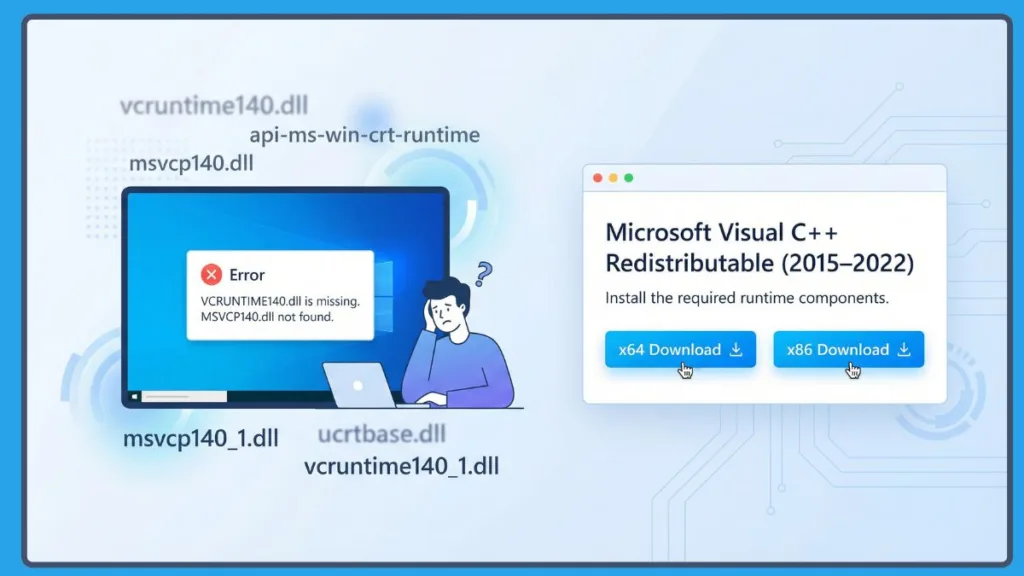
Whether you just downloaded a massive title from Steam, installed a heavy-duty creative suite like Adobe Premiere Pro, or just booted up a specific app for work, hitting a wall before the program even opens is super annoying. You’re definitely not alone, though—millions of Windows users deal with these exact error codes every single month.
This error basically just means your computer is missing a small, free update from Microsoft called the Visual C++ Redistributable. In this guide, I’m going to walk you through exactly what this file is, help you figure out which version you need, give you the safe and official download links, and show you how to troubleshoot those annoying installation errors. We’ll even dive into the technical side of things for those who want to know why this happens, and offer some advanced fixes so you can handle it like a pro. Let’s get your software back on track!
What is the Microsoft Visual C++ Redistributable Runtime Library? (And Why You Need to Download It)
Think of the Microsoft Visual C++ Redistributable as a shared toolkit. When developers write programs using the C++ programming language, they use standard, pre-packaged bits of code to get things moving. Instead of packing all that heavy code into every single game or app you download, they rely on Windows to have a “shared library” of this code ready and waiting.
These libraries are the Visual C++ runtime components (you’ll see them as vcredist_x86.exe or vcredist_x64.exe files). If your computer is missing the specific toolkit that an app was built with, it won’t know how to run, and it’ll throw that famous missing DLL error.
Deep Dive: Dynamic Link Libraries (DLLs) vs. Static Linking
To really get why these redistributables exist, it helps to understand how software is actually built. Developers usually have two choices:
- Static Linking: The developer bakes every single piece of code the program will ever need directly into the
.exefile. This makes the file size massive, hogs your RAM, and makes updating the software a nightmare. - Dynamic Linking: The app relies on external
.dll(Dynamic Link Library) files already stored on your Windows operating system. Multiple programs can share a single.dllfile at the same time. This drastically shrinks the file size of your games, saves hard drive space, and optimizes your computer’s memory.
The Microsoft Visual C++ Redistributable puts these vital .dll files right where they belong in your Windows system folders (usually System32 and SysWOW64).
Decoding the DLL Names
When you see an error, the file name is actually a secret code telling you what’s wrong:
- “vc” stands for Visual C++.
- “runtime” or “cp” means it’s a runtime library or a C++ library.
- “140” is the version number. Version 14.0 is linked to Visual Studio 2015.
So, a vcruntime140.dll error literally means: “Hey, I’m missing the Visual C++ library version 14.0.”
Which Version of Microsoft Visual C++ Redistributable Do You Actually Need for Windows 10/11?
If you check your installed programs in the Windows Control Panel, you’ll probably see a giant list of years (2005, 2008, 2010, 2012, 2013, 2015, 2017, 2019, 2022) and architectures (x86 or x64). It might look like a mess or even a virus, but I promise it’s completely normal.
The Architecture Choice: visual c++ redistributable 64 bit vs 32 bit (x86, x64, and ARM64)
Your hardware decides what you need, but backward compatibility is the tricky part:
- x64 (64-bit): For 64-bit operating systems on standard Intel or AMD processors (most modern PCs).
- x86 (32-bit): For older 32-bit systems or older software.
- ARM64: For newer laptops using a Qualcomm Snapdragon chip (like the latest Surface devices or “Copilot+ PCs”). You’ll need the ARM64 version for these.
- The Golden Rule: If you’re on a 64-bit version of Windows 10 or 11, it is highly recommended to install both the x86 and x64 versions. Plenty of 64-bit games still use 32-bit (x86) background processes or anti-cheat tools that won’t work without them.
How to Check Your Windows Version and System Type
Not sure if you need x86 or x64? Here is how to find out in under 10 seconds:
- Press the Windows Key on your keyboard or click the Start button.
- Type “About” and select About your PC from the search results.
- Look under “Device specifications”:
- System type: It will say either 64-bit operating system, x64-based processor or 32-bit operating system, x86-based processor.
- Look under “Windows specifications”:
- This tells you if you’re running Windows 10 or Windows 11.
Quick Rule of Thumb: * If you see 64-bit, download BOTH the x64 and x86 files to be safe.
- If you see 32-bit, you only need the x86 file.
The Year Versions Explained (2015, 2017, 2019, 2022)
In the past, Microsoft put out a totally separate package every time they updated their Visual Studio software. That’s why you see 2008 and 2010 sitting there together.
Thankfully, things are simpler now. The newest package bundles everything from 2015, 2017, 2019, and 2022 into one single unified installer. These versions all play nice together. Usually, you only need this latest unified package for anything released in the last decade.
But, if you’re playing a legacy game from way back (like an old Call of Duty or a classic indie title), it might still hunt for an older library like 2013 or 2012.
Official Microsoft Visual C++ Redistributable Download Links (Safe & Secure)
When you’re grabbing Windows system components, always get them straight from the official Microsoft site. Third-party DLL sites are sketchy—they’re famous for hiding trojans or giving you outdated junk. Here are the direct, official Microsoft links:
Latest Unified Package Download (2015, 2017, 2019, and 2022)
This download fixes 95% of those vcruntime140.dll, MSVCP140.dll, or VCRUNTIME140_1.dll errors.
- Download x64 (64-bit) Official Microsoft Link
- Download x86 (32-bit) Official Microsoft Link
- Download ARM64 Official Microsoft Link (For Snapdragon/ARM-based PCs only)
Older Versions (Legacy Support)
If an old app is still acting up and specifically wants an older DLL (like msvcr120.dll for 2013, or msvcr100.dll for 2010), you’ll need these:
- Visual Studio 2013 (VC++ 12.0): Download from Microsoft (x64) | Download from Microsoft (x86)
- Visual Studio 2012 (VC++ 11.0): Download from Microsoft Update
- Visual Studio 2010 (VC++ 10.0): Download from Microsoft Update
You can find the whole list of safe, official legacy downloads over at the Microsoft Learn latest supported downloads page.
How to Install or Reinstall Microsoft Visual C++ Redistributable Packages
Installing these is actually pretty simple. Just follow these steps:
- Download the file(s) you need (remember, grabbing both x86 and x64 is usually the best bet).
- Right-click that
.exeinstaller and pick Run as administrator. This gives Windows the permission it needs to write to folders like System32. - Accept the terms and hit Install. If a User Account Control (UAC) box pops up, just click Yes.
- Wait a few seconds—it’s usually super fast (under 30 seconds).
- Restart your PC. Seriously, don’t skip this! Windows needs a reboot to register everything in the Registry and clear out those old errors.
Pro Tip: If you’re reinstalling to fix a stubborn error, try a clean sweep first. Go to the Windows Control Panel, hit Programs and Features, and uninstall the version you’re trying to fix before you run the new installer. It keeps corrupted files from causing more drama.
Why do games do “Silent Installations”?
Ever notice that when you install a game on Steam, a little window says “Installing Microsoft Visual C++ Redistributable (Step 1 of 1)” and then disappears? Developers use command-line tricks (like /install /quiet) to do this silently in the background. They just want to make sure you have the right build without bugging you with menus.
5. Troubleshooting Common Installation and DLL Errors (vcruntime140.dll fix)
Sometimes, even with the right download, things go sideways. If the DLL error is still there after you installed the package, here’s how to handle it.
Fixing “vcruntime140.dll missing” or “MSVCP140.dll not found”
If you’ve installed the package but the error won’t leave, the installation might be corrupted.
- Go to Settings > Apps > Installed apps.
- Find Microsoft Visual C++ 2015-2022 Redistributable.
- Click the three dots and pick Modify.
- Hit Repair and let Windows fix the missing files for you.
- Do this for both the x86 and x64 versions.
The “Side-by-Side Configuration is Incorrect” Error
This one sounds scary, right? “The application has failed to start because its side-by-side configuration is incorrect.” This happens when an app is hunting for a very specific, older library in your WinSxS folder but can’t find it.
- The Fix: You’ve got to check the Windows Event Viewer.
- Type Event Viewer in your search bar.
- Go to Custom Views > Administrative Events.
- Look for a red “Error” from around the time you tried to open the app (look for “SideBySide” as the source).
- Click it, and it’ll tell you exactly which version number is missing (like 9.0.21022.8, which is the 2008 version). Download that specific one.
Visual C++ Redistributable Not Installing (Setup Failures)
If the installer itself just quits:
- Run Windows Update: Make sure you don’t have pending updates—they can block system installs.
- Check for Corrupted Files (SFC and DISM): If Windows is acting up, your system image might be broken.
- Open the Command Prompt as an administrator.
- Type
DISM /Online /Cleanup-Image /RestoreHealthand hit Enter. Let it finish—it fixes your Windows image via Windows Update. - Type
sfc /scannowand hit Enter. Windows will find and fix broken internal components.
- Use the Troubleshooter: Microsoft has a free tool for this. Search for the “Microsoft Program Install and Uninstall Troubleshooter” and run it. It cleans up broken registry keys so your Visual C++ setup can finally finish.
Decoding the 0xc000007b Error
If you fix a DLL but then get Application was unable to start correctly (0xc000007b), it’s usually a 32-bit vs. 64-bit conflict.
- The Fix: This usually happens if you manually moved a DLL file from the internet into your System32 folder (which, weirdly, is for 64-bit files). Delete that manual DLL, and reinstall both the x86 and x64 packages using the official installers. It’ll put the right files in the right spots.
Frequently Asked Questions about Visual C++ Downloads
Should I install both x86 and x64 redistributables?
Yes! If you’re on a 64-bit system, grab both. Since a 64-bit PC runs both 64-bit and 32-bit software, and plenty of background apps or launchers still use the 32-bit (x86) library, having both ensures maximum compatibility.
Can I safely uninstall old Visual C++ Redistributables?
Technically you can, but it’s better to just leave them. Different apps need different versions. Deleting a 2010 redistributable might break a game you installed years ago. They’re tiny and barely use any hard drive space, so it’s not worth the risk of breaking your stuff.
Why do games always prompt me to install the redistributable even if I already have it?
Game launchers often have automated scripts. Even if you have the 2015-2022 package, a game might want a highly specific build number (like 14.32.31326) just to be safe. Since the installer is backward compatible, it’s fine to let it run. It’ll just see you’re up to date and close itself.
Where can I download Microsoft Visual C++ Redistributable packages for Visual Studio 2013?
You can grab the official legacy downloads for 2013, 2012, and 2010 right here: Microsoft Learn latest supported downloads page.
Are Visual C++ Redistributables a security risk?
The official Microsoft packages are totally safe. However, keeping them updated is a good idea. Sometimes Microsoft finds security holes in how these libraries handle data. When you get the latest unified 2015-2022 package, or when Windows Update does its thing, you’re getting critical security patches. That’s why you should never download DLLs from random sites!
What is the WinSxS folder, and why is it so large?
WinSxS stands for “Windows Side-by-Side.” It’s a vital folder in C:\Windows\WinSxS that stores multiple versions of the same DLL files. It stops “DLL Hell,” an old problem where installing one program would break another. It gets big because it keeps so much history, but never manually delete files from here, or you’ll break your system.
Visit Our Post Page: Blog Page