
Facing a Microsoft Visual C++ Runtime Error in 2025? Learn why games crash on Windows 11, follow safe step-by-step fixes using the latest official Visual C++ Redistributable.
Microsoft Visual C++ Runtime Error (Why It’s Crashing Games & Apps in 2025)
Seeing a “Microsoft Visual C++ Runtime Error” appear just as your game or application is loading can be incredibly frustrating. For many users, the error shows up repeatedly, crashes the program instantly, or traps them in a never-ending install loop.
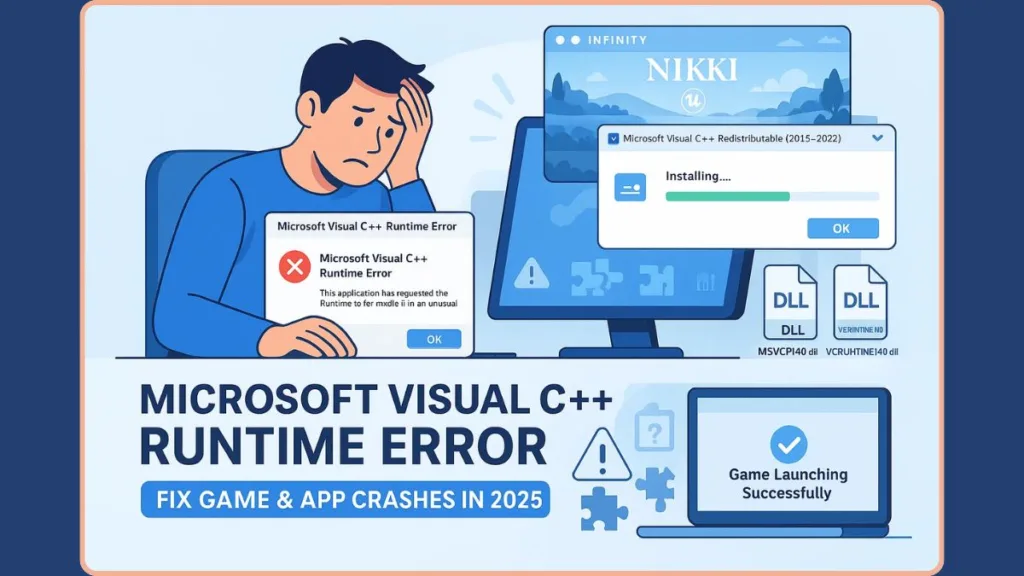
This problem has become especially common in late 2025. If the issue started while launching Infinity Nikki, another Unreal Engine 5 game, or even everyday software like Adobe tools on Windows 11, you’re not alone. Despite how serious the message looks, your PC is not broken.
In most cases, the error simply means Windows cannot access the runtime library files that newer software now requires. These files are small, but they are critical.
The good news is simple: With the correct steps and official sources only, this error is fixable for the vast majority of users.
Why Microsoft Visual C++ Runtime Error Is Trending Right Now (December 2025)
This topic is trending heavily due to a combination of new game releases, engine upgrades, and Windows updates.
Infinity Nikki Runtime Error & Install Loop
- Many players report that Infinity Nikki keeps asking to install Visual C++ every time it launches
- Others experience immediate crashes with a runtime error message
- In these cases, the launcher fails to correctly detect already-installed runtime libraries
This behavior creates confusion, but the underlying issue is usually runtime corruption or version mismatch, not the game itself.
Unreal Engine 5 Has Stricter Requirements
- Modern games built on Unreal Engine 5 rely on Visual C++ 2015–2022 Redistributables
- Older or partially corrupted installs that worked for previous games now fail
- Even one missing runtime file can prevent the game from launching
Windows 11 Updates & DLL Issues
- Recent Windows 11 cumulative updates have caused some systems to misregister runtime files
- Errors involving MSVCP140.dll and related files are commonly reported
- This affects both games and professional desktop applications
Outdated Online Fixes
- Many guides still reference 2017–2019 redistributables
- These fixes no longer apply to modern engines or updated Windows builds
- Following outdated advice often makes the problem worse
What Is Microsoft Visual C++ Runtime Library? (Simple Explanation)
The Microsoft Visual C++ Runtime Library is a set of shared helper files, also known as DLLs, that Windows programs rely on to function.
These libraries:
- Are created by Microsoft
- Are shared between multiple programs
- Are not always included with the app or game itself
When software launches, it checks Windows for specific runtime files. If the required version is:
- Missing
- Corrupted
- Or incorrect
Windows throws a runtime error and stops the program.
Common file names you may see include:
- MSVCP140.dll
- VCRUNTIME140.dll
- mfc140u.dll
Microsoft confirms that the latest Visual C++ Redistributable v14 packages support software built with Visual Studio 2017, 2019, 2022, and newer, which covers nearly all modern Windows games and applications.
Common Microsoft Visual C++ Runtime Error Messages
Users may encounter different messages, including:
- Microsoft Visual C++ Runtime Library Error
- Runtime Error R6025 – Pure Virtual Function Call
- Runtime Error R6034
- Runtime Error on Startup
- “The following component(s) are required to run this program: Microsoft Visual C++ Runtime”
- Repeated Visual C++ installation prompts on every launch
Despite the different wording, these messages usually point to the same underlying issue.
What Causes Microsoft Visual C++ Runtime Errors on Windows 10 & 11
Several factors can trigger these errors:
Corrupted or Missing DLL Files
- Files such as MSVCP140.dll, VCRUNTIME140.dll, or mfc140u.dll may be damaged or missing
- This is one of the most common causes of sudden crashes
x86 vs x64 Version Conflict
- Installing only x64 is not always enough
- Some games and apps still require x86, even on 64-bit systems
Unreal Engine 5 Dependency Mismatch
- UE5 titles require updated runtime packages
- Older systems often have incomplete or outdated installations
Windows Update Side Effects
- Updates can break runtime file registration
- Skipping restarts after updates increases the risk
Permissions or Third-Party Conflicts
- Security software, overlays, or restricted permissions can block runtime access
How to Fix Microsoft Visual C++ Runtime Error (Do This in Order)
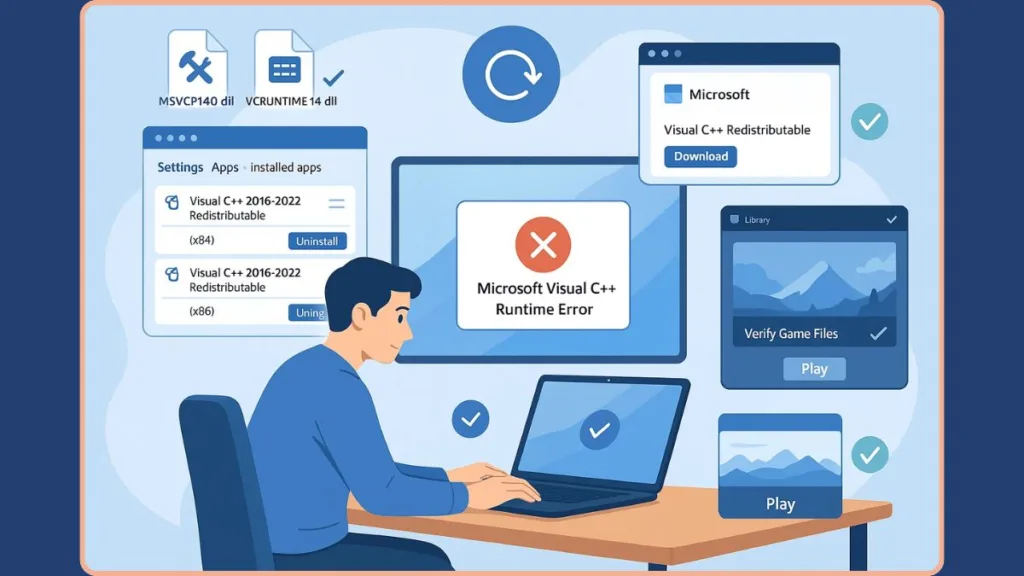
The All-in-One Visual C++ Fix (Recommended)
This is the most reliable solution, especially for Infinity Nikki and Unreal Engine 5 games.
- Open Settings > Apps > Installed Apps
- Uninstall Microsoft Visual C++ 2015–2022 Redistributable (x64)
- Uninstall Microsoft Visual C++ 2015–2022 Redistributable (x86)
- Restart your PC
- Download the latest official Visual C++ 2015–2022 Redistributables from Microsoft
- Install both x64 and x86
- Restart again
Why this works:
- Removes corrupted files
- Fixes version conflicts
- Forces Windows to re-register all required libraries
Verify Game Files (Steam / Epic Games Launcher)
Use this if the error happens with only one game.
Steam
- Library > Right-click the game > Properties > Installed Files > Verify
Epic Games Launcher
- Library > Three dots next to the game > Verify
This step forces the launcher to restore missing runtime dependencies tied specifically to that game.
Repair Visual C++ Redistributable (Without Uninstalling)
If uninstalling is not possible:
- Open Control Panel > Programs and Features
- Right-click Visual C++ 2015–2022
- Select Change > Repair
- Restart your PC
This can resolve minor corruption without removing the package.
Run the App as Administrator
- Right-click the game or application
- Select Run as administrator
This helps when Windows permissions prevent the runtime from loading correctly.
Advanced Fix If the Runtime Error Still Appears
Run System File Checker
- Open Command Prompt as Administrator
- Run:
sfc /scannow
Use DISM to Repair Windows Image
- Run:
DISM /Online /Cleanup-Image /RestoreHealth
Perform a Clean Boot
- Helps identify conflicting background services or startup programs
Check for Pending Windows 11 Updates
- Incomplete updates can leave runtime components in a broken state
Do You Need All Microsoft Visual C++ Versions Installed?
In most cases, yes.
- Different programs depend on different versions
- Removing random redistributables often breaks software
- The Visual C++ 2015–2022 package covers most modern applications
Uninstall only for troubleshooting, then reinstall cleanly.
Microsoft Visual C++ Runtime Error in Games vs Apps
Games
- Use engines like Unreal Engine 5
- Depend heavily on updated runtime features
- Fail more often during startup
Apps
- Often break after Windows updates
- Are affected by system-level file corruption
The fix remains the same—the trigger is different.
Frequently Asked Questions
How do I fix Microsoft Visual C++ Runtime Library error?
Uninstall and reinstall Visual C++ 2015–2022 Redistributables (x86 + x64) using official Microsoft installers.
Why does Infinity Nikki keep asking for C++ runtime?
This usually happens when the launcher cannot detect required runtime files due to corruption or version mismatch.
Which Visual C++ version do I need?
Most modern software requires Visual C++ 2015–2022.
Is it safe to uninstall Visual C++ Redistributable?
Yes, temporarily—just reinstall immediately after.
Should I download DLL files manually?
No. Downloading DLLs from random sites is unsafe and often causes more issues.
Quick Checklist: Fix It the Right Way
- Use official Microsoft downloads only
- Install both x86 and x64
- Restart after uninstalling
- Verify game files for gaming issues
- Avoid random DLL websites
Conclusion: Microsoft Visual C++ Runtime Errors Are Scary—but Fixable
A Microsoft Visual C++ Runtime Error can look intimidating—especially when it prevents a new game like Infinity Nikki from launching—but it usually points to a small, fixable dependency issue, not a broken system.
By following the steps carefully and sticking to trusted sources, you can move from panic to playable quickly and safely. If the error continues even after all fixes, the issue is likely with the specific app or game—not your PC.
Visit Our Post Page: Blog Page