
Is your Minecraft Marketplace not loading? Learn how to fix Minecraft Code B-0010 with quick, effective steps for PC, Mobile, and Switch so you can get back to playing smoothly.
What Is Minecraft Marketplace Error Code B-0010?
Running into Minecraft Marketplace Error Code B-0010 can feel pretty frustrating, especially when you’re just trying to grab a new skin, load your texture packs, or browse the Marketplace.
Instead of loading smoothly, the screen stalls and leaves you staring at messages like “We are still trying to connect. Please wait.” Not fun — but you’re definitely not alone.
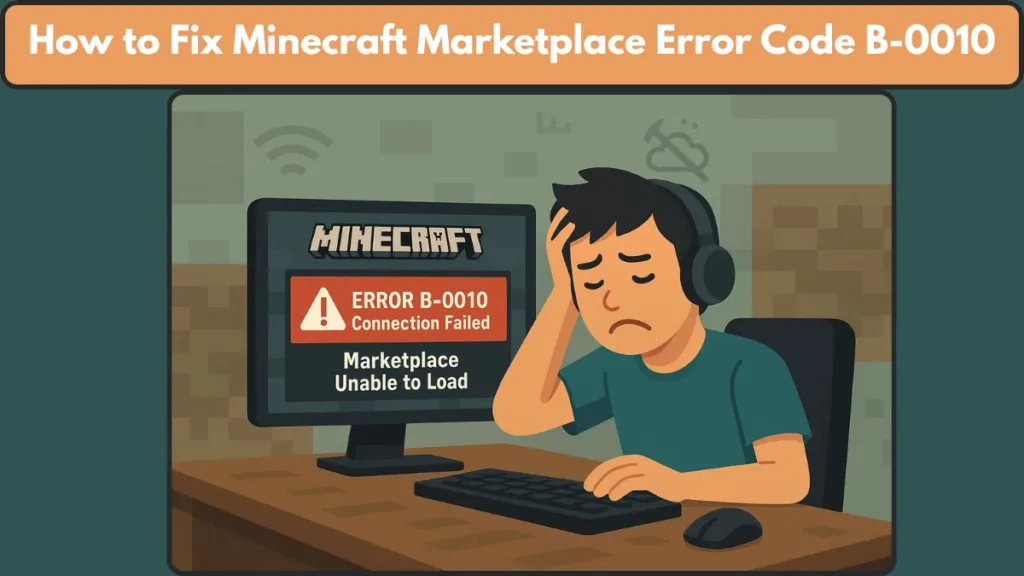
This error shows up across PC, Mobile, and Nintendo Switch, and it mostly hits when the game struggles to reach online Marketplace services.
The good news? You can fix it.
In this guide, we’ll walk through the real causes behind the error and the most reliable fixes that help players get the Marketplace working again.
Stick around — we’ll make this issue a lot easier to deal with.
Why Does Minecraft Marketplace Error Code B-0010 Happen?
The B-0010 error usually appears when something disrupts the game’s connection to Minecraft’s online services, especially the Marketplace. While the message may seem simple, the causes behind it can be a mix of network, account, and device-related issues. Breaking them down makes it much easier to understand why the error happens and how to solve it.
Unstable or Weak Internet Causing Marketplace Loading Failure
A shaky or slow network is one of the most common triggers. Even brief drops in connectivity can stop the game from loading Marketplace content, skins, or texture packs.
Since the Marketplace relies heavily on real-time communication with servers, consistent internet is crucial.
Mojang Server Outages and Marketplace Service Downtime
Sometimes the issue is completely out of your hands. When Mojang’s servers are under maintenance, experiencing downtime, or simply overloaded, the Marketplace may stop responding.
This can lead to delays, loading loops, or the B-0010 error appearing across all devices.
Microsoft Account Sync and Authentication Failures
Your Microsoft account plays a major role in loading Marketplace purchases, syncing your packs, and accessing cloud-based content.
If your account fails to authenticate properly — or if services like the Xbox Live network face issues — the Marketplace may refuse to load, resulting in this error.
Outdated Minecraft Bedrock Version Causing Compatibility Issues
If the version of Minecraft Bedrock Edition installed on your device is outdated, it may not align with the current Marketplace system.
This mismatch can cause errors when the game tries to fetch updated content or connect to online services that expect a newer version.
Corrupted Game Data, Cache Errors, or Storage Conflicts
Files may become corrupted during updates, downloads, or sudden shutdowns. When this happens, the game struggles to process the data required for skins, worlds, or resource packs, causing Marketplace loading issues.
Clearing or refreshing the game’s cache or scanning for corrupted data often helps
Device-Specific Settings Interrupting Marketplace Sync (Nintendo Switch)
Some devices — particularly the Nintendo Switch — have certain settings that can affect Marketplace access.
For example, disabling Auto Update Unlocked Packs can prevent the Marketplace from syncing purchases. Missing updates or outdated system settings can also cause unexpected loading errors.
Quick Checks Before Trying Any Fixes
Before diving into device-specific solutions, it’s always smart to start with a few straightforward checks.
These quick steps often resolve the B-0010 error without needing deeper troubleshooting — and they help you rule out the most common issues right away.
Check Internet Stability and Speed to Prevent Marketplace Loading Failures
Because the Marketplace relies on real-time connectivity, even brief drops or lag in your network can interrupt loading.
Try browsing a website, streaming a video, or running a speed test to check stability. If pages load slowly or lag appears, your network might be at fault.
Many official guides for Minecraft list checking your internet connection as the very first troubleshooting step.
If you have multiple devices connected to the same network, high bandwidth usage can slow things down or cause packet loss. Disconnecting unneeded devices can help stabilize things.
Power-Cycle Your Router to Refresh Network Connections
A simple router reboot can clear temporary network glitches.
Unplug the modem/router, wait 20–30 seconds, then plug it back in. After it fully restarts, reconnect your device and try Minecraft again.
This refreshes network assignments, clears cached errors, and often restores a smoother connection.
Try an Alternate Network to Bypass Wi-Fi Restrictions
Some Wi-Fi networks — especially public, shared, or restricted ones — can block or throttle game traffic.
Switching to a different network, such as mobile data or a secondary Wi-Fi, helps bypass hidden restrictions and lets you confirm whether your current network is causing the issue.
Refresh Your Microsoft Account Login to Fix Sync Interruptions
If your Microsoft account has trouble syncing, the Marketplace may fail to load.
Signing out and back in refreshes your login token, allowing the game to reconnect to your purchases, skins, and content library properly.
Verify Minecraft and Mojang Server Status for Outage-Related Errors
If the servers behind the Minecraft Marketplace are experiencing downtime or maintenance, the error will appear even if everything on your side is working fine.
Checking official server status pages or community updates helps you know whether you just need to wait for services to come back online.
Confirm Your Minecraft Version Is Updated for Full Marketplace Compatibility
Running an outdated version of Minecraft Bedrock Edition may cause compatibility issues with Marketplace features.
Updating to the latest version ensures your game aligns with the current server setup and reduces the chance of version-related loading errors.
How to Fix Minecraft Marketplace Error Code B-0010 (All Devices)
Here’s a more detailed, device-inclusive guide with extra context and community-tested tips to help you shake off the B-0010 error once and for all.
We cover cache cleanup, network fixes, data checks, and reinstall strategies — matched for PC, Mobile, and Nintendo Switch so you can jump right to what applies to you.
Old or corrupted cache often clashes with online Marketplace services. A clean cache gives Minecraft a fresh start.
Nintendo Switch: Go to System Settings > System > Formatting Options > Reset Cache.
This clears stored network data and temporary files — sometimes that’s all you need to get the Marketplace working again.
Windows PC: Open Settings > Apps > Minecraft > Advanced Options > Reset.
This wipes cached launcher data without affecting your worlds or settings.
Android / iOS (Bedrock / PE): On Android, go to Settings > Apps > Minecraft > Clear Cache.
On iOS, use Offload App via iPhone Storage, then reinstall to refresh internal data while keeping your worlds safe.
Clearing cache often resolves loading glitches, sync failures, and blank Marketplace screens caused by outdated or corrupted temporary files.
Fix Network & Sync Issues Blocking Marketplace Access
Sometimes the issue isn’t the game itself — it’s how Minecraft communicates with your network or account services.
Nintendo Switch:
Run a connection test: System Settings > Internet > Test Connection.
If this fails, your network may be the root of the issue.
Re-add your Wi-Fi by selecting the network > Clear Settings, then reconnect.
Make sure Auto Update Unlocked Packs is enabled in Minecraft settings so your content syncs properly.
Windows PC:
Ensure background services like Xbox Live and Microsoft Store services are running.
Disable VPN or proxy tools temporarily, as these may block Marketplace traffic.
Optionally, flush DNS or renew network settings if you suspect routing problems.
Android / iOS (Bedrock / PE):
Switch between Wi-Fi and mobile data if Marketplace won’t load.
Enable background data, and turn off power-saving modes that can restrict downloads.
These steps help when the Marketplace loads partially, gets stuck at “connecting…”, or fails to display content.
Check for Corrupted Game Files or Storage Conflicts
Corrupted data from incomplete downloads, updates, or low storage can affect how Minecraft loads Marketplace content.
Nintendo Switch
Go to System Settings > Data Management > Software > Minecraft > Check for Corrupt Data.
If corruption is found, reinstalling is usually recommended.
Windows PC
Use Repair or Reset under Advanced Options.
Also ensure your system has enough free storage, as low space can interrupt downloads.
Android / iOS (Bedrock / PE)
If the app keeps crashing or Marketplace refuses to load, damaged files may be causing the issue.
A reinstall (after backing up your worlds) usually clears these problems.
Reinstall Minecraft Without Losing Worlds (Last Resort Fix)
If nothing else works, a reinstall can clear the hidden issues that cause the B-0010 error — and you can do it without losing your worlds.
Nintendo Switch
Deleting and redownloading the game won’t erase your worlds if they’re synced to the cloud or backed up.
Many players have confirmed this fixed the error on Switch.
Windows PC
Uninstall Minecraft and reinstall through the Microsoft Store or Minecraft Launcher.
Back up your worlds from the LocalAppData folder before uninstalling, then restore them afterward.
Android / iOS (Bedrock / PE)
Back up the games/com.mojang folder.
Reinstall Minecraft, then restore your world files.
A clean reinstall clears corrupted data, outdated configuration files, and hidden bugs that other fixes can’t resolve.
Community-Tested Tips from Real Players
Some fixes come directly from players who’ve battled the issue themselves.
Several Nintendo Switch users reported that reinstalling the game immediately fixed the Marketplace problem — and their worlds remained intact.
Others found success by temporarily switching to mobile hotspot, loading the Marketplace, then switching back to Wi-Fi.
This worked well for players whose home networks had firewall restrictions or strict NAT types.
When Minecraft Servers Cause Error Code B-0010 (Not Your Fault)
Sometimes, no matter how many fixes you try, the Minecraft Error Code B-0010 sticks around — and that often means the problem is outside your control.
The Marketplace relies heavily on Mojang’s online services, and when those services experience downtime or instability, the error can appear even if everything on your device is working perfectly.
Check Official Server & Service Status
If the problem comes from the server side, no amount of troubleshooting will fix it on your end. It’s important to verify the status of Minecraft’s online services using reliable sources.
You can check for outages or service interruptions through:
- The Minecraft Official Site for news or important service notices.
- MCSrvStat for real-time server responses.
- DownDetector to see global user-reported issues and trends.
- The official MojangStatus feed on X for instant outage alerts.
If any of these platforms indicate downtime, the B-0010 error may simply be the result of a temporary disruption.
FAQs: Fix Minecraft Error Code B-0010
Here are some of the most common questions players ask when dealing with Minecraft Marketplace Error Code B-0010.
Why is my Minecraft Marketplace not loading?
Often, it’s because the game can’t connect properly to the Marketplace servers due to network issues, temporary server downtime, or account syncing problems.
When the connection fails, the Marketplace simply won’t load.
What does Error Code B-0010 mean in Minecraft?
The B-0010 error indicates that Minecraft is unable to reach the Marketplace service or download the online content it needs.
This results in the game getting stuck on loading screens or showing repeated connection messages.
How do I fix Error Code B-0010 on Minecraft?
Most fixes include clearing the cache, checking your internet connection, updating your game version, or reinstalling Minecraft if necessary.
A clean reinstall often resolves persistent issues when other steps don’t work.
How do I clear the cache on Minecraft Bedrock?
Cache clearing varies by device:
- Windows PC: Delete cache via the
LocalCachefolder under %LocalAppData%. - Android: Settings > Apps > Minecraft > Clear Cache.
- iOS: Offload the app to reset temporary files.
- Nintendo Switch: System Settings > System > Formatting Options > Reset Cache.
Clearing cache helps remove temporary files that can block Marketplace functionality.
Are Minecraft servers down right now?
You can check server status using the Minecraft Official Site, DownDetector, MCSrvStat, or the official MojangStatus feed on X.
If downtime is reported, waiting is the only solution until services stabilize.
Does reinstalling Minecraft fix the Marketplace error?
Yes. A full reinstall can wipe corrupted files and refresh core components, often fixing stubborn Marketplace loading issues.
Always back up your worlds before uninstalling to avoid losing progress.
Is the error caused by my Microsoft account?
Sometimes. If your Microsoft account fails to sync or authenticate properly, the Marketplace may not load.
Signing out and back in often restores the connection and resolves the issue.
Final Thoughts: Is Minecraft Marketplace Error Code B-0010 Fixed?
Dealing with Minecraft Marketplace Error Code B-0010 can be annoying, especially when all you want is to browse new skins, grab your favorite texture packs, or sync your content.
The good news is that once you understand what causes the issue — and how to approach it — fixing it becomes far more manageable.
Most of the time, the error comes down to simple things like connection hiccups, minor data conflicts, or temporary server-side issues.
And when it is something on your device, the right mix of cache refreshes, network adjustments, and file checks usually does the trick.
According to official guidance from Minecraft Support, many Marketplace issues come from temporary service instability or content-sync delays, meaning the error often resolves once the servers recover.
Community reports also show that switching networks, clearing cache, or reinstalling the game can help when local files become misaligned with online services.
If the problem isn’t on your side, patience is often the best solution. Server outages and maintenance windows happen, and once they pass, the Marketplace usually springs back to life on its own.
Using tools like DownDetector, MCSrvStat, or the MojangStatus feed on X can help you quickly confirm if the issue is widespread.
No matter which device you’re using — PC, Mobile, or Nintendo Switch — you now have a clear path of steps that can help you get past the B-0010 error and back to enjoying the game.
And if you run into similar Marketplace issues again, you’ll know exactly where to start.
Visit Our Post Page: Blog Page