
Can you move WhatsApp messages from Android to iOS without losing chats? Learn the Move to iOS method, what transfers, what doesn’t, and how to avoid data loss.
Switching from Android to iPhone doesn’t have to mean starting WhatsApp from scratch. If you follow the only supported method, you can move your chats, media, and history safely from one device to another. However, this process is strict. Missing even one requirement can cause the transfer to fail without a clear error message.
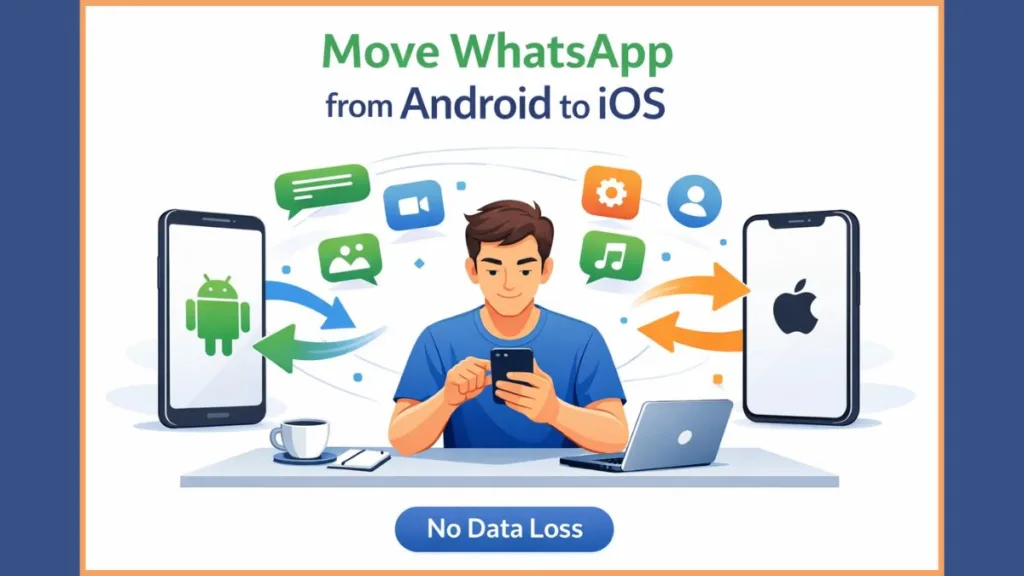
This guide explains exactly what works, what never transfers, why certain limitations exist, and the real-world issues users commonly face during the process.
Is It Possible to Transfer WhatsApp Chats from Android to iPhone?
Yes, you can transfer WhatsApp chats from Android to iPhone, but only by using Apple’s Move to iOS app during the initial iPhone setup process.
There is no official way to move WhatsApp chats after the iPhone has already been set up, and there is no supported method to merge chats later.
If your iPhone is already in use, you must back it up, erase it completely, and then run the transfer again from scratch.
Any guide suggesting otherwise is either outdated or unreliable.
According to the latest official WhatsApp documentation, you must initiate the transfer during the iPhone setup screen when prompted, otherwise data connectivity is blocked until a reset is done.
Which WhatsApp Data Moves to iOS — and Which Data Doesn’t
WhatsApp data that successfully moves to iPhone
- Individual and group chats are transferred in full, including message history, timestamps, and message order, allowing conversations to appear exactly as they did on Android.
- Chat history is preserved across all transferred conversations, so older messages remain accessible after login.
- Photos, videos, voice notes, and documents shared in chats are included, though transfer time increases significantly with larger media libraries.
- Communities associated with your account are transferred and restored on the iPhone.
- WhatsApp Channels updates are transferred, ensuring your followed channels continue appearing normally.
- Profile photo and WhatsApp settings migrate with the account, keeping your profile visually consistent.
WhatsApp data that will not move to iPhone
- Call history does not migrate, meaning previous WhatsApp audio and video call logs are permanently lost on the iPhone.
- Display name is not transferred and may need to be set again after login.
- Peer-to-peer payment messages are excluded due to platform-level restrictions.
- Media received through WhatsApp Channels is not transferred, even though channel updates themselves are supported.
- WhatsApp Business data is completely unsupported, and Business accounts cannot be migrated using this method.
If you depend on call logs, payment history, or WhatsApp Business chats, the transfer will not meet your needs. Official sources confirm that even when all requirements are met, unsupported data types — especially call logs — will not be part of the migration.
What You Must Have Before Starting the Transfer
Android phone requirements
- Your Android phone must be running Android 5.0 (Lollipop / SDK 21) or newer, as older versions cannot prepare WhatsApp data for export.
- The latest version of WhatsApp for Android must be installed to avoid compatibility failures during data preparation.
- The Move to iOS app must be installed from the Play Store, and no alternative migration apps should be used, as third-party tools are unsupported.
iPhone requirements you cannot skip
- The iPhone must be running iOS 15.5 or later, since earlier versions do not support WhatsApp migration from Android.
- The device must be factory-new or factory-reset, as Move to iOS only works during initial setup.
Requirements that apply to both devices
- Both devices must use the same phone number, as WhatsApp ties chat history to number verification.
- Both phones must remain connected to power throughout the process to prevent interruptions.
- Devices must be connected to the same Wi-Fi network, or the Android device must connect to the iPhone’s hotspot.
- Sufficient free storage must be available, as large chat histories with media can consume significant space and time.
Using any migration tool other than Move to iOS is unsupported and commonly results in partial or failed transfers. This holds true even if alternatives claim to work without resetting the iPhone — official guidance still mandates setup-time transfer.
Step-by-Step Guide to Move WhatsApp Messages from Android to iOS
- Open Move to iOS on your Android phone and follow the on-screen instructions until you reach the transfer screen.
- During iPhone setup, a numeric code appears—enter this code on your Android device to establish a secure connection.
- Tap Continue, then select WhatsApp when prompted to choose which data to transfer.
- Tap Start on Android, allowing WhatsApp to prepare your data for export; you will be automatically signed out.
- Return to the Move to iOS app and tap Continue to begin transferring data to the iPhone.
- Wait until Move to iOS confirms the transfer is complete before proceeding.
- Install the latest version of WhatsApp from the App Store on your iPhone.
- Open WhatsApp, verify the same phone number, and tap Start when prompted.
- Complete iPhone setup and wait for chats to appear inside WhatsApp.
Opening WhatsApp on the iPhone too early or manually accessing WhatsApp folders during migration is unsupported and can break the process. Recent Apple guidance also notes that a direct cable connection can be used on supported devices instead of Wi-Fi.
Real-World Transfer Issues Users Commonly Run Into
- Transfers involving years of messages and media can take several hours, even on fast Wi-Fi, and may show long pauses near the end of the export process.
- The progress bar often stalls at 99%, which is normal and should not be interrupted by closing apps or unlocking screens.
- Using mismatched WhatsApp versions on Android and iOS frequently causes silent failures or incomplete transfers.
- Some users must retry the entire process more than once for a successful transfer, making patience essential.
- In some cases, the Move to iOS app may appear to transfer more than WhatsApp data, significantly slowing progress.
How to Transfer WhatsApp If Your iPhone Is Already Set Up
- Create a full backup of your iPhone using iCloud or a computer.
- Erase the iPhone completely to return it to factory settings.
- Use Move to iOS to transfer WhatsApp only from Android.
- Open WhatsApp on the iPhone and create an iCloud backup immediately after chats appear.
- Restore your original iPhone backup to recover apps and settings.
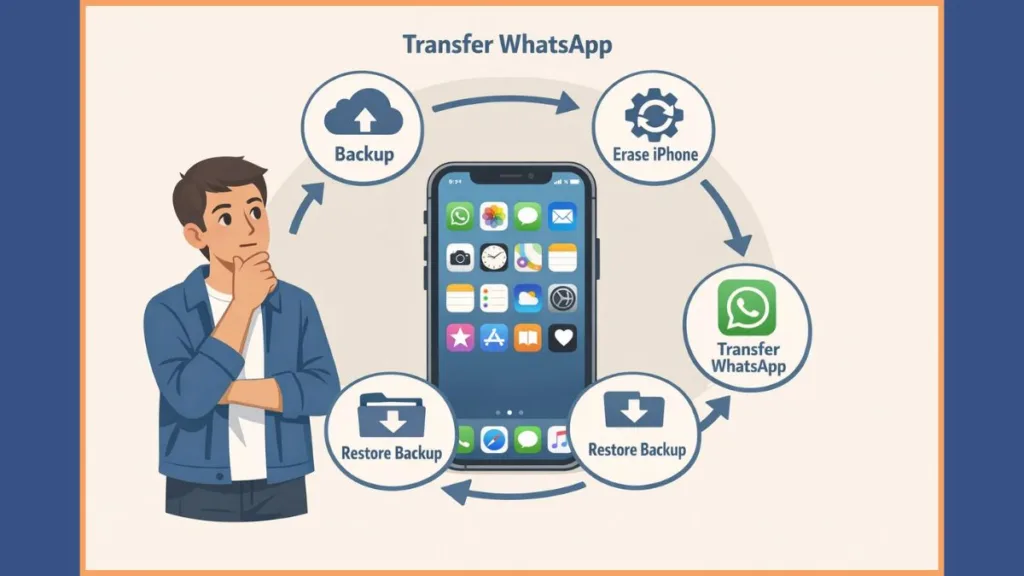
This approach is unofficial but widely reported to preserve WhatsApp data while restoring the rest of the phone.
Fix Common WhatsApp Transfer Problems
When Move to iOS gets stuck during WhatsApp transfer
- Ensure both devices stay connected to power and Wi-Fi.
- Wait patiently, especially near completion when large media files are processed.
- Update WhatsApp on both devices before retrying if the process fails.
When WhatsApp chats are missing after transfer
- Confirm you logged in using the same phone number.
- Verify that you tapped Start when prompted inside WhatsApp on iPhone.
- Create an iCloud backup to secure the transferred chats.
What to do when WhatsApp transfer from Android to iOS keeps failing?
- Free up storage space on both devices.
- Disable VPNs and unstable network connections.
- Confirm the iPhone was factory-reset before starting the process.
Can WhatsApp Be Moved Without Using Move to iOS?
Officially, No. While third-party tools exist and some claim to transfer data without reset, results vary widely, costs are common, and support is unreliable.
The safest and most dependable method remains Move to iOS with a factory reset, as confirmed by official WhatsApp documentation.
What Happens to Your WhatsApp Data After the Transfer?
- Your Android phone retains all WhatsApp data unless you delete the app or wipe the device manually.
- Transferred chats are not uploaded to iCloud automatically; you must create a backup yourself.
- WhatsApp cannot see or access the data transferred during migration.
- iPhone storage should be monitored, as insufficient space can cause transfer failures or missing media.
Frequently Asked Questions About Android to iOS WhatsApp Transfer
Do I need to factory reset my iPhone to transfer WhatsApp?
Yes. WhatsApp transfer only works during initial iPhone setup.
Can I transfer WhatsApp Business chats?
No. WhatsApp Business accounts are not supported.
Does WhatsApp call history move to iPhone?
No. Call history is excluded from migration.
How long does it take to move WhatsApp from Android to iOS?
Transfer time ranges from minutes to several hours depending on media size and connection quality.
Why does Move to iOS take so long?
Large chat libraries, unstable Wi-Fi, or limited storage slow the process significantly.
Visit Our Post Page: Blog Page