
Outlook not syncing emails automatically? Learn why Outlook auto-sync stops working and discover 6 quick fixes for Outlook sync issues.
If your Outlook inbox is not updating automatically, you are dealing with one of the most annoying glitches in the Microsoft ecosystem.
It’s incredibly frustrating to realize that new emails are sitting on the server, but they don’t appear in your app unless you manually click Send/Receive, restart the program, or refresh the inbox. This is a frequent headache whether you are using the New Outlook or Outlook 365, even when your internet connection is perfectly stable.
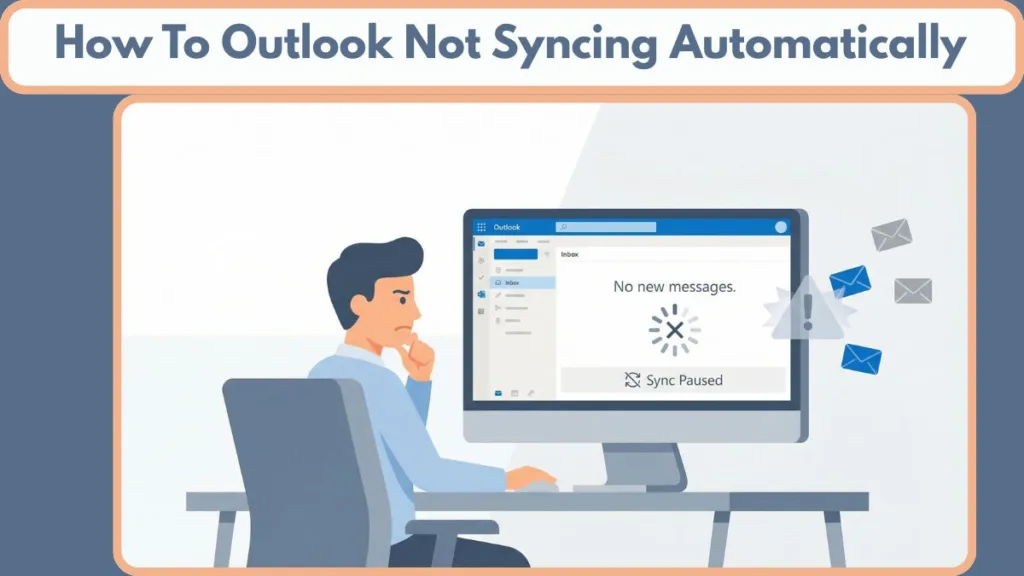
It’s confusing when manual syncing works fine, but the automatic process just fails. This glitch can impact your desktop setup, your mobile app, and even shared mailboxes. To actually fix the problem, we first need to look at why Outlook sync is not working automatically.
Why Is Outlook Sync Not Working Automatically?
Here are the most common reasons for sync failures and delays.
1. Background Sync Processes Might Be Paused
Outlook relies heavily on background processes to constantly check for new messages. If these processes get paused or restricted by your operating system, Outlook email not updating automatically becomes the immediate symptom.
You will typically notice that your Outlook inbox is not updating despite new mail arriving on the server. Additionally, you might find Outlook slow to receive emails compared to your phone or webmail, or realize that emails only appear after you force a manual refresh.
This often happens because Windows applies background app restrictions, power-saving settings (like “Battery Saver” mode on laptops), or simply suspends the app, which silently stops Outlook from syncing.
2. Conflicts with Cached Exchange Mode and Offline Data
To keep things running fast, Outlook stores your emails locally using an OST file or PST file. While this feature is great for performance, it causes major issues if that cached data becomes outdated or corrupted.
If Cached Exchange Mode or Work Offline mode is enabled, Outlook might be looking at old local data instead of checking the server. Consequently, automatic syncing can fail completely.
Even if clicking Send/Receive forces a one-time sync, the auto sync function often does not kick back in afterward. This is a leading reason why Outlook send receive is not working automatically, even when the mail server itself is working perfectly.
3. Send/Receive Groups Are Not Configured Correctly
Automatic syncing is controlled entirely by your Send/Receive groups. If these groups are disabled, or if they are set to check for mail at very long intervals (like every 60 minutes), Outlook effectively stops checking for new messages automatically.
This results in the need to manually click Send/Receive constantly, and you will find Outlook folders not updating in real-time. It causes significant delays in receiving incoming emails.
This issue frequently pops up after an Outlook update or a profile change, which can revert your settings to a default that is far too slow for normal use.
4. Connection Drops and Authentication Issues
Sometimes, Outlook looks like it’s connected, but it’s actually struggling with the server connection in the background.
This can happen due to expired authentication tokens, which is common in Outlook 365 and often requires you to re-enter a password. It may also result from temporary Outlook disconnected from server states, which you might see in the bottom status bar, or silent background connection failures.
When this happens, Outlook stops syncing until you restart the app, making it seem like the sync feature is broken.
5. Restrictions on Mobile Background Sync
If you are struggling with sync issues on your phone, the culprit is usually background sync restrictions rather than the app itself.
When Background App Refresh is disabled by your phone’s OS, you’ll find the Outlook mobile app not syncing in background. You will likely experience an Outlook Android notification delay and notice that Outlook only updates when you physically tap and open the app.
This explains why Outlook is not syncing with your phone, even though you have notifications enabled.
How to Fix Outlook When Auto Sync Stops Working
Follow these step-by-step guides to restore your automatic updates.
1. Force a Manual Sync (The Temporary Fix)
If Outlook has stopped updating, you can use this quick workaround to jumpstart the connection.
Start by clicking the Send/Receive tab in the top ribbon and hitting the Update Folder button, or simply press F9 on your keyboard. Alternatively, you can click the Send/Receive All Folders button on the far left of the ribbon.
This action often wakes up stalled sync processes, but keep in mind it does not permanently fix the root cause.
2. Enable and Adjust Automatic Send/Receive
To fully enable auto sync and finally fix the Outlook inbox not updating automatically issue, you need to ensure the frequency is set correctly.
Begin by opening Outlook and clicking the Send/Receive tab in the top ribbon. Locate the Send & Receive group and click on Send/Receive Groups. From the dropdown menu, select Define Send/Receive Groups (you can also use the shortcut Ctrl + Alt + S).
In the dialog box, look under the “Setting for group ‘All Accounts’” section. Check the box that says “Schedule an automatic send/receive every…” and change Outlook send receive frequency to 10 minutes or less, as the default is often 30 minutes, which is too slow for most people.
Finally, click Close to save your changes.
3. Ensure “Work Offline” Mode Is Disabled
If Work Offline mode is accidentally turned on, Outlook cannot connect to the server, and automatic syncing stops completely.
To fix this, go to the Send/Receive tab in the ribbon and look for the Preferences section on the far right. Locate the Work Offline button, which looks like a globe icon with a red X. If the button background is dark grey, indicating it is active, click it once to turn it off.
Check the status bar at the very bottom of the window; it should change from “Working Offline” to “Connected” or “Connected to: Microsoft Exchange“. Disabling this mode immediately restores live syncing and fixes many Outlook 365 sync issues.
4. Repair Your Outlook Profile and Data Files
Sometimes settings are correct, but corrupted local data prevents Outlook from syncing properly. You can fix this by repairing the data file.
To run an Outlook Profile Repair, go to File > Account Settings > Account Settings. In the “Email” tab, select your email account, click the Repair button if it is available, and follow the “Repair Account” wizard. Note that if the Repair option is greyed out, which is common in Outlook 365, you may need to remove and re-add the account.
To repair the Outlook data file (OST/PST), first close Outlook completely. Press Windows Key + R and type %ProgramFiles%\Microsoft Office\root\Office16\ (for Office 365/2016) to locate SCANPST.EXE.
Run the tool, browse to select your .OST or .PST file, and click Start to scan for errors. This is especially useful when dealing with repeated sync failures where settings look fine, but data remains stuck.
5. Verify IMAP and Account Sync Settings
For IMAP accounts (like Gmail or Yahoo added to Outlook), incorrect settings can often delay or block syncing.
In the left-hand folder pane, right-click your Inbox folder and select IMAP Folders. Click the Query button to load the server folders. Ensure your essential folders, such as Inbox, Sent, and Drafts, have a yellow folder icon next to them indicating they are “Subscribed.” If not, select them and click Subscribe.
Afterward, go back to Send/Receive Groups > Define Send/Receive Groups, select your IMAP account, and ensure “Include the selected account in this group” is checked. Correcting these settings resolves issues where Outlook folders stop updating or specific sub-folders remain empty.
6. Fix Background Sync Issues on Mobile
On Android or iOS, you must ensure the operating system isn’t killing the app to save battery.
For iOS (iPhone/iPad), go to Settings and scroll down to find Outlook. Ensure the toggle for Background App Refresh is turned ON (Green).
For Android, go to Settings > Apps > Outlook. Tap on Battery (or “App Battery Usage”) and select Unrestricted (or “Allow Background Activity”).
If it is set to “Restricted” or “Optimized,” syncing will often fail when the screen is off. This helps eliminate Outlook mobile sync issues and notification delays immediately.
FAQ: Why Outlook Is Not Syncing Automatically
Why do I have to manually click Send/Receive in Outlook?
This usually happens because automatic Send/Receive is disabled in your group settings, background syncing is being paused by Windows, or Outlook is relying on outdated cached data that needs refreshing.
How do I get Outlook to update emails automatically?
You need to enable auto sync by going to Send/Receive groups (Ctrl+Alt+S), change Outlook send receive frequency to roughly every 5-10 minutes, disable Work Offline mode, and ensure Outlook is allowed to run in the background.
Why is Outlook not syncing with my phone?
Your phone is likely restricting background data to save battery life. This causes the Outlook mobile app not syncing in background issue. Enable “Background App Refresh” (iOS) or “Unrestricted Data Usage” (Android) to fix it.
How often does Outlook auto sync?
By default, Outlook often checks for new mail every 30 minutes. However, you can (and should) change this interval manually in the Send/Receive settings to 5 or 10 minutes for faster updates.
Does Work Offline stop Outlook from syncing?
Yes. When Work Offline mode is enabled, Outlook disconnects from the internet and cannot sync with the server at all.
Final Thoughts on Fixing Outlook Email Not Updating
When Outlook sync is not working automatically, the problem is rarely the email server itself.
In most cases, you’re dealing with background sync interruptions, cached data conflicts, Send/Receive group issues, or connection drops. Once you correct these settings using the steps above, Outlook will resume normal automatic syncing—without you needing to hit refresh ever again.
Visit Our Post Page: Blog Page