
Sign out of your Google account on any TV remotely. Learn how to remove a YouTube account from a TV without access to it (2026) using your phone.
You’re standing with just your phone in hand, and you realize your YouTube account is still logged in on a Smart TV you no longer have access to. Maybe it’s a hotel TV, a friend’s house, a relative’s place, or a TV you sold or left behind. You don’t have the remote, you’re nowhere near the screen, and yet your recommendations, watch history, and account access are still exposed. At this point, what matters is whether you can sign out of YouTube on TV remotely using your phone—and you can.
This guide walks you through exactly what you’re seeing on your phone, what’s happening in the background inside your Google account, and how to remove your YouTube account from a TV using your phone without guessing, resetting devices blindly, or locking yourself out by mistake.
Why Does My YouTube Account Stay Logged In on TVs?
When you sign in to YouTube on a television, you’re not just opening an app session. You’re authorizing that TV as a trusted device under your Google account. From your perspective, it feels temporary—especially if you signed in just to watch a video or cast content. From Google’s perspective, however, that TV becomes an approved device with ongoing access until you explicitly revoke it.
This is why simply closing the app, leaving the location, or even signing out of YouTube on your phone does not remove access from the TV. The system treats the TV as a separate endpoint. If you ever used the cast icon, scanned a pairing code, or logged in directly, the TV likely stored a persistent authorization token. That’s why your watch history can continue updating and why someone else can open YouTube and immediately see your profile.
Leaving a location does not revoke device authorization. You must manually remove the device from your Google or YouTube account.
What Do You Need to Remove a YouTube Account From TV Remotely?
Before you start, you’re checking one thing: are you logged into the same Google account on your phone that you used on the TV? If the answer is yes, you already have everything you need. Your phone doesn’t need to be connected to the TV, and you don’t need to install any extra apps. As long as your phone has internet access, you can remove the Google account from the TV remotely and force YouTube to sign out.
What’s important to understand here is that you’re not sending a command to the TV. Instead, you’re managing permissions from your account side. Once access is revoked, the TV loses its authorization automatically the next time it checks in with Google’s servers.
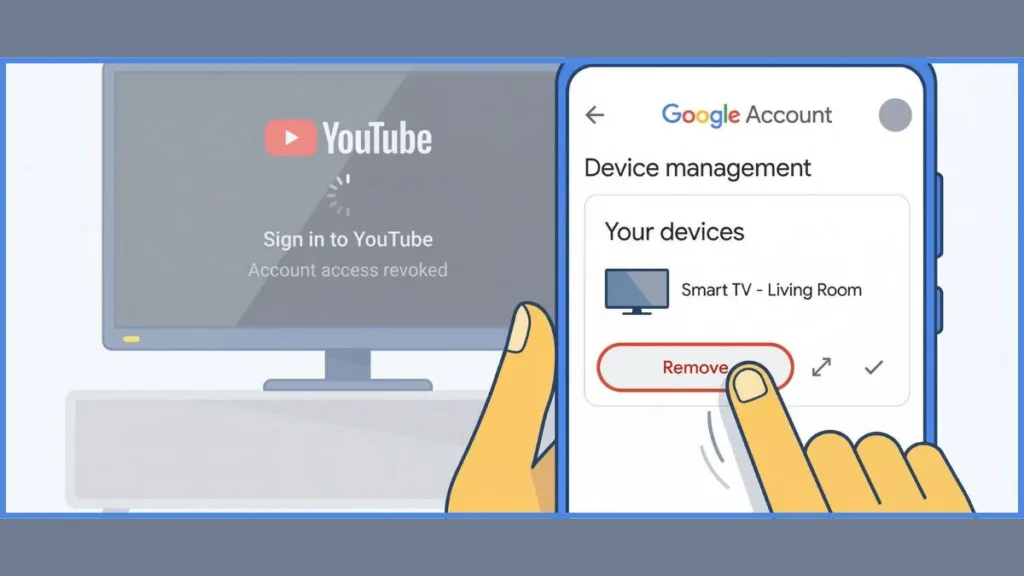
How to Remove YouTube Account From TV Using Phone via Google Device Activity (Recommended)
This method is the most reliable way to force sign out YouTube devices, especially when you don’t remember how the TV was paired or the TV is no longer physically reachable.
Where Is the Google Device Activity Page on Phone?
On your phone’s browser, you open myaccount.google.com/device-activity. After signing in, you’re looking at a timeline-style list of devices that have accessed your Google account. This page is part of Google’s account security settings, even though it doesn’t always look like a security feature at first glance.
What you’re actually seeing here is a record of device authorizations. Phones, laptops, browsers, and Smart TVs all appear in this list if they’ve logged in or accessed account-linked services like YouTube.
How Do You Identify the Linked TV or Unknown Device?
As you scroll, you may not immediately see a device labeled “TV.” Many Smart TVs show up as Android TV, Living Room Device, or a generic device name with no brand. This is one of the most common friction points. To identify the correct TV, you look at the last active time and approximate location. If you see activity from a place you’re not currently in, that’s usually the TV you want to remove.
It’s normal to feel unsure at this step. Google does not always make device names obvious, which is why checking recent activity is critical.
What Happens When You Remove the TV From Your Google Account?
Once you select the correct device, you remove it from your account. From your perspective, this feels like a simple tap. In the background, Google immediately revokes access tokens associated with that device. The next time the YouTube app on that TV tries to load your profile, it fails and falls back to a sign-in screen.
Removing a device here signs it out of YouTube even if the TV is powered off.
How to Unlink YouTube Account From TV Using Phone (Linked Devices Method)
If the TV was paired through the YouTube app using a code or casting feature, unlinking directly from YouTube’s settings can be faster.
Where Are YouTube Linked TVs Settings on Phone?
You open the YouTube app on your phone, tap your profile picture, and enter Settings. Inside, you navigate to Linked TVs or Linked devices. This section exists specifically to manage TVs that were paired without a full Google account login, which is why it sometimes shows devices that don’t appear in Google Device Activity.
How Does Deleting a Linked TV Stop YouTube Access?
When you select a TV here and remove it, you’re breaking the pairing relationship. The TV immediately loses the ability to access your YouTube account unless someone signs in again. This method is especially effective if you used the cast icon or a pairing code rather than typing your email and password on the TV.
What If the TV Does Not Appear in Device Activity or Linked Devices?
Sometimes, despite doing everything correctly, the TV doesn’t show up clearly in either Google Device Activity or Linked TVs. This usually happens because of syncing delays, cached device states, or older pairing methods that don’t surface cleanly in the interface.
At this point, you double-check that you’re logged into the correct Google account. You refresh both pages and give them a few minutes to update. If the TV still doesn’t appear, you move forward knowing that the absence of a visible device does not mean the TV is safe.
If the device is missing, assume access still exists and escalate your account security.
How to Force Sign Out YouTube From All Devices When Needed
When you want absolute certainty, you use Google’s security controls. From your account’s Security section, you manage all devices and remove anything unfamiliar. This step is commonly used when a device is lost, stolen, or inaccessible.
Changing your Google account password is the strongest option. When you do this, Google invalidates many active sessions across devices, including Smart TVs. You should expect to sign back in on your own phone and personal devices afterward.
Changing your password is disruptive but guarantees a full YouTube remote sign out across devices.
How Can You Confirm Your YouTube Account Is Removed From the TV?
After removal, the TV no longer loads your profile. Instead, it shows a generic YouTube home screen or a prompt asking someone to sign in. From your phone, you may also notice that your watch history stops updating from that location, and the cast icon no longer auto-connects to that TV.
These signals confirm that the YouTube account removal from the Smart TV was successful.
Can Someone Still Use Your YouTube Account After Unlinking the TV?
Once the device is removed, access is fully revoked. The TV cannot open your subscriptions, cannot see your recommendations, and cannot affect your watch history. Any previous authorization is invalid, and your account behaves as if it was never signed in on that TV.
FAQs: Removing and Managing YouTube Devices
Can I sign out of YouTube on my TV from my phone?
Yes. You can sign out of YouTube on TV remotely by removing the TV from Google Device Activity or YouTube Linked TVs.
How do I remove a device from my YouTube account without the device?
You open myaccount.google.com/device-activity and remove the device from there.
Does signing out of Google on phone sign out of TV?
No. Signing out on your phone does not affect TVs. You must remove the TV directly from your account.
How do I unlink my YouTube account from a Smart TV?
You delete the TV from Linked TVs in YouTube settings or remove it from Google Device Activity.
How to force logout YouTube from all devices?
You manage devices in Google Security or change your Google account password.
How to Prevent YouTube Account Exposure on TV in the Future
To avoid repeating this situation, you use Guest mode whenever you’re on a TV that isn’t yours. You avoid permanent pairing unless the TV belongs to you. After casting or signing in temporarily, you immediately check Linked devices and remove the TV while you’re still there.
One quick unlink now prevents long-term account exposure later.
Useful Resources for Removing a YouTube Account From TV Using Phone
When you’re trying to sign out of your YouTube or Google account from a TV you no longer have access to, having official references and real-world solutions makes the process far less confusing. The resources below support the exact methods explained in this guide and help you understand what’s happening behind the scenes.
Official Google & YouTube Support Resources
Google Account Security – Device Activity & Sign-Out Management (Google Support): This is the most important reference for remote sign-outs. The Google Device Activity page shows every phone, browser, and Smart TV that has accessed your account. Removing a TV from this page immediately revokes its authorization, which is why this method reliably forces YouTube to sign out even when the TV is powered off.
YouTube Help: Sign Out or Remove Accounts on Smart TV (YouTube Support): This official YouTube documentation explains how account sessions work on Smart TVs, why they stay logged in, and how linked devices differ from full Google account sign-ins. It helps clarify why signing out on your phone alone does not affect TVs.
Visit Our Post Page: Blog Page