
Tired of constant Facebook pop-ups on your PC? Learn how to permanently stop Facebook notifications on your computer. Block Facebook browser permissions in Chrome, Edge, Firefox, Safari, Windows, and Mac with clear, step-by-step instructions.
If Facebook notifications keep interrupting you on your computer—banner pop-ups in the corner, sudden ding sounds, browser alerts while you’re working—you’re not doing anything wrong. You’re dealing with browser-level push notifications that were allowed earlier, often with a single misclick.
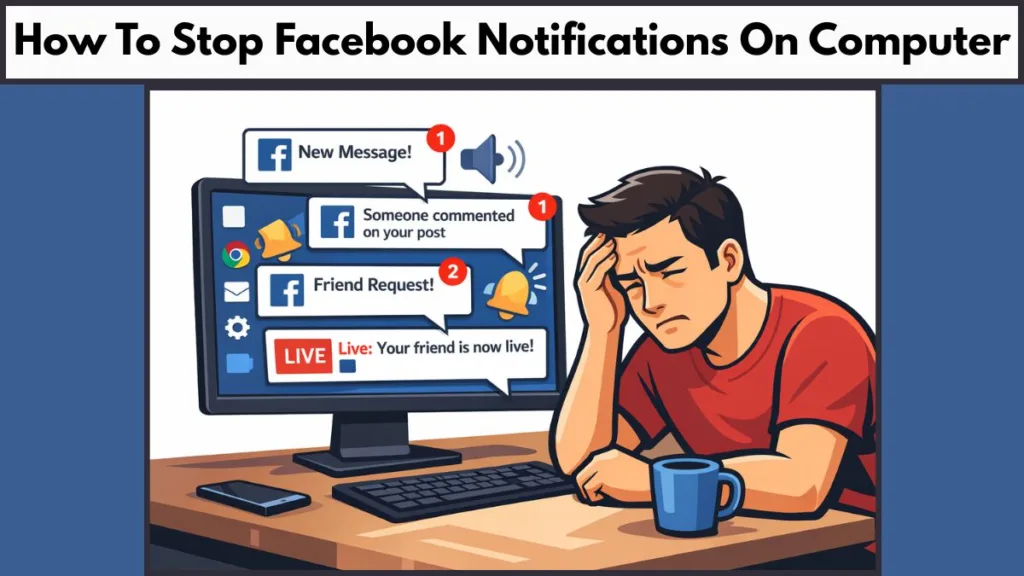
As you sit at your desk and hear that sudden ding, what’s happening is simple: your browser still has permission. Once you revoke that permission in the right place, the interruptions stop immediately.
Why Facebook Notifications Keep Appearing on Your Computer
As you look at those banners popping up in the bottom corner of your screen, it helps to know this: Facebook notifications on a computer are not controlled by your news feed. They are controlled by browser notification permissions. At some point, you likely saw a small prompt near the address bar asking to allow notifications, and you clicked Allow just to move on.
From that moment, your browser treats Facebook as trusted. You might notice notifications appearing even when Facebook is closed, when you’ve logged out, or when you restart your system. That’s because the browser stores this permission separately from your Facebook account.
“Logging out of Facebook does not revoke browser notification permissions.”
If you want this to stop permanently, you must block Facebook at the browser level first. Everything else depends on that.
How to Stop Facebook Notifications on Computer (Fastest Fix)
If you’re already frustrated and just want silence, this is the move. You need to open your browser’s notification permissions and block facebook.com directly. When you do this, the browser stops delivering push alerts, desktop banners, and sound notifications immediately.
As you make this change, you might notice the alerts stop mid-session. That’s normal. The permission is enforced instantly.
Turn Off Facebook Notifications in Google Chrome
How do you disable Facebook desktop notifications in Chrome?
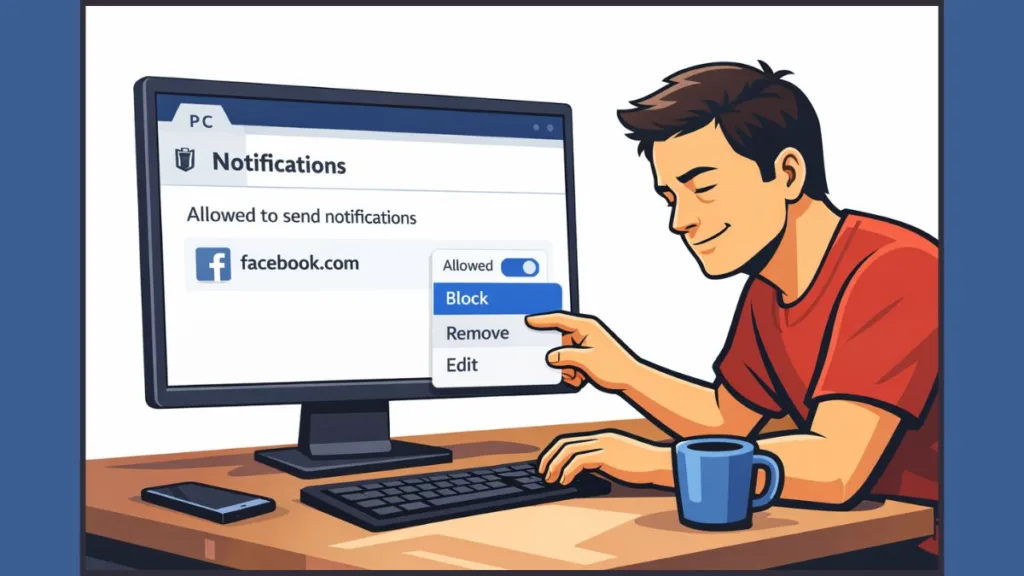
Open Google Chrome and keep your eyes on the top-right corner. You need to click the three-dot menu, then open Settings. As you scroll, you’ll see Privacy and security, and inside it, Site settings. This is where Chrome hides all permission-based behavior.
At this point, click Notifications. You might see two sections: Allowed and Not allowed. If Facebook is still bothering you, you’ll find facebook.com under Allowed to send notifications. Click the three vertical dots next to it and choose Block if you never want to see another alert, or Remove if you want Chrome to ask again later.
“Block stops notifications permanently. Remove resets the permission.”
What is the fastest way to reach Chrome notification settings?
If you don’t want to dig through menus, click the address bar, type chrome://settings/content/notifications, and press Enter. As you look at the screen, you’ll land directly on the permissions page. This is the fastest path and avoids menu confusion entirely.
Stop Facebook Notifications on Microsoft Edge
How do you block Facebook alerts in Microsoft Edge?
In Microsoft Edge, notifications work almost exactly like Chrome. Click Settings, then open Cookies and site permissions. When you select Notifications, you’ll again see an Allow list. If Facebook is there, that’s your problem.
Click facebook.com, then choose Block or Remove. As soon as you switch this off, Edge stops delivering Facebook alerts to your desktop.
“Edge browser notifications override Facebook account settings.”
Where is Edge’s direct notification settings page?
Type edge://settings/content/notifications into the address bar. When you switch to this view, you can manage all allowed sites in one place without clicking through the UI.
Disable Facebook Notifications in Firefox
How do you stop Facebook notifications in Firefox?
Open Mozilla Firefox and click the menu icon in the top-right. Open Settings, then scroll until you reach Privacy & Security. As you look down the page, you’ll see Permissions, and under it, Notifications.
Click Settings… next to Notifications. A list appears showing which sites can interrupt you. Find facebook.com, change its status to Block, and save the changes. If Firefox was showing repeated notification prompts, this immediately shuts them down.
“Firefox remembers notification permissions even after clearing tabs.”
Block Facebook Notifications on Safari (Mac Users)
How do you turn off Facebook push alerts in Safari?
On macOS, open Safari and go straight to Safari > Settings. Click Websites, then select Notifications from the sidebar. As you scan the list, find facebook.com and set it to Deny.
If notifications continue, this means macOS itself is still allowing them. Open System Settings > Notifications, find Safari, and disable banners or sounds there.
“Safari notifications are controlled by both the browser and macOS.”
Stop Facebook Notifications on Windows 10 & Windows 11
How do you disable Facebook desktop alerts in Windows?
On Windows 10 or Windows 11, browser notifications can trigger system-level banners and sounds. Press Windows + I, open System, then click Notifications.
As you scroll, you’ll see a list of apps. Locate your browser, such as Chrome or Edge. When you toggle off notifications or sounds, Windows stops amplifying leftover alerts.
“Windows settings silence alerts, but do not revoke browser permissions.”
How to Turn Off Facebook Notifications from Facebook Settings (Desktop Site)
Where do you manage Facebook notification settings on desktop?
Once browser permissions are blocked, open Facebook in your browser. Click your profile icon, then go to Settings & privacy > Settings > Notifications. You’ll now see a long list of notification categories.
As you move through each section, you can turn off pop-ups, emails, texts, and in-site alerts. If you want silence, switch everything off. This controls what Facebook tries to send, but remember, the browser permission is what truly stops desktop alerts.
“Facebook settings cannot override browser notification blocks.”
Stop Specific Facebook Notifications on Computer
How do you stop Facebook sound and “ding” notifications?
If banners are gone but sounds persist, the issue is sound permissions. As you check your browser settings, look for sound or notification audio controls. On Windows or macOS, you can also mute notification sounds system-wide.
How do you stop “People You May Know” notifications on desktop?
Inside Facebook’s Notifications panel, scroll until you see People You May Know. Turn off all delivery options. These notifications are aggressive by default and often the most annoying.
How do you disable Facebook Live video notifications?
Find Live Videos in the notification list and toggle everything off. When you do this, Facebook stops pushing alerts the moment someone goes live.
How do you mute Facebook group notifications on computer?
Open the group, click Notifications, and set it to Off or Highlights. Group alerts are managed separately and often bypass general settings.
Can You Stop Facebook Notifications but Keep Messenger?
Yes, and this is where confusion usually sets in. Facebook site notifications come from facebook.com, while Messenger uses messenger.com or a desktop app. When you block Facebook in browser permissions, Messenger continues to work unless you block it separately.
“Facebook and Messenger use separate notification channels.”
How to Stop Facebook Messenger Pop-Ups on Desktop
If Messenger opens automatically or pops up during work, open Windows Settings > Apps > Startup. When you see Messenger, toggle it off. This stops it from launching at login.
If you’re using Messenger in a browser, open its notification settings and mute conversations or enable Do Not Disturb.
Troubleshooting: Facebook Notifications Still Showing?
If notifications persist, slow down and check each browser you use. You might have allowed Facebook in one browser and blocked it in another. Click the lock icon next to the address bar while on Facebook and review permissions. Clearing cookies alone will not fix notification permissions.
“If alerts still appear, one browser still has Facebook set to Allow.”
FAQ: Facebook Notifications on Computer
Why do I keep getting Facebook notifications on my computer?
Because your browser still allows facebook.com to send push notifications.
How do I permanently stop Facebook notifications?
Block facebook.com in your browser’s notification permissions.
Can I turn off Facebook notifications but keep Messenger?
Yes. Block Facebook notifications and manage Messenger separately.
Where is the Facebook notification setting in Chrome?
Open chrome://settings/content/notifications and block facebook.com.
How do I stop the Facebook “ding” sound on PC?
Disable notification sounds in your browser or operating system settings.
Visit Our Post Page: Blog Page